
Epson Printer Not Printing – Quick Fixes for Windows Users


 6 min. read
  Updated on

If your Epson printer is not printing on Windows, the cause is usually related to the connection, drivers, ink levels, or internal errors. This guide explains the most common reasons and gives you detailed, step-by-step fixes that apply to all Epson models.
Table of contents
- Common Reasons an Epson Printer Will Not Print
- Step-by-Step Fixes for Epson Printer Not Printing
- 1. Power Cycle the Printer and PC
- 2. Reinstall the Printer Driver
- 3. Check Physical Connections
- 4. Set Your Epson Printer as Default
- 5. Clear the Print Queue
- 6. Run the Windows Printer Troubleshooter
- 7. Restart the Printer Spooler Service
- 8. Check Ink or Toner and Paper Settings
- 9. Enable Print Directly to the Printer
- 10. Update Printer Firmware
- 11. Test a Standalone Print
- FAQs
- Conclusion
Common Reasons an Epson Printer Will Not Print
- USB, Wi‑Fi, or Ethernet connection problems that interrupt communication
- Low ink, clogged print heads, or cartridges not installed correctly
- Paper jams, incorrect paper size, or mismatched print settings
- Outdated, missing, or corrupted printer drivers
- Firmware bugs or internal hardware issues such as faulty sensors or worn components
Step-by-Step Fixes for Epson Printer Not Printing
1. Power Cycle the Printer and PC
- Turn off your printer and computer.
- Unplug the printer for 30 seconds.
- Plug it back in and restart both devices.
Restarting both your printer and PC clears temporary glitches stored in their memory. Over time, small communication errors can accumulate between devices, blocking print jobs. Power cycling forces a clean restart so the printer reinitializes its connection to the computer.
2. Reinstall the Printer Driver
- Press Windows + R, type
devmgmt.msc, and press Enter. - Expand Print queues, right-click your Epson printer, and select Uninstall device.

- Restart your PC and turn the printer on. The computer should automatically reinstall the printer driver upon detecting the device.
Printer drivers are like translators between your PC and printer. If they are outdated, corrupted, or not designed for your exact model, your print commands may not be recognized. A fresh install ensures full compatibility.
For a faster option, you can use a trusted automatic driver updater such as Fortect. It automatically scans and installs the latest versions of compatible drivers for your hardware.
3. Check Physical Connections
- Replace or reseat your USB cable.
- Confirm Wi‑Fi connection on the printer display.
- Check the Ethernet cable and router status.
Loose cables, bad ports, or unstable wireless signals can silently break the connection. Even a partially connected USB cable can cause intermittent failures. For wireless printers, router updates or interference can cause disconnects. For more help, see our guide on fixing Epson printer Wi‑Fi connection issues.
4. Set Your Epson Printer as Default
- Go to Settings → Bluetooth & devices → Printers & scanners.

- Select your Epson printer and choose Set as default.
If Windows changes your default printer after updates or when a new printer is connected, jobs may be sent to the wrong device, such as a PDF printer. Setting your Epson as the default ensures every job goes to the correct printer.
5. Clear the Print Queue
- Open Control Panel → Devices and Printers.
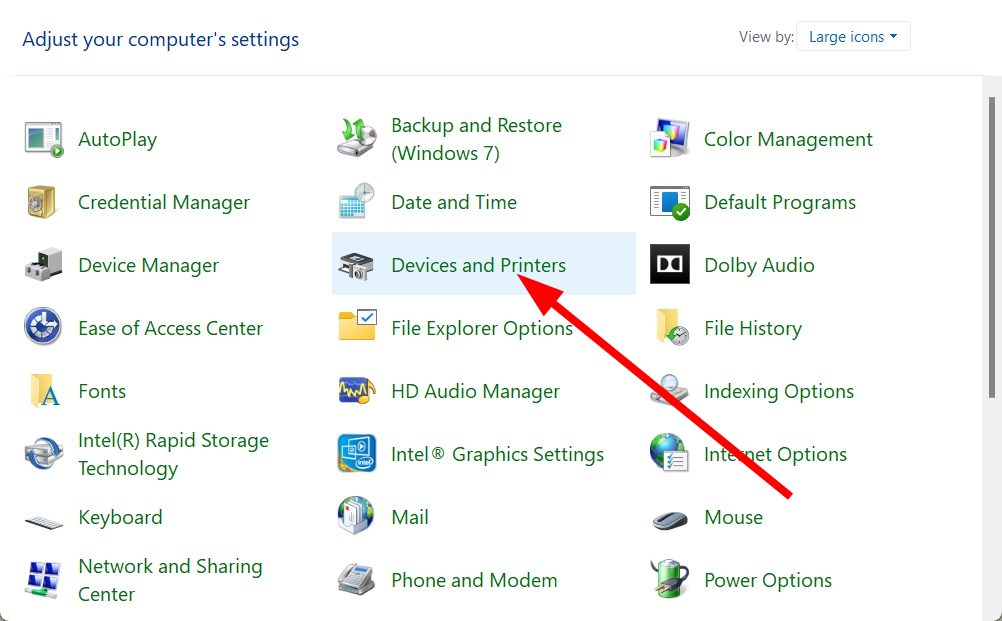
- Right-click your Epson printer and select See what’s printing.
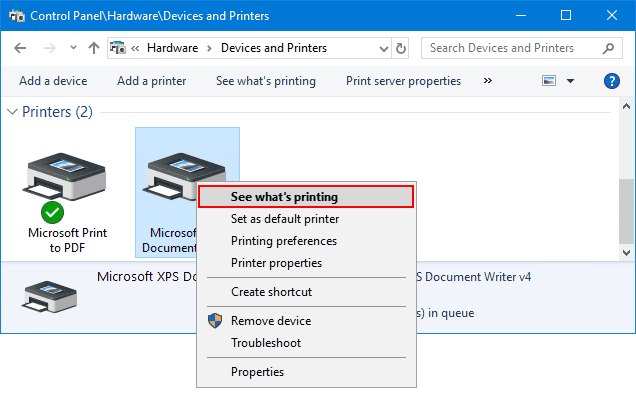
- Cancel all pending jobs.
If a single print job fails, it can block all the others behind it. This is common if the document is too large, corrupted, or uses unsupported fonts or graphics. Clearing the queue resets the print workflow so new jobs can process.
6. Run the Windows Printer Troubleshooter
- Open Settings → System → Troubleshoot → Other troubleshooters.
- Click Run next to Printer.

The troubleshooter scans for paused print queues, wrong configurations, driver mismatches, and offline status. It applies recommended fixes automatically, which saves time and avoids guesswork.
7. Restart the Printer Spooler Service
- Press Windows + R, type services.msc, and press Enter.

- Right-click Print Spooler and select Stop.
- Delete files in C:\Windows\System32\spool\PRINTERS.
- Right-click Print Spooler and select Start.
The spooler is the Windows service that stores and organizes print jobs before sending them to your printer. If its files are corrupted or overloaded, new jobs cannot start. Restarting and clearing it resets the process completely.
8. Check Ink or Toner and Paper Settings
- Verify ink levels and cartridge installation.
- Run Nozzle Check and Head Cleaning.
- Match paper size and type in both Windows settings and the tray.
Low ink or toner can stop printing entirely, and even if ink remains, clogged nozzles can produce blank pages. Incorrect paper size or type settings in Windows can also cause the printer to reject the job. If the printer refuses to print black or white, see how to fix printers that will not print black and white.
9. Enable Print Directly to the Printer
- Go to Control Panel → Devices and Printers.
- Right-click your Epson printer and select Printer properties.
- Open the Advanced tab and check Print directly to the printer.
This bypasses the spooler entirely and sends each job straight to the printer. It is helpful when the spooler service keeps crashing or causing long delays.
10. Update Printer Firmware
- Download your model’s firmware from Epson’s support page.
- Run the updater and follow the prompts.
Firmware updates address bugs, improve compatibility with Windows updates, and may fix known printing issues specific to your model. If your issue started after a Windows update, a firmware update often restores normal operation.
11. Test a Standalone Print
- Disconnect the printer from your PC.
- Use the printer’s control panel to print a test page.
If the printer cannot print a standalone test page, the problem is inside the printer such as faulty sensors, print head damage, or a board failure. If you also use Epson Easy Photo Print, see how to fix Epson Easy Photo Print not working.
FAQs
Clogged nozzles or empty cartridges are the main culprits. Run a nozzle check from the printer’s utility menu. If you see gaps, run head cleaning until the pattern prints correctly. Using genuine Epson ink reduces clogging issues.
Confirm the printer is powered on and connected. In Devices and Printers, right-click the Epson printer, choose See what’s printing, uncheck Use Printer Offline, then set it as default so jobs route correctly.
This is likely a software-specific printing issue. Test printing from another application. If it works, update the affected program or export your file to PDF before printing.
Conclusion
Most Epson printer issues on Windows are caused by easy-to-fix problems like bad connections, stalled print jobs, or outdated drivers. Working through these solutions in order solves most cases without needing professional repair. If none of the steps work, the problem is likely hardware-related and requires Epson service. Keeping your printer’s drivers, firmware, and maintenance up to date will prevent many of these problems from happening again.

Read our disclosure page to find out how can you help Windows Report sustain the editorial team. Read more



Improve this guide



User forum
18 messages