
Find Address Book in Outlook: 4 Easy Ways on Windows PC


 3 min. read
  Published on

You can find the Outlook address book from the ribbon, search bar, or People view depending on the Outlook version you use. This guide shows every place where you can find address book in Outlook so you access contacts fast.
Table of contents
How Can I Find the Address Book In Outlook?
1. Use the Home ribbon
You reach the address book directly from the main Outlook toolbar.
- Open Outlook.
- Stay on the Home tab.
- Click Address Book in the ribbon.

- Select the contact folder you want to open.

- Scroll or search for the person you want to message.
If you have trouble signing in before you access contacts, follow this guide on how to log in to Outlook email.
2. Use the Search People bar
You can jump to contacts through the search field without digging through menus.
- Open Outlook.
- Click the Search People box at the top.

- Type the name or email.
- Select the correct contact from the suggestions.
- View details or start a new message.
3. Open the People view
The People hub gives you the full list of contacts and linked accounts.
- Open Outlook.
- Click the People icon in the left pane.

- Choose Contacts, Directory, or Other Address Books.
- Select a contact to view or edit details.
- Create or manage contact groups if needed.
If you manage many recurring emails, speed things up by creating templates using this walkthrough: how to create an email template in Outlook.
4. Check the address book settings
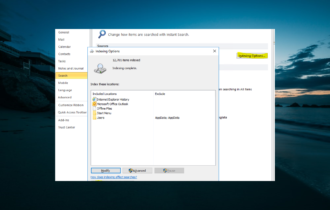
You can choose which folders appear when you open the address book.
- Open Outlook.
- Select File and click Account Settings.
- Choose Account Settings again.
- Open the Address Books tab.
- Add or remove contact sources as needed.
Where to find the address book in Outlook
Outlook gives you several entry points to reach your saved contacts, directories, and distribution lists. Each method helps you navigate to the people you contact most often.
FAQs
Go to People, click New Contact, enter the details, and save the contact.
Outlook syncs contacts from Microsoft 365, Exchange, and connected accounts when those accounts support contact syncing.
Your profile may not include the Outlook Address Book service. Open Account Settings, select your profile, and add the address book under the Address Books tab.
Conclusion
You can find address book in Outlook from the ribbon, search bar, or People view. You can also manage sources from the Account Settings panel to keep every contact folder organized.
If Outlook feels slow or acts strange while you work with contacts, clearing old cached files often helps. Learn how with this guide on how to clear Outlook cache.

Read our disclosure page to find out how can you help Windows Report sustain the editorial team. Read more



Improve this guide


User forum
0 messages