
Outlook Inbox Repair Tool Keeps Popping Up: How To Stop It


 3 min. read
  Published on

The Outlook inbox repair tool keeps opening when Outlook detects file corruption, profile issues, or loading errors. These repeated prompts slow down your workflow and stop Outlook from opening normally. The steps below help you stop the repair loop and restore stable performance.
Table of contents
What Can I do if Outlook Inbox Repair Tool Keeps Popping Up?
Check for multiple Outlook processes
Outlook sometimes launches more than one background process, which blocks access to PST or OST files and triggers SCANPST.
- Press Ctrl + Shift + Esc to open Task Manager
- Select Processes
- Look for OUTLOOK.exe entries
- Right click duplicate entries and select End task

- Restart Outlook
You can learn more about how the Outlook inbox repair tool works in this detailed SCANPST guide for Outlook.
Repair the Office installation
Damaged Office components often force Outlook to launch SCANPST every time.
- Open Settings
- Select Apps
- Select Installed apps
- Find Microsoft Office
- Select Modify

- Choose Quick Repair
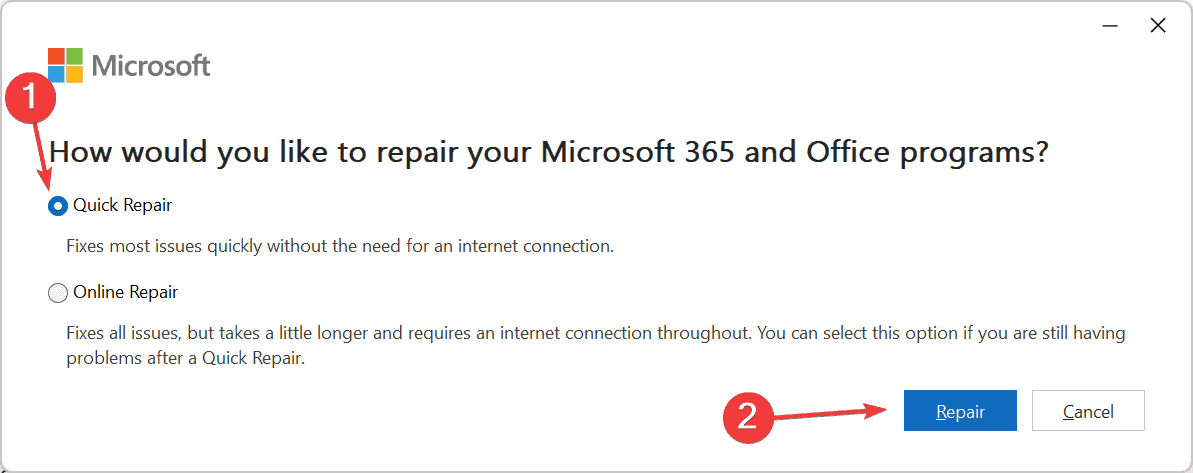
- Run the repair
- If the issue continues, run Online Repair
If Outlook still shows the repair tool after this, you can check this guide on SCANPST not fixing PST files for more advanced troubleshooting.
Create a new Outlook profile
A corrupted profile prevents Outlook from loading data files correctly and triggers repair loops.
- Press Windows + R
- Type control mlcfg32.cpl and select OK
- Select Show Profiles
- Select Add
- Create a new profile name
- Add your email account
- Set Always use this profile to the new one
- Launch Outlook
Reset your PST or OST file location
A damaged or incorrect data file path forces Outlook to run SCANPST on every launch.
- Press Windows + R
- Type outlook.exe /profiles
- Select your profile
- Open Account Settings
- Select Data Files
- Add a new data file
- Set it as the default
- Restart Outlook
- Move emails from the old file to the new file if needed
If your PST file shows heavy corruption, you can review this comparison of Stellar Repair for Outlook and other repair options to recover important mailbox data.
Disable external add ins
Faulty add ins block Outlook from reading data files, which triggers repeated repair tools.
- Press Windows + R
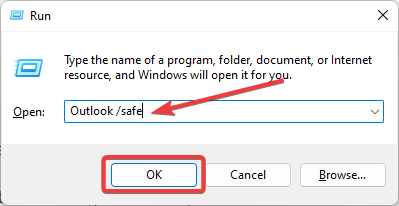
- Type outlook.exe /safe
- Open File
- Select Options
- Select Add ins
- Select Go next to COM Add ins

- Uncheck all add ins
- Restart Outlook
- Re enable add ins one by one to find the problem
Update Windows and Office
Outdated builds can cause recurring data checks or profile load issues.
- Open Settings
- Select Windows Update
- Select Check for updates
- Install available updates
- Open Outlook
- Select File
- Select Office Account
- Select Update options
- Select Update now
FAQs
Your data file may still contain severe corruption or Outlook may still rely on a broken profile.
Yes. Outlook creates a fresh OST file after you delete it.
Yes. Some security tools lock PST files and interrupt Outlook when it loads.
Yes. Large files often develop indexing and consistency problems.
You stop the Outlook inbox repair tool from popping up when you repair Office, rebuild your profile, reset damaged data files, or remove faulty add ins. These changes restore a clean startup path and allow Outlook to load your mailbox without constant repair prompts.

Read our disclosure page to find out how can you help Windows Report sustain the editorial team. Read more



Improve this guide


User forum
0 messages