
Roblox Error Code 319: 5 Fixes for Windows and Android


 7 min. read
  Published on
Roblox Error Code 319 is the kind of issue that can ruin the moment you finally sit down to play. In case you are unaware, you might be seeing the specific Roblox error because the platform wasn’t able to verify the integrity of the game due to a network issue.
It usually happens when the anti-cheat or security system fails to check your game files properly against the servers before letting you join a match. Worry not; here we have a few ways you can fix Roblox error 319.
How can I fix Roblox Error Code 319?
1. Restart Roblox and check whether the problem affects one game
Before changing anything, determine whether error 319 happens everywhere or only in one Roblox experience. Roblox itself recommends restarting the device as one of the first troubleshooting steps, while its desktop guidance lists crashes and connection failures as possible symptoms of corrupted files or firewall interference.
On Windows:
- Close Roblox.
- Press Ctrl + Shift + Esc.
- Open Task Manager.
- End any Roblox processes still running.

- Restart your PC.
- Open Roblox again.
- Try joining the affected experience.
On Android:
- Open Settings.
- Go to Apps > Roblox.
- Tap Force stop.
- Reopen Roblox.
- Try joining the game again.
- If necessary, restart your phone.
If you’re troubleshooting another Roblox connection problem at the same time, our guide to fixing Roblox error code 112 is also useful.
2. Clear Roblox cache and temporary files
Corrupted local files can cause Roblox to behave strangely after an update or failed installation. This is particularly worth trying if the error started suddenly after Roblox previously worked normally.
On Windows:
- Press Windows + R.
- Enter
%localappdata%
- Press Enter.
- Go to the Roblox directory.
- Look for the Cache folder.
- Delete its contents.
- Restart Windows.
- Launch Roblox again.
Roblox’s own current Windows troubleshooting also recommends clearing the Roblox cache when dealing with client problems.
On Android:
- Open Settings > Apps > Roblox.
- Tap Storage or Storage & cache.
- Select Clear cache.

- Reopen Roblox.
- Test the affected experience.
You can also check our Roblox error code 264 guide which has detailed mention of clearing cached Roblox data.
3. Check your internet connection, firewall and DNS
A connection problem can look like a Roblox client problem. Roblox says firewalls, antivirus programs and router restrictions can prevent the client from communicating correctly with its servers. For Windows users, the Roblox error code 279 guide is relevant because it covers firewall problems, DNS, Winsock and network resets.
On Windows:
- Temporarily test Roblox on another network, such as a mobile hotspot.
- If you use a VPN, turn it off temporarily.
- Open Command Prompt as administrator.
- Run
ipconfig /flushdns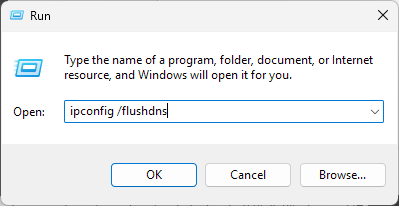
- Run
netsh winsock reset - Restart the PC.
- Try Roblox again.
You should also check Windows Defender Firewall and make sure Roblox is allowed through it. Roblox specifically recommends adding the client to the firewall’s allowed list rather than leaving security protection disabled.
On Android/mobile:
- Switch from Wi-Fi to mobile data.
- If you’re already using mobile data, try Wi-Fi.
- Restart your router if Wi-Fi is involved.
- Disable any VPN temporarily.
- Try Roblox again.
Roblox recommends switching connection types when diagnosing general connection problems.
4. Update Roblox and your device
An outdated client or operating system can create compatibility problems, particularly after Roblox changes its security or networking systems. We have a guide about Roblox error code 280, which covers cases where an outdated Roblox installation prevents users from joining games.
On Windows:
- Open Settings > Windows Update.
- Install available Windows updates.
- Restart the PC.
- Open Roblox.
- Check whether Roblox itself has an available update.
- If you’re using the Microsoft Store version, open Microsoft Store and check for updates.
Roblox also recommends keeping Windows and relevant device drivers updated when dealing with Windows compatibility problems.
On Android:
- Open Google Play Store.
- Search for Roblox.
- Tap Update if available.
- Open Settings > System > Software update.
- Install any available Android update.
- Restart the phone.
This step is especially important for Android because Roblox’s Remote Attestation system checks the device’s operating system and security state.
5. Reinstall Roblox from an official source
If the previous fixes haven’t worked, reinstalling Roblox gives you a clean client installation. Roblox itself recommends reinstalling when corrupted files or installation problems prevent the software from working correctly.
On Windows:
- Open Settings > Apps > Installed apps.
- Find Roblox.
- Select Uninstall.

- Restart your PC.
- Download Roblox again from its official website or Microsoft Store.
- Sign in and test the affected experience.
Just to be clear, this method also helps fixing Roblox error code 112. Here’s how to uninstall Roblox on Android:
On Android:
- Open Settings > Apps > Roblox.
- Uninstall Roblox.
- Restart your phone.
- Open Google Play Store.
- Install Roblox again.
- Sign in.
- Test the experience.
Roblox recommends installing Android Roblox from trusted sources such as Google Play, the Amazon Appstore or Samsung Galaxy Store.
Android users: Check Remote Attestation requirements
This is the most important platform-specific check if you’re seeing error 319 on Android, particularly when the problem happens in one experience such as RIVALS. Roblox says some games can enable Remote Attestation, a security check that verifies whether you’re using a physical device, an unmodified Roblox app and a trusted operating system. Roblox also says rooted devices, unlocked bootloaders, unsupported custom ROMs and Android emulators can fail this check.
If this sounds like your situation:
- Make sure Roblox came from an official app store.
- Update Android to the latest available version.
- Make sure the phone is not rooted.
- Check whether the bootloader is unlocked.
- Avoid Android emulators or virtual devices.
- If you’re using a custom ROM, return to supported official software if possible.
- Try the same Roblox account on another supported physical device.
More importantly, Roblox says Remote Attestation is controlled by the experience creator. You may therefore be able to play other Roblox games even if one particular experience rejects your device.
Why am I getting Roblox error code 319?
There is no dedicated Roblox explanation on why one gets error 319, so its exact cause can’t be stated with certainty. On Windows, the likely areas to investigate are corrupted Roblox files, firewall or antivirus interference, DNS/network problems, outdated software and installation issues. Roblox’s own desktop documentation identifies corrupted temporary files, firewalls and damaged Roblox files among common causes of client problems. On Android, recent reports are more specific. Error 319 has been reported when joining RIVALS, while Roblox confirms that some experiences now use Remote Attestation to verify device integrity.
FAQs
1. Is Roblox error code 319 a ban?
Not necessarily. There is currently no reliable evidence that error 319 itself means your Roblox account has been banned. If you can play other experiences normally, the issue may instead involve the particular game, device or connection.
2. Why am I getting Roblox error 319 on Android?
Recent community reports specifically associate error 319 with joining RIVALS on Android. Roblox also confirms that some experiences use Remote Attestation, which can reject devices that fail its security requirements.
3. Why does Roblox error 319 happen on Windows?
There is no official Windows-specific explanation for code 319 yet. If you’re seeing it on PC, check the Roblox installation, cache, Windows Firewall, DNS/network connection and Windows updates first.
4. Can reinstalling Roblox fix error 319?
It can if corrupted or outdated installation files are responsible. Roblox recommends reinstalling its software as a general troubleshooting measure, and Android users should reinstall from an official store.
5. What if Roblox works on another device but not mine?
That points toward a device-specific issue. On Android, check Remote Attestation requirements; on Windows, check the Roblox installation, firewall and network configuration. If the same error follows your account across multiple devices, contact Roblox Support with the exact error, device model, operating system and steps that reproduce it.
That’s all we have for fixing Roblox error code 319 on Windows and Android. Start with the simple restart and cache checks, then move toward network and reinstall steps rather than changing everything at once.

Read our disclosure page to find out how can you help Windows Report sustain the editorial team. Read more



Improve this guide


User forum
0 messages