
HDR Not Working After Windows Update? 5 Easy Fixes


 3 min. read
  Updated on
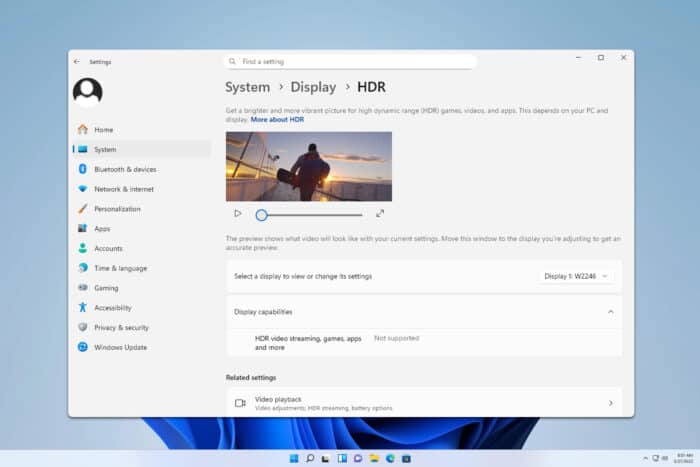
If HDR stopped working after a recent Windows update, you are not alone. Many users report issues such as washed-out colors, HDR not turning on, or Auto HDR refusing to enable. Fortunately, you can fix these problems with a few quick adjustments.
How to fix HDR not working after Windows update?
Table of contents
1. Check HDR settings in Windows
- Press Win + I to open Settings.
- Go to System > Display.
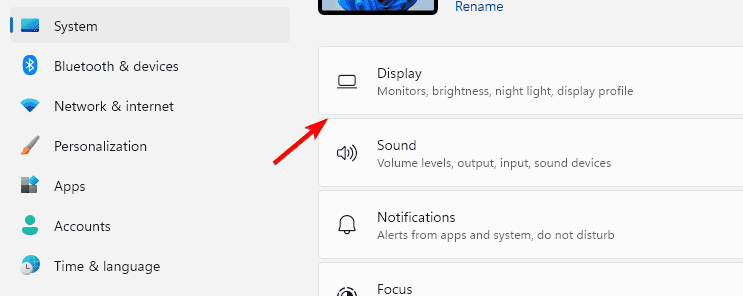
- Select your HDR-supported monitor.
- Make sure Use HDR and Auto HDR are toggled on.
- Restart your PC to apply the changes.
If Auto HDR is still missing, this detailed guide on turning on Auto HDR in Windows 11 can help. If you want a complete breakdown specific to the game, check out this step-by-step guide on enabling HDR in Stalker 2.
2. Update or roll back display drivers
- Open Device Manager and expand Display adapters.
- Right-click your GPU and choose Update driver.

- If HDR worked before the update, try Roll back driver instead.
- Restart your system and test HDR again.
If you are running an Nvidia RTX GPU, you can also follow this step-by-step guide on how to enable HDR on RTX in Windows 11 for a more targeted solution.
3. Calibrate HDR display
- Go to Settings > System > Display > HDR.

- Click Calibrate your display for HDR video.
- Follow the on-screen wizard to fix brightness and color balance.
If you still notice washed-out colors, follow this step-by-step guide to fix washed-out HDR in Windows.
4. Adjust GPU control panel settings
- For NVIDIA, open the NVIDIA Control Panel, set output color format to RGB, and adjust dynamic range to Full.
- For AMD, use the Radeon Software to tweak display color depth and pixel format.
- For Intel, use the Graphics Command Center and ensure HDR output is enabled.
5. Run Windows troubleshooter
- Press Win + I and go to System > Troubleshoot.
- Select Other troubleshooter.

- Run the Video Playback troubleshooter.
- Apply recommended fixes.
FAQs
Updates may reset your display or GPU settings, causing HDR features to turn off or malfunction.
Yes, Auto HDR may sometimes apply incorrect tone mapping. Learn how to fix Auto HDR not working in Windows 11.
Yes, HDR only works on displays certified for HDR10 or higher.
Conclusion
HDR can greatly improve visuals when properly configured, but it sometimes requires fine-tuning. If you’re mainly using HDR for gaming, be sure to check our guide on is HDR good for gaming to learn more about how it impacts your experience.

Read our disclosure page to find out how can you help Windows Report sustain the editorial team. Read more



Improve this guide

User forum
0 messages