
Factory Reset Surface Pro in 3 Simple Ways


 3 min. read
  Updated on

If your Surface Pro is slow, stuck in boot loops, or not responding, a factory reset can restore it to default settings. This process removes apps and personal files, so make sure to back up your data before proceeding.
How can I factory reset Surface Pro?
Table of contents
1. Reset Surface Pro from Windows Settings
- Click Start and select Settings.
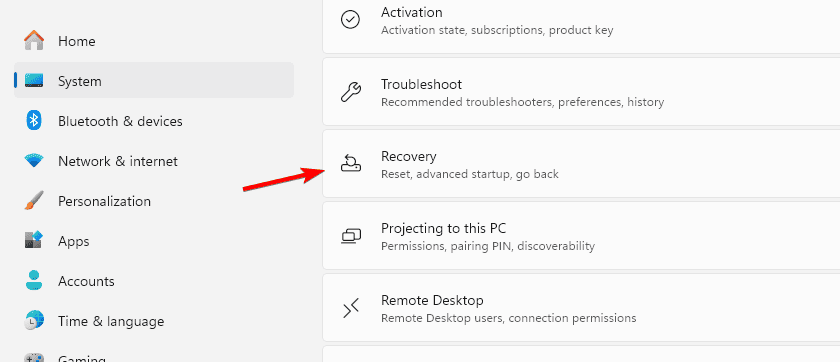
- Go to System> Recovery.
- Under Reset this PC, click the Reset PC button.
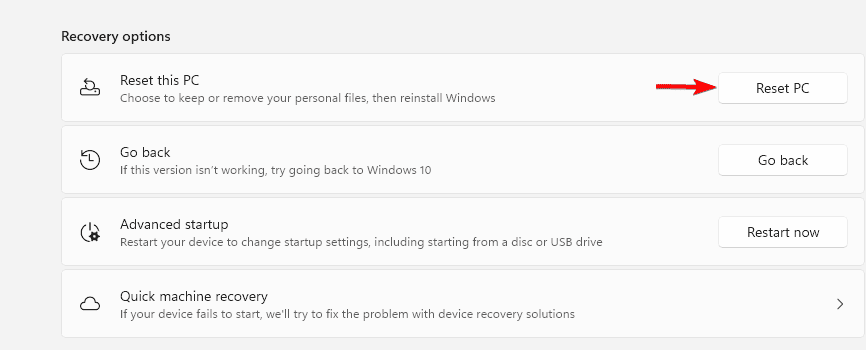
- Choose Keep my files or Remove everything depending on your needs.
- Follow the on-screen instructions and wait for Windows to reinstall.
This is the simplest method if your device can boot normally.
2. Reset Surface Pro using advanced startup
- Hold Shift and click Restart from the Start menu.
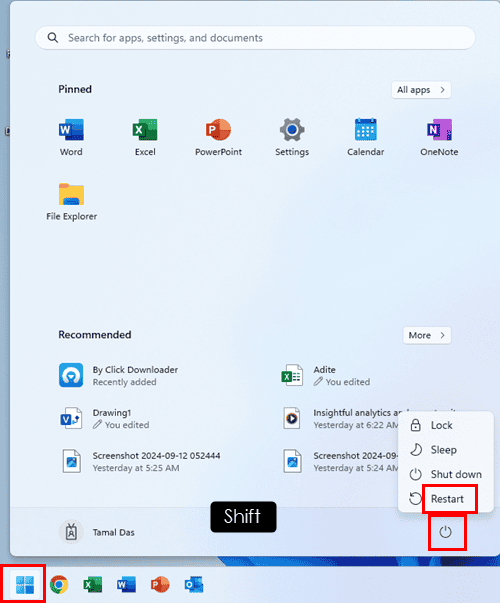
- When the recovery menu appears, select Troubleshoot.

- Click Reset this PC.
- Choose between keeping your files or removing everything.
- Confirm and let Windows reset your device.
Use this method if Windows starts but does not run properly.
3. Reset with a USB Recovery Drive
- On another PC, download the recovery image from the Surface recovery page.
- Create a bootable USB drive using the downloaded files.
- Insert the USB into your Surface Pro and hold Volume Down + Power to boot.
- Select Troubleshoot > Reset this PC.
- Follow the prompts to reinstall Windows.
When Factory Reset Helps
- If your Surface is stuck configuring Windows updates and will not progress.
- When you experience a black screen of death on Surface Pro.
- After repeated firmware update BSOD errors.
- If the device does not turn on properly even after troubleshooting.
FAQs
Yes, if you choose Remove everything, all files, apps, and settings will be erased.
Yes, by using the Advanced Startup or USB recovery drive methods.
Usually 30 minutes to 2 hours, depending on hardware and chosen reset option.
Factory resetting your Surface Pro is a reliable way to resolve stubborn issues and restore performance. Whether you use Settings, Advanced Startup, or a USB recovery drive, following the right steps ensures your device runs smoothly again.
Once the reset completes and Windows loads, learn how to use Surface Pen to write text to speed up note taking and everyday input.

Read our disclosure page to find out how can you help Windows Report sustain the editorial team. Read more



Improve this guide




User forum
0 messages