
How to Fix Gmail Search Not Working in 2026


 5 min. read
  Published on
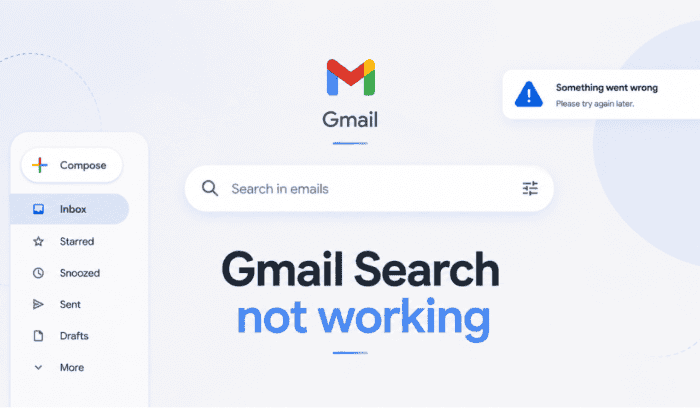
Is Gmail search not working for you today? Well, you’re not the only one having this issue right now. Many users have complained that Gmail search doesn’t work properly when they are trying to spot some important emails. Worry not, in this guide, we’ll walk you through some tried and tested ways to fix Gmail search issues and list out reasons why it occasionally bothers many users.
How can I fix Gmail search when it’s not working or responding properly
1. Confirm the email actually exists
Before assuming that Gmail search is broken, verify that the email you’re searching still exists. Here’s how to check
- Open Gmail on a desktop browser.
- Click Show search options.
- Change the search scope to Mail, Spam & Bin or All Mail.
- Search again using:
- Sender’s email address
- Subject keywords
- Date range
- Attachment filter
Google recommends searching across all mailboxes because archived, spammed, or deleted emails won’t always appear in standard Inbox searches.
2. Try different search operators
Many users think Gmail search is failing when the search query is simply too broad. For example, when you search “invoice,” Gmail returns hundreds of emails. However, when you search in Gmail using from:paypal newer_than:1y has:attachment, you are most likekly to immediately find the correct receipt.
Useful operators include:
from:to:subject:after:before:has:attachmentlabel:category:in:anywhere
If older emails aren’t appearing, adding in:anywhere often helps because it searches archived, spam, and trash folders too. Reddit users frequently recommend this when standard searches fail.
3. Switch from “Most Relevant” to “Most Recent”
This is one of Gmail’s newer quirks. Google introduced “Most Relevant” search ranking, but several users discovered it sometimes hides valid results. If it doesn’t work, change the sorting to “Most Recent” and you’ll likely see hundreds of expected results. This exact fix solved the Gmail search issues for multiple users.
4. Search from Gmail Web
If search fails inside the Android or iPhone app, test it in a browser. The browser version found them immediately because the mobile app hadn’t refreshed its local cache yet. Community discussions repeatedly point to app caching issues as the cause.
If search works on the Gmail web but not the app:
- Force close Gmail.
- Reopen it.
- Refresh manually.
- Continue with the next fixes.
5. Update the Gmail mobile app
Search bugs occasionally appear after app updates, or because you’re running an outdated version. Google recommends updating Gmail whenever sync or search behaves unexpectedly.
6. Clear Gmail cache (Android)
Gmail search usually relies on locally cached information for speed. If the cache becomes corrupted, Gmail may stop showing expected results.
On Android:
- Settings
- Apps
- Gmail
- Storage
- Clear Cache
Tip: Avoid clearing Storage/Data unless necessary, as it removes local app settings.
7. Check sync settings
Gmail search problems sometimes happen because older emails were never downloaded. In our research, we have found that many users found Gmail only syncing 30 days of mail. Therefore, increasing Days of mail to sync immediately restored search for older emails.
On Android & iPhone:
- Head to Gmail
- Go to Settings
- Select account
- Days of mail to sync
- Increase the value
Why Gmail search stops working
The most common reasons why Gmail search isn’t working properly is due to following reasons:
- Corrupted Gmail app cache
- Outdated Gmail application
- Search indexing delays
- Incorrect search operators
- “Most Relevant” filtering
- Disabled sync
- Limited mail sync history
- Hidden emails in Spam, Trash, or All Mail
- Third-party email clients modifying messages
- Temporary Google server-side bugs
That’s all for now in this guide. We hope the aforementioned solutions helped you fix Gmail search issues. We also have a few guides that can be handy for you when Gmail is not working or at times when you want to search for emails within Gmail using dates. For those wondering why Gmail isn’t receiving emails, we urge you to check this guide.
FAQs related to Gmail search not working issues
1. Why is Gmail search not finding emails that are clearly there?
The email often hasn’t disappeared. It may be archived, filtered, outside your current search scope, or affected by Gmail’s search ranking. Searching All Mail or using in:anywhere usually finds it.
2. Why does Gmail search work on desktop but not my phone?
The mobile app can lag behind because of cached data or limited sync history. Updating the app, clearing its cache, or increasing the sync period often resolves the issue.
3. Can clearing Gmail cache delete my emails?
No. Clearing the app cache only removes temporary local files. Your emails remain stored on Google’s servers and will sync again after reopening the app.
4. Why does Gmail only show recent emails in search?
Your device may only be syncing a limited number of days, or Gmail may be ranking results using “Most Relevant.” Expanding the sync window or switching to “Most Recent” can restore older results.
5. What should I do if nothing fixes Gmail search?
Test your account on another browser or device to rule out a local issue. If the problem persists everywhere, check Google’s support community for similar reports and contact Google Support, as the issue may be related to your account’s search indexing.

Read our disclosure page to find out how can you help Windows Report sustain the editorial team. Read more



Improve this guide


User forum
0 messages