
How to Save Windows Camera App Photos to Camera Roll


 4 min. read
  Published on

Photos taken with the Windows Camera app normally go straight into the Camera Roll folder. When the folder location or permissions change, the app can stop saving new images. This guide shows you how to make sure every photo you take goes directly into Camera Roll.
Table of contents
How to Save Pictures Taken With the Camera App to Camera Roll?
Check the Default Save Location
Windows uses Camera Roll as the default destination for new photos and videos. You can confirm or adjust this inside Storage settings.
- Open Settings.
- Select System.
- Choose Storage.

- Select Advanced storage settings.
- Open Where new content is saved.

- Make sure New photos and videos uses the drive where your Pictures folder is located.
If the Camera app saves images to the wrong place, the instructions in the article on changing the Camera app save location explain how to correct this.
Save Photos Automatically Using the Camera App
The Camera app needs a valid folder path to store new shots. After setting the correct path, each photo saves automatically.
- Open the Camera app.
- Select the gear icon to open settings.
- Scroll to Related settings.

- Select Change where photos and videos are saved.
- Choose Pictures > Camera Roll.
- Close settings and take a photo to confirm.
Fix When the Camera App Does Not Save to Camera Roll
1. Enable file system access
The Camera app needs permission to read and write to your storage.
- Open Settings.
- Select Privacy and security.
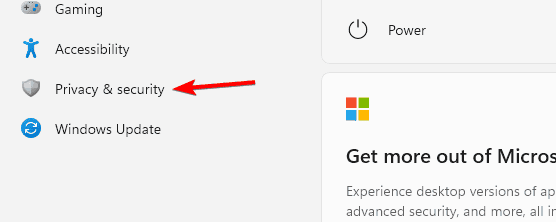
- Open File system.
- Turn on access for Camera.
2. Allow the Camera app to save photos
Privacy settings can block the Camera app from writing to folders.
- Open Settings.
- Select Privacy and security.
- Choose Camera.
- Turn on Let apps use my camera.
- Enable Camera in the list of apps.
3. Restore the Camera Roll folder
If the Camera Roll folder was removed, the app cannot save new images. Restoring it fixes the issue. The article about removing the Camera Roll and Saved Pictures folders helps you understand how these folders behave when deleted.
- Open File Explorer.
- Open the Pictures folder.
- Right click and choose New > Folder.
- Name it Camera Roll.
- Restart the Camera app and take a photo.
4. Reset the Camera app
If the Camera app becomes corrupted, resetting it can restore normal saving behavior.
- Open Settings.
- Select Apps.
- Open Installed apps.
- Select Camera and choose Advanced options.
- Scroll and select Reset.

- Open the Camera app again and take a test photo.
How the Windows Camera App Saves Photos
The Camera app stores pictures in the Camera Roll folder inside the Pictures directory. If this folder disappears or gets moved, the app may stop saving new images. You can restore the folder by following the steps in the guide on fixing a missing Camera Roll folder.
FAQs
The Camera app stores images in Pictures > Camera Roll unless you change the path.
Yes. Open Camera settings and choose another folder under the save location options.
Permissions, missing folders, or incorrect storage settings often cause issues.
Yes. Videos taken in the Camera app save to Camera Roll unless you select a different destination.
The Camera app saves photos to Camera Roll when the folder exists and the app has the correct permissions. After confirming the save location, restoring missing folders, and resetting the app if needed, your pictures will appear in Camera Roll every time you take a photo.

Read our disclosure page to find out how can you help Windows Report sustain the editorial team. Read more



Improve this guide



User forum
0 messages