
Camera Roll Folder Missing in Windows 11: Easy Fixes


 4 min. read
  Updated on
If your Camera Roll folder is missing on Windows 11, you can restore it quickly so the Camera app saves photos and videos correctly. Just follow these steps.
Table of contents
- What To Do If Camera Roll Folder Is Missing on Windows 11?
- 1. Check the Default Pictures Directory
- 2. Create a New Camera Roll Folder Manually
- 3. Restore the Folder Using the Camera App Settings
- 4. Use Windows Storage Settings to Restore the Default Location
- 5. Run the Windows Photos App Troubleshooter
- 6. Check OneDrive Folder Redirection
- Why the Camera Roll Folder Disappears
- FAQs
- Final Thoughts
What To Do If Camera Roll Folder Is Missing on Windows 11?
1. Check the Default Pictures Directory
Start by verifying if the folder is still present in your main Pictures directory.
- Press Windows + E to open File Explorer.
- Go to This PC > Pictures.
- Look for a folder named Camera Roll.
- If it is missing, continue to the next section to recreate it manually.
If your Camera app behaves strangely after restoring the folder, see how to stop apps from using your camera in the background.
2. Create a New Camera Roll Folder Manually
You can easily make a new folder to restore the default save path.
- Open the Pictures folder.

- Right-click inside the window and select New > Folder.

- Name the folder Camera Roll exactly.
- Restart your PC or reopen the Camera app.
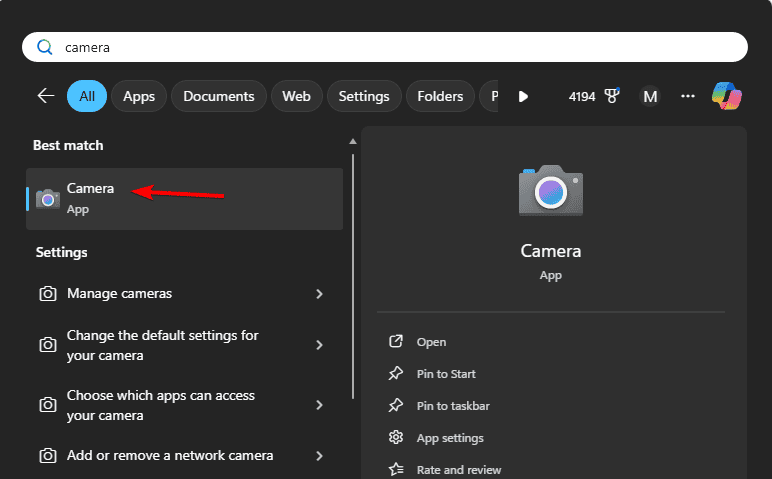
- Take a test photo to confirm that the new folder is recognized.
You can also review how to remove Camera Roll and Saved Pictures folders when you want to manage these directories more thoroughly by checking our remove Camera Roll and Saved Pictures folders guide.
3. Restore the Folder Using the Camera App Settings
If the app cannot find your folder, set the correct save location again.
- Open the Camera app from the Start menu.
- Click the Settings gear icon in the top left.
- Under Related settings, select Change where photos and videos are saved.

- Point the location to Pictures > Camera Roll.
- If needed, browse and create the folder again.
For more help adjusting camera save paths, see how to change the Camera app save location in Windows 10.
4. Use Windows Storage Settings to Restore the Default Location
Windows can recreate the default save folders if they go missing.
- Press Windows + I to open Settings.
- Go to System > Storage.
- Click Advanced storage settings > Where new content is saved.

- Under New photos and videos will save to, select This PC (C:).
- Windows will recreate missing default folders automatically.
5. Run the Windows Photos App Troubleshooter
The built in troubleshooter can detect and fix folder issues automatically.
- Open Settings > System > Troubleshoot > Other troubleshooters.
- Find Windows Store Apps.
- Click Run.
- Apply any fixes offered and test the Camera app again.
6. Check OneDrive Folder Redirection
OneDrive backup can change where your Pictures and Camera Roll folders live.
- Open OneDrive Settings from the taskbar.
- Go to Sync and Backup > Manage Backup.
- If Pictures is backed up, click Stop Backup temporarily.
- Create a local Camera Roll under Pictures.
- Re enable backup after confirming the folder works.
Why the Camera Roll Folder Disappears
The Camera Roll folder can disappear after a Windows update, a user profile reset, manual deletion, or when cloud sync and permissions changes interrupt the default save path.
FAQs
It can happen if Windows resets folder locations or cloud sync paths during updates.
Yes. Change the save location under Settings > Storage > Where new content is saved.
Reset the Camera app at Settings > Apps > Installed apps > Camera > Advanced options > Reset.
Deleting the folder removes its contents locally. If files were synced to OneDrive, recover them from your OneDrive Pictures directory.
Final Thoughts
Restoring the Camera Roll folder is quick and ensures your photos save correctly. For older systems, you can also review where Camera pictures are stored in Windows 8 for reference.
You can also review a detailed guide on saving pictures to Camera Roll in Windows to better understand how the Camera app handles its default storage location and how the folder should function once restored.

Read our disclosure page to find out how can you help Windows Report sustain the editorial team. Read more



Improve this guide




User forum
0 messages