
Local vs LocalLow vs Roaming Folders in Windows Explained


 3 min. read
  Published on

When you install programs or save app settings in Windows, the system stores those files in three main user data folders: Local, LocalLow, and Roaming. Understanding the difference between them helps you manage storage, troubleshoot issues, and back up data properly.
Table of contents
What Are Local, LocalLow, and Roaming Folders?
Each of these folders is part of the AppData directory, which stores user-specific data and configurations for applications.
You can find them in this path:C:\Users\user_name\AppData\
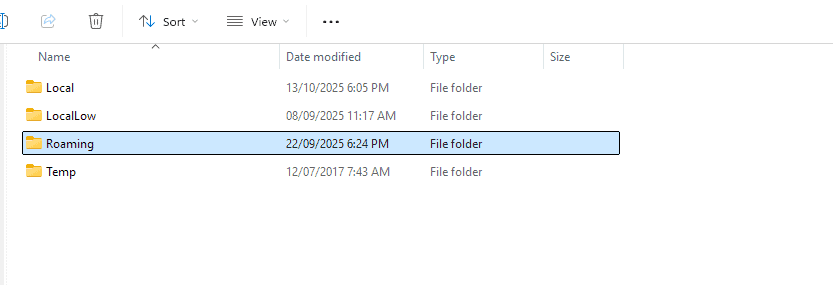
Here’s what each folder does:
1. Local Folder
- Stores files specific to one computer only.
- Data here does not sync with your user account or network profile.
- Commonly used by apps that cache large data like browsers, video editors, or games.
- Path:
C:\Users\\AppData\Local
Learn more about how these folders work in this detailed guide on what is the AppData folder in Windows.
2. LocalLow Folder
- Stores data for apps running in low integrity mode, meaning they have limited permissions for security reasons.
- Commonly used by web browsers or sandboxed applications such as Internet Explorer or Adobe Reader.
- Path:
C:\Users\\AppData\LocalLow
3. Roaming Folder
- Designed for data that can move with your user profile when you log into another PC on the same domain or network.
- Contains user preferences, configurations, and lightweight data like email signatures or custom layouts.
- Path:
C:\Users\\AppData\Roaming
How to Access Local, LocalLow, and Roaming Folders
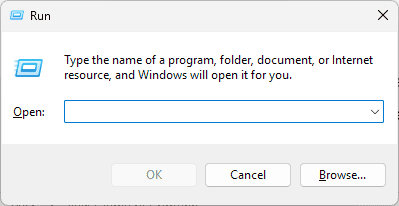
- Press Windows + R to open the Run dialog box.
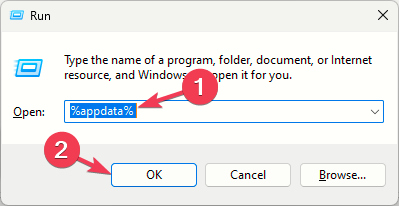
- Type %AppData% and press Enter to open the Roaming folder.
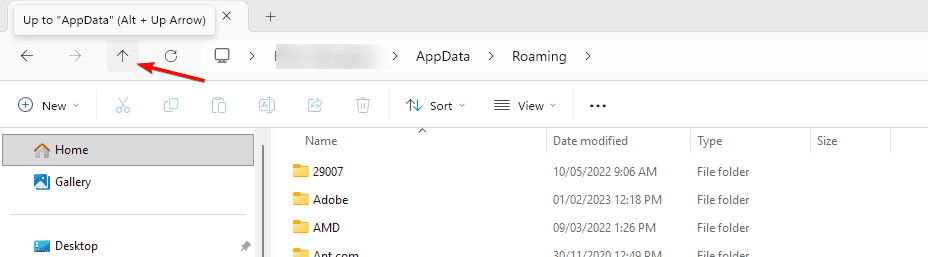
- To access Local or LocalLow, navigate one level up to the AppData directory.
- Open the folder you need based on the type of data you are managing.
You might also want to learn how to manage startup items that rely on AppData paths in this article about the startup folder in Windows 11.
Which Folder Should You Back Up?
If you want to preserve app settings across devices or after reinstalling Windows, prioritize these:
- Roaming Folder: Backup essential settings and user preferences.
- Local Folder: Optional, contains caches and temporary files that can be recreated.
- LocalLow Folder: Backup only if specific apps store important data there.
Why the Separation Exists
- Performance: Prevents network syncing of large temporary files.
- Security: Keeps restricted apps in LocalLow from accessing sensitive data.
- Portability: Ensures Roaming data stays consistent across multiple devices.
FAQs
You may lose cache or temporary data, but most apps will recreate the folder automatically.
No. The Roaming folder contains vital configuration files and user settings for your apps.
Apps that need portability use Roaming, while apps storing large or device-specific data use Local.
It is not recommended to move AppData because many apps rely on fixed paths. Moving it can cause instability or broken configurations.
Conclusion
The Local, LocalLow, and Roaming folders serve distinct purposes in Windows. Local handles system-specific data, LocalLow manages restricted app data, and Roaming keeps your personalized settings across devices. Understanding how these folders function helps you maintain a cleaner, more reliable system.
If your AppData folder takes up too much space, consider following this step-by-step tutorial on how to clean the AppData folder in Windows 11 to optimize storage and performance.

Read our disclosure page to find out how can you help Windows Report sustain the editorial team. Read more



Improve this guide


User forum
0 messages