
How to Fix Marvel Rivals Not Updating on PC


 3 min. read
  Published on
If Marvel Rivals is not updating on Steam, you might be stuck with an older build or unable to play at all. This guide shows you practical fixes to solve update problems and get back into the action quickly.
Table of contents
What can I do if Marvel Rivals is not updating?
1. Restart Steam and your PC
A quick reboot is often all it takes to refresh things.
- Close the Steam client completely from the system tray.
- Click Start > Power and choose Restart.
- Wait for your PC to fully reboot.
- Launch Steam again.
- Try updating Marvel Rivals.
2. Verify game files in Steam
Corrupted or missing files are a common cause of stuck updates.
- Open Steam and head to your Library.
- Right-click Marvel Rivals and choose Properties.
- Go to Installed Files.
- Click Verify integrity of game files.
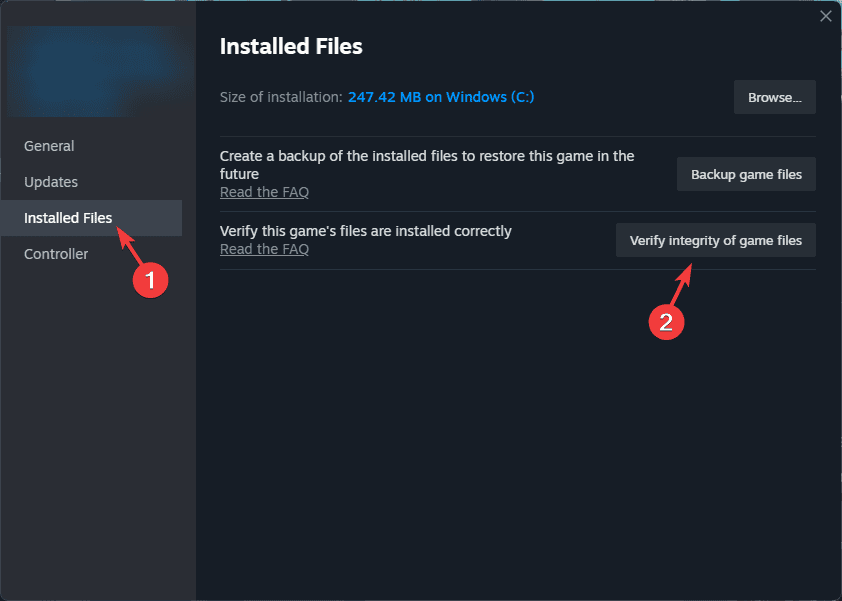
- Wait while Steam scans and repairs.
For more serious launch problems, check this guide on Marvel Rivals not launching. If Marvel Rivals updates but still won’t appear in your streaming software, follow this guide to fix Marvel Rivals not showing on OBS.
3. Clear Steam download cache
Old cached data can interfere with new downloads.
- Open Steam and click Settings.
- Select the Downloads section.
- Hit Clear Download Cache.
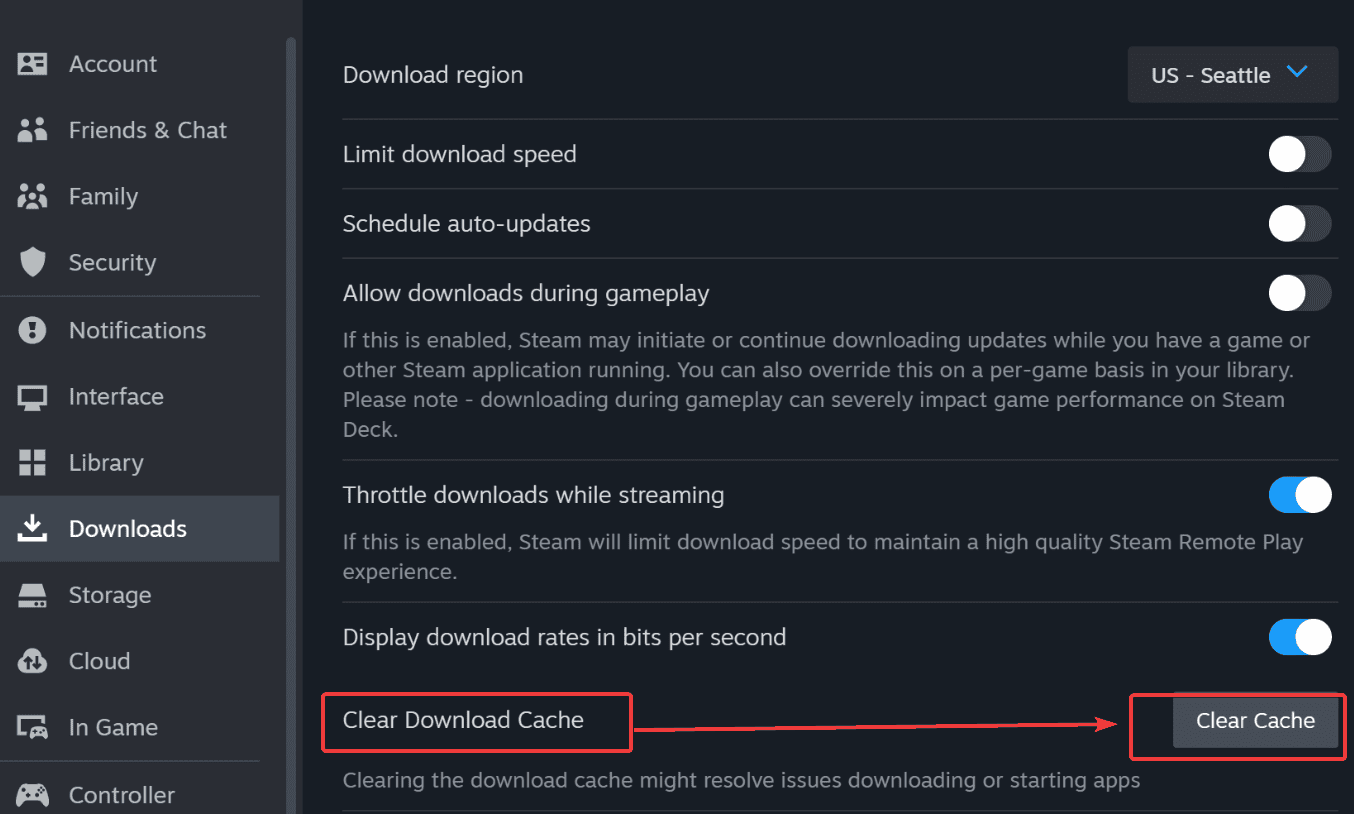
- Confirm and sign back in.
- Restart the Marvel Rivals update.
4. Change the download region
Sometimes switching servers helps if your region is overloaded.
- Open Steam Settings > Downloads.
- Look for the Download Region option.
- Pick a different nearby server.
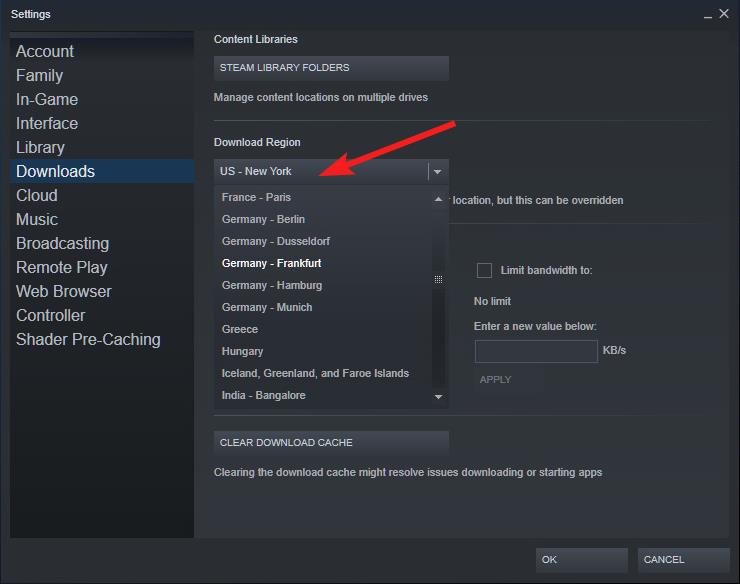
- Save the change and restart Steam.
- Try updating Marvel Rivals again.
If you’re also seeing connection issues, here’s how to fix Marvel Rivals failed to connect to Steam.
5. Free up disk space
No room on your drive means no room for updates.
- Press Windows + E to open File Explorer.
- Check the drive where Steam is installed.
- Delete or move unused large files.
- Empty your Recycle Bin.
- Run the update once more.
6. Disable antivirus and firewall temporarily
Overprotective security software can sometimes block updates.
- Open your antivirus and pause real-time protection.
- Press Windows + R, type firewall.cpl, and hit Enter.
- Click Turn Windows Defender Firewall on or off.
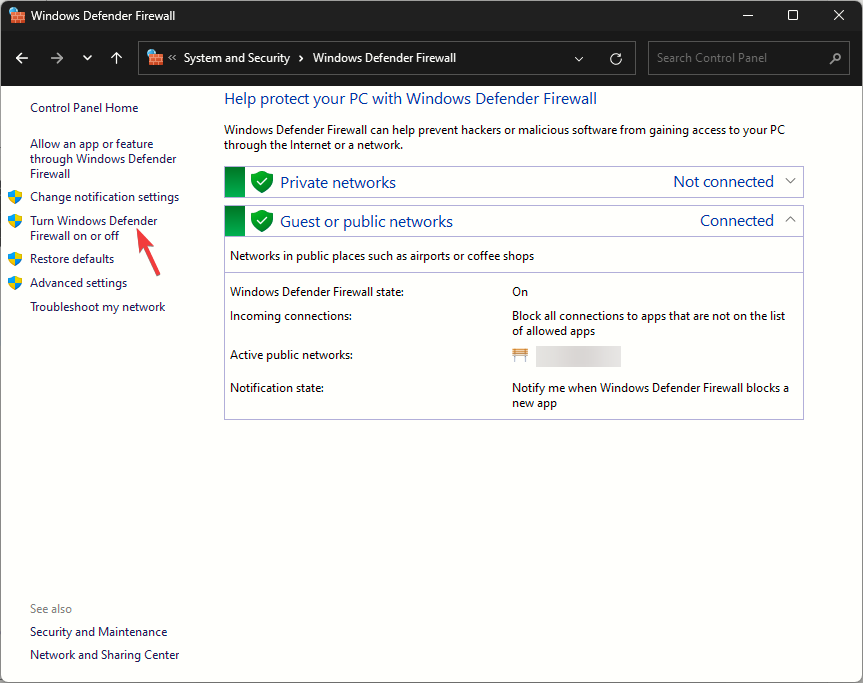
- Switch it off temporarily.
- Test the Marvel Rivals update.
7. Reinstall Marvel Rivals
When all else fails, a clean reinstall usually does the trick.
- Open your Steam Library and right-click Marvel Rivals.
- Choose Manage > Uninstall.

- Confirm removal.
- Reinstall the game fresh from Steam.
- Launch it and check for updates.
FAQ
It’s often due to corrupted files, Steam cache issues, or low disk space.
Yes. Picking another server can bypass update slowdowns or failed downloads.
Absolutely. Firewalls and antivirus tools can sometimes block Steam’s connection.
No, your progress is stored in the cloud, so reinstalling won’t reset it.
Conclusion
Most update problems come down to Steam cache, file errors, or security settings. With these fixes, you should be able to update Marvel Rivals smoothly and jump back into the game without further hassle.

Read our disclosure page to find out how can you help Windows Report sustain the editorial team. Read more



Improve this guide

User forum
0 messages