
Fix Microsoft Teams Installation Has Failed Error Fast


 3 min. read
  Published on

Microsoft Teams installation has failed is a common Windows error that stops the app from installing. It usually happens because leftover files, permission issues, or system conflicts block the setup. Follow these quick steps to install Teams successfully.
Table of contents
What Can I Do If Microsoft Teams Installation Has Failed?
1. Remove old Teams folders
Leftover folders often trigger install errors. Delete them before you try again.
- Press Windows plus R and type %appdata%.
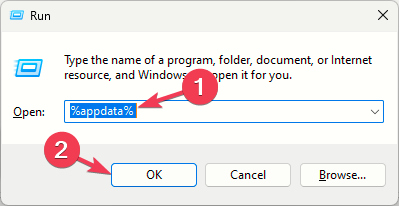
- Delete the Microsoft Teams folder.
- Go to %localappdata% and remove the Microsoft and SquirrelTemp folders.
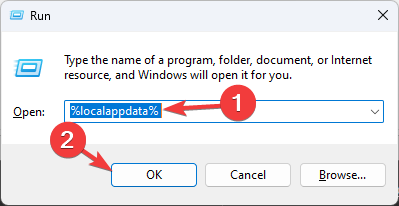
- Empty the Recycle Bin and restart your PC.
You can also review installation basics covered in this guide on how to install Microsoft Teams.
2. Uninstall the Teams Machine Wide Installer
The Machine Wide Installer often blocks new setups if it stays outdated.
- Open Control Panel and select Programs and Features.

- Find Teams Machine Wide Installer.
- Select Uninstall.

- Restart your PC and run the Teams installer again.
3. Clear Teams registry entries
Old registry entries sometimes block the setup. Remove them carefully.
- Press Windows plus R and type regedit.

- Go to HKEY_CURRENT_USER\Software\Microsoft\Office\Teams.
- Delete the Teams folder.
- Close Registry Editor and install Teams again.
4. Use the Microsoft Support and Recovery Assistant
The Support and Recovery Assistant fixes broken installs automatically.
- Download Microsoft Support and Recovery Assistant from the official Microsoft site.
- Launch the tool and pick Teams.
- Select Installation issues.
- Follow the prompts and run the repair.
5. Disable antivirus temporarily
Some antivirus tools block setup files and trigger the error.
- Open your antivirus dashboard.
- Turn off real time protection.
- Run the Teams installer.
- Turn protection back on when the installation finishes.
Why these fixes work
These steps remove corrupted files, clear outdated installer components, and reset Microsoft Teams entry points. Once you clean these blocks, the Teams setup runs without conflicts.
Why Microsoft Teams installation has failed
Several issues trigger this error. Old install folders create conflicts. Damaged registry entries block new installations. Antivirus tools interfere with the installer.
For more general troubleshooting steps, see this guide on Teams not working in Windows 11.
FAQs
Remove the Teams folders in AppData, uninstall the Machine Wide Installer, and then run the latest installer file.
Yes. Real time scanning sometimes flags Teams installer components and interrupts the process.
Yes. The tool detects broken install files and resets Teams settings automatically.
Remove the Teams folders in AppData, uninstall the Machine Wide Installer, and then run the latest installer file.
Try each fix in the order listed for the quickest results. Clean leftover folders, remove outdated installers, and reset Teams components before reinstalling. These steps usually restore normal setup behavior and get Teams running again. If you still need a fresh copy, download it from the official source using this guide on downloading Microsoft Teams.

Read our disclosure page to find out how can you help Windows Report sustain the editorial team. Read more



Improve this guide



User forum
0 messages