
Microsoft Update Catalog Guide for Safe Offline Installs


 4 min. read
  Published on
The Microsoft Update Catalog lets you download any Windows update directly from Microsoft’s servers, which helps when automatic updates fail or you need offline installers.
This guide explains what the Update Catalog is, how to use it, and how to verify that your downloaded updates are the correct ones.
Table of contents
How to download updates from the Microsoft Update Catalog
1. Find the update code
Before you can download anything, you need the update’s KB number.
- Press Windows + I to open Settings.
- Go to Windows Update > Update history.

- Locate the update you want and note its KB number for example, KB5039211.
2. Search the update on the catalog
Once you have the code, use it to find the correct file on the website.
- Open your browser and visit Microsoft Update Catalog page.
- Type the KB code in the search box and press Enter.

- Review the list of updates for different Windows versions and architectures.
You can also check our guide on manually installing Windows updates for more detailed installation examples.
3. Download the correct file
Choose the right version for your system to avoid compatibility issues.
- Identify your Windows version for example, Windows 11 x64.
- Click the Download button next to it.
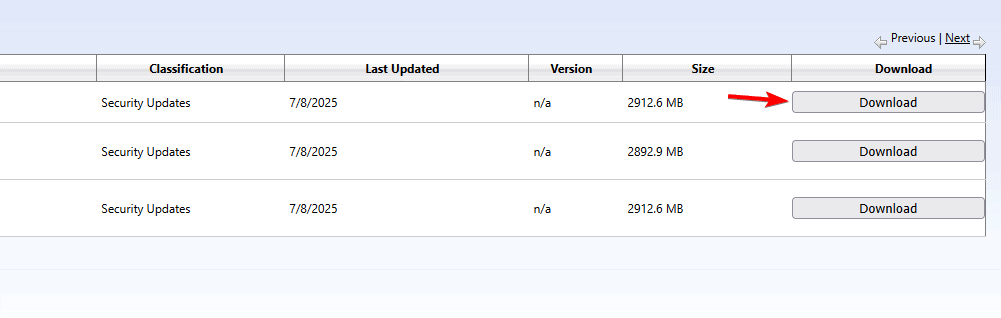
- Use the pop up window’s direct link to start downloading the .msu or .cab file.
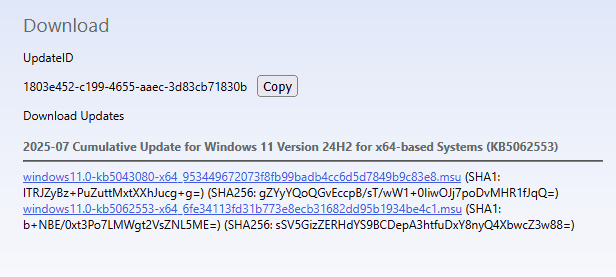
- Wait for the download to finish before proceeding.
4. Install the update
Once downloaded, install the update just like any Windows patch.
- Locate the file in your Downloads folder.
- Double click the .msu file.
- Follow the on screen instructions to complete installation.
- Restart your PC when prompted.
How to access the Microsoft Update Catalog on any browser
The Update Catalog used to work only with Internet Explorer, but now it opens in Edge, Chrome, Firefox, and other modern browsers.
If the website fails to load, use the RSS feed method to fetch updates manually.
Here’s how to do it safely:
- Copy this link:
https://catalog.update.microsoft.com/v7/site/Rss.aspx?q=KB - Replace “KB” with your actual update code, for example:
https://catalog.update.microsoft.com/v7/site/Rss.aspx?q=KB5039211 - Paste it into your browser’s address bar.
- Open the feed result and use the listed direct download links.
Find more ways to open the catalog without compatibility issues in this guide on how to access Update Catalog.
What is the Microsoft Update Catalog
The Microsoft Update Catalog is an online library where Microsoft stores all available Windows updates.
- Cumulative updates
- Security patches
- Driver updates
- Feature upgrades
It is the safest way to manually install Windows updates when Windows Update fails or when you want full control over your update process, and you can access it at the official catalog site.
FAQs
Match the KB number and the system architecture x64, x86, or ARM64 listed in your Windows Update history.
Yes. You can add updates to your download basket and download them together as a ZIP archive.
Yes. It is hosted by Microsoft, and all files are digitally signed and verified.
No. Once you have the update file, you can install it offline, which helps on systems without consistent connectivity.
Conclusion
The Microsoft Update Catalog is a reliable method to manually install Windows updates when automatic delivery fails, giving you precise control and stable results. If you run into download or installation errors, see this troubleshooting guide for Update Catalog issues to resolve common problems quickly.

Read our disclosure page to find out how can you help Windows Report sustain the editorial team. Read more



Improve this guide




User forum
0 messages