
How To Use Net Use To Map Drives and Connect to Shares


 3 min. read
  Published on
The net use command is a Windows utility that helps you connect to shared folders, map network drives, and manage connections through Command Prompt. This guide will teach you how to use it step by step so you can easily create, manage, and remove network drive connections.
Table of contents
How Do I Use Net Use Command?
Map a Network Drive
Use this to assign a shared folder to a drive letter.
- Press Windows + R, type cmd, then press Ctrl + Shift + Enter.

- Run:
net use Z: \\Server\Share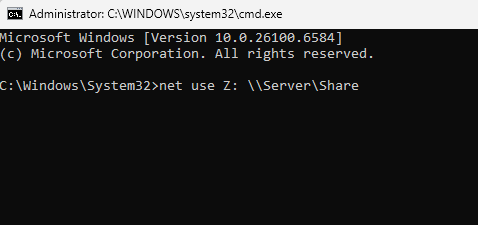
- Enter your network credentials if prompted.
- Open File Explorer and check that the drive appears under This PC.
If you prefer using the graphical interface, see this detailed guide on mapping a network drive in Windows 11.
Connect With Specific Credentials
Run this if your Windows account differs from the file server credentials.
- Open Command Prompt as administrator.
- Type:
net use Z: \\Server\Share /user:DOMAIN\username *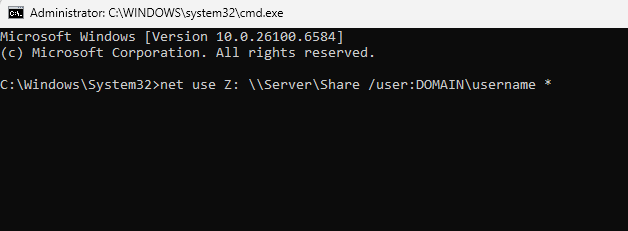
- Enter the password when asked.
- Access the mapped drive from File Explorer.
Make the Mapping Persistent
Keep your mapped drive available after restarts.
- Open Command Prompt.
- Run: net use
Z: \Server\Share /user:DOMAIN\username * /persistent:yes
- Enter your credentials.
- Restart and confirm the drive is still connected.
For larger environments, you can automate this through Group Policy by following this guide to configure drive mapping with Group Policy.
List Current Connections
Quickly see all active mapped drives and network sessions.
- Open Command Prompt.
- Type:
net use- Review the list of drives and their status.
Disconnect a Mapped Drive
Remove an existing network connection when you no longer need it.
- Open Command Prompt.
- Type:
net use Z: /delete- To remove all connections, type:
net use * /deleteYou can also delete mapped drives from File Explorer or Control Panel. For a full walkthrough, read this article on how to delete a mapped network drive in Windows.
Connect Without a Drive Letter
Access a shared folder without assigning a drive letter.
- Open Command Prompt.
- Type:
net use \\Server\Share /user:DOMAIN\username *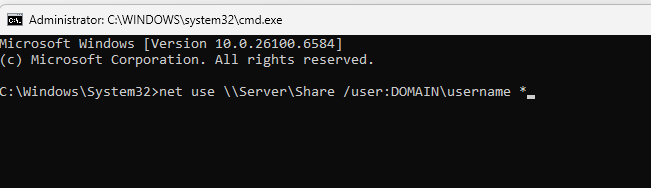
- Enter the password.
- Use the UNC path directly in File Explorer or applications.
Common Parameters Explained
These switches help you control authentication and persistence.
- /user:DOMAIN\username to specify a different account.
- /persistent:yes to reconnect automatically after reboot.
- /persistent:no for a one time connection.
- /savecred to save login info securely.
- /y to confirm automatically in scripts.
PowerShell Alternative
Use PowerShell commands if you prefer scripting.
- Map a drive:
New-PSDrive -Name Z -PSProvider FileSystem -Root \\Server\Share -Persist -Credential (Get-Credential)- Remove a drive:
Remove-PSDrive -Name Z -Force- List drives:
Get-PSDrive -PSProvider FileSystemFAQs
Add the parameter /persistent:yes so the drive restores after reboot.
Use /savecred after entering your credentials once. Windows will store them securely.
Run the command net use * /delete in Command Prompt to clear all active sessions.
Yes. The command syntax is the same on recent Windows versions.
Conclusion
The net use command gives you full control over network connections using simple text commands. It is ideal for everyday use and IT management, letting you quickly map drives, automate connections, and maintain access to shared resources.

Read our disclosure page to find out how can you help Windows Report sustain the editorial team. Read more



Improve this guide



User forum
0 messages