
In the cloud first, mobile first world that Microsoft is trying to be the largest player in, security is a high priority. To bolster their security offerings, Microsoft has purchased Adallom, a company known for their cross platform security options. Adallom works with Salesforce, Box, Dropbox, ServiceNow, Ariba, and most notably due to the acquisition, Office 365.
A Microsoft Blog post announced the purchase and explains how Adallom lines up with the vision of Microsoft. It states “Adallom expands on Microsoft’s existing identity assets, and delivers a cloud access security broker, to give customers visibility and control over application access as well as their critical company data stored across cloud services.” The key words here are security and “across cloud services.” One of the main concerns of using cloud services is security so the purchase of Adallom makes sense. Adallom also has a post expressing their thanks and excitement over the news.
It was reported back in July that Adallom was purchased by Microsoft for $320 million. There was no amount reported today, though the official blog post does provide concrete evidence of the purchase. This recent acquisition is the latest in a long line of purchases made by Microsoft of relatively small tech companies.
Twitter for Windows 10 receives an update, brings quote tweet support, multiple account support and more

Twitter released its redesigned Windows 10 app right after the operating system was released to the public. The app brought a number of new features as well as a much more intuitive and simple design. Some much needed features such as multiple account support, etc. were missing from the app, but it seems the company decided to get them through to their users.
Earlier today, the company pushed out an update for Twitter for Windows 10, bumping it to version 4.1. The new update brings a number of enhancements and new features to the app, with the most notable ones being the support for multiple accounts and the ability to quote tweets (via Windows Central). The new update also give users the ability to view and manage their lists from within the app, as well as view the “happening now” section that shows popular tweets and topics.
The update is available in the Windows Store, head over to the updates section and grab the app. Let us know if you can find any other changes in the app.

Truecaller temporarily removed from Windows 10 store, but will soon be replaced

If you have a Windows phone, there’s a chance that you may be using the app Truecaller, which offers caller ID for folks that aren’t on your contact list. According to some tips given to the folks at WMPU, the app has been taken off of the Windows 10 store, despite sticking around for users on Windows 8.1.
Thankfully, Truecaller isn’t going away. According to a response to a Truecaller user on the app’s Twitter page, Truecaller is soon going to be available again for Windows 10 users.
@sharathknot Don’t worry! It will be available soon for Win10!
— Truecaller help (@TruecallerHelp) September 1, 2015
OneNote App for Windows 10 Updated, but Many Users aren’t Satisfied
OneNote has seen frequent updates and with the release of Windows 10, it has undergone a significant revamp. However, according to user feedback, many are still complaining and aren’t happy.

Microsoft has recently released yet another update for the OneNote app for Windows 10, and by the looks of it, it isn’t a major one, as there hasn’t been any details in the changelog.
OneNote for Windows 10 gets fixes, but complaints remain
Most likely, this is one update that brings bug fixes and stability improvements. However, when looking at the feedback coming from users, it seems that many of them consider that the Windows 10 upgrade has brought some unwanted changes.
CHECK OUT: OneNote Premium Features Are Now Completely Free
Here are just some of the messages:
OneNote changed for the worst since upgrading to Windows 10. The select wheel (the best part of OneNote) was trashed in favor of a less fluid way to change pens, colors, etc. Hopefully it’ll be just a matter of getting used to this new version, but at first glance, a definite downgrade
And here’s another one:
First of all, the best feature of the OneNote app was removed. The circular pop-up pen selector was perhaps the most convenient and useful tool in OneNote when taking notes using a stylus. Now, you can’t even choose the pen thickness (not even in the menu bar up top), and there is no pop-up selector menu to speak of. Additionally, the app constantly has performance issues, and will often crash or cause my computer to restart. Sometimes, I can no longer scroll with my finger on the current page (it’s not a touchscreen issue, because I can scroll through the list pages on the sidebar just fine). No longer a well-designed app that I can depend on for taking notes. Microsoft, take a hint from the 245 one-star ratings out of 645 total ratings (not to mention there are 380 total people who rated this three stars or below), and fix this app.
What about you, have you experienced problems with OneNote after the Windows 10 update or you think things have actually improved? Leave your comment below and let us.
READ ALSO: Bring the Windows 7 Start Menu to Windows 10 with This Tool
Windows 10 news recap: Threshold 2, Cortana in more countries and more
Welcome back to the Windows 10 weekly news recap, where we take a look at all the biggest news stores from this week regarding Windows 10. Kicking this week off, Microsoft announced that Cortana would be coming to a wide array of new countries soon, and that testing has already started with the help of Windows Insiders. Starting with build 10532 and later, Insiders can optionally access Cortana in Australia, Canada (English only), and Japan. Microsoft says they are also working to get Cortana available in India, which is supposed to be updated with an improved voice in that country later this month. In addition, Cortana should also be available in Brazil, Mexico, and Canada in French.
Up next, I exclusively wrote about Threshold 2, more specifically I wrote about it’s planned launch date, being early November instead of the original planned date of sometime in October. This is likely for the best, as it gives Microsoft a little more time to continue developing Threshold 2 and should hopefully result in a better built all round update for consumers when it is finally released. Now another interesting thing to think about is what the update could possibly be called when it does eventually launch. I also briefly mentioned that Microsoft may end up calling Threshold 2 “November Update”, but no branding decisions have been made.
It was also announced this week that there are now 7 million Windows Insiders testing the latest Windows 10 bits. That’s an impressive number, and it appears Microsoft saw growth of 1 million Insiders in less than a month, which is really impressive. There is definitely an interest evolving around trying out pre-release builds of Windows 10, which is good news for Microsoft as it means they get more feedback for their product. Everybody wins.
There was also an IFA keynote from Microsoft, which was rather lacklustre being it didn’t show off anything interesting or new. Microsoft is hoping to sell lots of Windows 10 devices in the coming months, and showcasing them at IFA definitely serves a purpose, even if us 7 million Windows Insiders were hoping for a bit of something really new, but that will apparently have to wait until the company’s near mythical hardware event, said to be coming sometime in October.
So that’s all for this week, what was your favorite story?
Ever wondered how the Microsoft Surface Hub works? Here’s a glimpse

The Surface Hub isn’t Microsoft’s first TV (although it could be used as one), and it isn’t simply a Surface Pro scaled up to 84 inches. It’s an enterprise-focused collaboration tool designed for the meeting room.
The Surface Hub makes use of a giant touchscreen, array microphones, dual cameras and a lot more to help businesses work together naturally, even if team members are in different parts of the world. They can use services like Skype, OneNote, and OneDrive to collaborate and the addition of the Surface Hub Pen makes it easy to annotate on presentation slides and share notes.
Check out the how-to video above to see just how this giant PC works, and if you want to learn more about the Surface Hub, head over to our Surface (Hub) Hub for all the latest news! Do you think Microsoft should sell a consumer version of the Surface Hub, possibly entering the smart TV market? Let us know in the comments section below.
Skype Business will not be rebranded as SkypeCentral
Update: We were right, it’s just a personal app called “SkypeCentral” that pulls various news feeds and information regarding Skype. See original story below.
Tony Eversole, a Microsoft employee, recently went about making a blog post on Microsoft’s TechNet website pertaining to a new app called SkypeCentral (first spotted by WinSupersite). The blog post consists only of one small paragraph, which explains the post is serving as a placeholder for the SkypeCentral app. In the blog post, Eversole states that the placeholder is “a shared blog from which PFE/DSE engineers can update the main landing page of the app to include news, troubleshooting, CU release information, or anything related to Skype for Business.”
There’s very little information to be gleaned from just that small, vague paragraph. That being said, the mention of an app called “SkypeCentral” becoming a placeholder for future Skype for Business information leads us to believe that Skype for Business may soon be re-branded as this new app.
It’s also entirely possible that, with this new focus on Skype being “Central,” Skype for Business and the consumer version of the app will stop being separate, and will instead be consolidated into this one SkypeCentral application. Having one app to work on instead of managing Skype and Skype for Business separately can only be a good thing for Skype’s brand going forward.
There is also a possibility that SkypeCentral is just a third-party (or first-party?) Universal app that showcases Skype news and release information. We’ll have more on this as it develops.
OneNote app for Windows 10 now lets you insert a photo from your camera
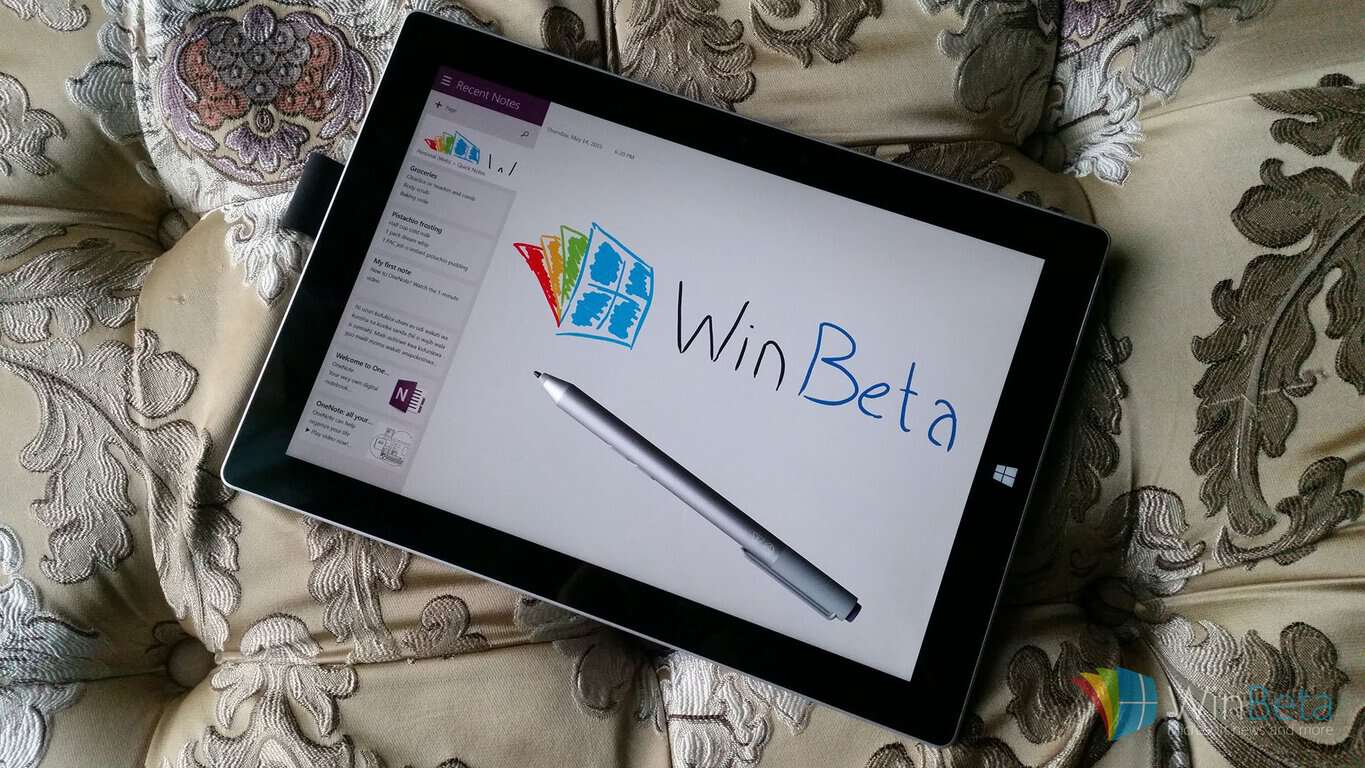
Microsoft has rolled out a new update to the OneNote app for Windows 10, available right now in the Windows Store. This update adds several new improvements to the app, including the ability to insert a photo from the camera and the ability to change ink thickness.
“OneNote is your digital notebook for capturing and organizing everything across your devices. Jot down your ideas, keep track of classroom and meeting notes, clip from the web, or make a to-do list, as well as draw and sketch your ideas,” the app description reads.
Just recently, Microsoft updated the OneNote app for Windows 10, enabling full drawing capabilities for the Surface when the device is locked. Microsoft also reduced the appearance of the keyboard when inking, as well as addressed issues some users had with opening the app.
You can snag the updated app from the download link below. If you have automatic app updates enabled, you are already have the latest OneNote app installed!

Microsoft reportedly considering a multi-billion dollar revamp of Redmond campus
Microsoft has been headquartered in Redmond, a “bedroom community” east of Seattle, since 1986, and although there are now Microsoft offices in Seattle, in Bellevue, in Mountain View, California, and in many regional headquarters around the world, the main campus in Redmond has always had the feeling of a somewhat rural college campus. That may be about to change, as according to a report from Bloomberg Business, the company is considering sweeping changes that would transform the headquarters to have a more “urban campus” feel, in order to attract millenial workers more used to urban environments.
While the report states that Microsoft has not made any final decisions on a revamp, it has hired an architectural firm, Skidmore, Owings & Merrill LLP, to work up plans for a potential overhaul. The firm has recently been updating Microsoft’s much smaller Mountain View campus, and designed the world’s tallest building, the Burj Khalifa in Dubai.
The plans would shift away from the private offices that were quite a selling point back in the 80s. Back then the most you could expect from most corporate jobs was a quiet cubicle, but times have changed to favor more open plan shared workspaces, some of which are in evidence already in Microsoft’s newest Redmond offices. A broader makeover could also include new construction along with remodeling existing buildings, to “add amenities such as restaurants, retail spaces and public artwork, in addition to apartments to house visiting employees and interns”.
Microsoft has also been taking steps to connect the somewhat sprawling campus, instituting a shuttle system of cars and mini-buses to get workers from one office to another, and working to build bridges across the 520 freeway, which splits the campus in two. A new light-rail station, part of the Seattle area’s Sound Transit system, is planned for a 2023 opening, with construction to begin next year. The “Redmond Technology Center Station” would help to connect Redmond and Microsoft to the more urban environs of downtown Seattle, where many Microsoft employees already live.
Microsoft reveals little new at IFA keynote

Microsoft’s OEM Division CVP Nick Parker just wrapped up his keynote at IFA in Berlin, and for close followers of Microsoft, there wasn’t much new to report. Microsoft stuck to the script, bringing on their newest demo sensation Bryan Roper, who was a breath of fresh air at the WorldWide Partner Conference, but delivered much the same Windows 10 overview demo that he did at the earlier event. Or at least he did for those in attendence: the live stream of the event only used one camera to show off the presenter, so viewers were unable to see anything of what was going on onscreen. The live stream came from IFA, not Microsoft, and up until earlier this week we weren’t sure we’d be able to watch it at all, so maybe one camera was better than none.
Luckily that didn’t matter much as Roper revealed little if anything new Then Nick Parker came back onstage to take a quick walkthrough of a range of 3rd party Windows 10 devices from Dell, Toshiba, Acer, Asus, and others. Parker showed off a Dell Latitude 11 for the first time onstage, and also showed off a Toshiba 2-in-1 that he called a “sneak peek”, not even revealing the name of the device.
Blogging Windows has an overview of some of the devices that Parker showed off, including the Acer Aspire One Cloudbook, the Lenovo ThinkPad Yoga 260, a Toshiba ED Logger IoT device, and the Acer ROG G752.
Microsoft is hoping to sell lots of Windows 10 devices in the coming months, and showcasing them at IFA definitely serves a purpose, even if us 7 million Windows Insiders were hoping for a bit of something really new, but that will apparently have to wait until the company’s near mythical hardware event, said to be coming sometime in October.
Are you ready to buy a new Windows 10 device?
Windows Defender in Windows 10: What you Need to Know
Security is extremely important for PC users, especially since there are all sorts of malware and viruses available online. Speaking of security and antivirus protection, Windows 10 comes with its own antivirus, so let’s see what kind of antivirus improvements Windows 10 has to offer.

Windows 10 comes with Windows Defender and it’s a free antivirus program developed by Microsoft. If the name Windows Defender rings any bells it’s because the similar software was available with Windows 7.
Few things about Windows Defender
Windows Defender will automatically scan programs you open, as well as Windows Update definitions. In addition, you can use it for in-depth scans as well. In addition, Windows Defender comes with SmartScreen filter that prevents you from downloading and running malware. As you can see, Windows Defender is a lightweight and free solution that offers decent protection, as long as you keep your Windows 10 up to date.
How does Windows Defender compares to other antivirus software?
Windows Defender scored on AV-Test 0.5/6 when it comes to protection, but despite the low score, Windows defender caught 95 percent of widespread and prevalent malware along with 85 percent of zero-day attacks. In comparison BitDefender caught 100 percent of malware and 100 percent of zero day attacks. Kaspersky antivirus got similar results with 100 percent of malware and 99 percent of zero-day attacks. As you can see, Windows Defender isn’t that bad antivirus software, compared to other paid solutions.
Is Windows Defender right choice for you?
This depends on what you do on your computer. If you’re just surfing the web and not visiting any harmful websites Windows Defender should keep you safe. However, if you happen to stumble on one of these websites, or if you’re visiting them from time to time, then it might be better that you download some third party antivirus software. Luckily for you there are dozens of free antivirus software available, and most of them will do the job just fine.
Read Also: Top 4 TV Tuner Software for Windows 10
Microsoft talks about the idea of a new "Uber for healthcare"
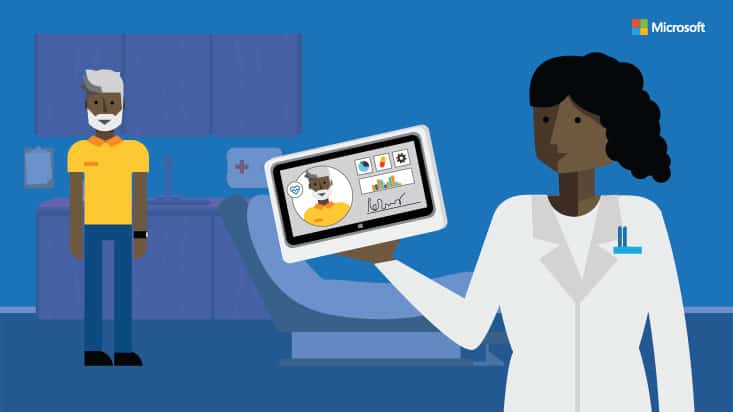
Technology has evolved quite a lot over the years, with many new innovations that try to make life a lot easier. And Dr. Simon Kos, the health industry manager for Microsoft in Australia, already has an idea about how technology can empower a better healthcare system.
He started out by explaining on the Microsoft Health blog how various innovations to technology has changed the way we do things to me more effective and efficient,
“Uber has changed how we catch a cab, Airbnb how we organize travel, PayPal and Bitcoin how we bank. Amazon has changed how we buy books, and Netflix how we consume entertainment. What’s the common denominator among these disruptions? Technology provided an alternative that improved on the incumbent system.”
He then went on asking about what a new innovation that technology can do to improve healthcare.
“So what will be the Uber for healthcare? Because certainly the healthcare system is ripe for disruption. Health organizations and technology vendors alike are looking for new ways to achieve the triple aim of improving quality and increasing access while lowering costs. At the same time, people expect more convenience and involvement in their healthcare.”
Kos explains that in order to meet patient expectations and get the rising costs under control, “the burgeoning consumer wellness space and the traditional healthcare system need to come together. Perhaps the “Uber for health” will be something that bridges the divide between the two and helps us shift from a “sickness” system to a “health” system?”
He explains that we have technologies that can enable “disruption much faster than in the past, so a game-changer for healthcare could be just around the corner. With cloud and mobile platforms, it’s quicker, easier, and more cost-effective than ever to develop solutions that people can use anytime, anywhere. Rather than major system overhauls that take many years and billion-dollar budgets to complete, modern health IT solutions can be developed in days with minimal capital.”
Kos then goes on to provide an example of a new approach of healthcare for more efficiency called Hacking Health, which is a Canadian-based group that was backed by Microsoft for a few years. The concept behind Hacking Health was simple; clinicians worked directly with software developers to come up with solutions for their biggest healthcare challenges. Based on real-world needs of clinicians and patients, teams were able to produce health IT prototypes in just a few days.
It would be very interesting to see new innovations that would make getting health care accessible for anyone and cost effective. Let us know what you think in the comments below.
How to Turn Airplane Mode On and Off in Windows 10
Airplane mode in Windows 10 is very useful for saving your data, while you’re on the trip. And in this article, we’re going to talk about it, and show you how to turn it on and off.
Airplane mode was first introduced on smartphones, but eventually, it found its way to Windows laptops, as well. If you’re not familiar with the term, it’s a special networking setting, which prevents your device from connecting to various wireless signals, including internet. It’s main purpose is to save you from unnecessary and unwanted data charges, while you’re on trip, and that’s why it’s called airplane mode.
Turning airplane mode on and of on the Windows 10 laptop is very easy, and we’re going to show you how.
How to turn Airplane on and off in Windows 10
Here are a few easy steps for turning airplane mode on and off on your Windows 10 device:
- Right-click on the network icon in the taskbar and open Settings (you can also access Settings app directly from the Start Menu, it’s completely up to you)
- Choose Network & Internet
- Under Network & Internet, go to Airplane mode

- Just click on Turn this on to stop all wireless communication to turn on the Airplane mode, and otherwise
That’s it, this is how you turn airplane mode on and off in Windows 10.
If you want to check if airplane mode is turned on, just check your taskbar, and if the airplane icon is present, the airplane mode is turned on. As you can see, everything is very easy, and you can control your airplane mode with just a few clicks.
Do you use airplane mode to dodge the additional charges on your travels, or you like to stay connected wherever you are? Tell us in the comments.
Read Also: Windows Phone UpdateAdvisor App Frees up Space for Windows 10 Mobile
Microsoft set to deliver new educational tools this school year

As faculty and students head back to school, Microsoft would like to gift many of them with some useful tools. Microsoft believes, “With the right technology platform in place and training, teachers around the world are finding inspiring new ways to use personalized approaches to impart 21st-century skills.”
Perhaps that is why, this year, Microsoft will be offering eight new resources for teachers and students to take advantage of during the school year.
- The first and perhaps most important offering is the move of Office 365 Education to a single, free plan for all academic institutions. In addition to making it free, Microsoft is also making sure Office 365 Education is secure and compliant with each school’s compliance requirements. Beyond the cost, Microsoft has also worked on sign up process, making it easier for teachers and students to sign up for Office tools. Soon anyone with a valid school email address will be able to sign for free Office 365 Education benefits.
- The second resource is OneNote Class Notebook and Staff Notebooks opening up to global customers using Office 365 Education.
- Third, Microsoft and Skype or working to make virtual fields trips a commonly used tool in the classroom. Interested teachers can sign up for new Skype in the classroom field trips this year.
- Coming in at number four is Microsoft’s new interactive presentation software, Sway. The digital storytelling app recently joined the Office suite and has become an effective way for teachers and students to collaborate and produce work that lives on the web. From class projects to personal portfolios, teachers can help students utilize Sway as a new and easy to use expressive platform.

- The fifth tool in Microsoft’s back to school arsenal is the recently released Snip tool. Snip is a beefed up screen capturing tool that allows users to add sketches, voice notation and share them via website embeds or emails. Snip helps teachers and students quickly communicate and share information across devices and the Internet.
- The sixth tool according to Microsoft is more of a bundle of free options rather than a single solitary tool. Microsoft is promoting its Microsoft YouthSpark Hub offers a resources and programs to learn digital skills and computer science. Microsoft is also pushing its Microsoft Imagine tools and resources that will be offered at no cost to teachers. Another no-cost offering by Microsoft is Microsoft’s Virtual Academy that offers free computer science courses for students at all levels. For future coders, Microsoft is also encouraging the use of its new computer science curriculum offered through Creative Coding Through Games and Apps. Again, these are all free to teachers and students to take advantage of.
- We reported on tool number seven earlier this week. Microsoft has partnered with Angela Maiers and her company Choose2Matter Inc to provide teachers with a free customizable and interactive e-book through OneNote. Angela’s co-authored book Liberating Genius: The First 20 Days provides teachers a day-by-day lesson plan for the first 20 days of implementing Angela’s famous ‘Genius Hour’.
- The last tool happens to be Microsoft itself. The company will be developing more free training courses for educators that will be available online or at any local Microsoft Store.
Microsoft’s push for education is arguably becoming a focus as important as the enterprise has been for Microsoft, and that’s a good future for educators and students.
Microsoft releases free computer science curriculum for new developers

It may be surprising to some, but many people are only interested in computers as a consumption device rather than a tool; for example preferring to watch YouTube rather than write a novel in Word. However, when it comes to the coding of computers to create games and apps, there is even less interest and that’s something Microsoft aims to change with their new computer science course.
The course makes coding less intimidating by using a simple programming language to develop real games and apps giving each student a sense of a achievement at the end. The coding is done using Microsoft Touch Develop which is a simple visual way of programming with a touch interface and it works with any browser on any Operating System.
In the past, we’ve told you about how Touch Develop can be used to develop Windows Store apps so it’s more than a capable language. Once a student has mastered it, then they can go on to consider more powerful languages. Tom Ball who worked on Touch Develop is happy to see the language used in this new course saying:
It’s not so much about learning Touch Develop, Touch Develop is the vehicle to learning about computer science concepts.
Microsoft’s new course is aimed at people with little to no experience in coding (including educators) and even people who would never consider doing it. The course can be taught using any modern web browser so it will even work on phones and tablets. It’s also a provides everything a teacher would need including lesson plans, presentations, student assignments and quizzes. The course is flexible and can accommodate the free time available in the semester.
This is a smart move by Microsoft and it would be even smarter for schools to take up the curriculum. Computers aren’t going to go away any time soon and will most likely become more prevalent so the more coders we have out in the world, the better.
You can check out the course here.
Microsoft snaps up Seattle startup VoloMetrix to help boost Delve
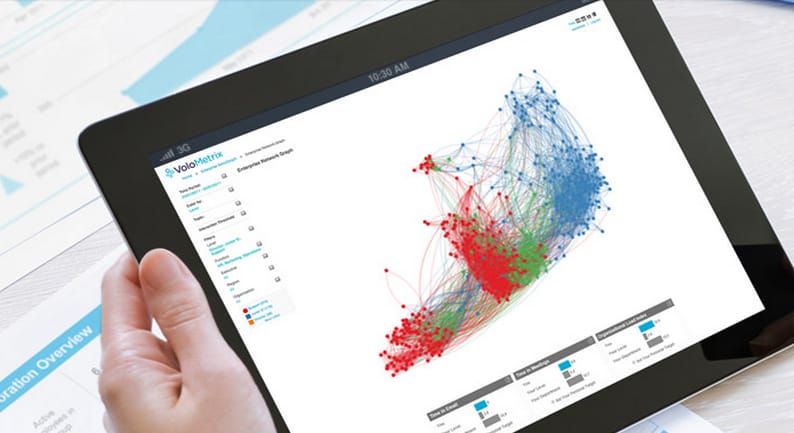
As Microsoft lets go of roughly 7,800 employees on the hardware and marketing side of business, it’s simultaneously bolstering its software side of employment. Each recent purchase or acquisition Microsoft has been tied to lately have been done so with a specific software goal in mind. Microsoft is continually beefing up its play for productivity and enterprise customers, and the recent acquisition of Seattle startup company, VoloMetrix continues that trend.
VoloMetrix started up just a little over four years ago, but Microsoft saw value in the companies ‘organizational analytics’ strategy and swooped in quickly to add it to one of its already existing properties. VoloMetrix is a relatively small startup specializing in ‘people analytics’. According to the VoloMetrix website, the company specifically;
extracts and analyzes anonymized, aggregated header-level data from your corporate communication systems. Without compromising employee privacy, this data provides insight into the subject, timing, and format of collaboration, as well as an understanding of the role and geographic location of individuals involved. Together, People Analytics data provides a holistic map of your company’s communication and collaboration behavior.”
With the purchase of VoloMetrix, Microsoft intends beef up its Office 365 business feature Delve. A little over a year ago, Microsoft introduced the Digital Office 365 assistant to business customers. At the time, Delve handled queries about schedules, emails, meetings, contracts, social networks and business documents saved in Office 365. Incorporating VoloMetrix’s analytics tools should help boost employer and employee knowledge about how to communicate best within a business.
According to a Microsoft spokesman who spoke with Business Insider, “a significant number” of employees from VoloMetrix will remain with the company and be working from their offices in Seattle. This should be pleasant news for those employees as Microsoft’s trend lately has been to trim rather than add to the company.
Microsoft announces GS-Series VMs in Azure

Microsoft announced a new type of series for Azure Virtual Machines (VMs) called the GS-series. This series builds upon the G-series VMs, which were introduced earlier this year. The GS-series takes the G-series high compute power and combines it with premium storage to create an even more powerful VM option in Azure.
Azure VMs can be a particular useful and effective solution for organizations that run applications in the cloud and want to take advantage of running their application through scalable VMs. The new GS-series offers VMs based on high performance cloud computing that is capable of the following features at the highest tier in the GS-series offering:
- Intel Xeon E5 v3 family processors
- 64TB of storage
- 80,000 storage I/Os per second
- 2,000 MB/s of storage throughput
- Up to 20 Gbps network bandwidth
Some of the applications that Microsoft Azure thinks the GS-series VMs are perfect for are: relational databases, data warehouses, and enterprise applications like Exchange and Dynamics. In the announcement of the GS-series, Microsoft also notes that the G-series has grown by 50% in the past three months. The post also boasts that the highest GS-series tier offers more than double the disk throughput compared to any other hyperscale public cloud provider.
What do you think Azure’s new GS-series would be great for? Would it be the right choice for your organization’s VM needs? Let us know what you think in the comments section below.
Windows 10 How-To: Reset or Refresh your Windows 10 installation for better performance

Sometimes, things don’t work out quite how we would like them too. Sometimes we need to bite the bullet and refresh our Windows 10 installs or do a fresh install. Thankfully, in Windows 10 it’s super easy. Like, super easy. We just have a couple of things we need to tick off before we go ahead and pull the trigger.
What we will need:
*CLEAN INSTALL ONLY* A USB stick with Windows 10 ready to go (You can find out how to do this right here – head to step 5 )
Backup your files, just to be safe.
Now we have our stuff ready, let’s crack on, shall we?
If you’re doing a clean install, plug in your Windows install media. Don’t do anything with it, just plug it in. Windows will need this later on if you’re doing a clean install.
Once, you’ve done that, head down to Start then Settings.

Then click into Update & security.

In this window, on the left hand side, find Recovery.

Under Reset this PC go ahead and click Get Started.

You’ll now be prompted with two options. Keep my files and Remove everything. Click on the one you want to do, in this case, I’ll be keeping my files.

If you want a clean install and remove everything, you’ll need to have your Windows Media plugged in and go ahead and let it do a full wipe and reinstall of Windows 10.
Your PC will now get things ready, it’s working on what you will need to reinstall via the internet or CD (CD, I know right.)

Once it’s done, I will now prompt you with what will be removed, take a note of this, I’ve forgotten to install apps countless times before.

This might pop up for some of you. If you have just recently installed Windows 10 – you will be prompted that you can NOT recover back to Windows 7/8.1. If you do a refresh, bare that in mind when doing this.

Once Windows is done doing its thing, you’ll now be prompted to “RESET”. This is death trigger time, once you’ve pressed this button there is no going back, so please make sure you have everything you need. I’m not being held responsible for you losing your vast collection of Cat Memes.

Now, you can sit back and relax, let Windows do it’s thing, after some time, you’ll be presented with a nice clean install or fresh install of Windows 10. Easy, right?
I hope you’ve found this useful. You’ll find a clean install or refresh can fix a lot of problems with Windows 10 if you came from Windows 7 or Windows 8.1. Having a nice fresh install is always a good move if you want the best performance.
Fix: Blank Screen After Windows 10 Upgrade


We have waited Windows 10 with high anticipation, and now we finally have the chance to try it and see all of its new features. However, just like with many other new operating systems, there are always going to be some bugs and issues. One of the more annoying issues is blank screen after Windows 10 update, but luckily there are few solutions that you can try out.
What to do if Blank Screen appears after Windows 10 Upgrade
Solution 1 – Use keyboard to login
When you get greeted with a blank screen this means that you’re stuck on login screen, but luckily you can still log it by following these steps.
- Wait until mouse cursor appears and you can move it around.
- Press Space on your keyboard and enter your password (Remember, you’ll be doing this blindly)
- Now you should be logged into Windows 10 (If your desktop doesn’t appear after 30 seconds, press Windows Key + P, down arrow twice and Enter)
Some users claim that it’s better to do this if you’re stuck with a blank screen:
- Press Ctrl key on your keyboard to position your mouse on the password box.
- Type your password and press Enter.
- If you accidentally enter a wrong password press Enter again, and type your password again followed by Enter.
If you’re installing Windows 10 your cursor shall disappear for a few minutes until the setup is complete, so you might have to wait for several minutes. If this method didn’t get the job done, try with some of the following solutions.
Solution 2 – Disable Fast Startup
If you have managed to get passed the blank screen by following the previous solution you might want to try disabling Fast Startup.
- Go to Control Panel > Power Options.
- Select Choose What the Power Buttons Do on the left side.
- Select Change Settings That are Currently Unavailable near the top of the screen.
- Find Fast Startup and disable it.

This sounds like an obscure solution, but users have reported that it’s helpful so it’s worth trying out.
If you cannot access Windows 10, try accessing by going to Safe Mode. While your computer boots keep pressing F8 or F2 and choose the Safe Mode from the list.
Solution 3 – Disable built-in graphic card
If you have a built-in graphic card along with a dedicated one you might want to try disabling your built-in graphics in BIOS. Steps might vary depending on the different versions of BIOS, and if you’re not sure how to do it, ask someone to do it for you.
Solution 4 – Disable automatic update for display drivers
Users report that this issue is caused by faulty driver downloaded by Windows Update, and in order to fix this, you first need to disable automatic update for your display driver, uninstall it and download the latest version.
To disable driver download from Windows update do this:
- Go to Control Panel.
- Go to System and Security > System > Advanced System settings.
- Click the Hardware tab, then go to Device Installation Settings.
- Select No, let me choose what to do and Never install driver software from Windows Update.

We have to notice that this might not permanently disable driver updates and users have reported various success rates with this method. In addition, Microsoft has released its Show or hide updates troubleshooter package that allows you to choose what updates and driver updates you want to prevent from downloading.
After you’ve done all of this, go to Device Manager find your display drivers and uninstall them. Now you just need to go to your graphics card manufacturer’s website and download the latest driver and install it. For that, we recommend a third-party tool to automatically download the outdated drivers on your PC.
Not only it will keep your PC safe from malfunction, but it will also let you choose what driver to install on each component of your PC.
After doing this your custom drivers won’t be overwritten by Windows update, and hopefully this should fix the blank screen issue on Windows 10.
That would be all, I hope that at least some of above-mentioned solutions helped you to solve the blank screen problem in Windows 10. If you have any comments, suggestions, or you want to share your experience with blank screen in Windows 10, reach for the comment section, below. Also, if you have any other Windows 10-related issues you can check for the solution in our Windows 10 Fix section.
Read Also: Fix for Annoying Windows 10 Screen Flicker Problems Offered by Symantec
Superstar Skype Vloggers get creative

The name Skype may bring up visions of talking to long distance relatives over video, but there’s a whole lot more to it than that. In fact there’s a whole community of Skype Vloggers and viewers. In order to encourage creativity in that community the developers of Skype went to three “Superstar” Vloggers (Jamie Jo Blaine (BananaJamana), Anna Brisbin (Brizzy Voices), and Anna Akana) and asked each of them to create a story.
Each girl had to create a story around the themes of diversity, acceptance and openness, and encouraged their viewers to suggest keywords that would guide the story. Then each of the stories was narrated by Anna, characters voiced by Brizzy and illustrated by Jamie Jo. The results weren’t too bad at all and you can see the three stories below.
Skype is also the software of choice for the WinBeta podcast show hosted by Zac and Sean. You can check it out live every Friday at 3PM EDT. If you miss it, you can catchup by clicking the WinBeta Podcast link at the top of every page.
Lenovo announces new business-class PCs running Windows 10
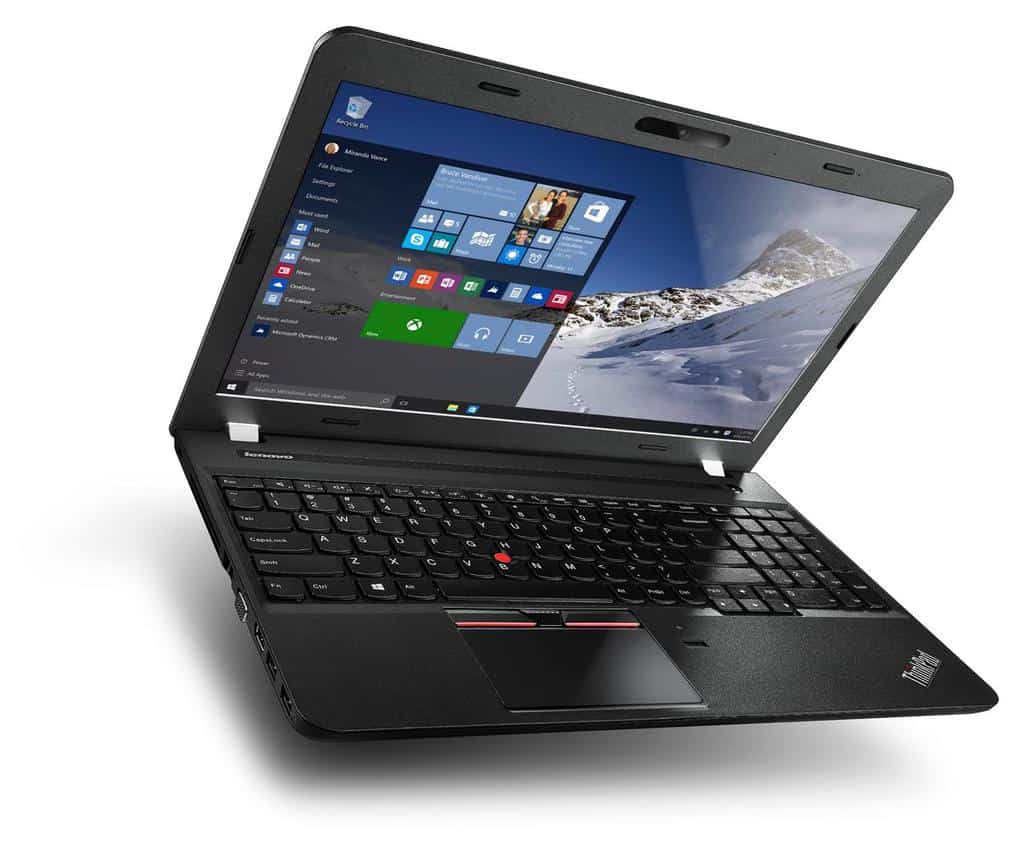
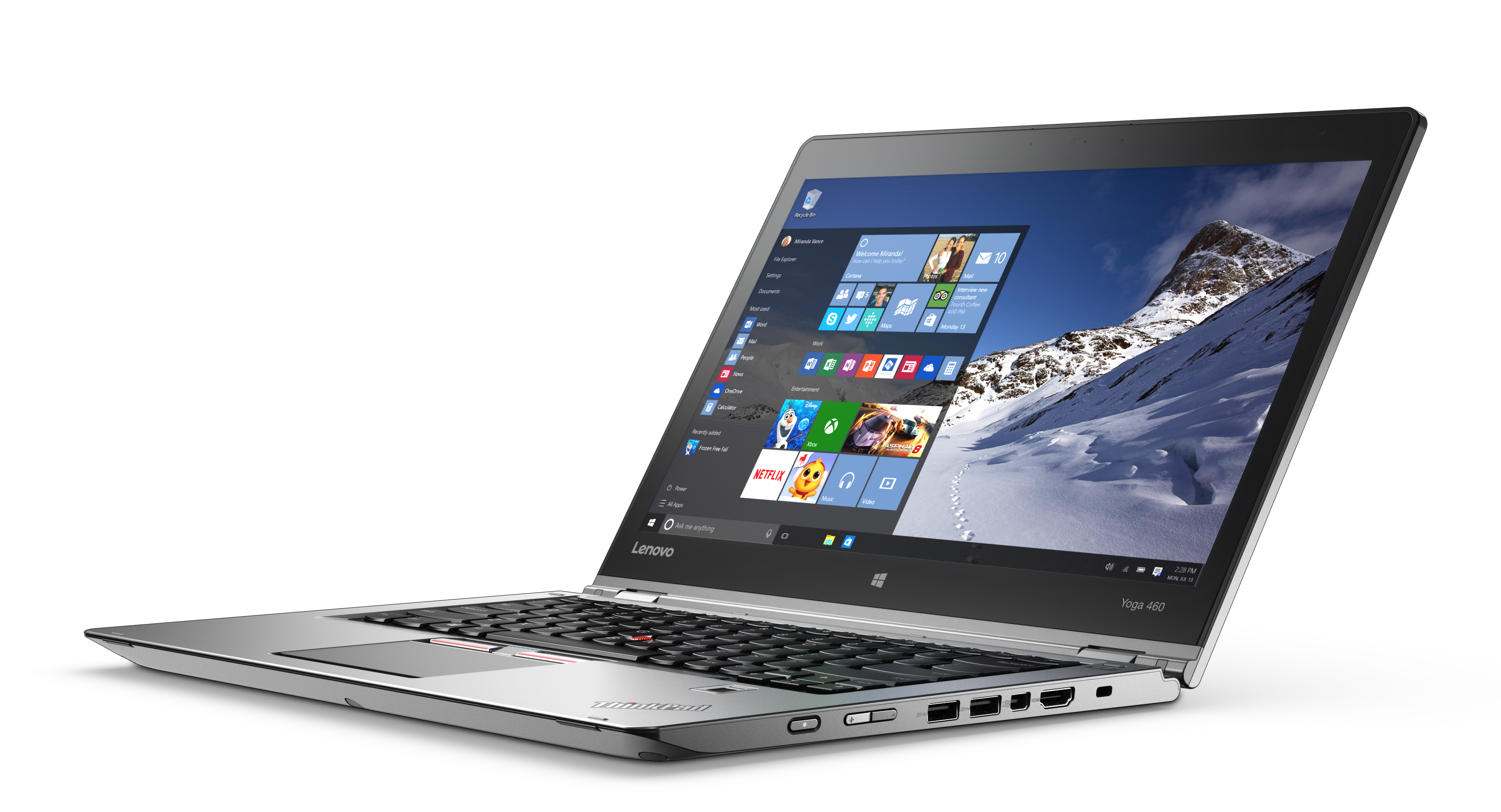
Lenovo has announced a few new business-oriented Windows 10 PCs. Among the new computers launched today are the ThinkPad Yoga 260 and 460 2-in-1 laptops with 12.5-inch and 14-inch displays respectively, as well as the ThinkCentre M900 Tiny, an ultra-compact business PC.
The new computers are great for small businesses and consumers who want something a little more than your average everyday PC. The specs on these devices are pretty good, and they use Intel’s new Skylake processors.
The ThinkPad Yoga 260 features a 12.5-inch display. Depending on their use case, customers can choose between 1366×768 and 1920×1080 options. The Yoga 260 comes with Intel’s new Skylake processors, ranging from the low-end i3-6100U all the way up to the i7-6600U. The laptop can be customized with up to 16 GB of DDR4 memory with storage options up to a 512 GB solid state drive. As far as battery life is concerned, Lenovo claims the Yoga 260 can get up to 10-hours of battery life.

The ThinkPad Yoga 460 is the bigger brother to the Yoga 260 offering a 14-inch IPS display with 1920×1080 and 2560×1440 options. This laptop includes a processor of either i5 or i7 from the same U series as the ThinkPad Yoga 260. Strangely, this laptop only offers only 8 GB of DDR3L memory with storage up to 256 GB SSD or 1 TB HDD. Lenovo claims the same 10-hour battery life on this laptop as the ThinkPad Yoga 260.
Lenovo hasn’t for gotten about the desk jockey either with their new lineup. The company also announced the new ThinkCentre Tiny PC which will also comes with Intel Skylake processors up to an i7 U series. The maximum memory available on this tiny box PC is 32 GB of DDR4 RAM, with plenty of storage options ranging from 512 GB SSD to 2 TB HDD. With portability not being a concern, Lenovo packed the Tiny PC with all the necessary ports. This desktop PC include six USB 3.0 ports, Ethernet, headset jack, SD card slot, and an optional serial port. This all-in-one offering of this PC comes with a 1920×1080 monitor with optional touchscreen capabilities.

Lenovo’s ThinkPad 260 will have a starting price tag at $949 available in November in select countries while the ThinkPad 460 will start at $1049 available in October. The new ThinkCentre will have a starting price of $749 and will be available sometime later this year.
Lenovo does make some interesting business-class PCs. Let us know what you think of about these new PCs in the comments down below!
How to create a Windows To Go USB drive running Windows 10

With all this Windows 10 news, some of us forgot about one of the most awesome features Microsoft gave us back in Windows 8, Windows To Go. The idea of having your entire office computer on your keys is possibly the coolest thing I have ever had the pleasure of doing. But why would you use it? Why on earth would you want to carry your entire computer with you in your pocket? Read that last question back to yourself, that’s why.
What exactly is Windows To Go? In a nutshell, it’s a portable Windows desktop environment designed to be plugged into a PC and boot into the OS, just as you left it. Let’s take a real world scenario.
You’re at home, working on a very highly classified PowerPoint presentation that you, and only you, can make. Your PC at work is still running Windows 8, and it’s frustrating as you’ve grown so fond of Windows 10 that Windows 8 seems like a distant memory. The thought that you want to work on your super secret awesome PowerPoint presentation on a Windows 8 running machine sits in the back of your mind, rendering you useless and unable to concentrate.
Roll on Windows To Go. You get to work, plug in your Windows To Go USB stick and boot straight into your Windows 10 environment, everything is where it should be, the desktop you remember, the settings you configured, the world of you, is a happy world.
Here are a few things we’re going to need before we get started.
- Windows To Go Certified USB stick (sorry, a normal USB stick won’t cut it here!)
- Rufus v2.2+
- Windows 10 ISO
First things first, Launch Rufus.

Now select your WTG USB drive at the top of the window.

Next, we need to tell Rufus where our Windows 10 ISO is, head down towards the bottom and click the ISO button.

Navigate Rufus to your Windows 10 ISO and wait for it to load it up.

Now, this part is very important – Once the ISO is loaded up, you need to select Windows To Go under the Format Options – Rufus will now know to not make a standard bootable USB bootable drive and will do it’s thing to make it Windows To Go instead.

Last step, hit start and wait for Rufus to make your Windows To Go drive!
That’s it! You now have a portable version of Windows 10! As I mentioned earlier – You MUST have a Windows To Go Certified USB stick in order for this to work, you can’t use an “off the shelf” USB stick, sorry!
Toshiba reveals new premium Windows 10 2-in-1 device
It’s IFA, and that means one thing: exciting new hardware. Many of the major technology manufacturers from around the world have gathered in Berlin to show their wares, and the results have proven to be exciting.
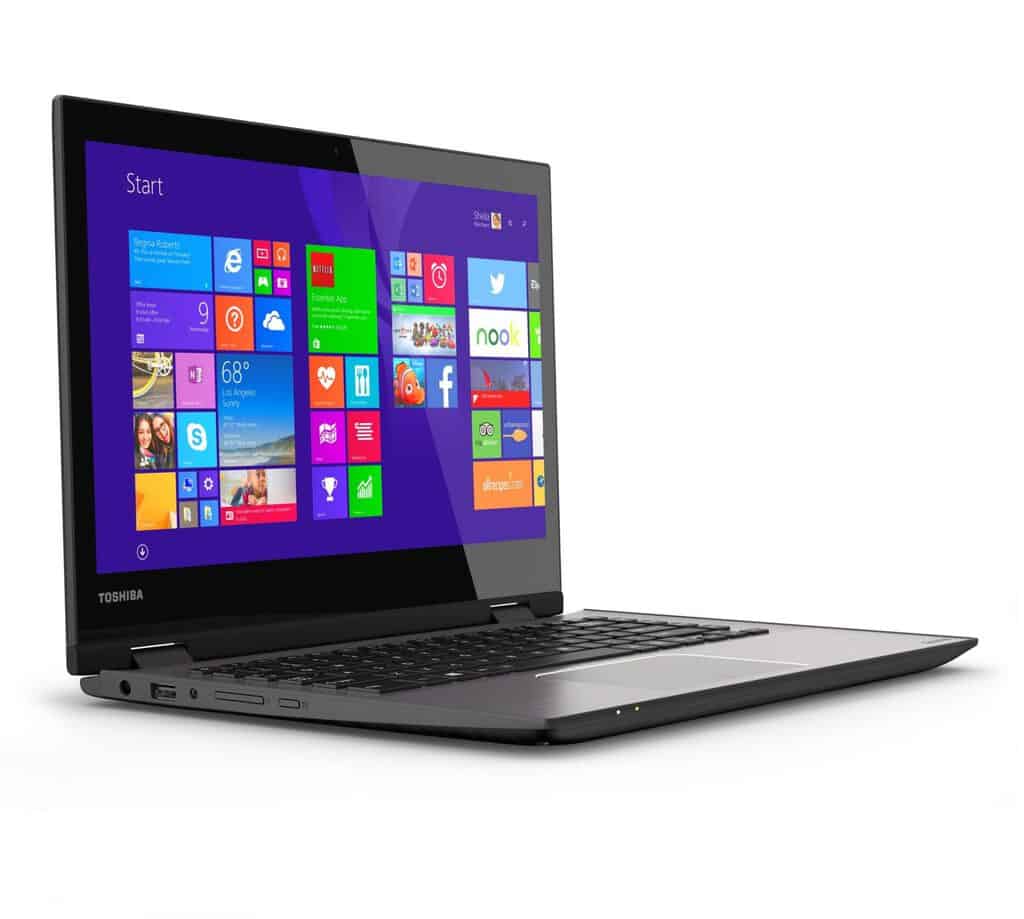
Of these, the Satellite Radius 12, a new 2-in-1 device from Toshiba is easily among the most interesting. As a part of the firm’s premium ultrabook range, the 2-in-1 device has the specs to match its price point. With a choice between a 4K or Full HD 12.5 inch screen, a backlit keyboard, a selection of processors from Intel’s new Skylake range and up to 8GB of LPDDR3 RAM, it has enough power for most.
That is not all however; it also comes with several unique features that compliment the new functionality found in Windows 10. These include a dedicated ‘Cortana’ key and a built-in webcam that is compatible with Microsoft’s new biometric identification system, Windows Hello. The device also comes with a USB-C port, two USB3 ports and a HDMI socket that allows for output of up to 4K.
Expected to be available in the UK before Christmas, this device is among the first of many Windows 10 laptops that can be expected to be released over the next few months.
Does the Satellite Radius 12 interest you? Let us know in the comments below.
How to: Find your missing Windows Phone and protect your data from thieves

Uh oh! Looks like you lost your Windows Phone. Maybe you left it at the coffee shop, and someone might have taken it. Or maybe it just simply fell out of your pocket and in between the couch cushions. Whatever the scenario, phone manufacturers and software providers are teaming up to provide useful features to find or remotely secure devices. When it comes to the Windows platform, Microsoft is making it increasingly easy for users to find their missing Windows Phone.
First off, if your phone is safely near you, it’s probably a good idea to go ahead and go into Settings > find my phone and enable finding the phone through push notifications and saving the phone’s location periodically before the battery dies.
Here’s what to do if you can’t find your phone:
- Go to account.microsoft.com/devices and sign into your Microsoft account that you used to sign into your Windows Phone, if prompted, and click Find my phone.
- You should be able to see where your phone currently is, or at least where it was before the battery died. If it’s at your location, you can just ring the phone. But if it’s at an unfamiliar location, you might want to either lock the device and display a custom message. If you left it at a familiar address where there’s someone you somewhat trust, you can just lock the phone and send a custom message to the locked screen.
If all goes well, you should be able to find your phone within minutes if it’s nearby. But if it is indeed lost into the hands of thieves (and we really hope it isn’t), it should be good to know you can protect your private information from the wrong hands. If it is indeed in the wrong hands, at least try to scare the culprits with a lock screen message.
Did you manage to find your phone with the help above? Let us know what you think about the ability to easily find your missing phone features the comments below!
Can’t install Picasa on Windows 10/11? Here’s a quick tip


Picasa is famous photo viewer and photo organizer from Google with millions of users worldwide, and with release of Windows 10 users are having some concerns about Picasa for Windows 10.
Some users are concerned whether Picasa will work on Windows 10, and according to Google Picasa is compatible with Windows 10. Despite Picasa being compatible with Windows 10, there are some issues with Picasa and Windows 10.
One of the issues is that users can’t install Picasa on Windows 10. It has worked on previous versions of Windows but for some strange reason it can’t be installed on Windows 10. Users have tried installing the latest version, but with no success.
How to make Picasa work on Windows 10
To fix this you need to download older version of Picasa, install it, and then allow it to update itself to latest version. We know that this is a weird bug, and we don’t know what’s causing it, but this is a simple workaround that was proven to be successful.
If you manage to install Picasa on Windows 10, but you can’t run it for some reason, try running it as an administrator. To do this, just right click the Picasa shortcut, and choose Run as administrator from the menu.
Another annoying issue with Picasa is that some users cannot import their pictures from their cameras. This might be some driver or compatibility issue, but for now solution is to store your pictures on microSD or SD card, take the card out and connect it to a card reader. This isn’t the most elegant solution, but some users claim that it works for them.
As you can see, these are all minor issues but they can make your life a bit harder. Although workarounds are available, we hope that Google will fix most of these issues with next Picasa update.
You can check the full guide on how to download and install Picasa safely on modern Windows systems by visiting this detailed Picasa for PC guide.
Read Also: Windows 10 Mobile Market Share is Steadily Growing
Microsoft, Apple, and Google — the battle to win over enterprise
What is productivity? Ask anyone around the world and the answer will likely be the same; that is to say: being more productive. And yet, what constitutes being more ‘productive’?
That is the million dollar question; with the likes of Google, Microsoft and Apple having turned themselves to solving the problem. For Microsoft, the question is perhaps more important than for its competitors however.
[pullquote align=”right” cite=”” link=”” color=”” class=”” size=””]Microsoft: the emperor of enterprise, the patriarch of productivity[/pullquote]
Under Satya Nadella, the software giant has attempted to position itself as the emperor of enterprise, the patriarch of productivity, offering complete cloud solutions for businesses around the world. Indeed, as Apple dominates the premium consumer market with its ‘iX’ devices, and Google (or Alphabet, take your pick) has insinuated itself everywhere else by means of search and Android, this was the only real solution for Redmond, at least when it comes to the mobile space.
‘Productivity’ is what Microsoft has chosen to prioritize, to boast that it alone can effectively offer, above all others. As with all boasts, this is intended to mask a little insecurity, a bit of fear, for the future looks tough.
This battle is for the IT Manager, the common person with the power to bulk purchase hardware for their office. The pros and cons of each option will be weighed up and assessed, whichever vision of ‘productivity’ best suits the reality of their day to day needs. These few are what is meant by ‘enterprise’ or business, the customers who really count. Forced to be objective, the next few months of hardware releases will define purchasing orders for at least the year ahead, a crucial time as Microsoft attempts to consolidate Windows 10 Mobile.
iOS 9 was revealed by Cupertino at WWDC 2015, the latest iteration of its most successful operating system. Typically, any updates revealed by Cupertino, at least on the software side, have tended to be somewhat conservative in their approach. If nothing else, iOS 9 repeats this trend, but in another direction, towards one thing: the enterprise market. If the rumors are correct, and Apple is treading new ground, then the iPad may become the new device of choices for businesses around the world.
Apple doesn’t quite operate like other firms. Everything Microsoft does, and Google to some degree, is in reaction to the competition. As the most valuable company in the world by some margin, Apple has no ‘competition’ as such. The rumors have been that it intends to launch a 12-inch ‘iPad Pro’, target at the same market as the likes of the Surface Pro 3.
If this is indeed the case, it isn’t to oust Microsoft; Redmond likely doesn’t even figure in the equation, rather it would be to combat the decline in sales that the iPad line (like the rest of the tablet market) has suffered over the past year or so. And, unfortunately for Microsoft, this rumor is most likely true.

Two things point towards this being the case. The first is simple: difficult to notice, but also to overstate. Last year, with the release of the iPad Air 2, Apple did something almost unprecedented, it bumped up the RAM, from 1GB to 2GB.
With a tightly managed OS, it has typically been the case that iOS devices did not need much memory to operate, that Cupertino changed this also constituted a very definite change in its ambitions for the line. More features require more power, more power requires more room in which to play, hence the memory increase.
The second follows on from the first, with iOS 9, Apple debuted its own version of ‘Snap’, that is to say, multi-tasking within iOS, again something never attempted by the firm. From this it is clear, the iPad is intended to seize the enterprise market, and a new ‘Pro’ line is intended to be the vehicle. Already possessing a presence within the enterprise crowd, both as a result of home and professional use, its potential for growth is considerable.

Should this be the case, then the timing couldn’t be worse for Microsoft. At the moment, it is focused heavily on the development of Windows 10 Mobile, with the release of Windows 10 for Desktop now behind and further development progressing nicely.
Over the past few years, Redmond’s forays into the mobile space have been confused, and convoluted. With both Windows Phone and RT bearing the name, but not the power, of the Windows brand, consumers switched off, with the line possessing a poor market share, even after 5 years of existence.
Opportunities have remained however. With iOS generally being a poor choice for enterprise given the lack of flexibility, and Android effectively being the software incarnation of the Wild West, the business consumer to this date does not have a great deal of choice.
Continuum, and a host of other features, are Microsoft’s attempts to combat this. Earlier this year, I wondered whether the Lumia line was intended to become the ‘Thinkpad of Mobile‘ and all evidence now points to this being the case. From the design, to the marketing, it is now up to other manufacturers to provide the perfect consumer device for the Windows Phone market; Lumia is somewhat ‘off-limits’.

Yet, with all this promise, one thing yet remains, to the detriment of its product line: time. That is to say, the protracted period of development and testing that the firm often subjects its products and services to, while competitors race ahead. The new iOS, along with new devices is set to arrive on the 9th of September, while rumors abound that Microsoft is to do nothing until at least the 19th of October, with the expected release of Windows 10 Mobile not for some time after that point.
Moreover, there is the app problem. With Windows 10, and universal apps, Microsoft is taking one great leap in the hope that it will plug the app gap. With both iOS and Android possessing much, much greater app offerings than Windows Phone in the present, whether developers will leap with Microsoft still remains in question. Furthermore, whether desktop developers will choose to make their programs available for mobile is still yet to be seen. There are many questions that have yet to be answered, or addressed.

In the mean time, Google too is catching up. The many headed hydra that is Android has traditionally had something of a hard time when it comes to enterprise, with a lack of security among the biggest reasons cited. Yet, with Samsung pushing a new iteration of the productivity orientated Note series (with Microsoft services bundled), and Blackberry reportedly working with Google, not only to beef up the security of Android, but to bring enterprise focused handsets to the fray, the market continues to become more crowded.
It has been said again and again, after years of resting on its laurels, the next few months will go a great distance towards hardening both the perceptions and the reality of where Microsoft is in the mobile space, especially with regards to enterprise.
As others are greedily eyeing what is quite a juicy gap in the market, it is clear that Redmond recognizes the potential for everything to go belly up. And yet, whether there is enough passion to really drive its mobile offering is yet to be seen. By committing so many fingers to lots of different pies, it is arguable that Microsoft still just has an ambition, rather than a hard goal. Omnipresence at any cost is not the same as market relevance, and whether the firm sees a future similar to that of IBM is an eventuality that is not quite yet off the table.

Still, success is still there for the taking, and the others have equally pressing problems, Google with its confusing (and confused) ‘Alphabet’ saga, and Apple with its new commitment to half-hearted software features are by no means going to crush Microsoft.
What ‘productivity’ means is the great question that needs to be answered before the enterprise market (that is to say IT managers) will fully commit to one mobile solution. Whether it is a suite of Apple, Microsoft or Android devices, all working in tandem, will be the solution to the problem. With all committed to marketing their respective solutions however, there likely will not be an answer for some time yet.
Do you think Microsoft is doing enough to win over enterprise? Let us know in the comments below.
How to setup Assigned Access in Windows 10 (Kiosk Mode)

Let’s say you’re building some sort of ingenious mechanical contraption to be displayed in public that involves using a Windows 10 tablet as an interface. You’ve written or found the perfect app to use this contraption with and now everything is set up. The last thing you would want is for the public to simply close the app, fire up Microsoft Edge and start checking their Facebook on it, turning your creation into a glorified social media browser. You can avoid all that with a feature called ‘Assigned Access’.
With Assigned Access, you create a new user account that automatically launches one Windows Store app in full screen mode, with no access to the rest of Windows at all. Setting it up in Windows 10 is fairly straightforward.
Step 1: Create a new user account that will be used for assigned access.
Step 2: Sign out of your current account and sign into the new account created in Step 1.
Step 3: In this new account, go to the Windows Store, and install the app you want it to use with Assigned Access.
Step 4: Sign out of the assigned access account and back into your primary account.
Step 5: Launch Settings, then go to Accounts, ‘Family & other users’, then click ‘Set up assigned access’.
Step 6: Here, choose the assigned access account and the app in their respective fields.
That’s it! Go ahead and try out your new assigned access account. If you want to exit the account, all you have to do is hit Ctrl+Alt+Del and you’re signed out.
Assigned Access is primarily designed for kiosks but it can also be useful for DIY builders as well. How would you use Assigned Access? Let us know in the comments section below.
Game of Thrones Season 5 available for purchase in HD from the Windows Store

Game of Thrones, for those that did not know, is a fantastic fantasy drama series on HBO having attracted a number of viewers and obtained an exceptionally broad fan base. Having won numerous awards, Game of Thrones involves a civil war between noble houses for the illustrious “Iron Throne of the Seven Kingdoms!”
Game of Thrones is currently on hiatus until next year, but you can relive Season 5 (the most recent season) right now from the Windows Store. Microsoft currently has all ten episodes, including five extras, to keep you entertained. Each episode runs for $2.99, and the whole season costs $28.99 in SD and $38.99 in HD. Thats over nine hours of content you can watch! Once you purchase the season, you can watch it on Xbox, Windows 10, Windows 8, and Windows Phone 8. You can also download the season to watch it later.
“A plethora of compelling storylines play out to their inevitable, often bloody conclusions in Season 5 of the Emmy(R)-winning drama series. In the wake of the numerous shocking deaths of Season 4, the season opens with a power vacuum that the various players all across Westeros and Essos scramble to fill. At Castle Black, Jon Snow must balance the demands of the Night’s Watch with those of the newly arrived Stannis Baratheon. Meanwhile, Cersei struggles to hold on to power in King’s Landing; Jaime embarks on a secret mission; Arya seeks out an old friend; Tyrion–now a fugitive–finds a new cause; and Daenerys finds that her tenuous hold on the city of Meereen requires hard sacrifices,” the Windows Store description reads.
You can head over here to purchase Season 5. We’ve embedded the trailer for Season 5 below, in case you want to see what it’s about. For those of you new to the series, I highly recommend starting from the beginning with Season 1 first (also available for the same price). It will be worth your while!
Microsoft teams up with Amazon for FAA cloud contract

It’s well known that government agencies need to streamline their services and the Federal Aviation Authority (FAA) has gone to the cloud to solve their data needs. In a lucrative $108 contract commissioned by the agency, the Amazon Web Service (AWS) and Microsoft Azure cloud services will be used to consolidate the agency’s data.
With competitors on their heels, this partnership is a huge change of tack for the two leading cloud computing providers who are normally competing against each other on contracts. It is unknown how the data will be divided up amongst each service or even why the FAA didn’t choose just one service. However, it’s a win for both parties as the deal could be worth $1 billion dollars if all goes to plan. Meanwhile, the FAA will get flexible and secure web hosted data at a reduced storage cost.
Cloud computing is beginning to gather steam with Microsoft Azure growing in popularity by 88 percent in the last quarter and the company hopes it will soon be worth $6.3 billion annually. With a strategy statement of “Mobile first, Cloud first” Microsoft has invested heavily in this particular area and it’s good to see it finally begin to pay off.
Microsoft to live-stream its IFA event on Friday, new Windows 10 devices queued up
If you’ve been looking for some Microsoft news, look no further. This Friday at 6AM PDT, Microsoft is going to be holding its live stream at IFA (labeled “Windows 10 Lights Up New Devices”,) and they’re sure to be showing off some of the new devices that will be running Windows 10. Microsoft is likely to be showing off some variety of new hardware, however, we wouldn’t hold our breath for a big announcement along the lines of a flagship mobile device.
It’s possible that Microsoft may use this platform in order to formally announce the rumored October event, in which they may finally go about announcing the flagships that Windows 10 Mobile so desperately needs. Hopefully, with an event with as much attention as IFA, Microsoft can recognize that now is a great time to work on building some excitement for its upcoming projects. Using a tagline like “Windows 10 Lights Up New Devices” gets me very interested in seeing a possible flagship announcement in the near future.
If you’re like me and intend to wake up criminally early to catch this live-stream, (or are lucky, and live in a place in which this event occurs at a reasonable hour) you can catch the stream right here. Oh, and don’t worry, we’ll remind you as the date nears.
Microsoft makes its in-house legal software broadly available
The team working at Microsoft’s Legal & Corporate Affairs (LCA) has, for some time, been using an in-house program by the name of “Matter Center” in order to run things at their office. Matter Center seamlessly mixes the features of Office 365 (programs like Microsoft Word and Outlook) and creates a suite of features invaluable to law firms, organizing legal documents at any time, from any place.
Matter Center allows law firms to boost productivity by allowing them to collaborate on projects with coworkers or clients simultaneously, keeping track of changes with version control and easily sharing documents. The new legal suite also allows users to protect sensitive information, making sure that access to documents is restricted to only the users that should be able to view or edit them. On top of that, law firms can tag important documents in case they need to be frequently revisited.
Matter Center is a tool built around offering legal firms the efficiency they need to get their work done correctly. The toolkit has already been tested among 200 different law firms, and with the feedback received from that test run, Microsoft believes that Matter Center is ready for the public to use. Microsoft is currently rolling out Matter Center for customers and partners, as well as more than 1,200 Microsoft legal professionals worldwide.
This is just another piece of software Microsoft is offering to the public to make businesses run more efficiently. The company’s dedication to making people’s lives easier is clear and present, and this suite of tools is sure to help any legal firm that has been struggling to stay organized. If your organization wants to try Matter Center for itself, you can visit the Matter Center website to find out more about how you can start implementing its features.
Microsoft's strategy to replace Windows with Office as its key monopoly

Since Satya Nadella was announced as the new CEO of Microsoft, there has been a large effort for consolidating and refocusing Microsoft under his new vision to be a leader in a mobile-first, cloud-first world. This has included massive layoffs and internal reorganizations, most recently the consolidations of the Windows Group and the Devices Group under Terry Myerson as the Nokia acquisition was written down with an impairment charge.
As all of these new changes have come about, we have seen what a mobile-first, cloud-first strategy looks like in regards to specific products, but Nadella’s words, even with a new mission statement, still leave a question of what’s the most fundamental kernel of the new strategy that applies to everything at the new “One Microsoft.”
Over the weekend, Matt Weinberger of Business Insider wrote an article about “Microsoft’s genius plan,” which reduces to a very simple statement what all of these mobile-first, cloud-first moves mean; Microsoft is swapping its Windows monopoly in the declining PC business with Office’s monopoly in productivity, across all platforms.
Windows 10 has been a well accepted and well reviewed operating system that’s a big step forward for the Redmond based company after the less than stellar reception of Windows 8. But overall the consensus is that the PC is declining and analysts aren’t putting much stock in a resurgence to the “old days” as smartphones and tablets continue to grow at faster rates.
Instead of Window being Microsoft’s defining product (now a service with Windows 10’s shift to Windows as a Service), the software giant is shifting to its various cloud connected versions of Office applications, and new cloud based productivity suites, as the future defining service of the company; across all platforms, PC or not.
Weinberger declares this is Nadella’s master plan: “Make Office into the new Windows.”
Weinberger goes on to note that Microsoft is learning from its missteps in mobile and has decided “if Microsoft can’t come up with a smartphone platform that can topple the iPhone or Android, why not just take over the iPhone and Android?”
And over the past year we have seen Microsoft’s foray into cloud-based productivity succeed in supplanting Google Apps. Microsoft has also been quick to buy up some of the most popular productivity apps on other platforms, such as Accompli, Sunrise Calendar, and Wunderlist. And of course Microsoft is putting its traditional Office apps onto Apple and Android, as well as new apps like Cortana and GigJam.
Weinberger further notes that putting Office and other Microsoft productivity apps on every platform is just one part of the plan. The other is to have Office 365 “at center of a whole new family of Microsoft online services that work together, using the cloud as their glue.”
Simply put, Weinberger says that,
“At the old Microsoft, it didn’t care what apps you ran, as long as you ran them on Windows. The new Microsoft doesn’t care what operating system you run, as long as you’re running Microsoft services.”
Microsoft doesn’t want to place its biggest bets on what hardware you are buying. Instead, they want to be both consumers’ and businesses’ focal point for connecting their cloud services, and the preferred set of universal tools that you rely on to get things done. Regardless of what logo is on the back of your smartphone, tablet, or whatever comes next, Microsoft just wants your Office account to be what really makes a device most useful to you.
Windows 10 Mobile Market Share is Steadily Growing
Windows 10 comes with many great improvements, and this seems to be the case with Windows 10 Mobile, as well. The release of the smartphone OS is a few weeks away, but it seems that it is already witnessing an increase in market share.
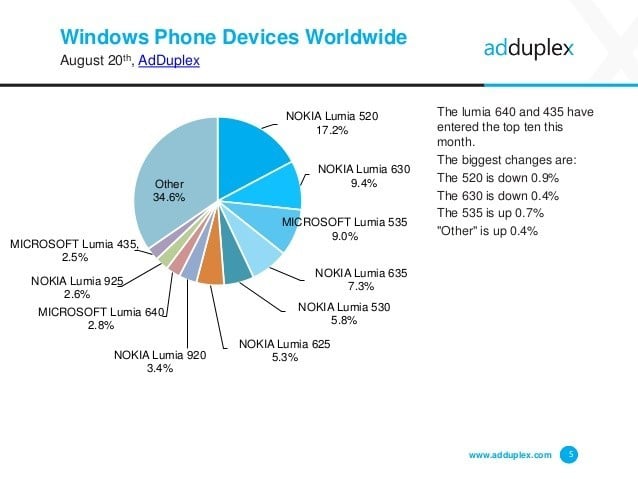
Recent data coming from ad platform AdDuplex shows that from all Windows version for mobile devices, Windows 10 Mobile is the single one that has witnessed growth. It now has a market share of 3.3%, up by 0.7% over the last month.
The change is obviously due to the fact that Microsoft has released the Windows 10 Mobile preview. Windows Phone 8.1 still has a market share of 78.1%, Windows Phone 8 is at 11.8% and the oldie Windows Phone 7.x has 6.8%.
Windows 10 Mobile still has a long way to go
According to the recent data, the Nokia Lumia 520 remains the most popular Windows handset worldwide (17.2%), followed by the Lumia 630 (9.4%) and Microsoft’s Lumia 535 (9.0%). Once again, we can clearly see that Microsoft needs badly other phonemakers to embrace Windows 10 Mobile.
Another recent report coming from the IDC is predicting that Microsoft’s Windows Phone will grow from its 2.6% market share in 2015 to 3.6% in 2019. While IDC doesn’t make it clear if this includes Windows 10 Mobile, as well, I think that seems to be the case.
Of course, an increase by just 1 percent in such a long while is definitely not an achievement, but the IDC seem pretty confident that the market share of mobile operating systems won’t change too much.
For Windows 10 Mobile to really become successful, it needs the phone making companies’ support, and not smaller players, such as Archos and others, but support from Samsung, LG, Lenovo, Huawei and maybe Xiaomi and others. Once that will happen, then we can see real hope for Windows 10 Mobile.
READ ALSO: USA Today Releases its App for Windows 10 Mobile
Microsoft Band Discounted by $50, Signals the Launch of Microsoft Band 2?
The Apple Watch is doing terrific and it’s quickly rising up to become perhaps the most important smartwatch in the world. But Microsoft hasn’t yet abandoned the fight and there’s big hope when it comes to the second-generation Microsoft Band.
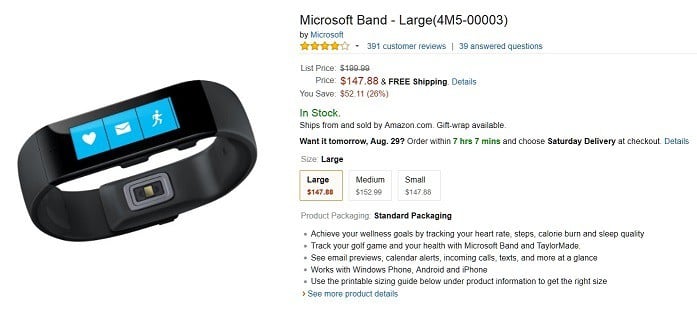
The Microsoft Band was announced on October 29, 2014, so it’s almost an year since Microsoft’s first smartwatch was released. However, meanwhile, a lot has changed and the wearables market has evolved quite a lot, so Redmond is badly expected to come up with a response. And indication to that could be recent discounts.
The official Microsoft Store currently retails the Microsoft Band for $180, down by $20 from its initial price. But on Amazon the Band is currently available for $149.99,which 25% less than the usual $199.99 price tag. All of the three sizes (S, M and L) of the Band get the $50 discount, but this is most likely a temporary discount.
Microsoft Band 2 around the corner?
Microsoft did confirm that it is working on a new version of the Band, but hasn’t given a release date, but it could join the new Surface Pro 4 and Lumia flagships at their unveil event which is allegedly set for this October.
I don’t know about you, but I think the next Microsoft Band 2 really needs to be amazing, because when the original version was released, the Apple Watch was still in the prototype phase. But things are different at the moment, so Microsoft has to work hard in order to come up with an impressive and competitive product.
How to Download Windows 10 Apps Without a Microsoft Account

You must register a Microsoft Account to use Windows 10 to its full potential. You can also use a local account, but you won’t be able to use some essentials, like syncing your files with OneDrive.
At first look, it appears that you must log in to your Microsoft Account to download apps from the Microsoft Store, but it can also be done with your local account, and I’m going to show you how.
When you sign in to the Microsoft Store, your Microsoft ID will convert your local account into a Microsoft Account for the Store and the whole computer. And if you want to download apps with your local account, you must perform one easy trick.
How do I download apps with your local account using the Microsoft Store?
- Open Microsoft Store (use whichever method, such as the Start menu, taskbar, Cortana, it doesn’t matter).
- Click on the person icon in the upper right corner of the window.
- Select Microsoft Account in the popup that will appear and enter your email and password.
- Okay, now you must carefully skip signing in to your Microsoft Account. Microsoft wants you to convert your local account to a Microsoft Account, but there’s an option to avoid that (however, it’s not so prominent, and you can easily miss it). So, instead of entering your password, click on the link below, which says Sign in to this app instead.
That’s it. You can now browse the Store and download apps with your local account, so you don’t have to use your Microsoft Account.
We also have a guide on how to download and install apps from Office 365, so don’t miss it.
Some people want to avoid using the Microsoft Account whenever possible because they worry about their security and privacy while signing in.
However, as I said, it’s required for many actions in Windows 10. So, if you still want to use your local account, you now know how to download apps, at least.
How to create multiple Windows 10 user accounts on a single PC

Would you like to share your Windows 10 PC or tablet with someone but are worried about them having access to all your personal files and social media accounts? With multiple accounts on Windows 10, you can, without worrying about prying eyes.
Step 1: To set up multiple accounts, go to Settings, then Accounts.
Step 2: On the left, select ‘Family & other users’.
Step 3: Under ‘Other users’, click ‘Add someone else to this PC’.
Step 4: If the person you want using your PC is someone you trust, add their email and follow the instructions. If not, select ‘The person I want to add doesn’t have an email address’ then ‘Add a user without a Microsoft account’ to add them as a guest user.
Step 5: Give the account a name, such as ‘Guest User’, add a password if necessary, then click Finish.
That’s it, you can now log out of your account and into the guest account you just created. Notice that none of your personal files can be accessed by this account, so it’s safe to allow others to use your PC.