MixRadio disappears from the Windows Store but promises to be back 'later in the year'

Mix Radio disappears from Windows 8.1 but promises to be back

Another day, another story of an app missing from the Windows Store. Recently Windows and Windows Phone users lost such apps as Bank Of America, Chase, Vevo, and MLB at Bat. Today, there are reports that former Nokia developed MixRadio service has gone missing from the Windows Store.

Let’s have a moment of silence for another fallen Windows app shall we. Before the pitchforks are brought out, and the torches raised, let’s refer to voices from Nokia because there appears to be a legitimate reason for the apps removal — the app uses Nokia account and payment services which are being closed next month.

While some MixRadio users breath a sigh of relief, being a Windows Phone user still feels like living on a razor’s edge. As users, some days we rejoice when a new game or big app title dances into the store. On other days (more often than not) users have to defend their Windows device of choice as another app is found missing from the store.

Unlike the recent platform indifference some app developers seem have for Windows Phone, MixRadio and Microsoft still appear to have an eager working relationship.

Bracketology with Bing: Breaking down Bing’s predictions for the NCAA tournament (with video)

Bracketology with Bing

March becomes a surprisingly inefficient month at work in the United States.  While this could be a result of daylight savings time, it’s most likely because a large number of workplaces will have employees watching the NCAA Basketball tournaments. I’ve seen classes stop and know of workplaces taking quite a few long lunches to watch one of the largest playoffs in American sport.

Continuing their trend of predicting major events, Bing has come out with a group of features for making brackets for the NCAA tournament. A fun way to stay involved with the tournament that fields 68 different college teams is filling out a bracket and seeing if you can predict the outcomes of the tournament.  ‘Bracketology’ isn’t an exact science but millions of people fill out brackets and compete in various online, office, and other pools.

In this video, I walk through the brackets, and show you how Bing can help you fill out yours:

This year Bing’s predictions include an auto fill feature that is based off of ten years of data as well as the ability to import your bracket into NCAA.com. 

Microsoft partners with Tencent to offer easy Windows 10 upgrade for Chinese users

Microsoft partners with Tencent to offer easy Windows 10 upgrade for Chinese users

Microsoft will apparently partner with Tencent in China to offer users with an easy way to upgrade to Windows 10 when it launches later this year. Spotted by the folks at WPDang, it seems someone jumped the gun a little early, revealing details about the partnership between Microsoft and Tencent. Microsoft is expected to announce the details about the partnership at WinHEC  which will kick off in Shenzhen starting tomorrow. 

It appears users running Windows XP, Vista, Windows 7 and Windows 8 will be able to upgrade to Windows 10 free of cost — as revealed before as well. Furthermore, with the Tencent Computer Manager will make sure the update process is seamless by providing real-time update guidance, fast downloads, drivers and more.

For those of you who don’t know, WinHEC will be a two-day event starting tomorrow in Shenzhen. WinHEC stands for Windows Hardware Engineering Community, and is for OEMs and others who are currently working on or interested in hardware for Windows technologies.

This is what Microsoft is doing to give you more free storage space in Windows 10

This is what Microsoft is doing to give you more free storage space in Windows 10

It wasn’t because Windows 7 ate 9 that Windows 10 was given its name, it was because this next version of Windows is no mere incremental upgrade, but an OS that Microsoft hopes will usher in a new era of computing. For the first time, Windows 10 will run on multiple devices of different form factors, and to make that happen, Microsoft needed to make Windows 10 as compact as possible, leaving a minimal storage footprint on the devices it runs on.

By the time Windows 10 is ready, Microsoft would have made numerous improvements to the way the OS reduces its storage footprint, and one of the most common methods of doing so is by compression. Windows 10 will use a new compression algorithm to compress its system files once installed. This would result in freeing up about 1.5GB of storage space on 32-bit systems and up to 2.6GB on 64-bit machines. Windows 10 for phones will also utilize the same compression algorithm, and given current storage capacities on phones, the storage savings should be more noticeable and appreciated. This compression will also extend to apps installed from the Windows Store.

This is what Microsoft is doing to give you more free storage space in Windows 10

However, Windows 10 will only compress files if the OS determines that the device it’s running on is capable of staying responsive when compressing and decompressing them. Should the device not have enough RAM or CPU power to run the decompression algorithm without slowing the device to a crawl, then the OS will not compress files to begin with. Because of the large diversity of Windows devices out there today, Windows 10 will run a compression “suitability assessment” during the upgrade path.

Another method of freeing up storage space is reassessing how the Windows Refresh and Reset functions work. Currently, those functions require a separate recovery image to read from. These recovery images are usually preinstalled by OEMs and can take up to 12GB of storage space. On Windows 10, a separate recovery image will not be needed as the Refresh/Reset functions will instead rebuild Windows 10 using runtime system files. You will still be able to use recovery images to restore the OS and preinstalled drivers and software should you decide to do so.

This is what Microsoft is doing to give you more free storage space in Windows 10

Microsoft regards Windows 10’s compactness as an evolution of its Windows Image Boot (WIMBOOT) technology. Introduced as part of the Windows 8.1 Update, WIMBOOT allowed for devices with small storage capacity (think devices with 16GB eMMC storage) to run the full Windows 8.1 OS with plenty of room to spare for to apps and content. However, upgrading from Windows 8.1 to Windows 10 is still a challenge that Microsoft needs to address as the upgrade process will require the Windows 8.1 OS, the download image, and the Windows 10 OS. All three are necessary should something unexpected happen during the process and a rollback is needed.

There’s still a lot of work left to be done with Windows 10, and while we may agree and disagree about how beautiful/ugly the icons are, we can at least accept that more storage space and a smaller footprint will benefit everyone.

Fix: ‘Trust This PC’ Issue in Windows 8.1 and Windows 10/11

Have you ever had a problem to perform a certain operation because your computer is not “trusted,” even if you know it is? Well, if that’s the case, we will now show you how to make your computer a “trusted PC,” just like it should be.
Windows 8 Trust This PC Issue
What a trusted PC actually means? Well, when you try to edit or add sensitive info about your Microsoft account, like your password, or credit card number, you’re going to need to insert a security code first, if you’re not accessing these information from a trusted PC. But, once you make your PC a trusted device, you don’t have to write that security code every time you want to access your confidential info. “Trust This PC” option is not turned on by default (logically), and once you turn it on, your “Trust This PC” problem will be gone. To make your current PC a trusted device, follow these steps:

  1. Press Windows key and I at the same time in order to open PC Settings
  2. Under PC Settings go to Users tab
  3. You’ll get your Microsoft account info, and “Trust This PC” option beneath it
  4. Click on “Trust This PC”
  5. Login to your Outlook account, and go to Security Info
  6. Now just confirm your PC as a trusted device and you’re good to go

If you already marked your PC as a trusted device, but still getting this error, you should login to your Microsoft account, go to Trusted PC and remove all your devices. Now just add your PC to the list again by performing the steps above, and everything should work.

If you have some additional comments, suggestions or something somehow doesn’t work for you, please write that down in the comments section, below. We would love to hear your opinion and maybe provide you some additional help.

Read Also: Fix: Google Chrome Doesn’t Work in Windows 10

Office Delve gets released to enterprise Office customers

Office Delve gets released to enterprise Office customers

Big data has been a buzz word in the tech world for some time now, but frequently the concept has little to do with people on an individual level. Microsoft looks to change how big data affects people starting with Office Delve, combining machine learning and big data into an enterprise grade social graph. Now that all those other buzz phrases have been used here is what Office Delve really is; a place where you are connected to the different pieces of information located in different places around the internet.

Documents could be stored in OneDrive, email attachments, or shared via links, but Office Delve aims to bring relevant documents to your feed so you don’t get lost in data. Delve also accesses data from Yammer, Sharepoint, and Office 365 video content to bring relevant information above the noise. Most people working today have several different places they communicate with colleagues, instead of creating a new form of communication Microsoft wants to unify the existing modes of communication.

All of this amazing analysis work is done with the Office Graph which uses machine learning to map the connections between people, documents, and data. Mapping the connections happens with existing data which companies are creating every day. Office Delve will help companies extract value from existing workflows to save time hunting for documents or not being kept in the loop.

The days of long chains of emails back and forth are hopefully numbered. Office Delve will help employees to understand what is relevant to them and where the necessary documents are located. Perhaps a new training video has been created and should be viewed by you, but you were not included on the original email. Office Delve could see the activity of people who you work with viewing this company training video, then bring the video to your feed so you can be trained too. This is one example of how machine learning and big data help avoid gaps in business.

Office Delve rolling out to all eligible Office 365 business customers worldwide. 

Fix: TV Home Media 3 Not Working in Windows 10/11

TV Home Media 3 is a great program for connecting your TV and computer, but it has one big flaw, it is not compatible with Windows 10. But no worries, you can still enjoy watching TV on your Windows 10 with TV Home Media 3, by running it in compatibility mode.

TV Home Media 3 Not Working In Windows 8

What can I do if TV Home Media 3 is not working in Windows 10?

  1. Right-click on TV Home Media 3 icon and choose Properties.
  2. When the Properties dialog box appears, go to Compatibility tab and then click on Run Compatibility Troubleshooter button. When you run the Compatibility Troubleshooter it will try to guess what version of Windows TV Home Media 3 needs to run normally ( in this case it’s Windows 7), and then it will try to run it with preferences for Windows 7. If the program works, you’re good to go, if it doesn’t, you need to try to set the compatibility manually.
  3. To choose the compatible operating system manually, you have to get back to Compatibility Mode section, select the Run This Program in Compatibility Mode For check box, and select the program’s desired Windows version from the drop-down list (In our case, that would be Windows 7).
  4. Click OK and try running TV Home Media 3 again to see whether it works.

This method could be applied to any older program incompatible with Windows 10. Unfortunately, there are a lot of old programs we used to love that are just not compatible with newer versions of the Windows operating system.

If running TV Home Media 3 in a compatibility mode didn’t solve your problem, you might want to consider changing your TV adapter and software to be compatible with Windows 10 and higher because it is unlikely that the creators of TV Home Media 3 will make it compatible with newer Windows operating systems in the future.

Office 2016 for IT Pro and Developer Preview gets released today

Office 2016 for IT Pro and Developer Preview gets released today

In the spirit of moving fast and delivering more software to their customers, Microsoft has announced a preview program for Office 2016. This preview is not feature complete but has lots of the new look and feel of the next version of Office. Through the course of the preview Microsoft will push out updates to enable new features. Previously covered on WinBeta the Office 2016 has a new visual look with program specific colors at the top of each program.

Features are geared toward enterprises focusing on features such as Data Loss Prevention (DLP) in Word, Excel, and PowerPoint, as well as more support for different account types in Outlook. Click-To-Run also has received an improvement with 2016 to be faster and more efficient on the network while respecting priority traffic to not hog then network during critical traffic times. Microsoft also made a point to mention how existing Macro and Add-Ins will work without needing to be updated.

Currently the preview seems to be aimed at only enterprise customers so personal Office 365 subscriptions are not enough to gain access for now.

Windows 10: Updates will soon be deliverable via P2P

Windows 10

Word about a P2P feature for Windows Update in Windows 10 began circulating towards the end of 2014 thanks to a dummy UI found in one of the early Windows 10 builds which showcased P2P abilities. In build 10036 which leaked recently, it appears that feature is still being built and improved upon.

For those who don’t know, P2P allows users to download Windows Updates from one PC, and then distribute it to other PCs on your network. This will save bandwidth for those who are on metered connections. It’s not entirely clear if said feature works correctly just yet, as no updates for build 10036 have been issued.

The recent leak of build 10036 has unveiled a number of new additions which the company has been working on. The UI is being improved, and additional features are being added throughout the operating system. Keep checking WinBeta for more regarding Windows 10 and the latest leak.

Windows Insiders have now submitted over 1 million bits of Windows 10 feedback

Windows 10

Microsoft’s Gabe Aul has today announced via Twitter that the company has now surpassed 1 million bits of feedback being sent in from Windows Insiders using Windows 10. That’s a huge amount of feedback, and makes Windows 10’s development one of the biggest beta programs in history.

The announcement comes shortly after the leak of Windows 10 build 10036, which introduced a number of new elements to the operating system whilst being plagued with a rather annoying bug which results in the Mail, People and Calendar apps from not launching.

We’re not sure whether Microsoft is going to highlight the piece of feedback which hit 1 million. One could guess that the feedback was actually submitted via todays leaked build, which would be funny.

So, Windows Insiders, have you been submitting feedback to Microsoft? Let us know your thoughts on this story below!

Upcoming Windows 10 build lets you track your feedback stats

Windows 10​

The upcoming Windows 10 build for Insiders includes an updated Insider Hub which allows Insiders to track their feedback statistics across the many devices they use Windows 10 with. This is excellent news for those avid Windows Insiders who’d like to see their statistics within the Insider program.

This new update also allows you to see your most upvoted piece of feedback, so you can now see whether people agree with what you have to say or not. Perhaps Microsoft will begin introducing rewards for avid Windows Insiders, much like the Xbox program. I guess time will tell.

You can see the new feedback app in action in our hands on video, which you can check out below (at the 4:35 mark). Microsoft is making a number of different tweaks to the upcoming Windows 10 builds which further stabilize and feature-complete the operating system. Hopefully Microsoft will release a new Windows Insider build soon.

Hands on with Windows 10 build 10036 showcasing new features and changes (video)

Windows 10​

Windows 10 build 10036 has been a topic of conversation over the last few days. It includes a number of new features and changes which further improve the operating system. The build is also rumored to be leaking this weekend, so keep an eye out for that. As per every build that leaks (or is rumored to leak), we’ve created a super quick video demonstrating the new changes!

You can check out our video below. One feature which I was not able to get working is the new Install UI, which you can see here. All the other major changes are in the embedded video below, so give that a watch if you’re up for it.

Build 10036 was originally intended for Windows Insiders, but was not sent out to the public as it includes a number of nasty bugs. Microsoft could still opt to push out the build next week with a patch, or they’ll drop an entire new build for Insiders to play with. I guess we’ll have to wait and see.

Windows 10: The out-of-box-experience gains new features and UI (video)

Windows 10

Recent builds of Windows 10 now include an updated (out-of-box-experience) which adds a few extra settings and gives the whole experience a new design. Setting up your PC now matches that of Windows Phone, where you can setup Cortana and more.

We’ve embedded a short video below detailing the new features. You can create a new Microsoft account (without an ID too if you’re wondering), or sign in with your current one. From the OOBE, you can now also enable Cortana, something which wasn’t possible before.

Microsoft is further aligning the desktop / phone experience in their latest builds, which is excellent news. What do you think of this updated OOBE? Let us know in the comments below!

Windows 10: Task View receives major update in latest builds (video)

Windows 10

Microsoft has been working hard on the Task View feature found in Windows 10. WinBeta has gained access to a pre-release build which includes the new Task View functionality, and we must say it’s worlds better than the one found in 9926.

We’ve embedded a video below for your viewing pleasure. The new changes include an updated UI, true multi-desktop functionality and the ability to move windows between desktops.

Stay tuned at WinBeta for more news regarding Windows 10. We’ve got a few more special things to show you so keep checking back!

When is your Windows PC too old and when is it time to buy another?

Vintage PC

One of the questions I am most commonly asked is how long a person’s personal computer may last. Consumers are always curious to know how long they can stretch their money and what combos might last them the longest. Today, we are going to attempt to answer that not-so-simple question and determine when a computer is truly obsolete.

The Ideas

Let’s start by establishing a few key ideas. The first is that everyone has different needs for their unique situations. My grandmother, who simply browses Facebook and sends emails, can last a lot longer on an older machine than someone like myself who needs to run Photoshop and Lightroom. An Intel Core 2 Duo may still be decent for the web surfers of the world, but most of us are going to want a Core i processor capable of handling multimedia better.

The second idea that we need to acknowledge is that people have different levels of patience and tolerance; different people will interpret the word “obsolete” in a variety of ways. Is obsolete when a computer can no longer run modern day applications or is it when the user feels they have to wait too long for actions to complete?

Working in a Computer Lab

Lastly, for the purposes of this article we are going to be talking about notebooks and not desktops. Notebooks tend to age quicker and are the primary form of full-PC computing in 2015. For our examples, we will be basing our comments on standard consumer machines at the specified times – not budget netbooks or high-end gaming desktops.

The Users

With these ideas in mind, we have created a scale that rates computers all the way back ten years ago. Yikes! Can you imagine using a computer from ten years ago? Do you remember what was released back then at the time? In 2005, you could find the average consumer rocking a single-core Pentium 4 processor along with a stellar 512MB of RAM. If you were really awesome then you might even have a full gigabyte at your disposal. Hard drives were almost always 5400rpm (or lower) and if you could get your hands on 120 GB of storage – you were the cool guy on the block.

Two men using computers

We have divided our recommendations into three basic groups – low, medium, and high. We are defining “low users” as those who can survive on minimum computing power – these individuals usually spend their time surfing the web or using Microsoft Office. “Medium users” are defined as the average users who focus on a variety of tasks including web browsing and multimedia viewing. Lastly, our “high users” are defined as those who use power intensive applications; these may include Adobe Photoshop, Audition, Premiere, etc.

The Research

Within our research, we found that those in the low category can use a machine all the way back to 2009, while feeling perfectly comfortable. Machines in 2009 generally ran high-end Core 2 Duo processors with 2 GB of RAM – perfect for the web browsers and writers. We believe that some users may be able to use machines back to 2006, while still having a decent, yet minimal, experience. In 2006, Core 2 Duo had just been introduced and 1 GB of RAM was a comfy seat. However, that is it – we cannot recommend using anything before 2006 for those in the low category.

Dell Studio Laptop

The medium category is what most people fit within – those looking to browse the web, use Office, watch HD videos, and play basic games. We believe that those in the medium category can happily use a machine dating back to 2011 without any trouble. Walking into the year 2011, Intel’s Core i processors had recently been announced and users could be found using 4 GB of RAM on average. If you are within this category and using a machine between 2010 and 2008, you can still have a decent time, but anything before that is not recommended. For those curious, in 2008, most users could be found using their Core 2 Duo processors and 2 GB of RAM.

Dell XPS 13

Lastly is the high category, these are the users who need the power and can’t live with an outdated machine.  In general, if you are in this category, we recommend owning nothing before 2013. A cycle period of two years is typically recommended for high category users. Although, it is possible for a user in this category to use a machine dating back to 2010 – the introduction of Intel Core i3/5/7 processors – anything before that should be avoided.

The Conclusion

After conducting our own research, we have concluded that the average consumer should switch out their computer every five years on average. Consumers, unless having very minimal demands, should upgrade before their machine before eight years have passed.

We cannot stress enough that this is a general guideline based on average consumer needs and compelled with the processing technology of each year. Many people may fall outside these guidelines, as they are only that – guidelines.

If you are in the market for a new PC, stay tuned to WinBeta as we explore a multitude of options for each category of user previously aforementioned.

Stay up to date on Site Recovery in Azure with email notifications

Stay up to date on Site Recovery in Azure with email notifications

It would seem with cloud-focused Nadella at the helm, the Azure team is quickly becoming the All-Star team of Microsoft. While fixing Windows appears to be a priority for Microsoft, the news of development and its future propositions seem to pale in comparison to Azure at the moment. While the Windows team stumbles around trying to patch updates and drip out preview builds for both PCs and phones, the Azure team is netting commercial and government contracts, expanding the reach of Office 365, poised to expand the development scale of Xbox and Windows 10 gaming as well as releasing update after update at neck-breaking speeds. Right now the Azure team is running at full stride.

With that being said, Azure just gained a new email notification feature for Azure Site Recovery. This feature allows users to monitor the replication health of their virtual machines from anywhere they can receive email. Users can now configure their Azure Site Recovery vault to send Email notifications for any event they deem interesting. The emails can be configured to send information about replication issues like low bandwidth, recovery storage failures, and network connectivity failures.

Stay up to date on Site Recovery in Azure with email notifications

In order to access this new feature, the user can go into the Events tab, which is accessible from the top of the Azure pane. Once notifications are selected at the bottom of the Events tab pane, the user will be given the configure notifications option. This option will then enable email notifications.

Stay up to date on Site Recovery in Azure with email notifications

The Azure team mentions on their blog that they are hard at work attempting to extend the email notification feature further by soon adding support for monitoring additional events like DR provider connectivity issues, and SAN array replication issues. As per the ‘new’ Microsoft, the team is also welcoming feedback and suggestions through their Azure Site Recovery user voice forum.

Head on over and let them know what you think of the new feature as well as what you might like to see in the future.

Microsoft updates OneNote Clipper: redesigned UI, location picker, more

Microsoft updates OneNote Clipper: redesigned UI, location picker, more

Microsoft has just announced its latest in a steady string of updates to OneNote, this time updating Clipper, a browser add-in that helps to capture and enhance content from around the web and gather it in to OneNote.

Clipper 2.0 is a major step forward for the OneNote accessory, and includes a revamped UI that takes up less space and offers a clean new look, but perhaps the biggest improvement to Clipper 2.0 is the inclusion of a location picker.  With the previous version, any clipped content was sent by default to your Quick Notes section in OneNote.  Now, however, you can choose from any of your notebooks and sections, making organizing your clippings easier.

Clipper 2.0 location picker

Once you set a location, Clipper 2.0 will remember it for the next time, useful if you’re clipping a lot of recipes, or clippings for a research project you’re storing in one notebook section.  You can even set a shared notebook with the location picker, making it easy to share clippings with others.

Another new feature of Clipper 2.0 is its ability to clip and save certain types of content, currently Articles, Recipes, or Products, and only save a cleaned up version of that content.  To use it, Clipper 2.0 will automatically detect if you’re browsing a page containing an Article, Recipe, or Product.  Just click on the appropriate button on the right side of the Clipper, and it will show you a preview of the content, without all the clutter.  Then just select Clip, and save the now all cleaned up content to OneNote.

Here’s an example, with the contents of the article pulled cleanly out of the website, saving a lot of steps in removing all the unnecessary stuff:

OneNote Clipper 2.0 Article picker

Clipper 2.0 also includes a new Region clipper, available for Chrome. With the Chrome extension installed, you can save regions of the web page you’re clipping, rather than the full page or the article/recipe/product clippings.

You can download OneNote Clipper for your browser from the download link below.

How to Install Windows 10 for Phones on Supported Devices

Windows 10 Technical Preview for phones has been released recently, and it surely produced a lot of hype. While some users were complaining on how they’re unable to install it on their lower-end devices, other ones tested their new operating system.
install windows 10 for phones on non-supported devices
There’s also a third  kind of users, those who are able to install Windows 10 on their Windows Phone devices, but not sure if they should. So, if you’re someone who understands how technical preview works, but is unsure how to install it, here’s a tutorial for you.

Installing Windows 10 Technical Preview on supported Windows Phone devices is actually pretty simple. All you have to do is to download the Windows Insider app from the Windows Phone Store, choose your rollout option, and confirm the terms. After that, just check for updates and you’re good to go. The process of installing the new Technical Preview could take between 10 minutes and 2 hours, depending on your device. You can also choose two enroll options, depending on how you want to use your Windows 10 Technical Preview.

Here’s a step-by-step tutorial on how to install Windows 10 Technical Preview for phones on supported devices:

  1. Open Windows Phone Store and search for windows insider
  2. Download and install the Windows Insider app from the Windows Phone Store
  3. Once the app is installed, open it to receive Technical Preview builds and tap on Get preview builds
  4. After that you’ll have to select a enroll option. There are two enroll options, Insider Slow and Insider Fast. If you select Insider Fast, you’ll get new updates sooner, but with a less solutions for bugs and other problems (conversely for Insider Slow)
  5. After you decide which enroll option you want to use click on next, confirm the terms of use and finish the installation
  6. When the installation is completed, Windows Insider app will close out
  7. Now go to your phone’s Settings and go to phone update section
  8. Press check for updates and your phone will begin to download all necessary files for Windows 10 Technical Preview (it can take some time, depending on your device)
  9. When downloading is finished, you’ll get a pop-up to install Windows 10 Technical Preview for phones
  10. Just press install and the installation will begin
  11. After the installation is finished your phone will restart and next time ti boots, it should be running Windows 10 Technical Preview

All your settings from Windows 8.1 should be transferred to Windows 10 TP, so you’ll probably have the same settings and everything else, but just in the new, improved environment of Windows 10 Technical Preview. If you’re not satisfied with the new Windows 10 Technical Preview for phones, don’t worry, because Microsoft took care of that. Because you can simply bring back your old Windows 8.1 with Microsoft’s Rollback Tool.

Have you tried the new Windows 10 Technical Preview on your device? What are your expressions about the Technical Preview, do you like it or not, and what would you change? Write about all of that in the comment section, we would love to hear that.

Read Also: Download Early 2015 Firmware and Driver Updates Available for Surface Pro Devices

DuOS first impressions, the closest you’ll get to native Android in Windows

DuOS first impressions, the closest you'll get to native Android in Windows

Installing operating systems other than Windows on Microsoft’s Surface Pro line of PCs is not a new concept. While Secure Boot prevents one from doing so, turning it off is easy. After that, the Surface is just another PC; you can throw Windows 7 on it, Ubuntu, OSX, Android or any other Intel x86-compatible OS, although getting working drivers is another story entirely.

Last year, the Console OS team managed to get Android 4.4 KitKat running on Windows having successfully funded the project on Kickstarter. We installed Console OS on the Surface Pro 2 and because it ran natively on the device rather than being emulated, the experience was smooth and lag-free. Console OS dual-booted with Windows so you always had the option of running one or the other. The team also promised a way to instantly switch between the operating systems, somehow having both run natively side-by-side, but the project is still under development and that feature hasn’t been added yet.

Is there a market for Android in Windows, and is it something you might be interested in?

Unfortunately, we did run into some issues, the Type Cover didn’t work on the first release of Console OS (DR1), and neither did Wi-Fi, Bluetooth, brightness control, the accelerometer, sound, or the cameras, so that certainly hampered the experience, but such issues were expected at that early stage. Additionally, long-term issues also presented themselves due to the complex nature of the install. While the install process itself was relatively straightforward and only took 5 minutes, getting the Surface back to running only Windows was not easy. Secure boot had to be turned off to allow for the install, and for some reason turning it back on resulted in a ‘Secure Boot Violation’ causing Windows to fail to boot.

We had to completely format the Surface using the recovery images provided by Microsoft to get Android out. Besides the barrage of sensors not working, this was another downside to having Console OS dual-boot with Windows. We expect the uninstall process to be much smoother and simpler once Console OS is out of development, but in the meantime, having Android run within Windows is the safest way to go.

Installation

DuOS first impressions, the closest you'll get to native Android in Windows

There are many solutions to run Android within Windows, all of which are emulated. This means that you will sacrifice performance significantly. Android would lag every step of the way and you can forget about playing 3D games. That was true until AMIDuOS (DuOS) came along. Developed by American Megatrends – the same company that produces the BIOS on the Surface Pro line – DuOS apparently runs “natively” according to the company within Windows.

“AMIDuOS is nothing less than the full Android experience, with all the features that the latest version of the popular mobile operating system has to offer. It runs fast, looks crisp and sharp and performs with no limitations – because it is 100% native Android running on your Windows hardware!” – American Megatrends

DuOS first impressions, the closest you'll get to native Android in Windows

DuOS is installed just like another other Windows application and it runs in its own full-screen window. With it you get stock Android 4.2.2 (Jelly Bean), and although the Play Store doesn’t come built-in, you can easily download it from the DuOS website and have it installed, giving you access to all the Android apps.

Android Surfaces Again

DuOS first impressions, the closest you'll get to native Android in Windows

Once Android is up and running, it may feel outdated, especially if you have used Android 5.0 Lollipop, but now that the Play Store is installed, you can easily download the official Google Now Launcher and Google Keyboard apps which would give you a very-close-to-Lollipop look and feel. It even supports launching Google’s Cortana counterpart Google Now by simply saying ‘OK Google’, the always-on microphone will pick up your voice just fine. You’ll also be glad to know that the state of the OS is saved, so closing DuOS and restarting it is just like doing so on a real Android tablet. Your wallpaper, folders, game saves, are left exactly where you left them.

Issues Faced

DuOS first impressions, the closest you'll get to native Android in Windows

While DuOS runs fine on the Surface Pro, there have been a few issues faced. Firstly, there doesn’t seem to be any Bluetooth support. The option is missing from settings, and the device simply cannot be detected by other Bluetooth devices or peripherals. Also, plugging in a USB flashdrive does nothing. Even using some of the best third-party file managers from the Play Store, DuOS doesn’t detect flash drives, so you can rule out getting content directly into DuOS using that method.

The good news is that DuOS supports shared folders. That means that you can select existing folders for music, videos, pictures, and documents that DuOS can then access, including those in a MicroSD card. It did take a few tries to get this working properly but it did eventually. The VLC for Android Beta app was able to detect the videos and music in the shared folders and they played just fine. This makes up for the lack of USB storage support and it also means that you don’t have to copy files over, which would duplicate them in both Windows and Android.

Performance

DuOS first impressions, the closest you'll get to native Android in Windows

Surprisingly, Jelly Bean runs rather well on the Surface Pro. There are a few hiccups here and there, but it’s a lot, really (a lot) better than the other Android-within-Windows clients. Navigating around the UI is smooth for the most part and everything works as expected, including all the aforementioned sensors (except Bluetooth) and the Type Cover.

Gaming also works very well on DuOS. Building crazy vehicles packed with TNT and rocket launchers in Bad Piggies works as expected, and even during the most intense explosions, no dips in framerates were noticed. The same goes for Angry Birds Go, racing around the track with multiple players and using the accelerometer to turn works like a charm. Usually the lag happens during the first few seconds of getting into a game, but after that, games are very playable.

Speaking of gaming, DuOS has recently been updated with controller support. I couldn’t get this to work though, even with games that support controllers like Angry Birds Go and Badland, but it does mean that the USB port and DuOS are indeed talking, so why no USB storage support then?

DuOS first impressions, the closest you'll get to native Android in Windows

As can be expected, playing games will require more resources, so you will be hearing the fans on the Surface start to kick up as well as the heat. Having a look under the performance tab in Task Manager with a game running in DuOS, you’ll see that all cores of the CPU are being utilized and the memory is almost maxed out. With DuOS on idle or doing simple tasks like web browsing on Chrome the CPU drops to around 50% and the RAM at around 70%.

Battery Life

DuOS first impressions, the closest you'll get to native Android in Windows

This brings us to battery life. It’s poor. That kind of resource usage even on idle or when doing tasks that shouldn’t otherwise be resource intensive will cause the battery life on your Windows tablet to run out fast. You can however adjust how much system RAM is allocated to DuOS, this would allow you to squeeze out more battery life at the expense of performance.

This kind of battery consumption makes us question that “100% native” claim that American Megatrends made, as battery life on the truly native Console OS was excellent.

Final Thoughts

DuOS first impressions, the closest you'll get to native Android in Windows

DuOS is a great tool to have on your Surface Pro, mainly for the apps. It means that should you ever need to use an app that isn’t available on Windows (like proper Twitter, not some abandonware) you can easily do so by firing up Android. DuOS doesn’t even take that much space, and most importantly, it’s easy to uninstall at this point and doesn’t require you to mess with your Secure Boot settings.

My only suggestions for the developers is to have DuOS upgraded to Android Lollipop and the addition of external USB storage support which would be convenient. Otherwise, DuOS is what I would recommend if you’re looking to run Android apps on your Windows devices, at least until Console OS adds in support for that InstaSwitch miracle of a feature.

Hopefully Windows 10 and its Universal Apps will close the “app gap” between the platforms, but until then, DuOS is the way to go. You can have DuOS for only $9.99 over at the source link below. There is a 30-day trial period too so you can check out how well it performs on the device you plan on using it on before you purchase, whether that device is a desktop PC, a laptop, or a tablet.

Is there a market for Android in Windows, and is it something you might be interested in? Let us know your thoughts in the comments below.

UPDATE: I was informed by AMIDuOS representatives that work is being done to upgrade DuOS to Android Lollipop. Doing so should introduce a new design language, even better UI responsiveness, and many of its new features. No exact release date for the Lollipop upgrade but it’s coming soon.


Principal Designer and Researcher Bill Buxton and Kat Holmes discuss design at Microsoft

Part of human nature is to ingest information and categorized it. It makes identification quick and seamless, and allows the human brain to better multitask. Hence why a toddler may identify everything with four legs as a dog at first, or why your mother thinks every subsequent gaming console is a ‘Nintendo’. This type of mental deduction puts our 3 dimensional world into digestible 1 dimensional pieces. As we quickly ingest and digest information, the brain hits a slight road bump when it stumbles across something that isn’t an ‘or’ but an ‘and’. It takes just that much more processing time to figure out the ‘and’.

Principal Researcher at Microsoft Research Bill Buxton and Principal Designer at Microsoft Kat Holmes are working behind the scenes to make Microsoft an ‘and’ company by incorporating a level of design philosophy that goes beyond what consumers actually see. While companies like Google are judged and defined by their creativity and Apple by its attention to detail or ease of use, Microsoft is typically known for functionality. Microsoft is the ugly work horse, that you pull out to plow the fields but leave in the barn when it comes time to go to the fair. Buxton and Holmes would like to change that analogy and they go into detail in an interview on The Next at Microsoft podcast about their philosophy of design.

The thing that we both work on the most isn’t a thing, it’s actually the design of the culture. You design your values then you design your culture around your values and then construct what are the skills we need and your teams to execute and then the products are easy. -Bill Buxton

Both Holmes and Buxton have very unique philosophies about how to inject a new sense of design into not only the product they work with like human-computer interactions, multi touch inputs, Windows, Xbox or Cortana, but imbuing the entire company with a new design, something indicative of Microsoft’s future.

Holmes mentions that in order to better help her achieve this goal, she looked  towards practical solutions like getting out of Redmond, out of Seattle, out the west coast and helping her teams reach out to other parts of the nation and world to understand what is going culturally elsewhere. She also mentions her team’s work in Spike Jones’ award nominated film, Her. One of her take-aways from that project was a sit down she had with  KK Barrett, the Production Designer on the film. Barrett and her team never set out to create a vision of the future but rather take things we have available and remove all the unnecessary clutter. This approach to simplicity is what Holmes is trying to incorporate into the design of projects like Cortana.

Believe it or not Microsoft may be looking beyond the Metro typography subway signage and into a much more in depth approach. Holmes mentions in the interview that she looking into how a city is designed rather than the simple navigation of it. How to bring life and energy to a product more so than simple schemes.

Buxton also believes that well designed products are worth learning. This sentiment seems to ring true for much of Apples product lines. Well designed laptop or phones with seeming deficiencies become instruments people learn to live around, because they are well built.

During the interview we finally get some clear insight into what CEO Satya Nadella has been preaching for over a year now about ‘mobile first’. Buxton clarifies that mobile first isn’t about devices but the mobility of the person, and how Microsoft can help assist in that mobility (might be a dagger into the heart of Windows Phone fans).

The interview continues at length about more approaches to designed and Microsoft’s ultimate goal in reaching their audience. If you have the time, it’s a really refreshing listen.

Microsoft teases a 'tech-filled trip' to Redmond for lucky Windows Insiders

Microsoft

Announced on Twitter earlier, lucky Windows Insiders can win a ‘tech-filled trip to Redmond’.

The Windows Insider project has proven to be something of an unmitigated success story for Microsoft. As announced during the Mobile World Congress (MWC) there are now over 2.8 million Windows Insiders across the world, and from this number over 900,000 pieces of feedback have been received.

As such, Redmond owes a great deal to the community which has responded so magnanimously (relatively) to its advances. This may go some way to explain this tweet from @Windows:

What this ‘tech-filled’ trip entails is anyone’s guess; anything from a unique HoloLens experience to the delights of Azure server management is on the table. Most likely, the trip will involve a close look at a somewhat close to finished version of Windows 10, though at the moment this is pure speculation.

As may be guessed by the information provided, this is a developing story at the moment; we will update this page with more information once it is provided.

Will you be entering to win the ‘tech-filled’ trip to Redmond? Let us know in the comments below.

Microsoft looks to be preparing for a faster Windows 10 Insider system

Windows 10

Earlier today, Microsoft accidently published a new update on the Insider Hub, which announced changes to the fast Windows Insider ring. The announcement was meant for internal employees and partners only, however it appears the announcement was incorrectly marked as external.

The announcement warns internal users on the fast ring that said ring was about to get even faster, and that if they’d like to stick with the current pace of build drops, should drop to the slow ring immediately. The fast ring will now receive builds as soon as they’re ready, instead of being tested by OSG first.

As said above, this announcement was meant for internal users only, meaning us Windows ‘Insiders’ won’t be affected by this change. However, it does seem peculiar as to why Microsoft is making this change internally. Recently, Gabe Aul announced in a blog post that they were considering speeding up the frequency of build drops for the public Windows Insider program.

Windows 10

Perhaps this internal change is in preparation of this new, faster system. The company may be moving everybody up one group, Microsoft testers will now get builds even faster, and as a result us Windows Insiders will receive what those Microsoft testers received prior to this change, which usually consists of a new build drop weekly.

Of course, this is all speculation as of right now. It’s still early days, so anything could happen. What are your thoughts on this?

Thanks for the tip, Chris G!

Download Early 2015 Firmware and Driver Updates Available for Surface Pro Devices

This year Microsoft has rolled out a series of important updates for its Surface Pro devices, all three of them that is. Let’s take a look and see what’s new.
Surface_Pro_Updates
The biggest updates have been rolled out for the Surface Pro 3 devices but the overall aim of these updates is to improve the graphics and security experience. The updates are visible in the updates history under the name “System Firmware Update – 1/15/2015”. These firmware updates cannot be uninstalled or reverted to an earlier version.

The Surface updates are delivered in stages to Surface customers. This means that not every Surface will receive the update at the same time. If you have not received the update, you can manually check Windows Update and, of course, install it manually.

Let’s take the updates one by one.

Surface Pro:

  1. Surface Pro UEFI update (v1.7.50) further enhances the system security.

Surface Pro 2:

  1. Surface Pro UEFI update (v2.05.0150) improves the PXE boot experience with the 1 gigabit Surface Ethernet Adapter and further enhances the system security.
  2. HD Graphics Family driver update (v10.18.14.4029) enhances display stability and performance, improves user experience when using Miracast adapters. Improves compatibility with DisplayPort monitors and daisy chaining.

For Surface Pro 3:

  1. Surface Pro UEFI update (v3.11.450.0) adds support for updated HD Graphics Family driver.
  2. HD Graphics Family driver update (v10.18.14.4029) enhances display stability and performance, improves user experience when using Miracast adapters. Improves compatibility with DisplayPort monitors and daisy chaining.
  3. Wireless Network Controller and Bluetooth driver update (v15.68.3073.151) addresses connectivity issues while Hyper-V is enabled. Adds an advanced feature to control the 2.4Ghz and 5Ghz band preference.
  4. Surface Home Button driver update (v2.0.1179.0) ensures compatibility with the Surface Hub app.
  5. Microsoft Docking Station Audio Device driver update (v1.31.35.7) improves the user experience while using the Surface
  6. Pro 3 Docking Station so that sound is available when a speaker is not connected to the docking station.

If the updates have not been installed automatically, you can download the updates pack from here.

Patch Tuesday comes with critical updates for Windows and firmware for Surface

Patch Tuesday recieves critical and massive updates today

Ladies and gentlemen another Patch Tuesday is upon us and for the security conscious or the glutton for punishment type, that means another round of time consuming updates that get applied to your Windows devices. While some might see Patch Tuesday as a mild annoyance it’s a still a service that should be greatly appreciated by all.

Today’s Patch Tuesday comes with some very important and critical updates, many of which address remote code execution. There are updates to the security of Internet Explorer, Adobe Font Driver, VBScript, vulnerabilities in Office, the Kernel Mode Driver, PNG processing, photo decoder and others for PC devices:

MS15-018

Cumulative Security Update for Internet Explorer (3032359) 
This security update resolves vulnerabilities in Internet Explorer.           

MS15-019

Vulnerability in VBScript Scripting Engine Could Allow Remote Code Execution (3040297) 
This security update resolves a vulnerability in the VBScript scripting engine in Microsoft Windows.

MS15-020

Vulnerabilities in Microsoft Windows Could Allow Remote Code Execution (3041836) 
This security update resolves vulnerabilities in Microsoft Windows. 

MS15-021

Vulnerabilities in Adobe Font Driver Could Allow Remote Code Execution (3032323) 
This security update resolves vulnerabilities in Microsoft Windows. 

MS15-022

Vulnerabilities in Microsoft Office Could Allow Remote Code Execution (3038999) 
This security update resolves vulnerabilities in Microsoft Office.

MS15-023

Vulnerabilities in Kernel-Mode Driver Could Allow Elevation of Privilege (3034344) 
This security update resolves vulnerabilities in Microsoft Windows. 

MS15-024

Vulnerability in PNG Processing Could Allow Information Disclosure (3035132) 
This security update resolves a vulnerability in Microsoft Windows.

MS15-025

Vulnerabilities in Windows Kernel Could Allow Elevation of Privilege (3038680) 
This security update resolves vulnerabilities in Microsoft Windows.

MS15-026

Vulnerabilities in Microsoft Exchange Server Could Allow Elevation of Privilege (3040856) 
This security update resolves vulnerabilities in Microsoft Exchange Server.

MS15-027

Vulnerability in NETLOGON Could Allow Spoofing (3002657)
This security update resolves a vulnerability in Microsoft Windows.

MS15-028

Vulnerability in Windows Task Scheduler Could Allow Security Feature Bypass (3030377) 
This security update resolves a vulnerability in Microsoft Windows.

MS15-029

Vulnerability in Windows Photo Decoder Component Could Allow Information Disclosure (3035126) 
This security update resolves a vulnerability in Microsoft Windows.

MS15-030

Vulnerability in Remote Desktop Protocol Could Allow Denial of Service (3039976) 
This security update resolves a vulnerability in Microsoft Windows.

MS15-031

Vulnerability in Schannel Could Allow Security Feature Bypass (3046049) 
This security update resolves a vulnerability in Microsoft Windows that facilitates exploitation of the publicly disclosed FREAK technique, an industry-wide issue that is not specific to Windows operating systems.

Patch Tuesday recieves critical and massive updates today

Other Microsoft devices are receiving a truckload of updates and patches, for security, Office, and general updates, as well as some firmware updates for the Surface Pro 3 and the original Surface RT.

The Surface Pro 3 is receiving a Surface Pen settings driver update (as wells a name change to the Surface Hub: Surface app) and after a long hiatus, the original RT devices are getting a firmware update to address audio and displays.

You Can Now Save Outlook Email Attachments to OneDrive

Microsoft Outlook is the main email service used at work. Sometimes, dealing with many files can be nerve-wrecking, especially if you are looking for a file you have already sent as an email attachment but somehow you can’t find the exact email in your Outbox. No more worries, OneDrive now lets you save Outlook email attachments to the cloud.
Save_Email_Attachements_to_OneDrive
Cloud storage services are extremely popular because they are efficient. And if you want to get rid of that messy inbox/ outbox folders, you can rely on the cloud storage systems. Thanks to the “Save to OneDrive option” you can now save all the attachments you have sent or received straight to the cloud.

We’ve made it simpler and tidier to manage these email attachments. When you receive an email with an attachment or group of attachments—documents, pictures, music or videos—you can now save them to OneDrive in just one click.

OneDrive then creates a folder called “Email attachments” and you can sort the files as you like. If you need to quickly check that 2014 profit and loss file, all it takes is a single click. There are no restrictions, the feature is available to all users.

You can also select which files you want to save to the cloud. Select the file you want to save, then click on the drop-down menu and click “Save to OneDrive”. However, if you try to attach a OneDrive file to an outgoing email, this won’t be possible. But you can send a link to the OneDrive file to your recipients and they can use it to download the file.

Being able to save you email attachments in the cloud does not mean you no longer have the possibility to save the files to you local drive. Both are available.

READ ALSO: Download Latest iTunes Version for Windows to Fix Outlook Syncing Problems

Microsoft on World's Most Ethical Companies list 5 years running

Microsoft on World’s Most Ethical Companies list 5 years running

Today, the Ethisphere Institute released its annual list of the World’s Most Ethical Companies. Microsoft is included on the list for the 5th year in a row. This is a great achievement for Microsoft as it continues to evolve and innovate as a company, as well as expanding across the globe to help and educate people to help others through the power of technology.

In a post on Microsoft on the Issues Blog, Microsoft’s general manager of Citizenship and Public Affairs, Lori Forte Harnick, describes the pride that she and everyone at Microsoft feel about this honor:

“Trust is paramount to the success of any business. At Microsoft, we work hard to build and maintain trust through a shared commitment to ethical and transparent business practices.

Our commitments to ethical business practices and strong corporate governance policies are designed to promote the long-term interests of our shareholders, maintain internal checks and balances, promote accountability at all levels of our organization, and foster responsible decision making. 

We are highly appreciative of this honor. Our customers and society expect us to maximize the value of technology while preserving values that are timeless. We recognize there is more work to be done and we commit ourselves to ongoing improvement as we help others do more and achieve more.”

The Ethisphere Institute’s World’s Most Ethical Companies list includes 132 companies in 50 industries representing 21 countries. For the full list of companies, check out the Ethisphere Institute’s World’s Most Ethical Companies in the link below.

PyCmd is an Alternative to Windows Command Line Console

The Windows Command Line Console has not changed in years. And let’s admit it, it’s very ugly and counter-intuitive. However, alternatives do exists and PyCmd is one of them.
PyCmd
It’s true, Microsoft’s has improved the Windows command line console in Windows 10 but most users are using previous Windows versions. So, if you’re looking for a better command prompt, you can test PyCmd.

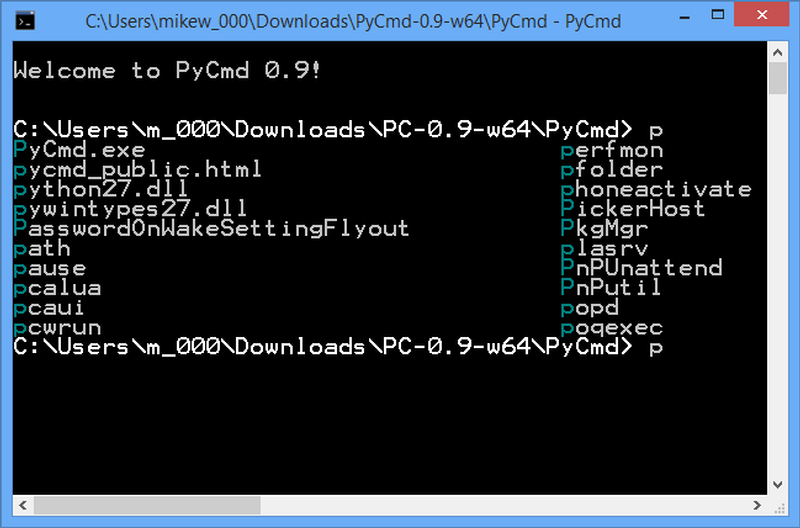
PyCmd is a smart command prompt extension for Windows’ cmd.exe for advances end users. Its goal is to emulate a few power features of UNIX shells while remaining 100% compatible with the cmd.exe syntax.

PyCmd is free and installing it is very easy. Download the file from the internet, unzip it and launch the exe. file.

PyCmd also helps you to save time thanks to a better autocompletion feature. For example, if you type a partial file or an internal command variable, and then press Tab, and the program displays a list with every match. Moreover, PyCmd inserts quotes automatically if your file name includes spaces.

Also, a history of all the commands is kept and you can access it at anytime.

However, regular functions such as F1, F3 do not work at all, as BetaNews reports.

Of course, there are other such programs worth testing such as Cmder or Cygwin until the official launch of Windows 10.

The summed up  list of features include:

  • Smart Tab-completion (similar to e.g. bash)
  • Searchable, persistent command history
  • Enhanced editing (copy/paste, undo, emacs key bindings)
  • History of recently visited directories

You can download PyCmd from here.

The program is compatible with the following operating systems: Windows XP / Vista / XP X64 / Vista64 / 7 / 7 x64 / 8 32-bit / 8 64-bit.

READ ALSO: Fix: Microsoft Visual C++ Runtime Error in Windows 10

The Xbox team just got some help from HoloLens executive Kudo Tsunoda

Phil Spence just got some help from Kudo Tsundoa

As part of the continued restructuring of Microsoft, teams are coming together, management being shared and projects sharing resources; today that trend is making it’s way to Microsoft’s gaming endeavors.

The Xbox team just bolstered their roster today. In an announcement, the team over at Xbox shared the news that Kudo Tsunoda, the driving force behind the creative direction and experience of Microsoft’s HoloLens; will now expand his charter on the Xbox team.

Phil Spencer will continue to head franchises like Halo, Gears of War, Forza and Minecraft, but now Kudo will lead the “vision and experience” of other studios in Microsoft’s portfolio that range across their North America, European, and other global markets.

With this new development, it seems like we’ll finally start to see this new generation of console gaming finally move beyond the traditional gaming context from last generation.

Microsoft considering third ring for Windows Insiders, allowing more frequent Windows 10 drops

Windows 10

Microsoft published a blog post earlier today which spoke about how the company goes about testing and releasing Windows 10 builds to Windows Insiders. Now, within the blog post, Gabe Aul mentioned that he had been in talks with his team regarding a third, new Insider ring which would allow the public to get access to builds more frequently.

This is something I, and many other Windows Insiders have been wishing for since talks of a Windows Insider program began. The blog post briefly mentions talks of a new ring:

We’re debating right now about whether we should simply adjust the speed/risk balance of the Fast ring or whether we should create a new ring for people who really want the fastest pace possible (I had serious conversations last week with my team about a “Ludicrous Speed” ring, no joke.)

This new ring, now known from this point onward as “ludicrous speed” ring, would essentially give Windows Insiders access to Windows 10 builds more frequently. I’d be happy with a weekly drop, every Friday, regardless of stability. Microsoft seems to forget that we’re Windows Insiders, we know some builds might not work. That’s fine with us, as long as we get the chance to attempt an install, we’re good.

As of right now, this new ring isn’t set in stone. Aul says he’ll follow up if they decide to make any changes to the current selection of Insider rings. So right now, we can only hope that someone at Microsoft is smart enough to realize that a ludicrous ring would be an excellent addition for Windows Insiders.

All of us, via Twitter should tweet @GabeAul letting him know that a ludicrous insider ring would be an excellent idea, and one we’re all for! Hopefully we’ll get a response from him soon enough.

And again, we understand what a faster ring would entail, Microsoft. More bugs and more crashes, heck some builds may not even install on some hardware. But in the long run, Microsoft wins here. The feedback we provide from these unfinished builds would help them make an even better build for the fast / slow rings, right?

Update to Microsoft.com brings easier navigation and featured stories

Microsoft.com front page

The Microsoft.com homepage has received an update that revamps the layout of the website. The newly updated site has large images, easily distinguished sections, and an overall easy to navigate layout. The new design also leaves room for a large feature photo and story which at the moment features “girls who love science.”

Below the featured image is a bar for ‘support’, ‘downloads’, ‘apps’, ‘security’, and ‘shop’. There’s also a very easy distinction between ‘For Home’ and ‘For Work’ with four large boxes being contained in two separate sections. Microsoft has an ever increasing range of products and services. Their customers include users from a wide variety of sectors and the new site layout makes it significantly easier to navigate to a specific area.

At the very bottom of the site, excluding lists of links to other Microsoft websites, is another featured story. The current story is titled “Technology disrupted: Meet 11 women leaders changing the innovation ecosystem.” March is Women’s History Month and Microsoft is featuring women from inside and outside of the technology industry through multiple websites. In addition to the newly designed Microsoft.com featuring two stories about women, a search result on Bing for ‘women’s history month’ yields a well-designed layout displaying influential women in history and a summary of Women’s History Month.

Upcoming Windows 10 desktop build to include improved Task View behavior

Windows 10

One of the many new features in Windows 10 is the introduction of a native multi-desktop switcher called Task View. Windows users can finally use a built-in UI to create new desktops and organize their windows productively.

Task View in the most recent public build of Windows 10 works fine, but is somewhat confusing to a number of users. Task View seems to display your open windows on all desktops, even if the window that’s open is on a completely different desktop than the one currently. This isn’t the expected behavior of a multi-desktop tool, and it appears Microsoft understands that.

WinBeta understands that in the most recent builds of Windows 10, Microsoft has added the option to change this behavior, making windows only display on the desktop they were opened in, meaning you can finally truly keep your desktops organized productively. Unfortunately, there’s still no word whether Task View supports multiple desktop backgrounds just yet, but we imagine if there’s high-demand for it that it will eventually happen.

Office 2016 for Mac Preview: A closer look at what Microsoft has for OS X

Office 2016 for Mac Preview: A closer look at what Microsoft has for OS X

As a Mac user who loves Microsoft, I have been eagerly awaiting a new release of Office for the platform. The latest version of Office for Mac was back in 2010, and a substantial overhaul of the software suit has since been needed. Microsoft has announced the Office 2016 preview is now available for Mac, with the final version coming later this year.

While there is a lot to see in Office 2016, there isn’t a lot to talk about. The significant change in the most recent edition of Office is simply its UX design. While the old version of Office felt dated even at the time it was released, the latest design for Mac is on par with the Windows variation – if you have seen Office 365 for Windows, then you have seen Office for Mac 2016. The new design is cleaner and features an enhanced ribbon bar; icons reflect the new flat design changes introduced to OS X Yosemite.

Beyond the surface changes, there are fixes under the hood for improved stability and tighter OneDrive support – that being said, remember that this “preview” should be treated as a beta release. Accessing File Save, and File Open menus drop users directly into their OneDrive folder, as many are already used to on the PC. Collections of new templates are also available – bringing welcomed changes to Word, Excel, PowerPoint, and Outlook.

Users downloading Office 2016 for Mac will notice that Outlook looks familiar; that is because Microsoft has already released Outlook as a standalone application. In addition, OneNote is not included in the bundle and continues to serve as a separate download (for free) directly from the Mac App Store. Note that OS X Snow Leopard (10.6) or higher is required to access the App Store.

Check out the above video to take a quick look at what Microsoft has to offer Mac users with their latest desktop Office Suit. I apologize ahead of time that I am not able to bring you the beautiful accent that Zac is known for in his WinBeta videos – I hope you enjoy nonetheless.

WinBeta Podcast 5: Windows 10’s Spartan meets Cortana

WinBeta Podcast 5: Windows 10's Spartan meets CortanaWelcome to the weekend and the latest episode of the WinBeta podcast! If you haven’t already listened to our previous episodes, you can check them out on your favorite podcast clients including SoundCloud, TuneIn, iTunes, and the Windows Phone Podcast app. Eager listeners can also use the RSS feed provided below to use their favorite applications not aforementioned.

This week, the team discusses the latest Windows 10 build screenshots, the wonderful experience of using Cortana’s Spartan integration, and the way in which Microsoft may change how you game in the future. Plus, take a close listen and learn how you can help us change the world with the power of a tweet.

Update from Zac: Just to clarify, when we talk about Cortana and Spartan in the podcast, we say she scans webpages to display users with relevant information. I believe this is incorrect, and instead she queries information from Bing. So those worried about her reading the webpage, you can relax.

Be sure to hit up the download links below to start listening or check out the embedded Sound Cloud option we have right in this post. For more information on the articles discussed, you can check them out below.

This episode of the WinBeta podcast is dedicated to HoloLens Designer, Mike Ey, who recently lost his life in a fatal car accident. Our thoughts are extended to Mike’s family and friends.

Click here to view and retweet Sean Michael’s world changing tweet.

Included stories this week:

More screenshots from Windows 10 build 10031 leak onto the internet

Windows 10

More screenshots from a recent Microsoft partner drop build has leaked onto the internet, which gives us a better look at the transparent Start Menu. Interestingly, Spartan is yet to be demoed, perhaps it’s not included in this build?

We know build 10022 didn’t include Spartan, so it’s entirely possible for 10031 to not include it too. Microsoft may be planning to push Spartan out to Insiders via the Windows Store, but as of right now we just don’t know.

What are you most looking forward to in the upcoming Windows Insider build? Leave your comments in the comments area below!

Microsoft confirms FREAK vulnerability affects Windows as well

Microsoft confirms FREAK vulnerability affects Windows as well

For some, their high horse ride has come to an end. Windows users who were standing on their soap boxes and pointing fingers at Android, Mac OS and iOS users who were subjects of an SSL/TLS vulnerability, will now join them to some degree.

Microsoft confirmed today, the FREAK Attack vulnerability that exists in Secure Channel (Schannel), affects all versions of Windows.  The Schannel is a security package that implements the SSL/TLS authentication protocols. The authentication process can now be used as an exploit that allows would-be attackers the ability to downgrade an encrypted SSL/TLS session while forcing client systems to use a weaker and export-grade RSA cipher in the process.

Essentially this is a man-in-the-middle (MITM) exploit that allows attackers the ability to intercept and decrypt  encrypted traffic. Bad stuff.

This FREAK Attack is garnering a lot of attention as it is  reported to have affected more than a third of HTTPS servers with browser-trusted certificates. Most of the top used browsers have been or are affected including, Internet Explorer, Chrome on OSX, Android, Safari, iOS, stock AOSP Android browser, BlackBerry browser, Opera on OSX,  and Linux.

Microsoft confirms FREAK vulnerability affects Windows as well

Google has already issued a patch for Chrome on OSX and Apple will be following suit with a patch for Safari sometime next week.

While Microsoft says that they have found no evidence that this exploit has been in use for Windows users, they will be making an effort (possibly applying an off-scheduled update) to address this attack.

“Upon completion of this investigation, Microsoft will take the appropriate action to help protect customers. This may include providing a security update through our monthly release process or providing an out-of-cycle security update, depending on customer needs.”

There are precautions Windows users can take while they wait for Microsoft to patch this vulnerability. Microsoft is advising that Windows users disable RSA key exchange using Group Policy Object Editor, which has been an available option in Windows since Vista. This stop-gap disables the attacker’s ability to launch the FREAK attack as it is reliant on server support of export-grade cipher suites.

Samsung to announce partnership with Microsoft to bundle Office 365 with Knox

Samsung to announce partnership with Microsoft to bundle Office 365 with Knox

Samsung will soon announce a partnership with Microsoft where the Korean giant will bundle Office 365 productivity suite with their Knox enterprise workspace. Samsung’s Dr Injong Rhee while speaking at the Samsung’s Enterprise Mobility Showcase, part of Mobile World Congress in Barcelona, said the company announce the deal next week or so.

Rhee said,

Today I’m going to tell you about additional productivity applications from Microsoft. We have a deal with Microsoft which will be announced in a week or so, we’ll have a big announcement, so you have a sneak preview. We’ll have Microsoft OneDrive, and OneNote, and Office 365 come with Knox Workspace. When you download Knox Workspace, this comes pre-loaded.

The deal would definitely boost Microsoft’s presence in the enterprise world. Ever since Satya Nadella took the charge of the company, we’ve seen the software giant take the “mobile first, cloud first” approach, and this is yet another step towards it.