
Poshmark app not Working? 12 quick fixes


 3 min. read
  Updated on
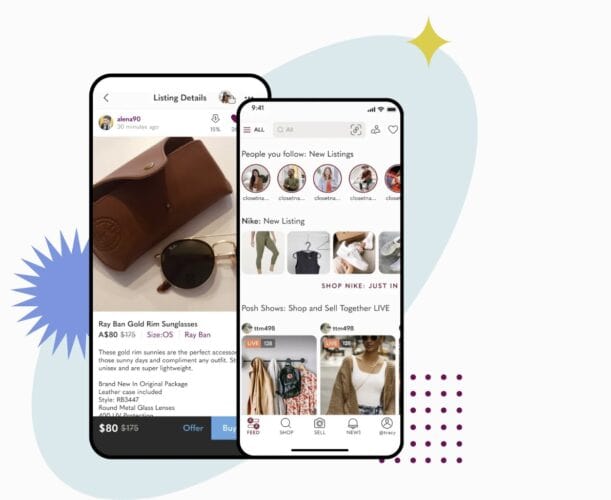
If the Poshmark app is not working on your phone, it’s usually cache, permissions, or network rules. These fixes address listing uploads, feed/search, and checkout.
Table of contents
- Before you start
- 1. Force stop and relaunch
- 2. Clear cache/data (Android) or reinstall (iOS)
- 3. Fix camera and photo upload issues
- 4. Reduce image size
- 5. Refresh login and remove old sessions
- 6. Fix search/feed not loading
- 7. Address checkout failures
- 8. Turn off Private DNS/HTTP filters
- 9. Reinstall WebView/Play services (Android)
- 10. Reset network settings
- 11. Use mobile web as a control
- 12. Gather evidence for support
- Tips
- FAQs
- Summary (ordered steps)
- Conclusion
Before you start
- Update iOS/Android and Poshmark
- Test cellular vs Wi-Fi; disable VPN/ad blockers
- Confirm device date/time is Automatic
1. Force stop and relaunch
Close Poshmark fully and reopen. If it’s still stuck, restart the phone.
2. Clear cache/data (Android) or reinstall (iOS)
Android: Settings → Apps → Poshmark → Storage → Clear cache (then data if needed). iOS: Delete, restart, reinstall.
3. Fix camera and photo upload issues
Grant Camera and Photos/Storage permissions. Try importing from Gallery instead of the in-app camera, or vice versa. Convert HEIC images to JPG if uploads fail.
4. Reduce image size
Large photos can time out on weak connections. Shoot in standard resolution and avoid burst uploads; post one listing at a time.
5. Refresh login and remove old sessions
Sign out/in to refresh tokens. If you changed your password, clear old device sessions from account settings.
6. Fix search/feed not loading
Disable battery/data savers and allow background data. Clear app cache, then pull to refresh on the Feed and Search tabs.
7. Address checkout failures
Remove expired cards, verify billing ZIP/CVV, and ensure 3-D Secure prompts aren’t blocked by content blockers. Try Apple Pay/Google Pay or add funds again.
8. Turn off Private DNS/HTTP filters
Some privacy DNS or firewalls block image CDN and payments. Temporarily disable and re-test.
9. Reinstall WebView/Play services (Android)
Update Android System WebView and Google Play services to fix blank screens or failed sign-ins.
10. Reset network settings
Reset Wi-Fi and cellular settings, then reconnect and retry.
11. Use mobile web as a control
If mobile web works but app fails, the install or permissions are at fault—reinstall with all permissions granted.
12. Gather evidence for support
Record error messages, payment method used, and a short screen capture to speed resolution.
Tips
- Keep at least 1 GB of free storage for photos and cache
- Turn off Low Power Mode while listing or checking out
FAQs
Why won’t my photos upload?
Missing permissions, HEIC format, or aggressive network filters. Grant permissions and try JPG.
Why is checkout failing?
Expired payment method or blocked 3-D Secure popup. Update the card or try a different method.
Summary (ordered steps)
- Force stop/relaunch → reboot
- Clear cache/data or reinstall
- Fix camera/photos permissions
- Update OS, WebView/Play services
- Disable VPN/ad-block/Private DNS
- Refresh login, payment method
- Reset network; try mobile web
Conclusion
Most Poshmark app failures are permission or cache related. With a clean reinstall and proper permissions, listing and checkout usually resume immediately. For related fixes, see our guide on Venmo instant transfer not working or check our guide on the HSBC app not working.

Read our disclosure page to find out how can you help Windows Report sustain the editorial team. Read more



Improve this guide




User forum
0 messages