
Read Receipt Outlook: Turn It On in Desktop, Web, and Mobile


 4 min. read
  Updated on
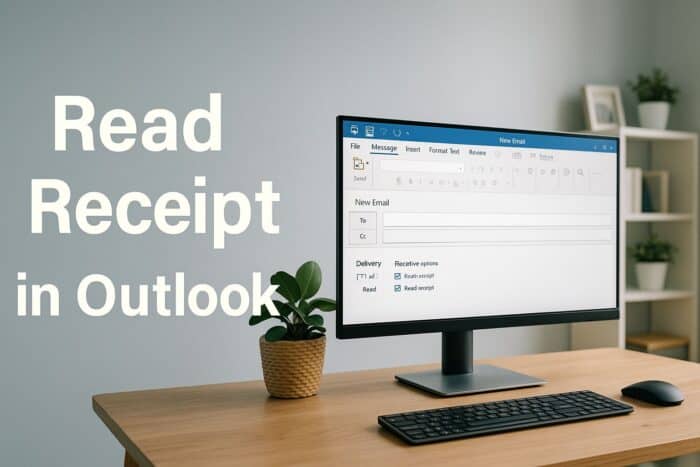
Learn how to turn on read receipts in Outlook to confirm when someone opens your email. This guide covers Outlook for desktop, web, and mobile.
Table of contents
- How to Request and Track a Read Receipt in Outlook?
- How to Request a Read Receipt in Outlook (Desktop App)
- How to Turn On Read Receipts for All Emails in Outlook
- How to Request a Read Receipt in Outlook Web (Outlook.com)
- How to Request a Read Receipt in the Outlook Mobile App
- What Is a Read Receipt in Outlook?
- Why Use Read Receipts in Outlook?
- FAQs
- Conclusion
How to Request and Track a Read Receipt in Outlook?
How to Request a Read Receipt in Outlook (Desktop App)
Follow these steps to request a read receipt for individual emails.
- Open Outlook and click New Email on the Home tab.

- In the message window, click the Options tab on the top ribbon.
- Check Request a Read Receipt under the Tracking section.

- Optionally, check Request a Delivery Receipt to confirm message delivery.
- Write your message and click Send.

- When the recipient opens the email and agrees to send a receipt, you will receive a notification in your inbox.
If you also want to manage message threads better, read our guide on how to group email threads in Outlook.
You can return to the classic Outlook interface for full tracking features by using this guide on switching new Outlook to classic.
How to Turn On Read Receipts for All Emails in Outlook
Enable read receipts automatically for every email you send.
- Click File in the top menu and select Options.
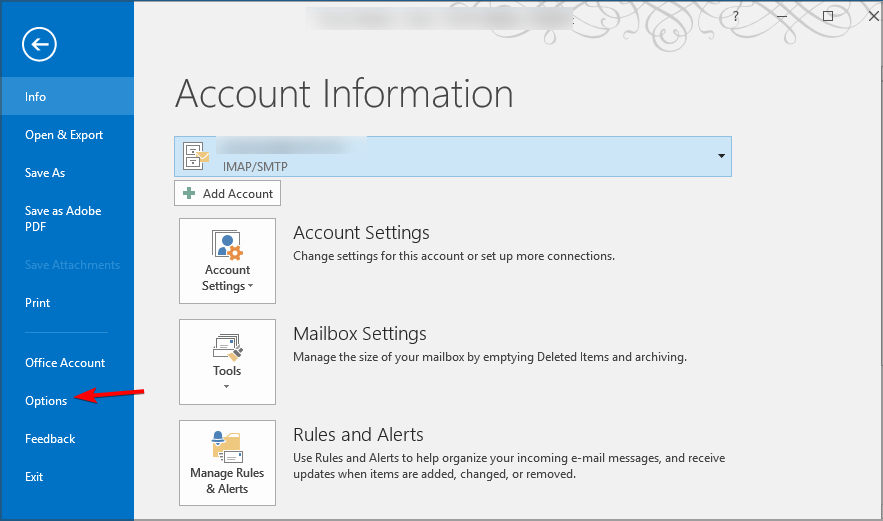
- Choose Mail from the sidebar.

- Scroll to the Tracking section.
- Under For all messages sent, request, select Read receipt confirming the recipient viewed the message.

- Click OK to save changes.
For better visibility on replies and message alerts, check out our tutorial on Outlook notifications for subfolders.
How to Request a Read Receipt in Outlook Web (Outlook.com)
Outlook on the web also supports read receipts.
- Go to Outlook.com and sign in.
- Click New Mail to create a message.
- Select the three dots (•••) at the top of the compose window.
- Click Show message options.
- Check Request a read receipt and select OK.
- Send the email.
You will receive a confirmation email once the recipient opens and approves the receipt request.
How to Request a Read Receipt in the Outlook Mobile App
- Open the Outlook app on your phone.
- Tap Compose to create a new message.
- Note that the mobile app currently does not support read receipts.
- To use this feature, switch to Outlook for desktop or web.
If you use the Windows 10 Mail app instead, follow our step-by-step guide on how to add a read receipt in Windows 10 Mail.
What Is a Read Receipt in Outlook?
A read receipt in Outlook is a feature that sends you a notification when your recipient opens your email. It confirms delivery and viewing, helping you track important communications. Businesses often use this feature to ensure that project updates or time-sensitive messages are seen.
Why Use Read Receipts in Outlook?
- Confirm when recipients open important messages.
- Track communication for business or compliance reasons.
- Follow up only when necessary.
- Avoid confusion about unread or missed messages.
FAQs
Yes. Even if you request one, recipients can choose not to send the confirmation.
No. Some email providers block or ignore read receipt requests for privacy reasons.
Not through Outlook alone. You can use third-party email tracking tools, but they often rely on invisible tracking pixels.
Yes. Go to File > Options > Mail > Tracking and select Never send a read receipt to decline all future requests automatically.
Your recipient may have disabled the option, or their email client might not support read receipts.
Conclusion
Read receipts in Outlook are a convenient way to know when your emails are viewed. You can enable them for specific messages, apply them to all outgoing emails, or use Outlook.com for quick tracking online. While the mobile version does not support this feature, Windows Mail offers a useful alternative. These small settings can improve communication management and help you time follow-ups more effectively.

Read our disclosure page to find out how can you help Windows Report sustain the editorial team. Read more



Improve this guide



User forum
0 messages