
Signal Desktop Not Syncing: 3 Ways to Get it Working Again
Keeping the Signal up to date will prevent this issue from occurring


 2 min. read
  Published on

Many users reported Signal Desktop is not syncing messages and chats, and this can be a problem since you’ll lose your data. However, there might be a way to fix this issue.
Why are Signal messages not showing up on my desktop?
This can be caused by outdated or bugged Signal versions. Glitches with syncing can also occur.
What can I do if Signal Desktop is not syncing?
1. Update Signal
- Open Signal.
- If an update is available, click the blue ribbon in the app to download it.
- Once the update is downloaded and installed, check if the problem is resolved.
2. Unlink and link again
- Open Signal and go to Settings.
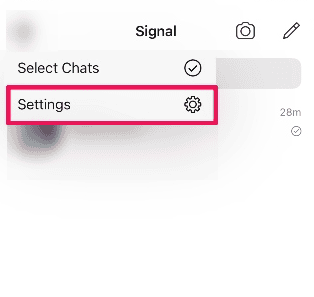
- Next, go to Privacy and click on Delete Data.
- Pair your desktop client with the Signal app again.
Keep in mind that you’ll lose all conversations that were saved on your desktop client, so we suggest exporting Signal Desktop messages beforehand.
3. Reinstall the software
- Unlink Signal Desktop as shown above.
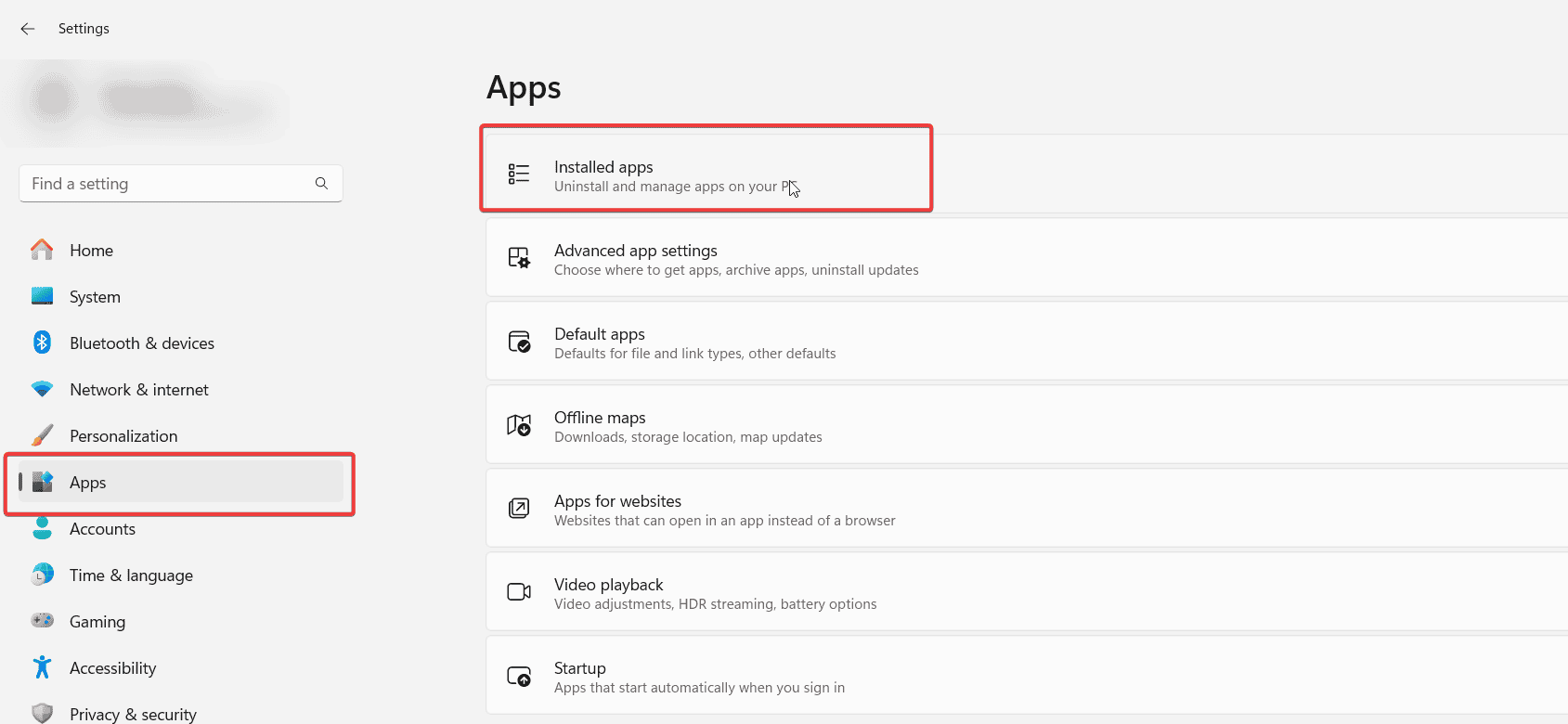
- Next, click on Start and choose Settings.

- Navigate to Apps and select Installed Apps.
- Locate Signal, click three dots next to it, and then choose Uninstall.
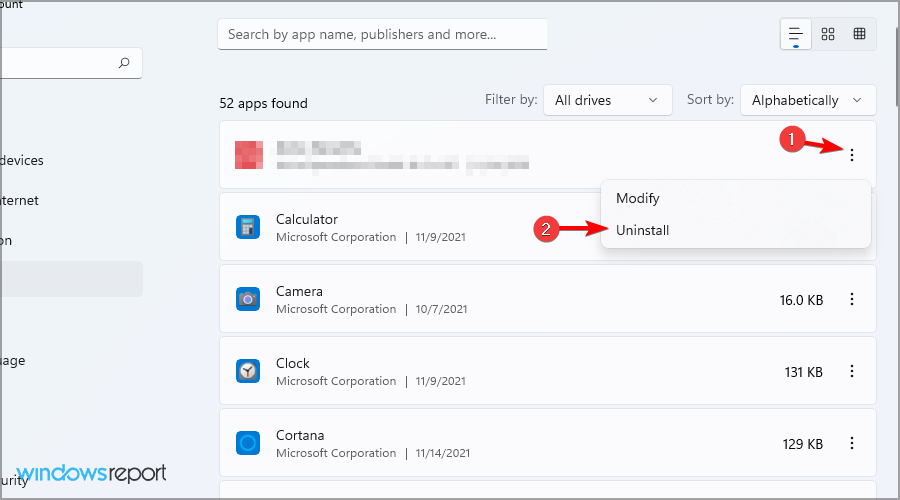
- Once the software is removed, install it again and check if the problem is gone.
These are just a couple of solutions that can help you if Signal Desktop is not syncing properly. Bear in mind that all these steps will remove Signal Data from your PC so you might want to transfer Signal Desktop chat history.
You might also want to check how to restore backup on Signal Desktop to ensure that you don’t lose any important data if you try to sync your device again.

Read our disclosure page to find out how can you help Windows Report sustain the editorial team. Read more



Improve this guide


User forum
0 messages