
How to Fix The Sims 4 Not Launching (2026 Guide)
Mods can often cause this issue to occur


 5 min. read
  Updated on

Trying to start The Sims 4, but it won’t launch? Maybe the EA App opens and… nothing. Or worse, you get hit with the “already running” message even though it clearly isn’t.
Don’t stress. This is one of the most common issues in 2025, especially with the new launcher updates and Epic Games compatibility quirks.
Whether it’s a broken mod, stuck background process, or something else entirely, we’ll walk through the most effective ways to fix it, step by step.
How do I Fix Sims 4 if it won’t launch on PC?
1. Force the game to create a new Mods folder
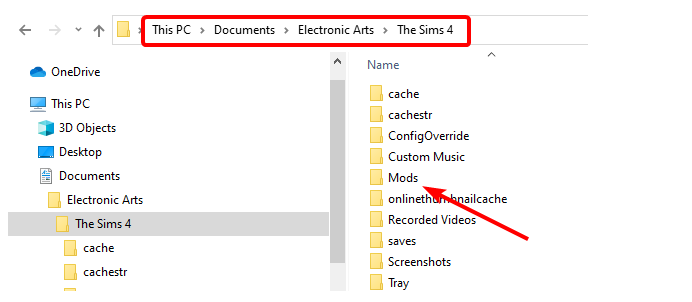
- Open File Explorer and go to Documents > Electronic Arts > Sims 4.
- Select the Mods folder and press the Ctrl key + C to copy it.

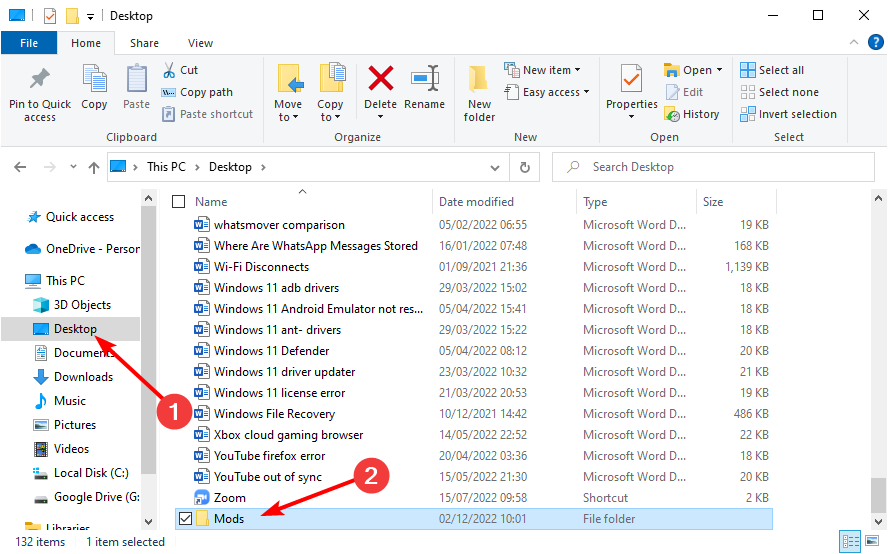
- Now, go to the Desktop folder in the left pane and press Ctrl + P to paste the folder.
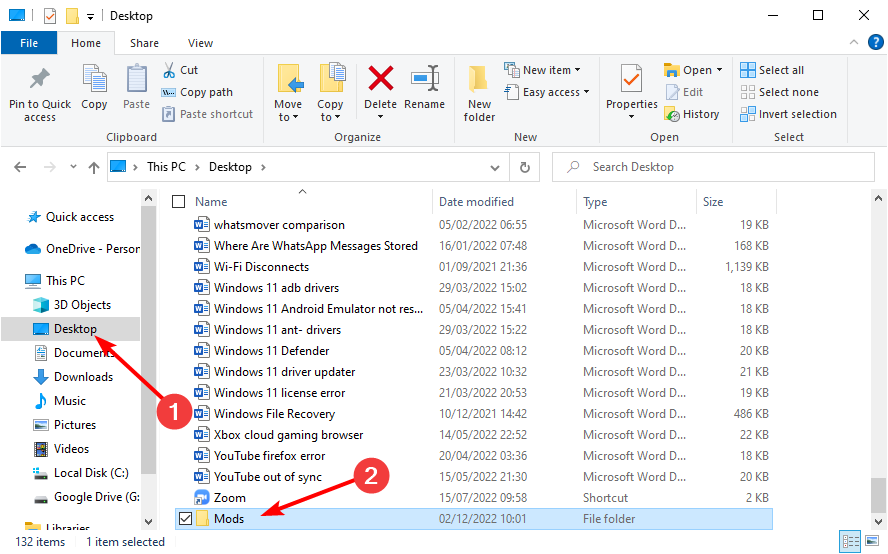
- From here, delete the Mods folder in the Sims 4 folder and start the game. This should force Sim 4 to create a new Mods folder.
- Now, open the new and empty Mods folder in the Sim4 folder and the original one on your Desktop on two separate File Explorer windows.
- Open one of the folders in the original Mods folder and copy its content.
- Then, go to the new and empty Mods folder window and click the New folder icon. Give the folder any name you like.

- Paste the files you copied into this new folder.
- Now, repeat Steps 6 to 8 for the other folders in the original Mods folder. Note that you don’t need to worry if you don’t have any folder to copy in the original Mods folder.
- After copying these folders, you can now copy the other contents of the original Mods folder to the new one at once.
If Sims 4 won’t launch with mods, try disabling a few mods and check if that helps.
2. Delete the Origin cache files
- Open File Explorer and follow the path below:
C:\Users\<username>\AppData\LocalC:\Users\<username>\AppData\Roaming - If you can’t find the AppData folder there, click the View tab at the top and check the box for Hidden items.

- Now, delete the Origin folder there.
If Sims 4 won’t launch on Origin, you may be able to fix the issue by cleaning up the cache files.
3. Repair the game
- Open Origin.
- Now, go to My Game Library
- Right-click The Sims 4 and choose the Repair option.

If Sims 4 is not launching, your installation might be damaged, and repairing it can help.
If the problem started right after a patch, see this full guide on Sims 4 not working after update for more solutions.
4. Clean boot your computer
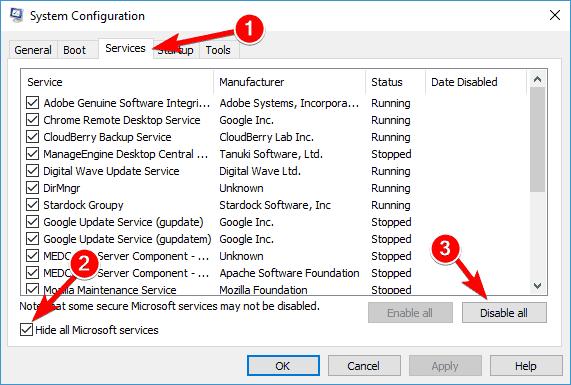
- Press Windows key + R and enter msconfig. Now press Enter or click OK.

- On the Services tab, click to select the Hide all Microsoft services check box and select Disable all.
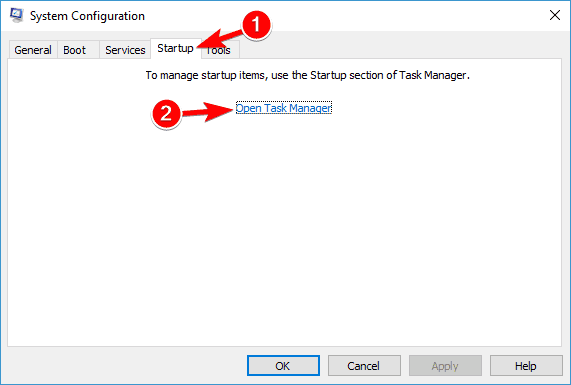
- On the Startup tab, click Open Task Manager.
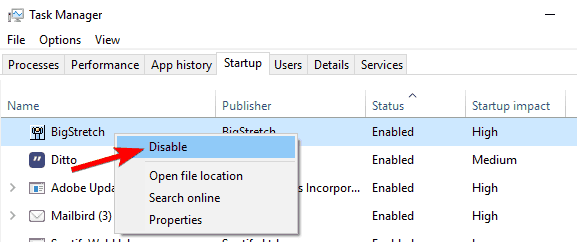
- Select each startup item and click Disable.
- Close Task Manager, then click OK and restart the computer.

Sometimes third-party applications and services can interfere with your game and cause this and other similar issues. Enable startup services and apps one by one until you find the culprit.
5. Deactivate Origin in-game
- Open Origin.
- Now go to Application Settings and select Origin In Game.

- Uncheck Origin In Game.
Several users reported that disabling Origin In Game can help if Sims 4 won’t open. This isn’t the only issue, and sometimes Sims 4 won’t download on Origin.
6. Reset your user files
- Launch the This PC app on your device.
- Go to My Documents.
- Locate and open the Electronic Arts folder.
- Find The Sims 4 folder, right-click on it and select Copy.
- Go to your desktop, right-click on a free space, and select Paste.
- Right-click on the copied folder and select Rename.
- Change the name of the folder and launch a new game.
Wrapping up
We hope these quick workarounds helped you and that you started the game without any issues. If the game starts but online features like the Gallery do not load, follow our Sims 4 Gallery not working guide for step by step fixes.
This isn’t the only issue, and many reported that The Sims 4 won’t update, but we covered this issue in a separate guide.
We also have a guide on how to change the Sims 4 language, so don’t miss it. This issue can sometimes appear due to Nisa error in Sims 4, so be sure to learn how to fix it.
Error code 123 in Sims 4 can also cause this issue, so it’s important to know how to properly fix it, and we have an entire guide dedicated to it.
If your mods are causing trouble, check out this guide on Sims 4 mods not working, or if the game launches but gets stuck when loading a household, try these fixes for Sims 4 not loading households.
If you’ve come across other solutions to fix start issues in The Sims 4, don’t hesitate to share them in the comments section below.

Read our disclosure page to find out how can you help Windows Report sustain the editorial team. Read more



Improve this guide



User forum
7 messages