
Can't Reset Steam Password? Try These Simple Steps


 4 min. read
  Published on

If Steam will not let you reset your password, you can usually fix the issue by checking your email, switching browsers, clearing cache, or using Steam’s account recovery form. This guide lists the fastest ways to regain access.
Table of contents
What Can I Do If Steam Won’t Let Me Reset Password?
1. Verify your account email
Steam cannot deliver reset instructions if your email on file is outdated or typed incorrectly.
- Open the Steam login page.
- Click Forgot your password.

- Select I forgot my Steam Account name or password.
- Enter your email and choose Search.
- Confirm the email matches your active inbox.
For more help, check this guide on recovering your Steam password.
2. Check email spam and filters
Password reset emails often get filtered or delayed.
- Open your email provider.
- Check the Spam, Junk, and Promotions folders.

- Search for messages from [email protected].
- Add the Steam address to trusted senders.
- Request a new reset link.
3. Use another browser
Browser extensions or cookies can block the reset page.
- Open another browser such as Edge or Firefox.
- Visit the Steam password recovery page.
- Request a reset link.
- Open the link directly from your inbox.
- Complete the reset process.
4. Clear Steam download cache
A corrupted Steam client cache can cause login and password issues.
- Open the Steam app.
- Click Steam in the top left.
- Select Settings.
- Open Downloads.
- Click Clear Download Cache and restart the app.
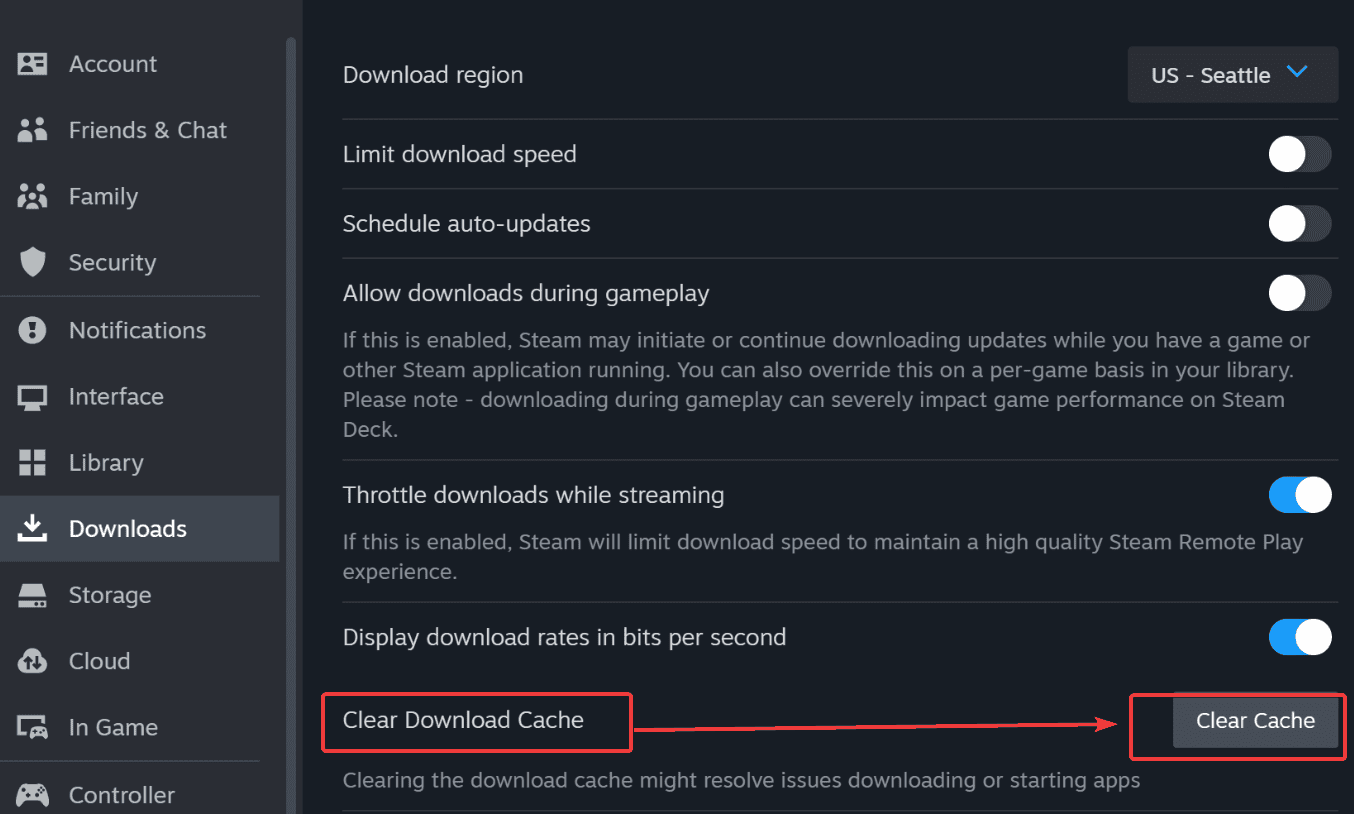
If Steam still has credential issues, see this guide on Steam not remembering passwords.
5. Disable VPN or proxy
Steam may block password reset attempts if your network route looks unusual.
- Disconnect your VPN or proxy.
- Restart your browser or Steam client.
- Request a new password reset link.
- Try completing the reset again.
6. Use the Steam account recovery form
This option works if you cannot receive reset emails or no longer have access to your old inbox.
- Open the Steam Support page.
- Select I cannot sign in.
- Choose I no longer have access to my email.
- Submit payment receipts, activation keys, or other proof.
- Wait for Steam Support to verify your identity.
7. Update or reinstall Steam
A damaged client can cause login and password recovery failures.
- Close Steam completely.
- Download the latest installer from steampowered.com.
- Run the installer.
- Try resetting your password again.
- Reinstall Steam if the issue continues.
8. Contact Steam Support
If you still cannot reset your password, your account may be locked or restricted. Steam Support can recover it manually.
- Visit help.steampowered.com.
- Select Help, I cannot sign in.

- Choose the matching issue such as Steam Guard problems.
- Submit proof of ownership.
- Wait for a support response.
After recovering access, you can check this guide on how to unhide Steam games if needed.
FAQs
Filters or outdated account details may block delivery. Check your spam folder and confirm your email.
Most emails arrive within two minutes. Some providers delay messages for up to ten minutes.
Yes. Steam may slow reset attempts after many failed logins.
Yes. Use the I no longer have access to my email option and provide proof of ownership.
Password reset problems usually come from email issues, browser conflicts, or blocked network routes. After completing the steps above, most users regain access quickly. If problems continue, Steam Support can restore the account through manual verification.

Read our disclosure page to find out how can you help Windows Report sustain the editorial team. Read more



Improve this guide



User forum
0 messages