
USB Tethering on Windows 11: Step-by-Step Guide


 3 min. read
  Published on
USB tethering lets you share your phone’s mobile internet with a PC over a cable. It is fast, stable, and keeps your phone charging while you work.
Table of contents
How to Use USB Tethering on Windows 11?
1. Connect Your Phone to the PC
Start by making a reliable physical connection between your devices.
- Plug your smartphone into your Windows 11 computer using a USB cable.
- Unlock your phone and approve any prompt such as File Transfer or Data Transfer.
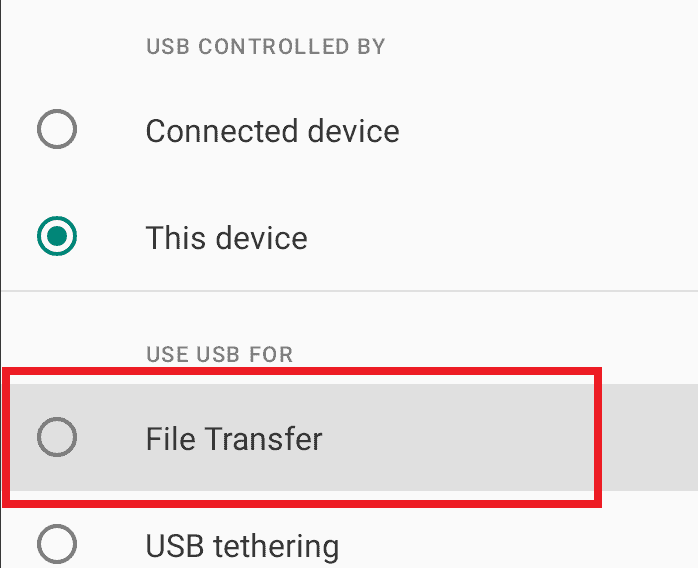
Keep in mind that issues can occur, so don’t miss this guide on what to do if USB tethering is not working.
2. Enable USB Tethering on Your Phone
Switch on the tethering feature in your phone’s settings to start sharing data.
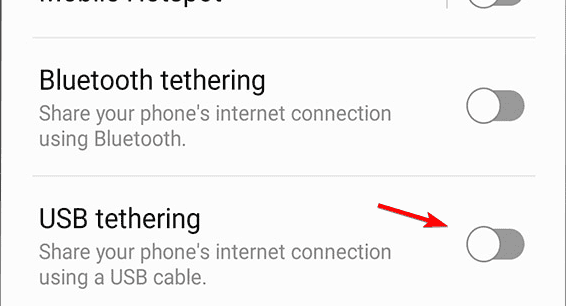
- On Android, open Settings > Network & Internet > Hotspot & Tethering.
- Toggle USB Tethering to On.
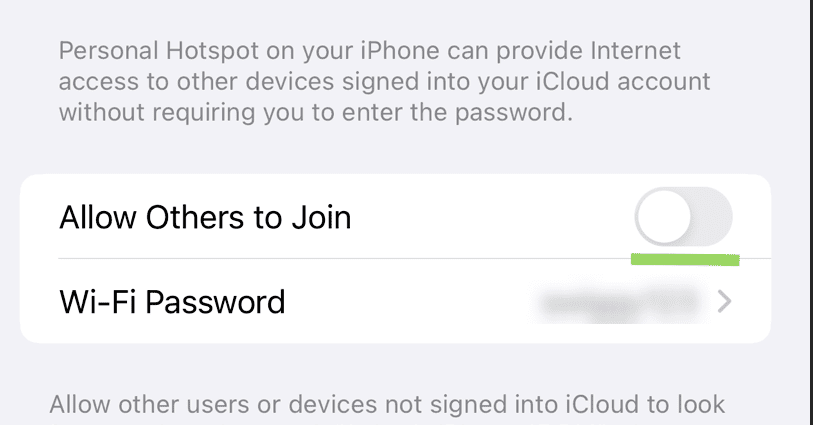
- On iPhone, go to Settings > Cellular > Personal Hotspot and enable Allow Others to Join.
- Select USB only if the device offers connection options.

Prefer wireless sharing instead? You can also connect Windows 11 to a Bluetooth hotspot.
3. Verify the Connection on Your PC
Confirm Windows recognizes the new network and you have internet access.
- Windows 11 should detect a new Ethernet connection automatically.
- Click the Network icon on the taskbar to check status.
- If it shows Connected, the PC is using your phone’s data.
Troubleshooting USB Tethering
Run through these quick checks if the connection fails or drops.
- Use a high-quality or original USB cable.
- Restart both your phone and PC.
- Update USB and network drivers in Device Manager.
- Ensure Mobile Data is enabled on your phone.
- Temporarily disable VPN or firewall that might block the new adapter.
For privacy considerations during mobile data sharing, see whether a VPN can hide tethering.
Why Use USB Tethering?
USB tethering offers stable speeds, lower latency than Wi-Fi, and charges your phone while connected, which makes it great for travel, outages, and secure work sessions.
FAQs
Often yes, because data travels over a cable which reduces interference and latency.
Not typically, since the phone charges from the PC while tethered.
Yes, enable it under Personal Hotspot in iOS settings.
Check the cable, drivers, phone permissions, and try reconnecting the device.
Conclusion
USB tethering is a simple and reliable way to bring mobile data to your Windows 11 PC with a cable. It is fast, secure, and keeps your phone powered while you stay online.

Read our disclosure page to find out how can you help Windows Report sustain the editorial team. Read more



Improve this guide




User forum
0 messages