
How to Compare Two Files in Visual Studio Side by Side


 3 min. read
  Published on

Visual Studio how to compare two files fast using the built-in diff viewer or Git tools. Follow the steps below to open side-by-side differences and review edits efficiently.
Table of contents
How to Compare Two Files in Visual Studio?
1. Open Visual Studio Command Prompt
- Open Visual Studio on your PC.
- Go to Tools > Command Line > Developer Command Prompt.
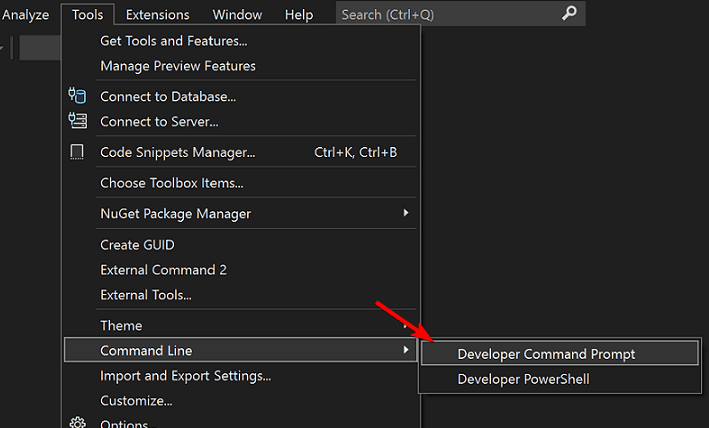
- Or launch the Visual Studio Developer Command Prompt from the Start menu.
- If setting up your project, learn how to compile code in Visual Studio.
2. Use the Built In Diff Command
- In the command window, run:
vsdiffmerge "C:\path\to\file1.txt" "C:\path\to\file2.txt"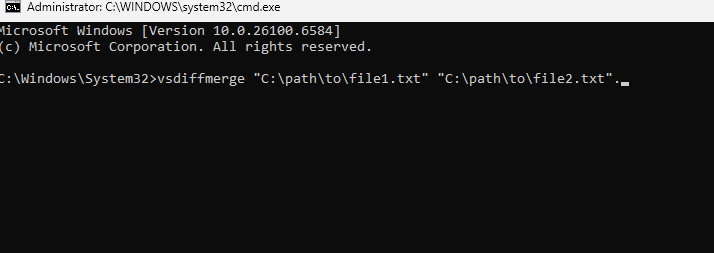
- Press Enter to open the comparison window.
- Review color coded changes side by side.
3. Compare Files Inside a Project
- Open Solution Explorer with Ctrl + Alt + L.

- Right click the first file and choose Compare With….
- Select the second file to compare and inspect differences.
- For easier navigation, see how to open Solution Explorer in Visual Studio.
4. Use Git Integration for File Comparison
- Open View > Git Changes.
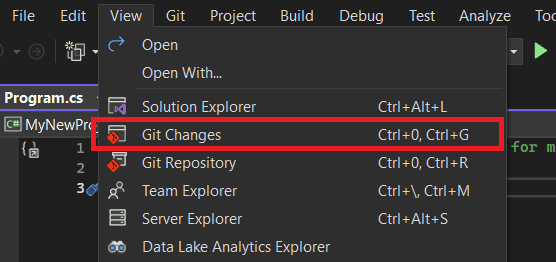
- Right click a modified file and select Compare with Unmodified.
- Review the diff between local changes and the repository version.
- Manage work in progress with how to stash changes in Visual Studio.
When a long build slows your diff workflow, learn how to stop a build in Visual Studio to free resources and compare files faster.
Why Compare Files in Visual Studio
- Track recent code changes with clarity.
- Simplify debugging and error detection.
- Speed up pull request reviews.
- Reduce merge conflicts in teams.
FAQs
Install an extension such as Visual Studio Compare Files or use external tools like Beyond Compare.
Yes. Select two files in Explorer, right click, then choose Compare Selected.
Yes. With Git enabled, right click the file and choose Compare with Previous Version.
Copy edits from one pane to the other or use Visual Studio merge tools during conflict resolution.
Conclusion
Now you can compare files in Visual Studio using command line, project context menus, and Git tools. The side by side viewer highlights changes clearly for faster reviews and fixes.

Read our disclosure page to find out how can you help Windows Report sustain the editorial team. Read more



Improve this guide




User forum
0 messages