
What Is Microsoft Graph Explorer and How It Works


 4 min. read
  Published on

This guide explains what Microsoft Graph Explorer does and how you can use it to test Microsoft Graph API requests quickly. You will learn how to open it, run queries, adjust permissions, view code snippets, and troubleshoot Microsoft 365 data.
Table of contents
What Is Microsoft Graph Explorer?
Microsoft Graph Explorer is an interactive web tool that lets you test Microsoft Graph API requests inside your browser. It gives you quick access to real Microsoft 365 data so you can understand how the API behaves before integrating it into apps or scripts.
How Microsoft Graph Explorer Works
1. What the tool does
Microsoft Graph Explorer provides a live environment where you can test Microsoft Graph endpoints and analyze real responses.
2. What you can access
The tool lets you query data from Outlook, OneDrive, Teams, user profiles, organization details, and more.
3. Why people use it
People choose it because it helps them understand the API structure, test permissions, and debug Microsoft 365 issues efficiently.
How To Open Microsoft Graph Explorer
Here’s a simple way to open the tool:
- Open your preferred browser.
- Go to https://developer.microsoft.com/graph/graph-explorer
- Click Sign in to Graph Explorer.
- Log in with your Microsoft account.
You can also explore command line options by reviewing this guide on the Microsoft Graph command line tools.
How To Run Your First Query
Use these steps to run your first request.
Use sample queries
You can start with predefined endpoints that demonstrate how the API works.
- Click Sample queries on the left.

- Pick a category such as User or Mail.
- Select a sample request.

- Click Run query to view the JSON response.

Write a custom query
Create your own request to test a specific endpoint.
- Click the query field.

- Enter an endpoint such as
https://graph.microsoft.com/v1.0/me - Click Run query to view the results.
Change request methods
Different methods help you read, write, or update data.
- Open the method dropdown.
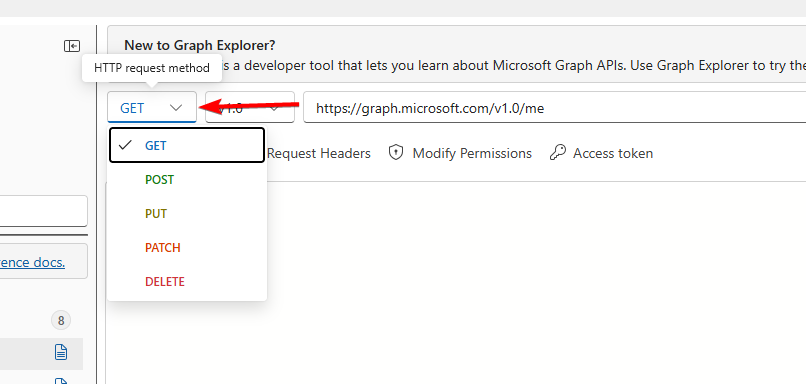
- Select GET, POST, PATCH, or DELETE.
- Run the query again.
How To Manage Permissions
Follow these steps to grant the right access levels for your queries.
- Click Modify permissions.
- Review the required scopes.
- Select the permissions you want to grant.
- Click Consent if prompted.
How To View Code Snippets
You can turn your tested queries into ready-to-use scripts.
- Run any query.
- Click Code snippets.
- Choose JavaScript, C Sharp, Java, PowerShell, or Go.
- Copy the snippet for your project.
How To Use Graph Explorer For Troubleshooting
You can confirm whether an issue comes from your app or the API by testing requests here.
- Run the same endpoint your app uses.
- Compare the output from both sources.
- Check scopes through Modify permissions.
- Update your app permissions and try again.
FAQs
It provides a unified API for interacting with Microsoft 365 services, including email, files, Teams, and Azure Active Directory.
Yes. Access is limited to the permissions you grant during sign-in.
No. Sample queries work without any programming knowledge.
The API is free to use, but some features require a Microsoft 365 subscription.
Microsoft Graph Explorer gives you a fast and visual way to test Microsoft Graph APIs and validate permissions before using them in your applications. For more ways to work with Microsoft cloud features, you can also explore this overview of Microsoft Azure Face API alternatives.

Read our disclosure page to find out how can you help Windows Report sustain the editorial team. Read more



Improve this guide



User forum
0 messages