
How to Open Xbox Game Bar in Windows 11


 3 min. read
  EEST
EEST
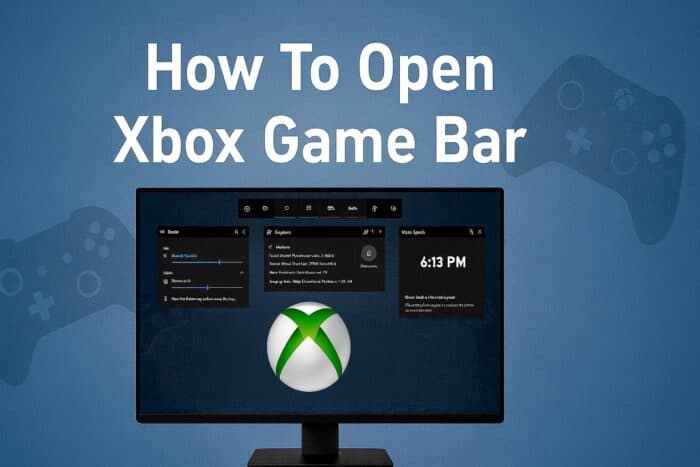
The Xbox Game Bar is a built in tool in Windows 11. It lets you capture screenshots, record gameplay, and access widgets quickly. Here is how you can open it step by step.
Table of contents
How to Open Xbox Game Bar?
1. Use the Keyboard Shortcut
The fastest way to open Xbox Game Bar is with a simple key combo.
- Press Windows + G on your keyboard.
- This instantly launches the Xbox Game Bar overlay.
- If nothing happens, make sure Game Bar is enabled in settings.
For more tips on recording and shortcuts, see this full guide on how to use Xbox Game Bar in Windows 11.
2. Open from Start Menu
You can also launch it directly from the Start menu search.
- Click the Start button on your taskbar.
- Type Xbox Game Bar in the search box.

- Select it from the results to launch the overlay.

3. Enable in Settings First
If the shortcut does not work, you may need to turn it on in settings.
- Go to Settings > Gaming.
- Click on Xbox Game Bar.
- Toggle on the switch that says Open Xbox Game Bar using this button on a controller.

- You can also enable the shortcut Windows + G here.

If Game Bar still refuses to load, check this fix for Xbox Game Bar not working in Windows 11.
4. Use an Xbox Controller
A connected Xbox controller can also open the Game Bar instantly.
- Connect your Xbox controller to your PC.
- Press the Xbox button in the middle of the controller.
- This opens the Game Bar overlay directly.
FAQs
You can press the Xbox button on your controller if it is enabled in settings.
Make sure it is enabled under Settings > Gaming > Xbox Game Bar. Also check if your system is updated.
Yes, go to Settings > Gaming > Shortcuts to customize the hotkeys.
Yes, once opened, press Windows + Alt + R to start or stop recording gameplay.
To start capturing gameplay after opening the overlay, follow this step by step guide on how to record with Xbox Game Bar.
Conclusion
Opening Xbox Game Bar is simple and only takes a shortcut or quick setting change. Once enabled, you can launch it from your keyboard, Start menu, or controller. For a full step by step installation guide, see how to install Xbox Game Bar on Windows 11.
If you no longer need it, here is how to disable Xbox Game Bar in Windows 11. Prefer to remove Xbox Game Bar entirely? Follow this guide on how to uninstall Xbox Game Bar.

Read our disclosure page to find out how can you help Windows Report sustain the editorial team. Read more



Improve this guide

User forum
0 messages