
How to Open Local Users and Groups in Windows 11


 4 min. read
  Updated on

If you want to manage user accounts or adjust permissions on your PC, learning how to open Local Users and Groups in Windows 11 is essential. This feature lets you create, edit, and manage user and group accounts efficiently.
Table of contents
- How do I Open Local Users and Groups in Windows 11?
- 1. Open Local Users and Groups via Run Command
- 2. Open Local Users and Groups via Computer Management
- 3. Open Local Users and Groups Using Command Prompt
- 4. Open Local Users and Groups via PowerShell
- 5. Open Local Users and Groups Through Control Panel
- What Is Local Users and Groups?
- Why Use Local Users and Groups?
- FAQs
- Conclusion
How do I Open Local Users and Groups in Windows 11?
1. Open Local Users and Groups via Run Command
The quickest way to open the tool is through the Run dialog box.
- Press Windows + R on your keyboard to open the Run dialog box.
- Type lusrmgr.msc in the box.
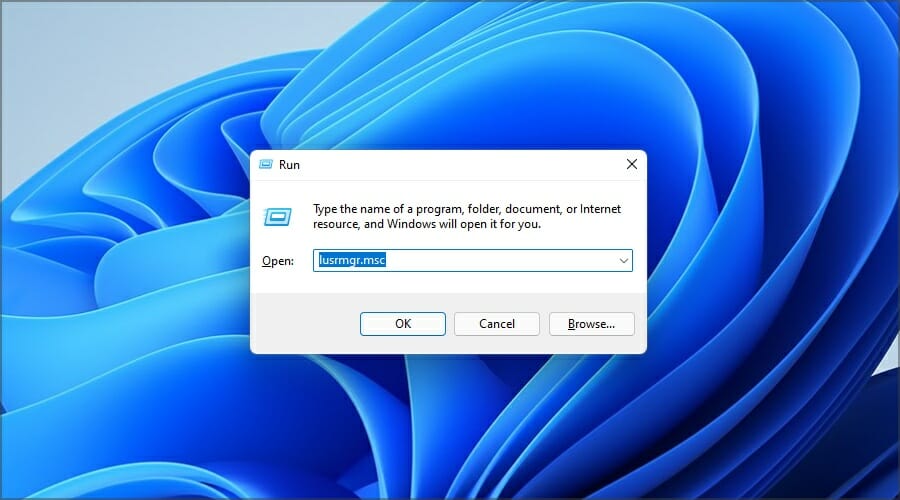
- Press Enter or click OK.
- The Local Users and Groups window will open instantly.
Note: If you are using Windows 11 Home, this feature is not available by default. You will need to upgrade to Windows 11 Pro or use a workaround tool such as lusrmgr.exe from GitHub.
For more help with this issue, see how to fix Local Users and Groups missing in Windows 11. For an overview of general account configuration options, see how to open Account Settings in Windows 10.
Managing user accounts and security settings efficiently is vital for maintaining control over your system. For more detailed information, check out this guide on how to open Local Security Policy to enhance your account management and security settings.
2. Open Local Users and Groups via Computer Management
This method gives you access to other administrative tools at the same time.
- Press Windows + X and select Computer Management.

- In the left sidebar, expand System Tools.
- Click on Local Users and Groups.

- Choose Users or Groups to manage individual settings.
This method is ideal for administrators who want quick access to advanced account controls.
3. Open Local Users and Groups Using Command Prompt
You can also launch the management console directly from the Command Prompt.
- Press Windows + S and search for cmd.
- Right-click Command Prompt and select Run as administrator.

- Type lusrmgr.msc and press Enter.
- The management console will open automatically.
4. Open Local Users and Groups via PowerShell
If you prefer PowerShell commands, this approach works just as well.
- Press Windows + X and select Windows PowerShell (Admin).
- Type lusrmgr.msc and hit Enter.
- The Local Users and Groups interface will appear.
This method is particularly helpful if you prefer using command line tools.
5. Open Local Users and Groups Through Control Panel
You can still access the feature from Control Panel for a more traditional route.
- Open Control Panel from the Start menu.
- Go to Administrative Tools.

- Double click Computer Management.
- Expand System Tools and choose Local Users and Groups.
If you want more options to manage users through other built in tools, check this guide on how to manage users in Windows 10.
What Is Local Users and Groups?
Local Users and Groups is a built in Windows tool that allows you to manage all user accounts and groups on your system. It is especially useful for administrators who want to assign privileges, change passwords, or restrict access.
Why Use Local Users and Groups?
- Improve system security by controlling access.
- Reset or change user passwords.
- Add or remove users from specific groups.
- Assign administrative privileges safely.
FAQs
The tool is not available on Windows 11 Home edition. You can use a third party tool or upgrade to Windows 11 Pro.
Yes. You can go to Settings > Accounts > Other users to perform basic account management.
Yes. Right click the user account you want to disable, select Properties, and check Account is disabled.
You should avoid deleting built in groups like Administrators or Users, as it may cause system instability.
Conclusion
Learning how to open and use Local Users and Groups in Windows 11 gives you full control over account management. Whether you are adjusting permissions, disabling accounts, or organizing user groups, this tool helps you keep a secure and organized Windows environment. If you need to perform advanced account changes, read this guide on how to enable the Super Administrator account in Windows 11.

Read our disclosure page to find out how can you help Windows Report sustain the editorial team. Read more



Improve this guide




User forum
0 messages