
Fix Acrobat Distiller Error 5: Access Is Denied


 2 min. read
  Published on

If you encounter Acrobat Distiller error 5: Access is denied, it usually indicates file permission issues, temporary system conflicts, or restrictions in Acrobat. Below are proven fixes that can help.
How to fix Acrobat Distiller Error 5: Access Is Denied?
Table of contents
1. Run Acrobat Distiller as administrator
- Close Acrobat Distiller completely.
- Right-click on the Acrobat Distiller shortcut.
- Select Run as administrator from the context menu.

- Try processing the PDF again.
Running the tool with elevated privileges resolves many permission-related issues. If you still get access errors when opening files, check this guide on PDF files that won’t open.
2. Change file and folder permissions
- Locate the folder containing your input PDF file.
- Right-click the folder and choose Properties.
- Go to the Security tab and select your user account.
- Click Edit and enable Full control.

- Save the changes and re-run Acrobat Distiller.
Incorrect file permissions often cause this problem. Adjusting them ensures Acrobat Distiller can read and modify the files it processes.
3. Repair Acrobat installation
- Open Acrobat or Acrobat Distiller.
- Go to Help > Repair Installation.
- Allow the repair wizard to run and complete.
- Restart your computer and check if the error persists.
Repairing the program fixes missing or corrupted files that trigger internal errors. For broader troubleshooting steps, see this guide on an Acrobat internal error occurred.
4. Disable Protected Mode in Acrobat
- Launch Acrobat and go to Edit > Preferences.
- Select Security (Enhanced) from the left panel.
- Uncheck Enable Protected Mode at startup.
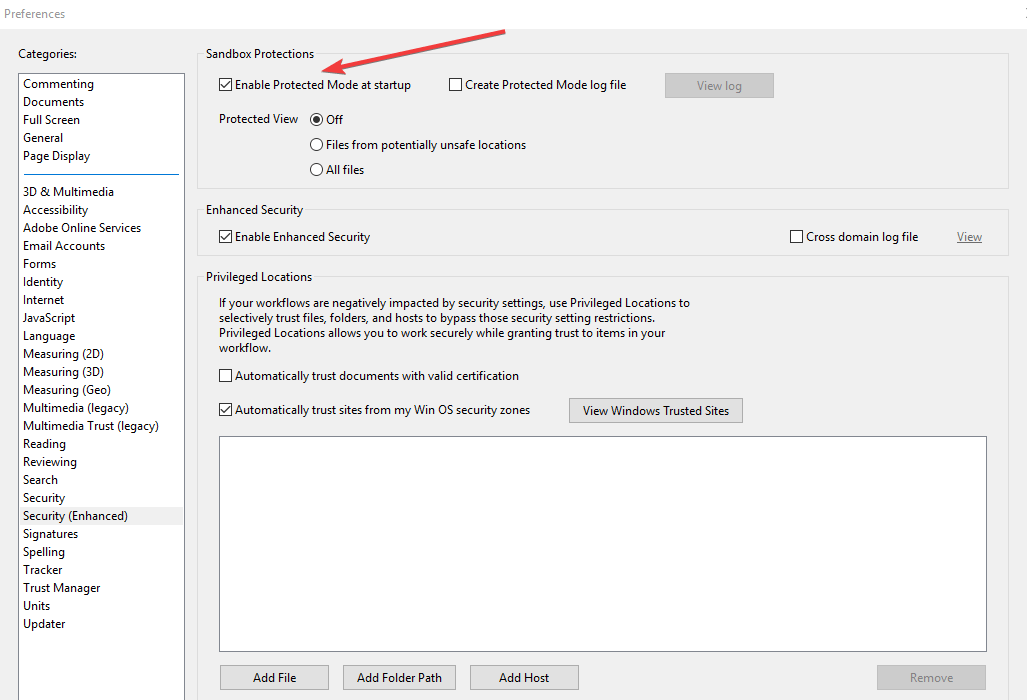
- Click OK and restart Acrobat.
Disabling protected mode can help when access restrictions interfere with processing. If you still see access issues when opening documents, refer to this guide on error opening this document: access denied.
Conclusion
Acrobat Distiller error 5 usually points to permissions, installation corruption, or security restrictions. Running the program as administrator, changing file permissions, repairing Acrobat, or disabling protected mode often resolves it. For related PDF problems, see our article on PDF files not opening.

Read our disclosure page to find out how can you help Windows Report sustain the editorial team. Read more



Improve this guide



User forum
0 messages