
Activate History Channel: Step-by-Step Guide for Any Device


 5 min. read
  Updated on
Learn how to activate the History Channel on Roku, Fire Stick, Apple TV, or Smart TV in a few quick steps.
Whether you want to stream historical documentaries or reality shows like Pawn Stars and Ancient Aliens, you’ll need to link your device to your History account first. Here’s exactly how.
Table of contents
How to Activate History Channel on Any Device?
How to Activate History Channel on Roku
- Open the Roku home screen and go to Streaming Channels.
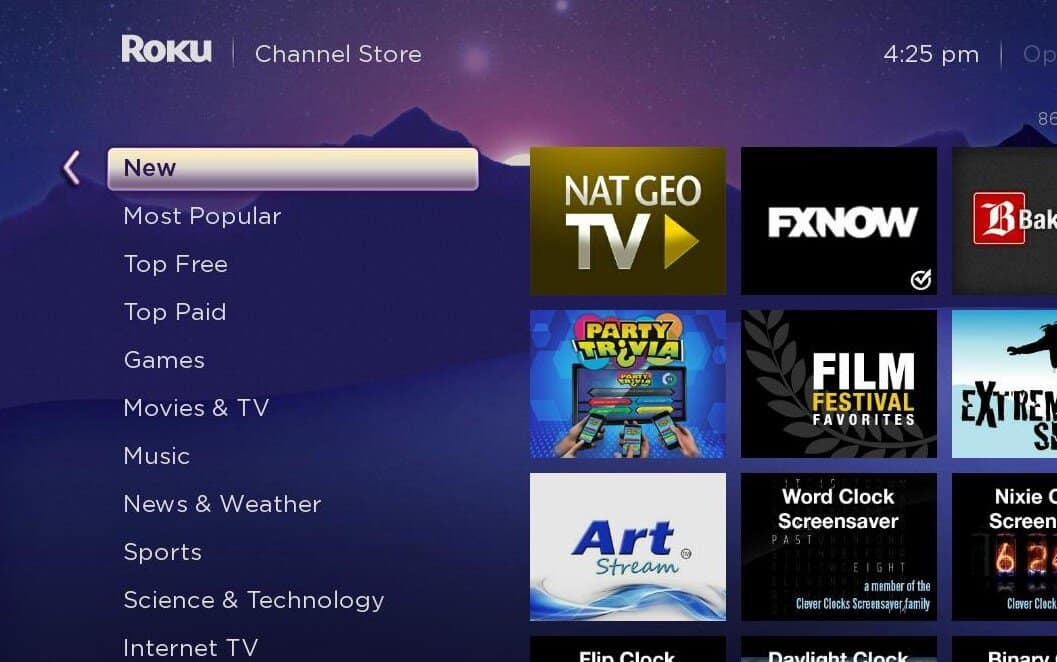
- Search for History Channel and install the app.
- Launch the app and select Activate Your Device.
- Note the activation code displayed on your TV.
- On your phone or PC, visit history.com/activate.
- Choose Roku from the device list, enter the activation code, and click Continue.
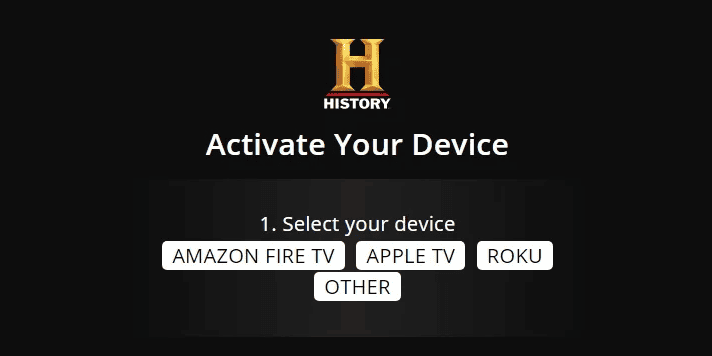
- Sign in with your TV provider credentials to complete activation.
Once verified, your Roku will refresh, and you can start streaming instantly.
If you need to browse or stream directly, learn how to get a web browser on Roku TV.
How to Activate History Channel on Fire Stick
- Launch your Amazon Fire TV and open the Appstore.
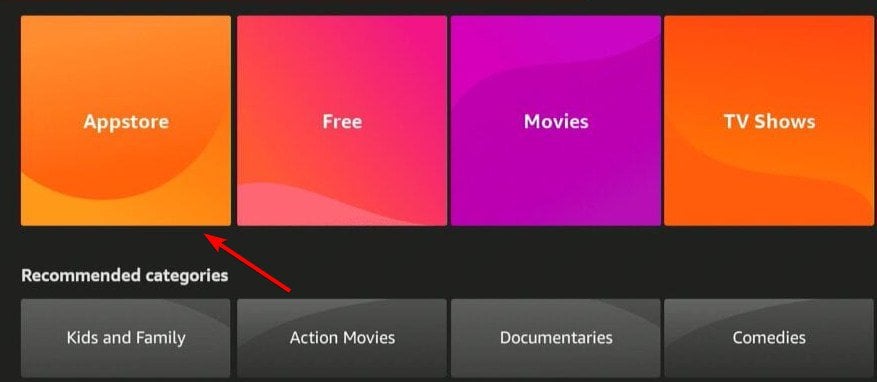
- Search for History Channel and install it.
- Open the app and click Sign In or Activate.
- Copy the activation code shown on your TV.
- Visit history.com/activate on your browser.
- Select Fire TV, input your activation code, and click Continue.
- Log in with your TV provider to link your account.
You’ll now have full access to all History Channel programs.
If you’re having trouble setting up, check our guide on how to register your Amazon Fire TV Stick or see how to use a Firestick without a remote.
How to Activate History Channel on Apple TV
- From your Apple TV home screen, open the App Store.

- Search and download the History Channel app.
- Launch it and click Activate Your Device.
- Write down the activation code.
- Go to history.com/activate on a mobile or desktop browser.
- Pick Apple TV, enter the code, and press Continue.
- Sign in with your TV provider credentials.
Your History Channel library should unlock within a few seconds, giving you access to a wide range of documentaries and exclusive programs.
How to Activate History Channel on Smart TVs (Samsung, LG, Vizio)
- Open your TV’s app store and install the History Channel app.
- Launch it and select Sign In or Activate.
- Copy the activation code from your TV screen.
- On another device, visit history.com/activate.
- Select your TV brand, type in the activation code, and click Continue.
- Sign in using your cable or streaming TV provider account.
You can now watch full episodes directly on your smart TV in high definition without any limitations.
What You Need Before Activation
- A stable internet connection for smooth streaming
- The History Channel app installed on your device
- A TV provider login that includes History Channel access
You can also watch episodes directly on the History Channel website if you don’t have a compatible smart device available.
Why Activation Is Needed
Activation links your TV provider subscription with your History Channel account. This ensures you can:
- Stream all locked and live content without restrictions
- Sync watch history across multiple devices
- Access exclusive collections and on-demand shows
Without activation, the app limits you to a small selection of free clips, so it’s worth completing the quick activation process.
FAQs
Yes. You can subscribe through streaming services like Hulu + Live TV, Sling TV, or Philo to enjoy it without a cable subscription.
Check that you entered the correct code and that it hasn’t expired. Refresh the app to get a new code if needed, then retry the activation process.
Yes, signing out or reinstalling the app will require reactivation, as your device connection resets when you log out.
The app itself is free to download, but you’ll need a paid TV provider or streaming subscription to unlock the complete catalog of shows.
Conclusion
Activating the History Channel is simple and only takes a few minutes. Visit history.com/activate, select your device, enter the code, and sign in with your provider. Once done, you can enjoy a wide range of historical documentaries, real-life stories, and popular series whenever you want.
If you use Roku or Fire Stick, our related setup guides can help you customize your device and enhance your viewing experience even further.
You can also check this MTV activation guide to see how similar code based activation works on smart TVs and streaming devices. Similar steps apply when using different services, such as linking your YouTube account on a smart TV through the TV YouTube verify page, for example.

Read our disclosure page to find out how can you help Windows Report sustain the editorial team. Read more



Improve this guide




User forum
0 messages