
How To Use Microsoft Copilot And Boost Your Productivity


 3 min. read
  EEST
EEST
Copilot helps you work faster across Windows, Edge, and Microsoft 365 apps. This guide shows you how to open it, use prompts, and complete tasks with clear steps.
Table of contents
How To Use Copilot On Windows And Microsoft Apps?
Use Copilot On Windows
Follow these steps to open Copilot and use it for quick tasks.
- Open the Start menu.
- Select Copilot from the pinned apps list.
- Type a question or pick a suggested prompt.

- Ask Copilot to summarize files, change system settings, or generate text.
- Use Copilot cards to perform actions like adjusting brightness or enabling Bluetooth.
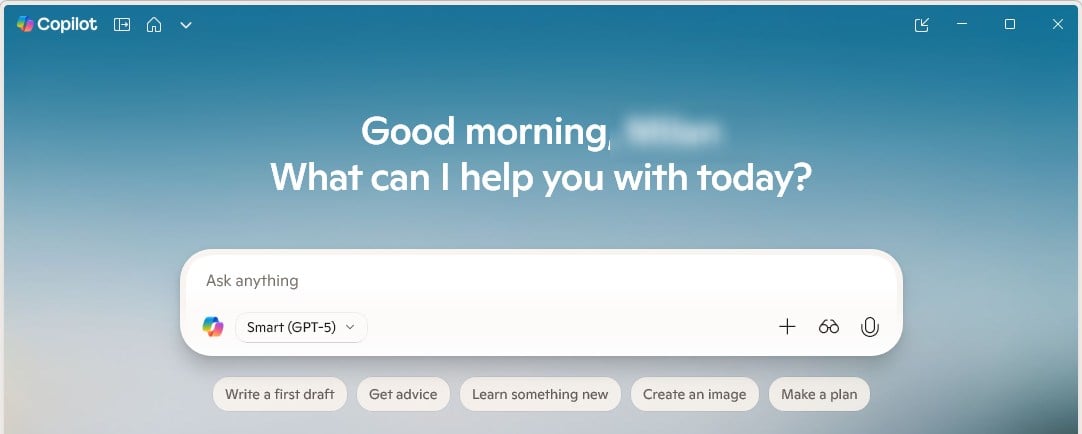
If you want a deeper walkthrough of accessing Copilot features, see this guide on how to access Microsoft Copilot.
Use Copilot In Microsoft Edge
Use these steps to access Copilot inside the Edge browser.
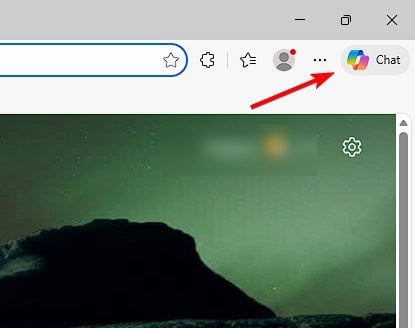
- Open Microsoft Edge.
- Click the Copilot icon in the top right corner.

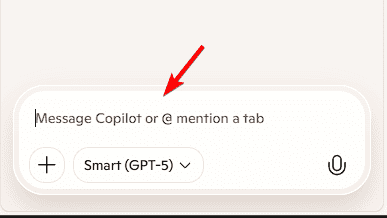
- Enter your query or choose a suggested action.

- Ask Copilot to rewrite content, analyze a webpage, or compare items.
- Switch between chat, compose, and insights using the sidebar.
Use Copilot In Microsoft 365
Use the steps below to run Copilot inside Word, Excel, Outlook, or PowerPoint.
- Open Word, Excel, Outlook, or PowerPoint.
- Select the Copilot button in the toolbar.
- Pick a task such as drafting, summarizing, or designing.
- Provide specific instructions to refine the output.
- Insert the result into your document or email.
If you want detailed instructions for document editing, check this tutorial on how to use Copilot in Word. You can also learn how to activate AI tools in your inbox with this guide on enabling Copilot in Outlook.
Tips For Better Copilot Results
Try these tips to improve your prompts and get more accurate results.
- Write clear prompts like “Summarize this file in short bullet points.”
- Add tone, length, or goal details.
- Ask follow up questions to refine output.
- Try image generation for visuals and presentations.
- Use Copilot shortcuts on Windows to run system tasks quickly.
You may want to turn off the assistant on your device, so you can follow this guide on how to remove Copilot from Windows 11 for clear steps.
FAQs
You can open Copilot from the Start menu or by clicking the Copilot icon on the taskbar if it appears enabled on your device.
No. Copilot needs an active internet connection to process prompts and generate results.
Yes. Copilot appears in the ribbon of Microsoft 365 apps and helps you draft text, analyze data, or summarize emails.
Windows Copilot is free, but Copilot for Microsoft 365 requires a paid subscription for advanced document and email features.
Copilot helps you complete tasks faster across Windows, Edge, and Microsoft 365. With features that improve writing, communication, and system control, exploring Copilot across different apps boosts productivity and simplifies everyday work.

Read our disclosure page to find out how can you help Windows Report sustain the editorial team. Read more



Improve this guide

User forum
0 messages