
How to Use Speccy on Windows 11 to Check Your PC Specs


 4 min. read
  Published on

Speccy Windows 11 is one of the best tools for viewing detailed information about your computer’s hardware. Whether you need to check your CPU temperature, RAM type, or storage health, Speccy can show it all in one clean interface.
Let’s explore how to install, use, and understand the data from Speccy on your Windows 11 PC.
Table of contents
How to Use Speccy on Windows 11?
What Is Speccy?
Speccy is a free system information tool developed by Piriform, the makers of CCleaner. It provides in-depth details about your PC’s components in real time.
You can view information about your:
- CPU and motherboard
- RAM speed and slots used
- GPU and display details
- Storage drives and temperatures
- Operating system and updates
This makes it a go-to tool for PC troubleshooting and performance monitoring.
For an alternative utility that focuses purely on CPU heat tracking, check out our guide on how to use Core Temp.
How to Download and Install Speccy on Windows 11
Follow these simple steps to get Speccy running on your computer.
- Go to the official Speccy website (Piriform.com).
- Click Download Free Version and select Free Download again.

- Open the downloaded Speccy Setup.exe file.
- Click Install and wait for the process to finish.
- Once installed, click Run Speccy to launch it.
After installation, you’ll see the main Speccy dashboard displaying your PC summary.
If you want to customize your device’s name before generating reports, learn how to find and rename your computer in Windows 11.
How to Use Speccy on Windows 11
Speccy automatically detects and displays your system components. Here’s how to explore its data:
- Launch Speccy from the Start menu or desktop shortcut.
- Wait a few seconds for the program to scan your hardware.
- Click each category on the left sidebar (CPU, RAM, Motherboard, etc.) to view details.

- Check Temperatures beside each component to monitor heat levels.

- To export your report, click File > Save Snapshot or Publish Snapshot for online sharing.

This quick overview helps you detect overheating or faulty hardware before it becomes a serious problem.
How to Read Speccy’s Data
Speccy organizes its information into sections for easy reading.
- Summary: Displays key hardware specs and temperatures.
- CPU: Shows model, speed, cores, and temperature.
- RAM: Reveals capacity, frequency, and memory slot usage.
- Motherboard: Lists manufacturer, chipset, BIOS version, and temperature.
- Storage: Displays drive type (SSD or HDD), size, health, and temperature.
If you see high temperatures (above 80°C for CPU), it’s time to clean your PC or check your cooling system.
Why Use Speccy on Windows 11?
Using Speccy offers several advantages for home and power users alike.
- Quick access to all PC details without opening your case.
- Helps monitor temperature changes during gaming or editing.
- Useful when upgrading RAM or storage to ensure compatibility.
- Generates easy-to-share reports for tech support.
This makes Speccy a lightweight yet powerful diagnostic companion for any Windows 11 machine.
How to Uninstall Speccy (If Needed)
If you ever want to remove Speccy from your system, follow these steps.
- Press Windows + I to open Settings.
- Go to Apps > Installed apps.

- Scroll down and find Speccy in the list.
- Click the three dots beside it and select Uninstall.
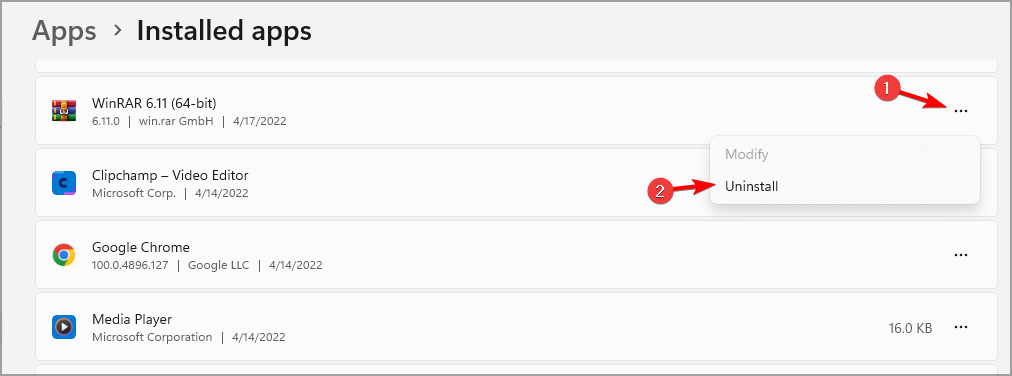
- Confirm the action and wait for the process to finish.
FAQs
Yes, Speccy is completely safe when downloaded from the official Piriform website. It doesn’t modify your system settings.
Yes, it displays real-time temperatures for your CPU, GPU, and storage drives.
Absolutely. Speccy works on Windows 7, 8, 10, and 11.
That can happen if certain drivers or sensors are not recognized by Windows. Try updating your chipset or hardware drivers and restart Speccy.
Conclusion
Speccy is an easy-to-use tool that gives you a complete snapshot of your PC’s hardware in seconds. It helps you monitor temperatures, identify components, and detect issues before they cause damage.
If you experience app instability or frequent crashes while using Speccy, see this detailed guide on how to fix Speccy crashing on Windows 10.
Overall, if you want a lightweight system monitor that works perfectly with Windows 11, Speccy remains one of the most reliable and user-friendly options available.
Alt Text: Screenshot of Speccy displaying detailed hardware specs and CPU temperature on a Windows 11 desktop.

Read our disclosure page to find out how can you help Windows Report sustain the editorial team. Read more



Improve this guide




User forum
0 messages