
How to Turn Off Notification Center Quickly on Windows 11


 3 min. read
  EEST
EEST
The Notification Center in Windows 11 can become distracting when alerts keep popping up during work or gaming. Use these quick methods to turn it off or silence it.
Table of contents
How to Disable Notification Center in Windows 11?
1. Turn Off Notifications from Windows Settings
This is the quickest and safest way to silence notifications without advanced tweaks.
- Click the Start button and select Settings.

- Go to System > Notifications.

- Toggle Notifications to Off to disable all alerts.
- To block specific apps only, scroll down and turn off notifications for each one.

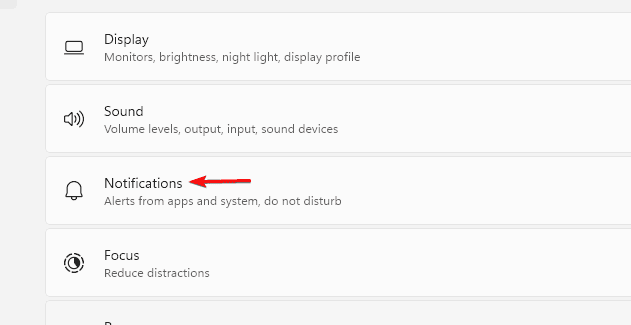
For more options, see how to disable notifications in Windows 11.
2. Disable Notification Center Using Group Policy Editor
This method completely hides the Notification Center icon on supported Windows editions.
- Press Windows + R, type gpedit.msc, press Enter.

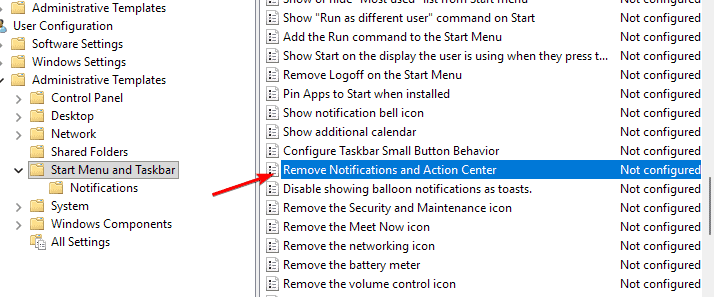
- Open User Configuration > Administrative Templates > Start Menu and Taskbar.
- Double-click Remove Notifications and Action Center.

- Select Enabled, then click Apply > OK.
- Restart your PC to apply the change.

3. Disable Notification Center via Registry Editor
Best for Windows 11 Home users who do not have Group Policy Editor.
- Press Windows + R, type regedit, press Enter.
- Go to
HKEY_CURRENT_USER\Software\Policies\Microsoft\Windows\Explorer. - Right-click Explorer and choose New > DWORD (32-bit) Value.
- Name it DisableNotificationCenter.
- Open it, set Value data to 1, click OK.
- Close Registry Editor and restart your PC.
To understand alert behavior, read what Windows notification mode is.
4. Temporarily Mute Notifications with Focus Assist
Use this when you need quiet periods without turning notifications off system-wide.
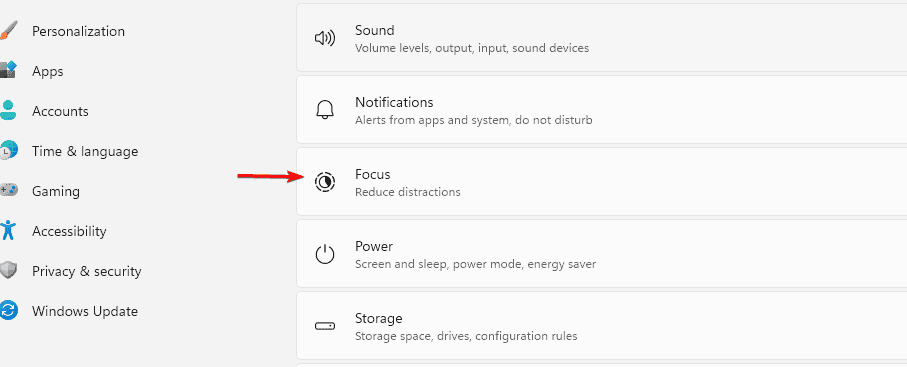
- Open Settings > System > Focus Assist.
- Choose Alarms only or Priority only.

- Customize allowed apps under Priority list if needed.
Why Disable the Notification Center in Windows 11
Constant pop-ups interrupt focus and clutter your desktop. Turning off or limiting notifications helps you stay on task and reduces interruptions during meetings and games.
FAQs
Yes, revert the same setting or delete the DisableNotificationCenter registry value.
It can slightly reduce background activity and visual distractions.
Critical security notifications may still appear through Windows Security.
Yes, toggle individual app notifications in Settings > System > Notifications.
Yes, configure automatic rules in Focus Assist for work hours or gaming sessions.
Conclusion
Whether you disable Notification Center fully or use Focus Assist for quiet hours, you can keep your desktop distraction-free and turn alerts back on anytime. If you also want more control over system behavior, consider blocking Windows 11 updates to prevent unwanted changes.
To further optimize your PC, explore Windows 11 settings you should change now to improve performance, privacy, and stability.

Read our disclosure page to find out how can you help Windows Report sustain the editorial team. Read more



Improve this guide
User forum
0 messages