
How to Enable the New Xbox Full Screen Experience in Windows 11


 3 min. read
  Published on
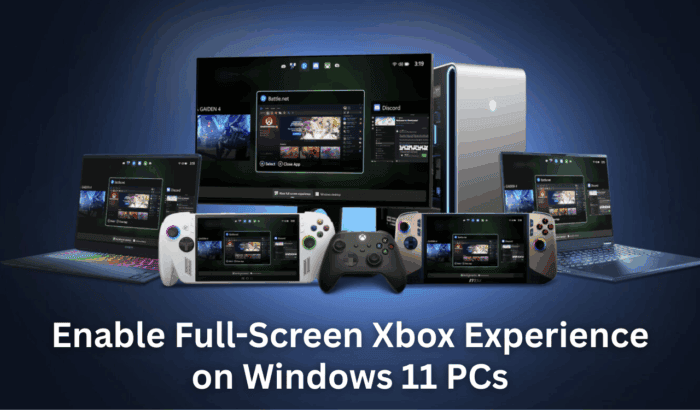
Xbox Full-screen Experience is a new console-style interface for Windows 11, designed for Xbox Insiders. Here is how to enable it, access it, and exit it.
Table of contents
How to Enable Xbox Full-Screen Experience on Windows 11?
Join the Required Insider Programs
You need to join both Insider programs to make the feature available on your device.
Xbox Insider Program
These steps help you join the PC Gaming Preview inside the Insider Hub.
- Open the Xbox Insider Hub app from the Microsoft Store.

- Go to Previews.

- Select PC Gaming Preview.
- Select Join.
To learn more about resolving issues with the Xbox app once you are enrolled, you can check this guide: Fix Xbox app issues on Windows .
Windows Insider Program
Use these steps to join the Windows Insider Program and access compatible builds.
- Open Settings.
- Select Windows Update.

- Select Windows Insider Program.

- Choose the Beta or Dev channel.
- Restart your PC.
If you want more details on downloading Insider builds, this guide covers the process clearly: Get Windows 11 Insider Preview builds .
How to Access the Xbox Full Screen Experience
1. Use Task View
These steps let you switch into the full screen interface directly from your taskbar.
- Hover over the Task View icon.
- Select Xbox full screen experience.

- Press Win + Tab as another option.
2. Use Xbox Game Bar
The Game Bar offers a quick and convenient way to toggle the experience.
- Press Win + G to open Game Bar.
- Open Settings.
- Select Xbox full screen experience.
- Press Win + F11 to toggle it.
To learn more about Game Bar features and shortcuts, you can explore this guide: How to use Xbox Game Bar on Windows 11 .
3. Use a Controller
Controller users can quickly enter or exit the full screen mode.
- Long press the Xbox button on your controller.
- Switch between open apps or the new interface.
How to Exit the Xbox Full Screen Experience
These steps let you leave the interface without restarting your PC.
- Open Task View and select Windows desktop.
- Exit from Game Bar settings.
- Press the Windows key to return to the desktop.
What Is the Xbox Full Screen Experience
This feature gives your PC a dashboard that resembles an Xbox console, with smoother navigation and controller-friendly menus.
FAQs
The feature is in preview, so Microsoft currently limits access to Insiders.
Yes, you can use Task View, keyboard shortcuts or your controller.
No, it works as an optional overlay that you can toggle anytime.
The Xbox full screen experience brings a clean, console like UI to Windows 11, making navigation smoother for both keyboard and controller users. Once you join the Insider programs, you can open it from Task View, Game Bar or your controller and exit it just as quickly. It is a simple improvement that can make your gaming setup feel much more immersive.

Read our disclosure page to find out how can you help Windows Report sustain the editorial team. Read more



Improve this guide
User forum
0 messages