
Ethernet Doesn’t Have a Valid IP Configuration (Windows 10 Fix Guide)
To fix this issue, you'll need to adjust your network settings


 4 min. read
  Updated on

If you’re seeing “Ethernet doesn’t have a valid IP configuration” on Windows 10, your PC can’t get a proper IP from the router. This error stops your system from accessing the internet and may also affect Wi-Fi.
How to Fix “Ethernet Doesn’t Have a Valid IP” on Windows 10
Table of contents
1. Restart Your Router and PC
- Power off your router and unplug it for 30 seconds.
- Restart your Windows 10 PC and reconnect the Ethernet cable.
If the issue persists, check for firmware issues using this guide on how to update your router firmware.
2. Release and Renew Your IP Address
- Press Win + R, type
cmd, and press Enter. - In Command Prompt, run: ipconfig /release ipconfig /flushdns ipconfig /renew

- Restart your PC and test the Ethernet connection again.
3. Set a Static IP Address
- Go to Control Panel > Network and Sharing Center.

- Click Change adapter settings.

- Right-click your Ethernet connection > Properties.

- Select Internet Protocol Version 4 (TCP/IPv4) > Properties.
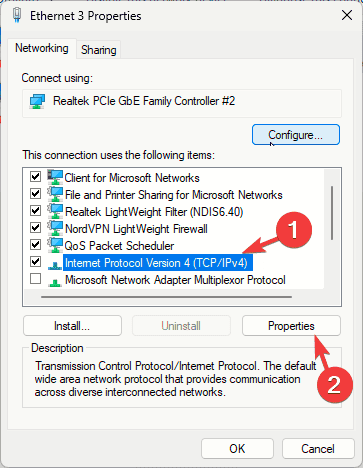
- Choose Use the following IP address and enter:
- IP address: 192.168.1.100
- Subnet mask: 255.255.255.0
- Default gateway: 192.168.1.1
- Save changes and reboot.
4. Reset the Network Settings
- Open Settings (Win + I) > Network & Internet > Status.
- Click Network reset at the bottom.
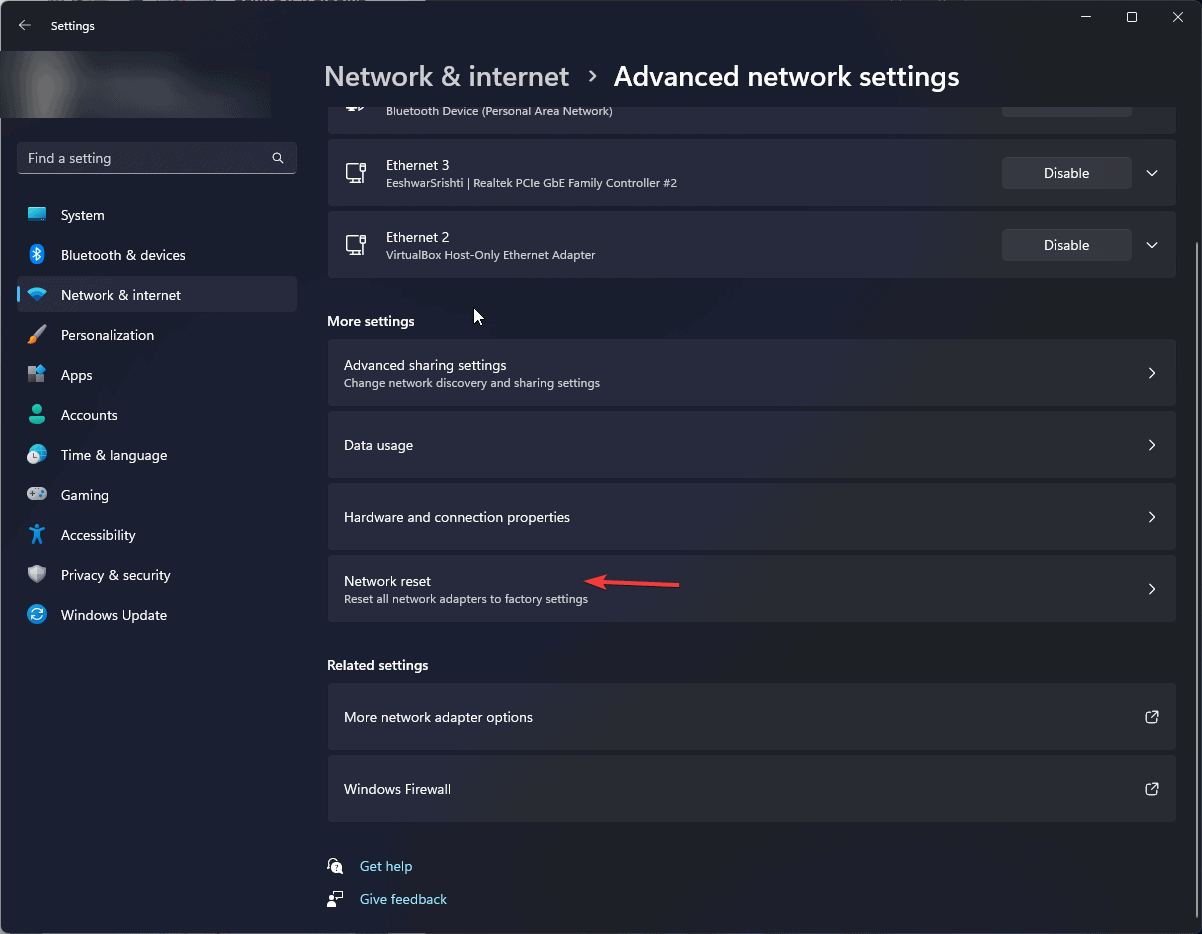
- Restart your PC after the reset completes.
5. Disable Fast Startup
- Open Control Panel > Power Options.
- Click Choose what the power buttons do.
- Select Change settings that are currently unavailable.

- Uncheck Turn on fast startup and click Save changes.
6. Reinstall Your Ethernet Adapter
- Open Device Manager (Win + X > Device Manager).
- Expand Network adapters.

- Right-click your Ethernet adapter > Uninstall device.
- Restart your PC to reinstall the driver automatically.
If your adapter isn’t listed, this fix for missing Ethernet adapter in Device Manager may help.
7. Check for Driver Updates Automatically
Manual Method:
- Open Device Manager.
- Expand Network adapters and right-click your Ethernet driver.
- Click Update driver > Search automatically for drivers.

- If Windows finds a new driver, install it and restart your PC.
See this driver update tutorial for Windows 10 for more detailed methods.
Automatic Method:
➡️ Want to skip the hassle? Use Fortect Driver Updater to update all your drivers in one click.
- Download and install the tool.
- Launch it and click Scan Now.
- Click Update All or just the Ethernet driver.
- Restart your PC once updates are complete.
Why This Fix Works
This error is often tied to DHCP failures, bad driver installs, or buggy configurations. It may also show up during random Ethernet disconnections on Windows 10 or if you’re using specific hardware like a Dell docking station with Ethernet not working.
FAQs
The system can’t assign a valid IP from the router. This could be due to DHCP failure or outdated network drivers. Check for other Windows 10 Ethernet problems.
Yes. Learn how to use Wi-Fi and Ethernet simultaneously for a backup.
It might be. Check this Ethernet spiking Task Manager fix to reduce background load.
Start with this guide on resolving driver problems for Ethernet adapters.
Conclusion
The “Ethernet doesn’t have a valid IP configuration” error on Windows 10 is a common but fixable issue. Whether it’s caused by drivers, settings, or hardware conflicts, the steps above should help restore your connection.

Read our disclosure page to find out how can you help Windows Report sustain the editorial team. Read more



Improve this guide



User forum
10 messages