
Google Assistant for PC: Setup Guide for Windows Users


 4 min. read
  EEST
EEST
Google Assistant for PC gives you voice powered shortcuts, quick searches, and smart controls on Windows. This guide shows you how to install it and use it safely.
Table of contents
How To Download Google Assistant For PC?
Download the unofficial Google Assistant client
You get the installer from the developer GitHub page.
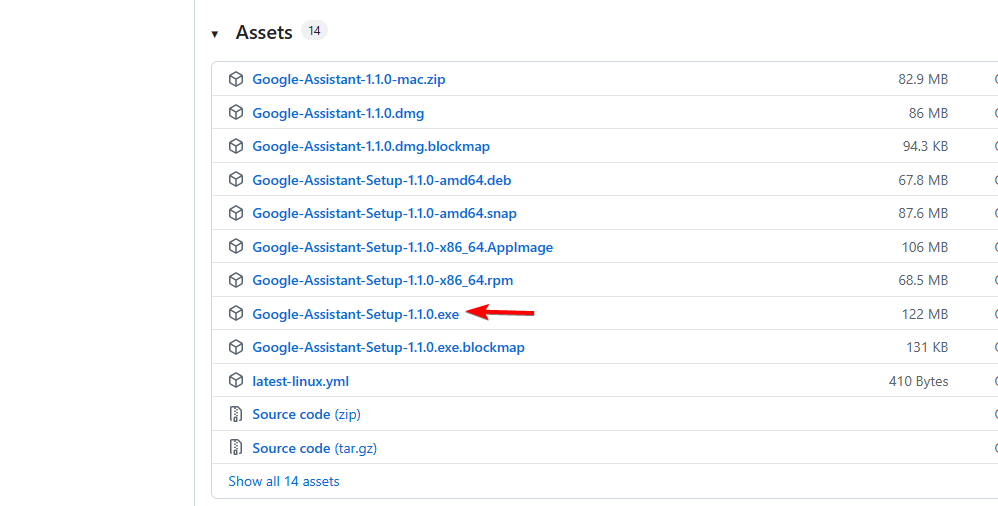
- Open your browser and visit the Google Assistant Desktop Client on GitHub.
- Download the Windows installer.

- Save it to your Downloads folder.
Run the installer
You complete the desktop setup in a few clicks.
- Double click the installer file.
- Approve the installation when Windows prompts you.
- Launch the app when setup finishes.
Create your Google API project
You generate credentials so the Assistant can authenticate.
- Visit the Google Cloud Console.
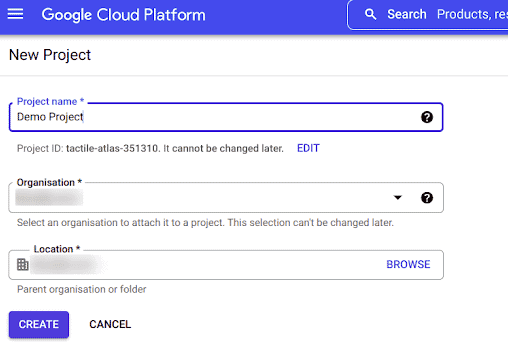
- Create a new project and enable the Google Assistant API.

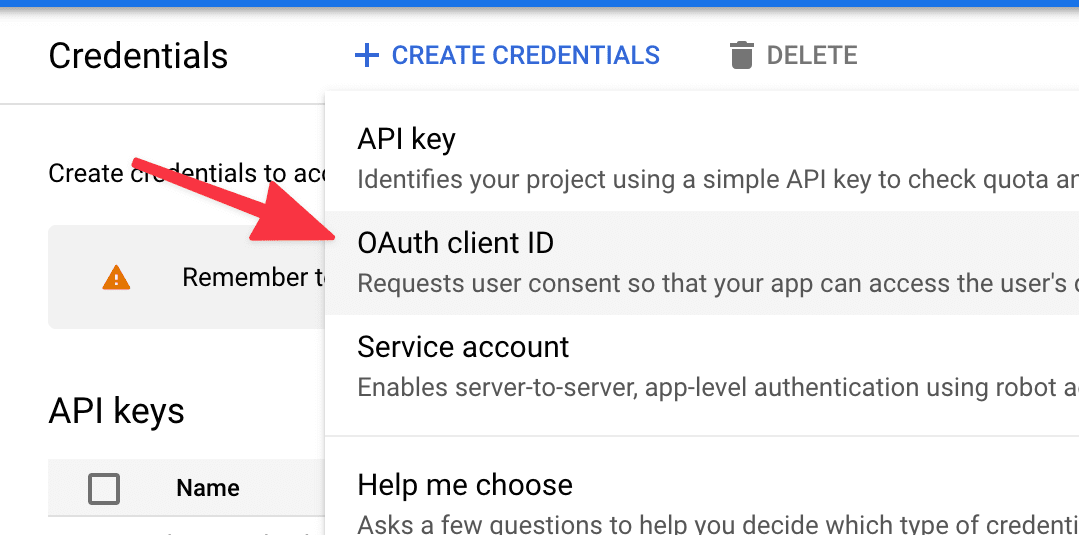
- Create OAuth credentials.

- Download the JSON file and place it in a safe folder.
Helpful context: If you want to compare different voice helpers, review this guide on talking PC software and other assistant tools.
How to set up Google Assistant for PC
You connect the client to your Google account and enable microphone access.
Load your credentials
You sign in and attach your OAuth file.
- Open the Google Assistant Desktop Client.
- Upload the OAuth JSON file.
- Log in with your Google account.
Configure the microphone and hotword
You activate voice detection and confirm audio input.
- Open Settings in the client.
- Select your preferred microphone.
- Turn on the hotword option if you want voice activation.
Test basic commands
You confirm that the Assistant listens and responds correctly.
- Say “Hey Google” and ask for the time.
- Ask the Assistant to open a website.
- Try a smart home command if your devices use the same Google account.
Helpful context: You can also learn how to manage voice triggers in Windows from this guide on how to enable and disable Hey Copilot in Windows 11.
How to use Google Assistant for PC
You take advantage of hands free controls for common tasks.
Search the web with your voice
You trigger the Assistant and ask for information.
- Say the hotword or press the shortcut.
- Ask for weather, conversions, or quick searches.
Manage smart home devices
You use the same Google account across all your devices.
- Link your smart devices in the Google Home app.
- Give commands like “Turn off the living room lights”.
Control PC tasks
You open apps and set reminders with short voice commands.
- Ask Google to launch programs or browser tabs.
- Use it to create calendar events or reminders.
What you need before installing Google Assistant for PC
You prepare your system with a few quick checks.
- Check that Windows is updated to the latest version.
- Confirm you use a Google account and you can sign in.
- Install the latest version of Python if you plan to use community ports.
- Turn on your microphone and confirm it works.
You can also explore Windows 11 voice typing for built in voice control on your PC.
FAQs
You download an unofficial desktop client, create Google Cloud credentials, and then sign in with your Google account on your Windows computer.
No, Google only releases official Google Assistant apps for Android, iOS, and ChromeOS, so Windows users rely on community desktop clients.
It is generally safe if you download the client from the original developer source, protect your Google account, and keep your credentials in a secure folder.
Yes, as long as your smart home devices link to the same Google account, you can manage lights, plugs, and other gadgets from the desktop client.
Google Assistant for PC gives you quick voice access to searches, smart home controls, and basic PC actions on Windows. You install the unofficial desktop client, attach your Google Cloud credentials, set up your microphone and hotword, then start using natural voice commands. With the right setup, your computer works like a hands free assistant that fits smoothly into your daily routine.

Read our disclosure page to find out how can you help Windows Report sustain the editorial team. Read more



Improve this guide


User forum
0 messages