
HP Print and Scan Doctor Guide for Windows


 4 min. read
  Published on
If your HP printer suddenly stops working or shows an offline error, you do not need to panic. The HP Print and Scan Doctor tool can quickly diagnose and repair most printing or scanning problems on Windows computers. In this guide, you will learn what it does, how to install it, and how to use it effectively.
Table of contents
How to Use HP Print and Scan Doctor?
What Is HP Print and Scan Doctor
HP Print and Scan Doctor is a free Windows tool created by HP to diagnose and fix printer or scanner problems automatically. It helps you solve connectivity, driver, and print queue issues without calling support.
Learn how to manage connected printers and devices more efficiently by checking the Devices and Printers settings in Windows 11.
How to Download HP Print and Scan Doctor
Follow these steps to safely download the tool from HP’s official source.
- Go to the official HP Support page for HP Print and Scan Doctor.
- Click Download Now to save the .exe file on your computer.
- Locate the file in your Downloads folder.
- Double click it to start the installation process.
Keep in mind that this software is retired, so you might have to download it from third-party sources.
How to Use HP Print and Scan Doctor
Once installed, follow these steps to fix your printer or scanner.
- Launch HP Print and Scan Doctor from your desktop or Start menu.
- Click Start, then select your printer from the detected list.
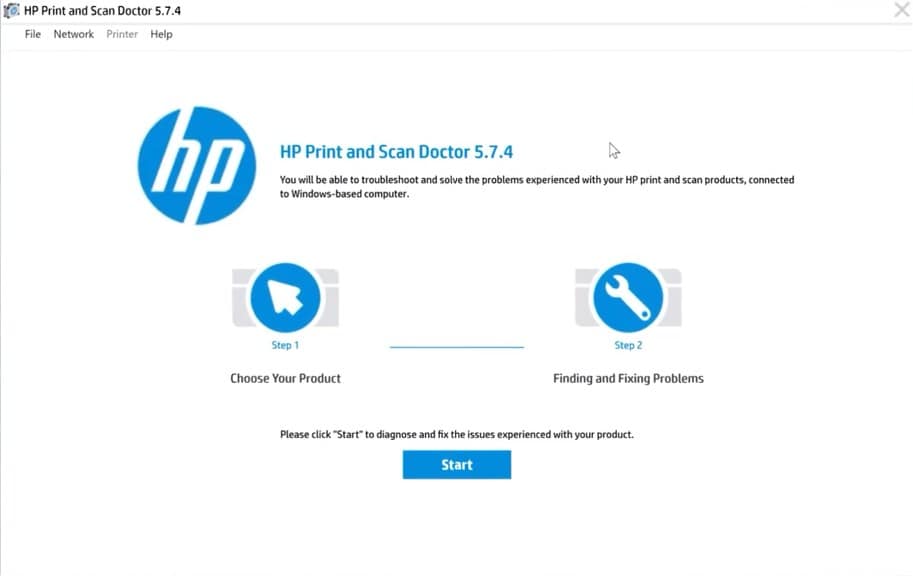
- If the printer is not listed, click Retry to refresh the list.
- Click Next to begin diagnosing common printing and scanning problems.
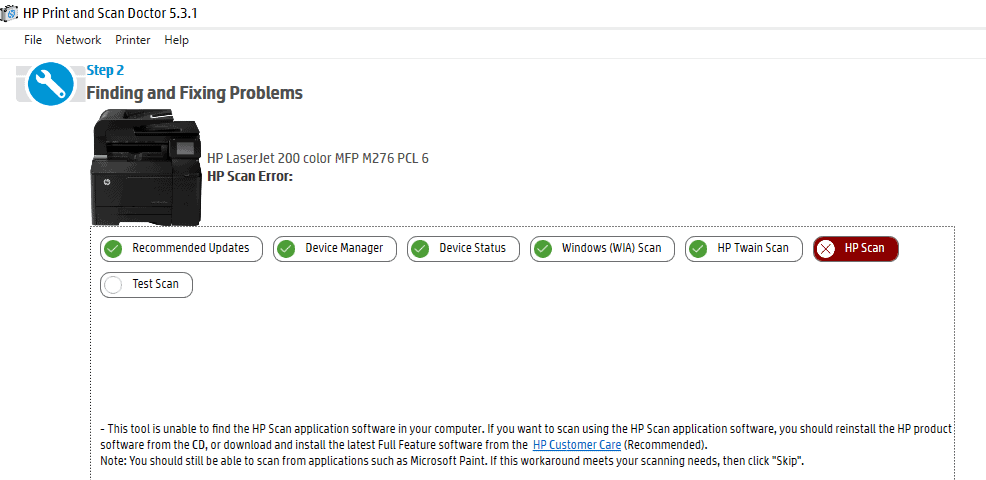
- Review the results and follow on screen instructions to apply the recommended fixes.
Why You Should Use It
- Fixes printer offline errors automatically
- Clears stuck print jobs
- Repairs missing or corrupt printer drivers
- Detects and resets connectivity issues
- Works with both USB and network HP printers
If your device is network based, you can also review how to set up a wireless printer in Windows 11 for a smoother connection.
Common Problems It Fixes
- Printer offline or not responding
- Print spooler service not running
- Connectivity issues over Wi Fi or USB
- Missing or outdated printer drivers
- Blank or incomplete prints
- Scan errors and failed scan attempts
Tips for Best Results
- Ensure your printer is powered on and connected to the same network as your PC.
- Temporarily disable third party antivirus software if the tool cannot connect.
- Restart both the printer and computer before running the tool again.
- Keep your HP printer drivers updated via HP Smart or Windows Update.
Alternative Method: Manually Update HP Printer Drivers
If HP Print and Scan Doctor cannot fix your issue, try this method.
- Open Device Manager on your PC.

- Expand the Printers section.
- Right click your HP printer and choose Update driver.
- Select Search automatically for drivers and let Windows find updates.

For more control over printing tools, see how to install Print Management in Windows 11.
FAQs
Yes. It is an official HP troubleshooting tool digitally signed by HP Inc.
No. HP Print and Scan Doctor is available only for Windows.
Yes. The tool can detect and repair network or Wi Fi printing issues.
Make sure your printer is connected to the same Wi Fi network as your PC, and restart both devices before scanning again.
Final Thoughts
HP Print and Scan Doctor is a quick way to fix most printer or scanner errors on Windows. It offers a simple, guided repair process that can save you time and frustration. Regularly checking your printer setup, wireless configuration, and print management settings helps prevent similar problems in the future.

Read our disclosure page to find out how can you help Windows Report sustain the editorial team. Read more



Improve this guide




User forum
0 messages