
How to Fix League of Legends Black Screen (Step-by-Step)
Faulty or outdated graphics drivers can cause LoL black screen issues


 6 min. read
  Updated on

Experiencing a League of Legends black screen during launch, loading, or in-game? Whether it’s a LoL black screen in-game, during champion select, or after login, this guide will help you fix the issue using proven methods.
How can I fix the League of Legends black screen?
Table of contents
- 1. Update your GPU drivers
- 2. Clean boot your computer
- 3. Update your computer
- 4. Disable Display Scaling
- 5. Use an Ethernet connection
- 6. Run the Client as Administrator
- 7. Disable Fullscreen Optimization
- 8. Repair Game Files
- 9. Delete Config and Logs Folders
- 10. Set Game to Windowed Mode
- 11. Disable Overlay Applications
- 12. Update DirectX and Visual C++
- 13. Change DNS Settings
- Why is my League of Legends a black screen?
- Wrapping up
1. Update your GPU drivers
1.1. Use Device Manager
- Press the Windows key + X and select Device Manager.

- Double-click on the Display adapters option to expand it.

- Right-click on your graphics driver and select Update driver.
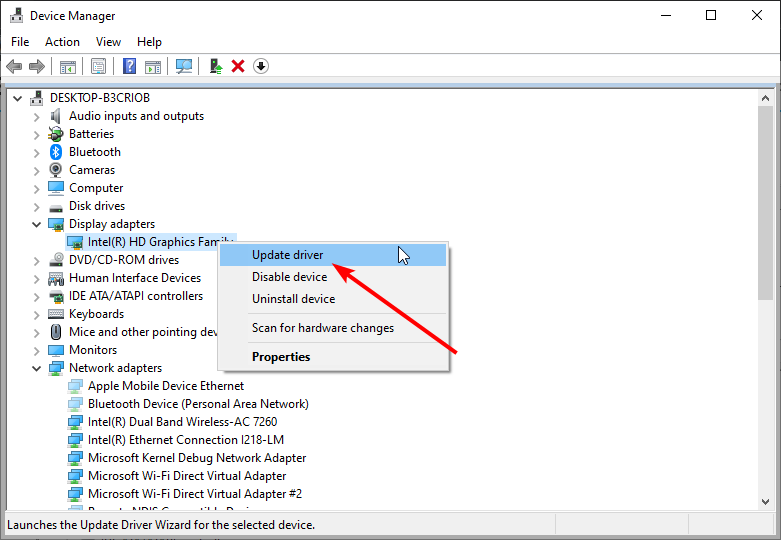
- Choose the Search automatically for drivers option.

- Wait for the scan to complete and install any available update.
1.2. Go to the manufacturer’s website
You can also get the latest GPU drivers from the manufacturer’s website.
For instance, iyou use an NVIDIA graphics card, go to NVIDIA’s site, open the Drivers section, and download the version that matches your model and operating system. This prevents compatibility errors.
If Windows doesn’t find any updates and manual search fails, use automatic driver update tools instead.
1.3. Update drivers automatically
Downloading drivers manually is a process that carries the risk of getting the wrong driver installed. This can lead to severe malfunctions and worse problems than the League of Legends black screen issues.
The safer and easier way to update drivers on a Windows computer is by using an automatic driver updating tool.
2. Clean boot your computer
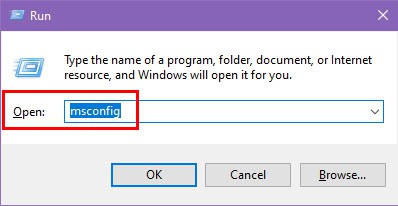
- Press the Windows + R keys to open the run box.
- Type msconfig in the run box and hit Enter.
- Click the Services tab at the top.
- Check the Hide all Microsoft services box and select Disable all.
- Choose the Startup tab at the top and click Open Task Manager.
- Right-click on each startup item and select Disable.
- Close the Task Manager, and go back to the Service tab.
- Click the Apply button, followed by OK.
- Finally, restart your PC.


By clean booting your PC, you force it to use only the minimum set of drivers and programs it needs. Your computer will direct all its resources to power the game in this manner. Follow the necessary steps below.
3. Update your computer
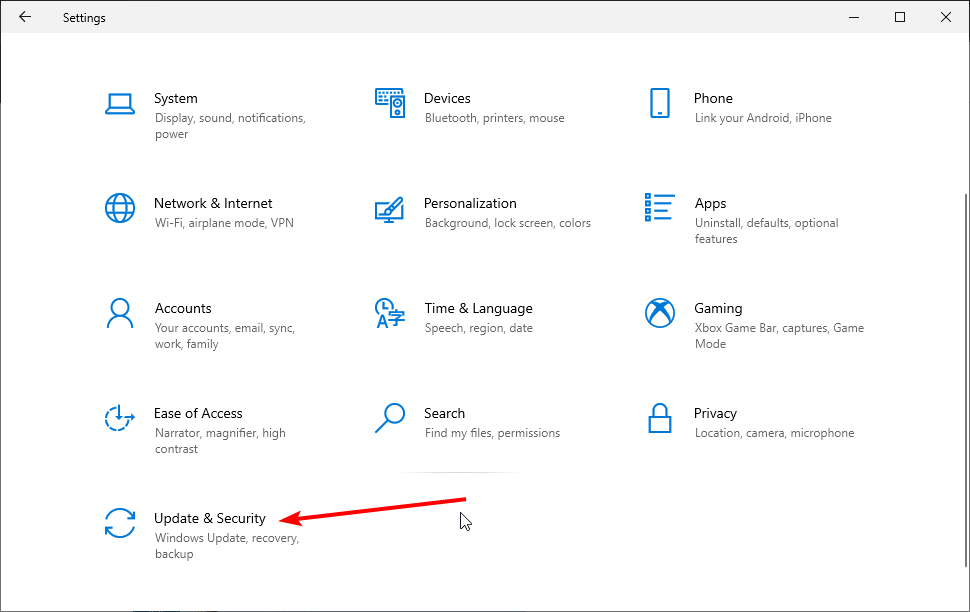
- Press the Windows key + I to open the Settings app.
- Select the Update & Security option.
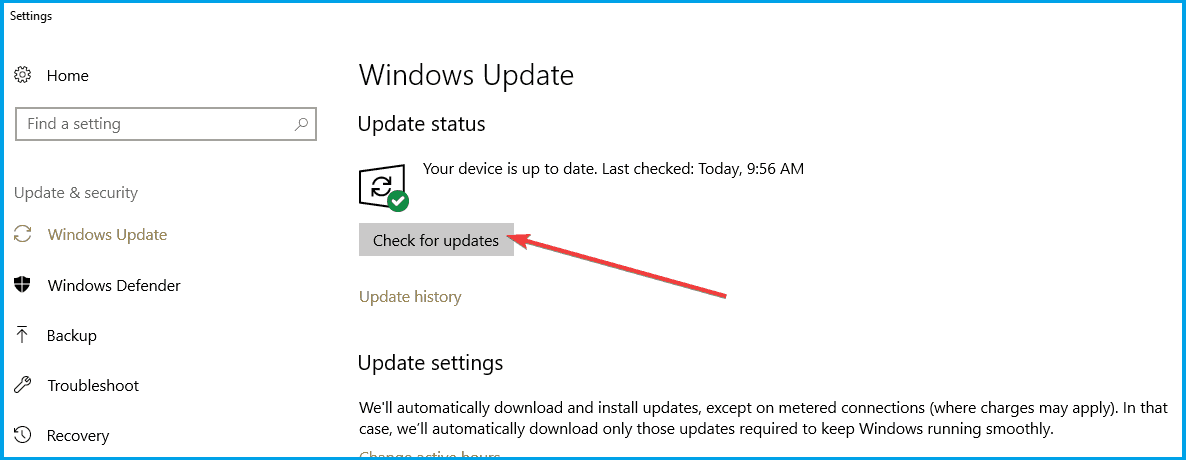
- Choose Windows Update in the left pane.
- Click on Check for updates.
Many gamers confirmed that the latest updates improved their gaming experience by reducing the occurrence of technical glitches and improving the FPS rate.
4. Disable Display Scaling
- Right-click on the League of Legends launcher.
- Go to Properties and then to Compatibility.
- Check the Disable Display Scaling on high DPI Settings.

- Also, check the Run as Administrator option, and uncheck the Compatibility mode.
After performing this minor compatibility fix, the black screen in LoL should be gone. But if you’re still struggling, consider addressing your Internet connection.
5. Use an Ethernet connection
Some gamers confirmed that switching to a cable connection solved this problem. Indeed, wireless Internet connections are less stable than Ethernet connections.
When the Wi-Fi signal is not strong enough, you may experience many game-related problems, including the League of Legends black screen and the inability to connect.
6. Run the Client as Administrator
Right-click on the LeagueClient file and choose Run as administrator. This grants full system access and can resolve client black screen problems.
7. Disable Fullscreen Optimization
This setting can interfere with fullscreen transitions, causing a black screen in LoL.
- Right-click on the LeagueClient or League of Legends file
- Open Properties and go to the Compatibility tab
- Check Disable fullscreen optimizations, then click Apply and OK
8. Repair Game Files
Corrupted files often cause the League of Legends black screen load in error.
- Launch the League client
- Click the gear icon in the top-right
- Select Initiate Full Repair and wait for it to finish
9. Delete Config and Logs Folders
Reset corrupted settings by removing these folders:
- Navigate to your League of Legends installation directory
- Delete the Config and Logs folders
- Restart the client
10. Set Game to Windowed Mode
To fix a black screen in-game, force the game to launch in windowed mode:
- Go to the Config folder inside your League directory
- Open the game configuration file using a text editor
- Find the line for WindowMode and change its value to 1
- Save and restart the game
11. Disable Overlay Applications
Overlays can conflict with the game and cause screen issues. Close any of the following before launching:
- Discord Overlay
- NVIDIA GeForce Experience
- Razer Cortex
12. Update DirectX and Visual C++
Missing runtime libraries are a known cause of the LoL client black screen:
- Install the latest DirectX End-User Runtime
- Download and install the newest Visual C++ Redistributables
13. Change DNS Settings
DNS problems can delay or block the client from loading properly, resulting in a black screen.
- Open Network Settings and go to Change Adapter Options
- Right-click your active connection and select Properties
- Select IPv4, then click Properties
- Set Preferred DNS to 8.8.8.8 and Alternate DNS to 8.8.4.4
- Click OK and restart League
Why is my League of Legends a black screen?
Black screen while gaming is usually caused by outdated display drivers. It might happen during the game, after the game ends or you can get a League of Legends black screen when loading into game Damaged files can cause League of Legends crashes.
Wrapping up
Just like users were complaining that League of Legends won’t start, now, many players face strange issues with a black screen.
We hope that these recommendations from our list were helpful. For more suggestions or other questions, please access the comments section below.
FAQs
It often comes from permissions, overlay apps, or corrupt game config files.
Delete the Config folder, enable windowed mode, and disable fullscreen optimizations to fix post-select loading issues.
Yes, they frequently interfere with the rendering engine and should be disabled.

Read our disclosure page to find out how can you help Windows Report sustain the editorial team. Read more



Improve this guide


User forum
0 messages