
How to Make One Page Landscape in Word (Step-by-Step Guide)


 3 min. read
  Published on
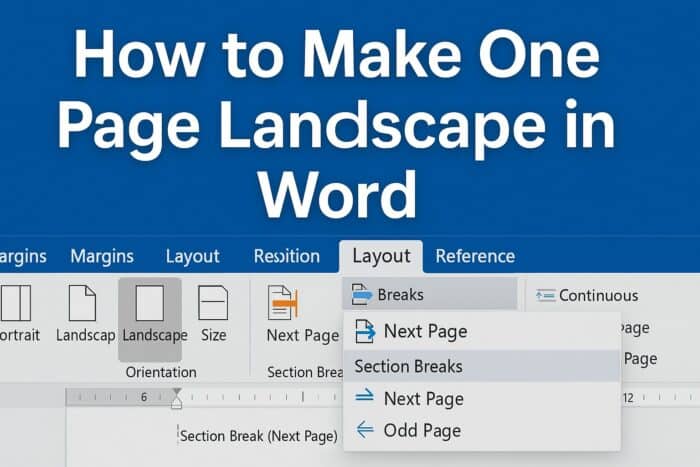
Need to make just one page landscape in Microsoft Word without changing the rest of your document? Here’s a quick guide with simple steps and formatting tips.
Table of contents
How to make one page landscape in Word?
1. Change page layout
Follow these steps to rotate only a single page in your document:
- Open your document and place the cursor at the start of the page you want to rotate.
- Go to Layout (or Page Layout) and choose Breaks > Next Page to start a new section on that page.

- With the cursor inside the new section, go to Layout > Orientation and select Landscape so only that section turns horizontal.

- To keep just one page in landscape, place the cursor at the end of that page, go to Layout > Breaks > Next Page, then switch the following section back to Portrait.
If you’re not familiar with sections, see how to remove and manage section breaks in Word.
2. Rotate only the content instead of the page
If you don’t want to change page orientation, rotate just the object you need:
- Insert a text box or table where you want the content.
- Select the object you want to rotate.
- Use the rotation handle to turn it 90° so it fits horizontally on the portrait page.
For broader formatting tips, check how to use Microsoft Word effectively.
Final thoughts
Changing a single page to landscape is easy with section breaks. If you only need a table or image rotated, use a text box to keep the rest of the document in portrait. You can also control headers/footers per section; learn how with set header on first page only in Word.
For a detailed walkthrough on other subjects, see our How to Make One Page Landscape in Word guide. Learn how to duplicate a page in Microsoft Word if you want to copy entire layouts quickly. You can also use section breaks to control headers and footers per page.
After changing a page’s orientation in your document, you can also learn how to add page numbers in Microsoft Word to keep your pages organized and professional. Before you print a final copy, make sure comments and markup are hidden. Visit our how to print without comments in Microsoft Word guide to learn how to do it.
FAQ
No. Orientation changes apply by section. To rotate just one item, place it in a text box and rotate the object instead.
It can. Unlink headers and footers in the landscape section to customize them independently from the rest of the document.
Delete the section break before or after the rotated page. If a blank page remains, remove extra paragraph marks at the end of the section.
Yes, but section break options are limited. For full control, edit the document in the desktop app.

Read our disclosure page to find out how can you help Windows Report sustain the editorial team. Read more



Improve this guide



User forum
0 messages