
Netflix Not Working on Firestick: Quick Fixes Guide


 3 min. read
  Updated on
If Netflix is not working on your Firestick, the problem usually comes from connection issues, outdated apps, or system glitches. Here are the best fixes you can try.
Table of contents
What can I do if Netflix is not working on Firestick?
1. Check Your Internet Connection
Poor connectivity is the most common reason Netflix fails to load.
- Open another app like YouTube to test streaming.
- Restart your Wi-Fi router and reconnect the Firestick.
- Move the Firestick closer to your router for a stronger signal.
- Check Netflix server status on another device using the Netflix Help Center or DownDetector.
If you notice Netflix still shows streaming errors, see what to do when Netflix is not working in Canada, since similar fixes apply worldwide.
2. Restart the Firestick
A restart clears temporary glitches and reloads the system.
- Press and hold the Home button on your remote.
- Select Settings > My Fire TV > Restart.

- Wait for the device to reboot and launch Netflix again.
Sometimes Netflix apps crash or freeze during playback, showing messages like We’re having trouble accessing these titles. Check this guide on fixing Netflix title errors for more details.
3. Update the Netflix App
Outdated apps can trigger errors and playback issues.
- Go to Home > Apps > Netflix.
- Press the Menu button on the remote and choose More Info.
- Select Update if a new version is available.
4. Clear Netflix Cache and Data
Cache buildup often causes login or loading errors.
- Go to Settings > Applications > Manage Installed Applications.
- Select Netflix, then choose Clear cache and Clear data.
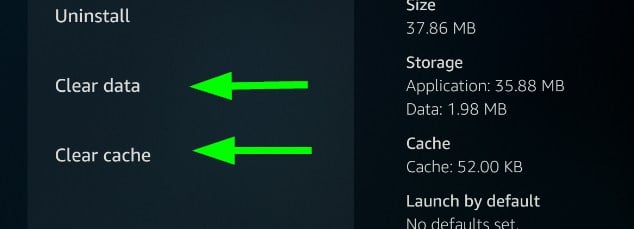
- Reopen the app and sign in again.
In case sign-in problems persist after clearing data, you may need to change your Netflix email address before trying again.
For step by step guidance on removing stored site data across platforms, see our full guide on how to clear cookies on Netflix.
5. Update Firestick Software
Old firmware can cause app compatibility problems.
- Open Settings > My Fire TV > About > Check for Updates.

- Download and install any available update.
6. Reinstall Netflix
A fresh installation removes corrupted files or settings.
- Go to Settings > Applications > Manage Installed Applications.
- Select Netflix and choose Uninstall.
- Reinstall Netflix from the Amazon Appstore.
For device specific problems, you can also check this guide on Amazon Fire Stick not connecting to Netflix.
Still stuck on Firestick issues? For broader tips that apply to any device, see our complete guide: Netflix not working.
FAQs
This usually happens due to slow internet speed. Restart your router, lower video quality, or connect through Ethernet if possible.
Clearing the Netflix app cache and restarting the Firestick often solves this issue.
Yes. Always install the latest Fire OS updates to keep apps running smoothly.
Conclusion
Work through the fixes in order, starting with connection checks and a quick restart, then update both the app and Fire OS. Clearing cache and reinstalling Netflix usually resolves stubborn issues, and you should only consider a factory reset if nothing else works.
Still stuck and want to stop billing? Learn how to cancel your plan in minutes here: Cancel Netflix Subscription.

Read our disclosure page to find out how can you help Windows Report sustain the editorial team. Read more



Improve this guide



User forum
0 messages