
How to Export a Notebook in OneNote (Step-by-Step Guide)


 3 min. read
  Updated on
If you’re wondering how to export a notebook in OneNote, you’ve got several options depending on whether you’re using Windows, Mac, the web, or mobile. Here’s a simple step-by-step guide to help you back up or share your notes.
Table of contents
How to Export a Notebook in OneNote?
1. Export a OneNote Notebook on Windows
On Windows, exporting is the most flexible:
- Open OneNote and click the File tab in the top left.
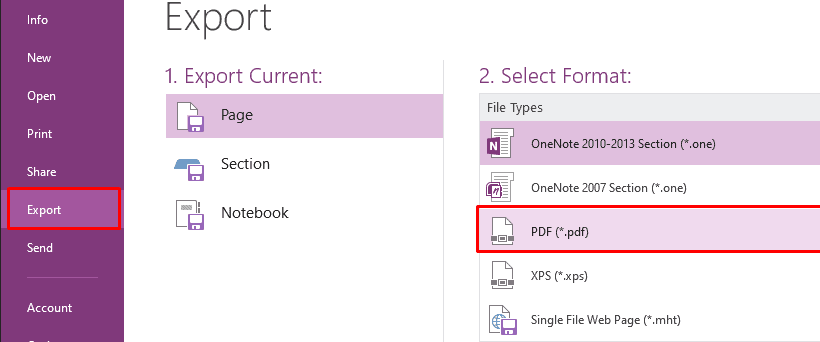
- Select Export from the sidebar.
- Under “Export Current,” pick whether you want to export a Page, Section, or the entire Notebook.
- Choose your format: OneNote Package (.onepkg) for a full backup, or PDF/Word if you just need to share notes.
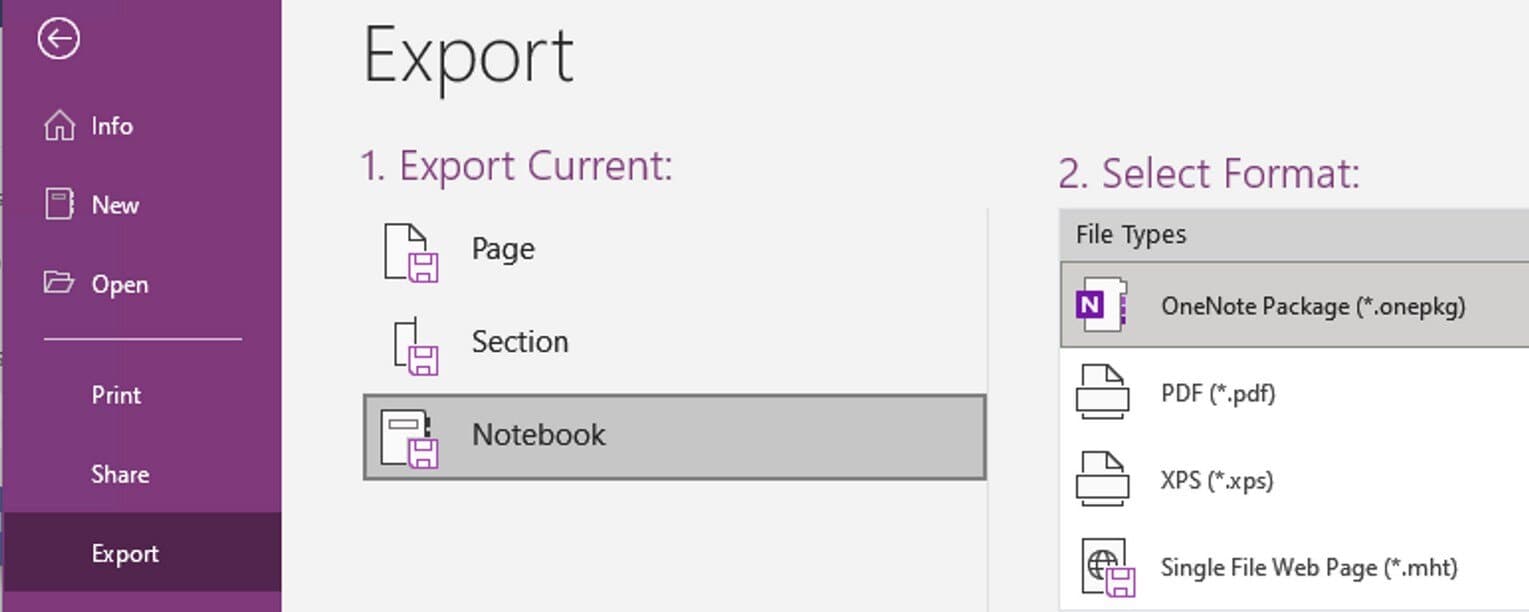
- Click Export, choose where to save it, and hit Save.
If you want to better organize your exported notes afterward, here’s how to move pages to the right in OneNote.
To keep your workspace tidy after exporting, you can move tabs to the top in OneNote for a cleaner layout and quicker navigation.
2. Export a Notebook in OneNote for the Web
The web version doesn’t let you export directly inside OneNote, but you can still do it through OneDrive:
- Go to OneDrive and log in with your Microsoft account.
- Locate the folder that holds your OneNote files.
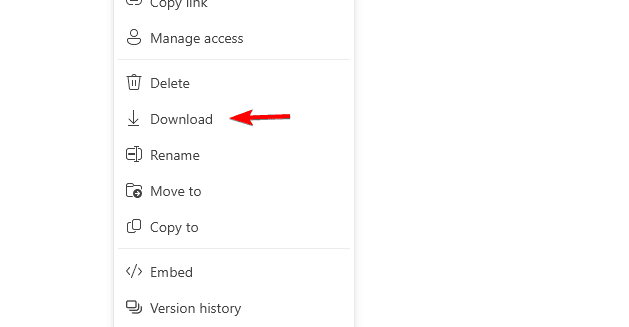
- Right-click the notebook you want and select Download.
- Extract the downloaded folder to access your pages.
3. Export Notes on Mac
Mac doesn’t allow exporting full notebooks yet, but you can save sections as PDFs:
- Open OneNote on your Mac and sign in.
- Go to the page or section you want to save.
- Select File > Print, then choose Save as PDF.
If you often organize notes into tables, you may also like this guide on how to merge table cells in OneNote.
4. Export Notes on Mobile (iOS & Android)
On your phone, exporting works best for single pages:
- Open the OneNote app and head to the page you want.
- Tap Share Page or Send Copy.
- Pick PDF or email it directly.
FAQs
No, Mac only supports exporting individual pages or sections, not full notebooks.
Use .onepkg on Windows for a full notebook backup, and PDF when you just want to share.
Yes. Open the .onepkg file and OneNote will restore it automatically.
The export option is only available in the Windows desktop app. On Mac, web, and mobile, you’ll need to use the PDF or download methods instead.
Conclusion
Exporting a OneNote notebook depends on the device you’re using. Windows gives you the most complete control with .onepkg backups, while Mac, web, and mobile focus on pages or sections. No matter which device you use, these steps make it easy to save or share your work.
If you need to bring your saved content back later, here’s a full guide on how to import a notebook in OneNote.

Read our disclosure page to find out how can you help Windows Report sustain the editorial team. Read more



Improve this guide




User forum
0 messages