
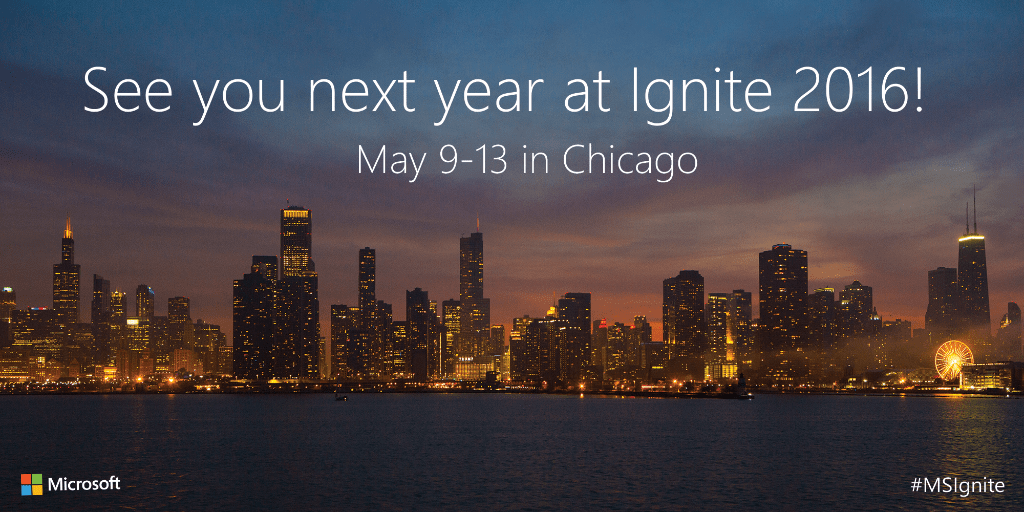
The Chicago Tribune is reporting that Microsoft has canceled the 2016 Ignite Conference which was set to occur May 9-13 at McCormick Place in Chicago.
The Tribune’s sources said that Microsoft wanted to reschedule for later in the year, but McCormick place was unavailable. The Tribune’s article was not able to clarify if alternate locations or cities are being considered, or if the conference is all together being canceled, as a Microsoft spokesperson declined to comment to the Tribune.
Microsoft’s Ignite conference this last May was the first for Microsoft, who used the new conference to consolidate its various conferences related to enterprise technology. The conference focused on demonstrating new Windows, Office, and Azure features important for enterprise customers and IT professionals.
The Tribune is also reporting that the loss of Microsoft’s Ignite conference is a blow to the city’s technology community and tourism industry. In total, the cancellation will affect more than 50 hotels and result in the loss of 90,000 room nights. The loss will increase Chicago’s projected deficit of convention room nights to nearly 300,000 for 2016.
It is possible the conference or some version(s) of it will continue at some point in 2016 for a number of reasons. Windows 10’s adoption by enterprise customers is a big part of their plan for its latest operating system to be on a billion devices in 2-3 years. Additionally, Enterprise customers has been a long standing core of Microsoft’s customer base and the technology company has been making big investments in its growing commercial cloud based solutions, such as Office 365 and Azure. Still, with no official word from Microsoft about the reported cancelling of Ignite, it remains to be seen exactly how Microsoft will continue to showcase its latest technology to the enterprise customer segment, or why the May dates wouldn’t work.
What did you think of Microsoft’s first’s Ignite conference? Do you hope that it continues in Chicago or elsewhere? Let us know in the comments section below.
LG showcases a number of new Windows 10 devices in Korea
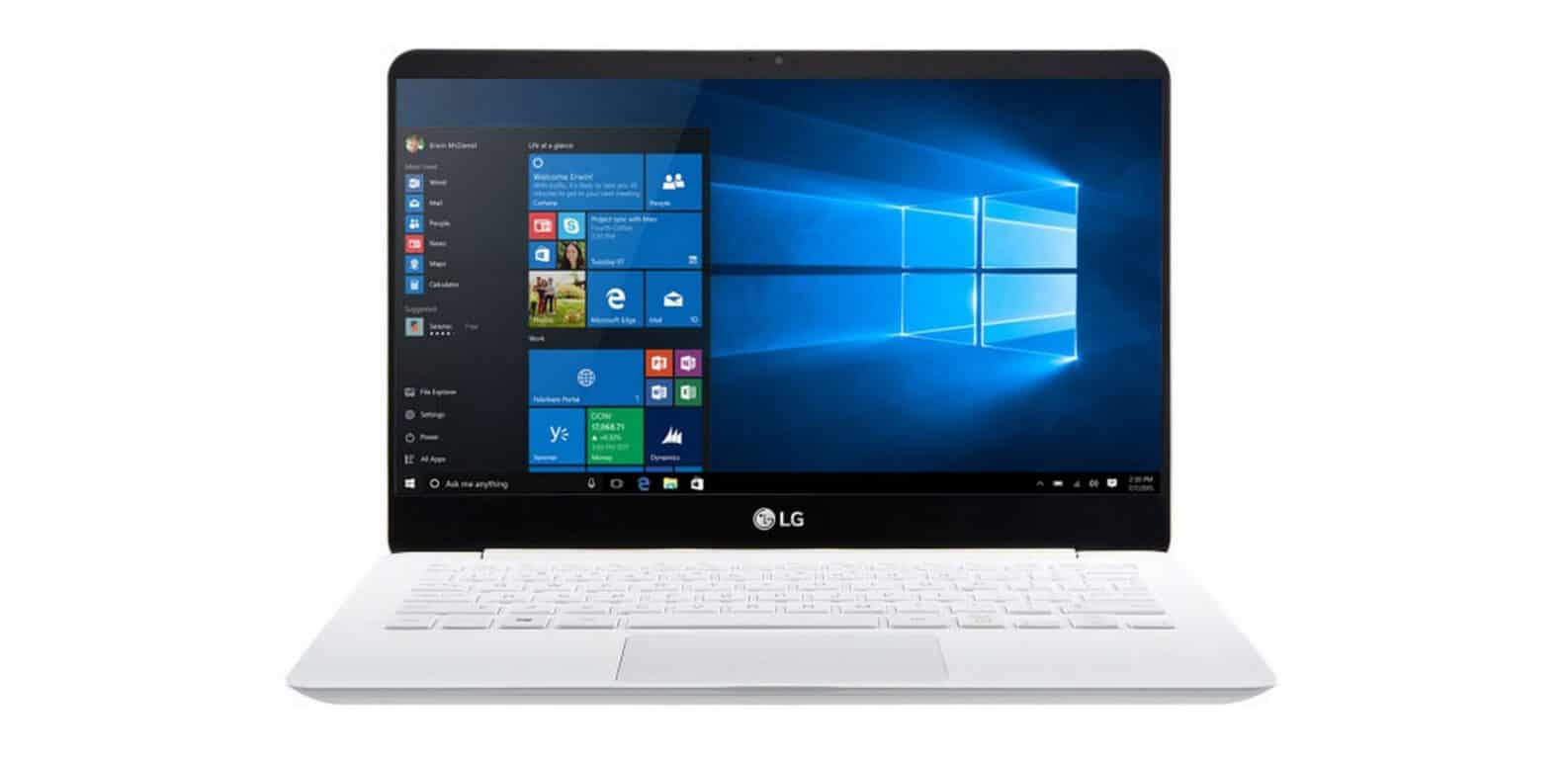
Over the past few days, we’ve seen several OEMs launching and showcasing their new Windows 10 devices. Earlier this week, we saw some new Windows 10 devices from Acer and Toshiba and it seems LG doesn’t want to stay behind.
Terry Myerson was on hand in Korea as LG announced a number of new Windows 10 devices, including the gram 13”, gram 14”, Tabbook Duo (10.1” Tablet), and 21:9 Curved AIO. All these devices will ship with Windows 10. Furthermore, customers interested in the LG Gram will be able to get their hands on it through Microsoft stores this holiday season, and the company also aims to make sure these devices are available in other global markets as well.
LG also mentioned that all of its PCs will be upgraded to Windows 10 by December. The software giant seems to have a strong presence in Korea which is the “fastest adoption the market has ever seen for Windows – five times faster than Windows 8.” There are 22,000 devices already running Windows 10, with over 1 billion hours spent on Windows 10 since launch.
Fix: Ink Disappears in OneNote 2016
There are more problems with Office 2016 apps than anyone expected. This time, users of OneNote 2016 complain that ink disappears while they’re working on their projects. So we have a couple of solutions which may help you to get your ink back in OneNote 2016.

How to Fix Ink Disappearing Problem in OneNote 2016
Solution 1 – Install the latest update for OneNote 2016
Not much longer after the release of Office 2016, and this problem appeared, people complained about it on Microsoft’s forums, and people from Microsoft actually heard them, as they announced an official update-fix. The update arrived on October 2, so if you still didn’t, you should go and check for updates for your OneNote 2016. This is cumulative update for Windows 10, so besides OneNote fix, it should bring some improvements and enhancements to the system itself.
Solution 2 – Disable Automatic hardware recognition
Some people also suggest that if you still have issues with ink in OneNote 2016, even after you applied the latest update, you should disable automatic handwriting recognition. To disable this feature in OneNote 2016, do the following:
- Open OneNote 2016
- Go to File, Options, and then to Advanced tab
- Uncheck Enable automatic handwriting recognition

Now try to write with your pen, and you shouldn’t have any problems.
Solution 3 – Move your files out of OneDrive
But in case you actually still have problems with your ink in OneNote 2016, there’s another thing you can try. You can try to move your notes out from OneDrive. If your notes are too long, it may take a little bit longer for them to upload and sync, and that prevents your pen from writing normally. So, if nothing from above worked, you can give this workaround a shot, as well. Once you finish your notes, you can move them back to OneDrive to keep them safe.
Read Also: Fix: Outlook 2016 Crashes on Launch
Windows 10 build 10565 contains an early preview of nested virtualization

With each release of Windows 10 Insider Preview builds, more and more advanced features are being introduced. As Microsoft preps for the first public preview of Hyper-V Containers, Windows 10 build 10565 introduced a preview of nested virtualization. Nested virtualization is a feature that virtualizes certain hardware features that are required to run a hypervisor in a virtual machine.
While Hyper-V Containers are not officially out yet, nested virtualization allows for you to try it out on Hyper-V virtualization machines. As I am not the most equipped to explain nested virtualization, Microsoft’s Virtualization Blog has a better explanation:
“Hyper-V relies on hardware virtualization support (e.g. Intel VT-x and AMD-V) to run virtual machines. Typically, once Hyper-V is installed, the hypervisor hides this capability from guest virtual machines, preventing guests virtual machines from installing Hyper-V (and many other hypervisors, for that matter). Nested virtualization exposes hardware virtualization support to guest virtual machines. This allows you to install Hyper-V in a guest virtual machine, and create more virtual machines “within” that underlying virtual machine.”
For more information about the known issues with nested virtualization or the steps to enable nested virtualization, head over to Microsoft’s Virtualization Blog.
Windows 10 SDK documents reveal new 'quick actions' coming to Live Tiles

As Microsoft continues to develop Windows 10, the last iteration of its OS, users are experiencing Windows as a service with its continual update cycle. As we reported earlier today, Microsoft is already hard at work on its next major software release for Windows codename: Redstone. Members of the Windows Insider program, however, are able to get a glimpse into the changes to come in preview builds. These previews are not just for eager users, though. Today, Microsoft has updated its Windows 10 SDK with quite a few improvements including new emulators for both PCs and Mobile for developers.
From documentation made available from the newly released SDK, we have learned more about changes Microsoft is making to its Live Tiles. The new SDK allows for developers to expand how they use jump lists for their apps. For instance, developers can now have users right click or long press a Live Tile to pull up a jump list. From here, developers will have the option to create additional functionality or quick-actions for their Live Tiles. As Windows 10 is a single OS for PCs and phones, quick-actions could make their way to Windows 10 Mobile Live Tiles in the future.
Additionally, we reported a few months ago that Microsoft received a patent for a feature called 3-D touch (that name sounds very familiar). This feature would allow users to access contextual menus by hovering their finger over a tile. With the SDK released today, we can get a glimpse into new abilities and possible interaction paradigms for the Live Tiles in Windows 10.
What features do you wish to see added to jump lists in Windows 10? Let us know in the comments below.
Microsoft to celebrate 50th anniversary with NYCATE
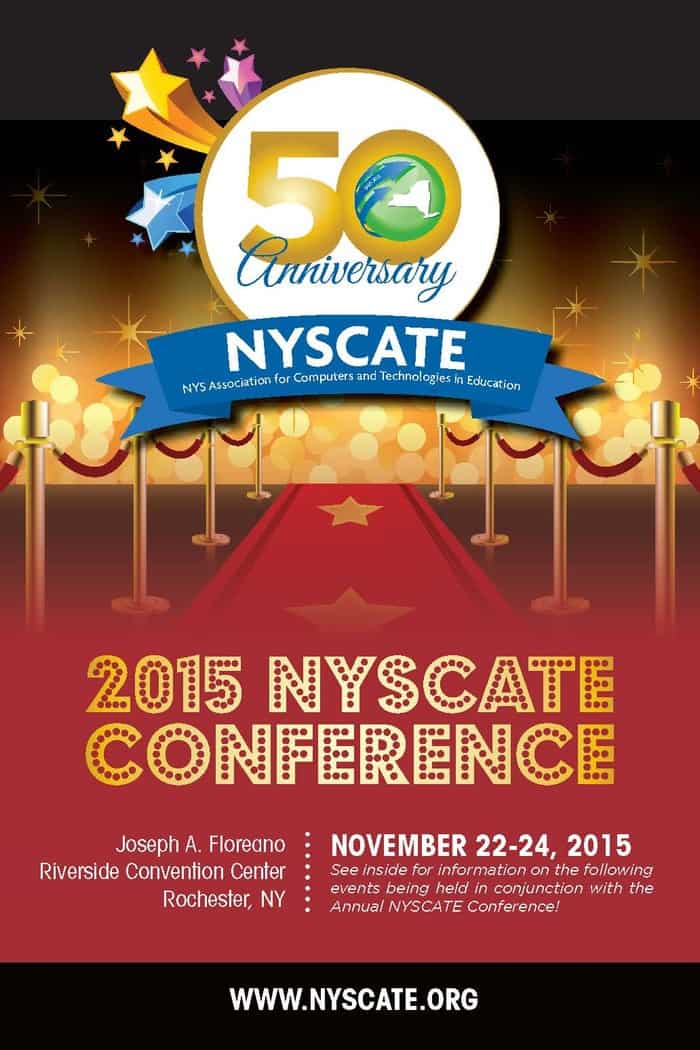
A little over a month ago, we reported that Microsoft was set to deliver new educational tools to schools this year, helping educate and empower young minds. Of these tools, Microsoft has already made a significant update to its OneNote application that now allows for classrooms (and faculty) to share notebooks. However, Microsoft is not just interested in providing tools for productivity; they are also interested in educating individuals on how to use them.
From November 22nd to the 24th Microsoft is set to celebrate NYCATE’s 50-year Anniversary at the Rochester Riverside Convention Center in Rochester New York. NYCATE (New York State Association for Computers and Technologies in Education), is an organization whose purpose is to help educators transform the classroom with technology. To aid in their efforts, Microsoft will have a host of educators and trainers hold break-out sessions to help students and teachers learn tools to make them more productive.
To celebrate NYSCATE’s 50-YEAR ANNIVERSARY, they’ve lined up at this year’s conference some of the most celebrated, tech-savvy speakers in the country. You’ll also have the opportunity to visit numerous, highly informative breakout sessions, attend hands-on workshops in the latest technology for the classroom, visit over 75 exhibitors, and network and socialize with hundreds of your peers that are dedicated to incorporating and exposing technology to students in the classroom.
This conference has three main goals.
Re-invent Productivity with Office 365 Education to save teachers time and stay organized.
Build the Intelligent Cloud with Office 365 Education that fosters 21st century skills for college and career readiness (collaboration, creation, communication and creation) across any device.
More Personalized Computing – Digital inking and personalized learning with Windows 10.
Before the conference even begins, there will be pre-conference training on both Saturday and Sunday, the 21st and 22nd respectively. Microsoft and NYSCATE encourage participants to bring their own devices in which they will be able to install free educational subscriptions ofOffice 365. Microsoft is set to even raffle off a free Surface 3.
For more information about NYSCAT 2015, click the link here. It is great to see Microsoft’s efforts to empower educators and students, not only providing powerful tools but teaching them how to use them as well.
If you are in the New York area, let know if you plan on attending this year’s NYCATE.
Microsoft releases details about new DT-904 wireless charger
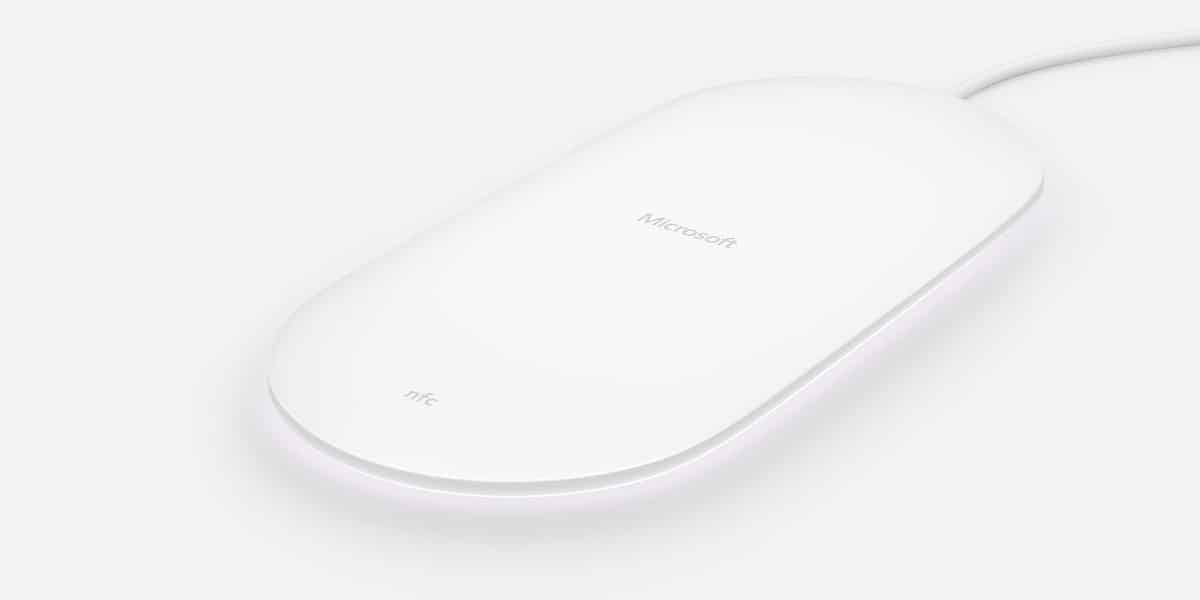
Microsoft has released the details about its new wireless Qi charging pad on its website, with a model number showing up as DT-904.
The new Microsoft Wireless Charger doesn’t appear to be any different than the previous DT-903 wireless charger. The charger holds the same shape, size and the same LED notification light at the bottom for new messages and calls. The only noticeable change is the use of the Microsoft logo on top of the device.
The new wireless charger likely comes in preparation of the launch of the Lumia 950 and 950 XL, as it’s also likely built mostly for the new handsets.
While it doesn’t seem to be available for sale just yet, we imagine that the pricing won’t be much different than the DT-903 wireless charger, which currently sells for $60.
Have something to share about what you might think about Microsoft’s wireless charger? We’d love to hear what you think in the comments below!
Fix: QuickTime no Longer Works after Windows 10/11 Upgrade

When switching to a new operating system, there’s always a concern about whether your favorite apps will work on your new operating system.
According to reports, QuickTime no longer works after the upgrade from Windows 7 to Windows 10, so let’s see if there is a way to fix this issue.
What to do if QuickTime doesn’t work in Windows 10?
Users report that they can’t install QuickTime on Windows 10 to open QTL files, but there are a few workarounds that will allow you to install QuickTime even if you’re using Windows 10.
Before we start, you’ll need to download QuickTime for Windows as well as WinRAR or 7Zip. Remember the location where you’ve saved the QuickTime installation because you’ll need to visit that folder a couple of times to complete this process.
For simplicity, it’s best to save the installation in the C:\QT folder.
Repair the QuickTime installation
- Right-click the QuickTime installation and select the Extract Here option.
- Download the TRANSFORM file.
- Extract the content from FIX.zip to the C:\QT folder.
- Run and install AppleSoftwareUpdate.msi and AppleApplicationSupport.msi.
- Right-click QuickTime.msi file and choose Troubleshoot compatibility.
- Wait for the wizard to complete the scan.
- You should get a notification saying that Skip Version Check workaround has been applied.
- Now click Test the program and run the installation.
If for some reason this solution didn’t work for you, you might want to try these steps as well:
- Run Command Prompt as administrator. You can open it by typing CMD into Search bar, right clicking Command
- Prompt from the list of results and choosing Run as administrator.
- Navigate using Command Prompt to the folder where you’ve extracted QuickTime installation files. You can do so by typing CD C:\QT in Command Prompt.
Enter the following command into Command Prompt and press Enter:- msiexec /i QuickTime.msi /qn TRANSFORMS=FIX.mst ALLUSERS=1 /log C:\QT\install.log
- Wait for the installation to complete.
- QuickTime should be installed now, but if QuickTime isn’t working, you can check the install.log file in the C:\QT folder to see what errors you encountered.
That would be all. I hope this solution helps you solve the problem with QuickTime in Windows 10. Elsewhere, if a qtcf.dll file is missing, we know how to get it back. If you have any questions, comments, or suggestions, see the comment section below.
Microsoft researcher Zuzana Kukelova receives prestigious award for advances in computer vision

As a company that keeps itself on the technological cutting edge, Microsoft needs to hire and maintain a constant stream of highly competent employees. Whether it’s hardware engineers working on Surface devices, coders working on Windows 10, or mathematicians exploring the latest concepts in machine intelligence, Microsoft suffers from an embarrassment of riches when it comes to really smart people.
The Technet blog took a few minutes today to honor just such a person, researcher Zuzana Kukelova. Something of a math wiz, Kukelova works as a computer vision researcher at Microsoft’s Cambridge, U.K. research lab, and has been working on some pretty heady stuff.
Now a post-doc researcher specializing in computer vision at Microsoft’s research lab in Cambridge, U.K., Kukelova is the recipient of the 2015 Cor Baayen Award, given to the best Czech and Slovak Ph.D. thesis in computer science and, naturally, applied mathematics.
The Cor Baayen announcement specifically cited Kukelova’s ability to bridge the gap “between highly abstract mathematical results, such as algebraic geometry, and engineering applications.”
Kukelova received her Ph.D. from the Czech Technical Program in Prague, working to flesh out the work of Henrik Stewinius on applying advanced algebraic methods to computer vision to solve some significant real-world problems.
“Our techniques for solving systems of polynomial equations have wide applicability,” she said. “Computer vision of course, but also robotics, controlling satellite trajectory, game theory, market equilibrium problems, computational biology — there are still some unsolved problems that can probably be solved using techniques that we have developed.”
Speaking about receiving the prestigious award, Kukelova was a bit less effusive than some of her colleagues.
“I am honored to have been chosen,” she says.
“I am used to working with amazing colleagues, but very few combine Zuzana’s mastery of complex mathematical tools with her zeal for real-world applicability,” said Andrew Fitzgibbon, a principal researcher in the lab’s computer vision group. “We are very lucky to have the opportunity to work with her.”
We know that Microsoft is engaged in some advanced research and development, and that ultimately results in some pretty cool technology. Seeing the company taking time to highlight the people behind the research is always welcome.
Indian telcos voice concerns about Microsoft white spaces projects
Microsoft is one of a number of technology companies with initiatives to expand Internet access to underserved rural areas throughout the world. A number of technologies are being considered and utilized for such endeavors, with Microsoft’s use of white space running into some serious resistance from Indian telecommunications companies.
White space in this context refers to the TV spectrum that’s currently unused in given geographic region. We wrote about Microsoft’s plans to use white space in Indian last year:
One of the major issues in getting internet to the rural areas is the scarcity of infrastructure. That’s where Microsoft’s plan looks promising. The company wants to use the abundant and readily available TV spectrum to beam the data. It plans to tap the ‘white space’, otherwise known as unused spectrum, to bring connectivity across the country.
Microsoft India chairman Bhaskar Pramanik explained the benefits of using TV spectrum for beaming connectivity. “Wi-Fi has a range of only about 100 metres, whereas the 200-300 MHz spectrum band available in the white space can reach up to 10 km. This spectrum belongs mainly to Doordarshan (Indian public broadcaster) and the government and is not used at all. We have sought clearance for a pilot project in two districts.”
Companies like Microsoft benefit from expanding Internet access this way by gaining entrée into new markets and building relationship with an ever-expanding universe of customers. Usually, such efforts are well-received in those regions, but in the case of India, some telecom companies are concerned.
As The Economic Times reports, the issue isn’t that Microsoft is pursuing this initiative in India, but rather the possibility that the US-based company might gain free and/or exclusive control of this lucrative spectrum. So far, the issue seems to have arisen around the question of whether the spectrum will be handed out to interested parties via open and competitive auctions.
The Cellular Operators Association of India (COAI), which represents companies such as Bharti AirtelBSE -1.14 %, Vodafone India and Idea CellularBSE -3.17 %, is set to shortly write to Telecom Minister Ravi Shankar Prasad, Telecom Secretary Rakesh Garg and Telecom Regulatory Authority of India Chairman RS Sharma demanding an auction of the spectrum, instead of allocating it to one company, two people with knowledge of the association’s plans said.
So far, the Indian government’s position seems to be that auctions are the way to go in allocating such resources, following an Indian Supreme Court ruling to this effect. Microsoft hasn’t commented on the call for auctions, and it’s unclear from the Economic Times story whether the company or any other organization is calling for spectrum to be handed out in any other fashion.
It’s entirely possible that the telecoms voicing concerns are doing so in an entirely pre-emptive fashion, simply to lobby for the opportunity to play in this space as well. Time will tell how this all plays out, and we’ll continue to report on Microsoft’s efforts to expand Internet access throughout the world.
Yandex will be the default search engine for Edge in Windows 10 in Russia and other countries
Microsoft and Yandex, Russia’s largest internet company, have entered into a strategic partnership where Yandex will be offered as the default search engine for Microsoft Edge browser and Internet Explorer for users running Windows 10 in Russia, Belarus, Kazakhstan, Ukraine, Turkey, and several other countries in the region (via Windows Central). As a part of the agreement, the software giant will offer custom local browsing experience and search capabilities through Yandex in the people residing in the above mentioned regions.
“We are committed to delivering a Windows 10 experience that our customers around the world will love – one of the ways we will do this is through locally relevant experiences,” says Terry Myerson, executive vice president, Windows and Devices, Microsoft Corp. “Microsoft and Yandex have a long-standing, successful partnership with Yandex search currently integrated in Windows Phone locally, and we look forward to introducing Yandex search to our customers across the Windows 10 ecosystem in these markets.” “Windows 10 has already proven to be a success, while demonstrating enormous growth potential, not least because of Microsoft’s willingness to cooperate with strong players in local markets,” said Arkady Volozh, CEO of Yandex. “The new agreement is a logical step in the development of our well-established partnership with Microsoft affirming the high quality of our products.”
Furthermore, the agreement will introduce the advantages of using Microsoft’s new operating system through the Yandex index page, which will offer them a place to download and install the official Windows 10 experience. The Yandex feature page will also showcase the capabilities of Windows 10, and will guide people on how to get their hands on them, or start using them. It’s quite similar to what Microsoft did in China a few weeks back. The software giant entered into an agreement with Baidu to offer users with a local search experience and makes it easier for Baidu customers to get their hands on Windows 10.
Windows 10 gets new Start Menu context options in latest Insider build 10565
Here at WinBeta we’re still working our way through Microsoft’s latest Windows 10 Insider Preview build 10565. The new release has brought some much needed refinements to the operating system as the Windows team enters its one year anniversary of the Insider program.
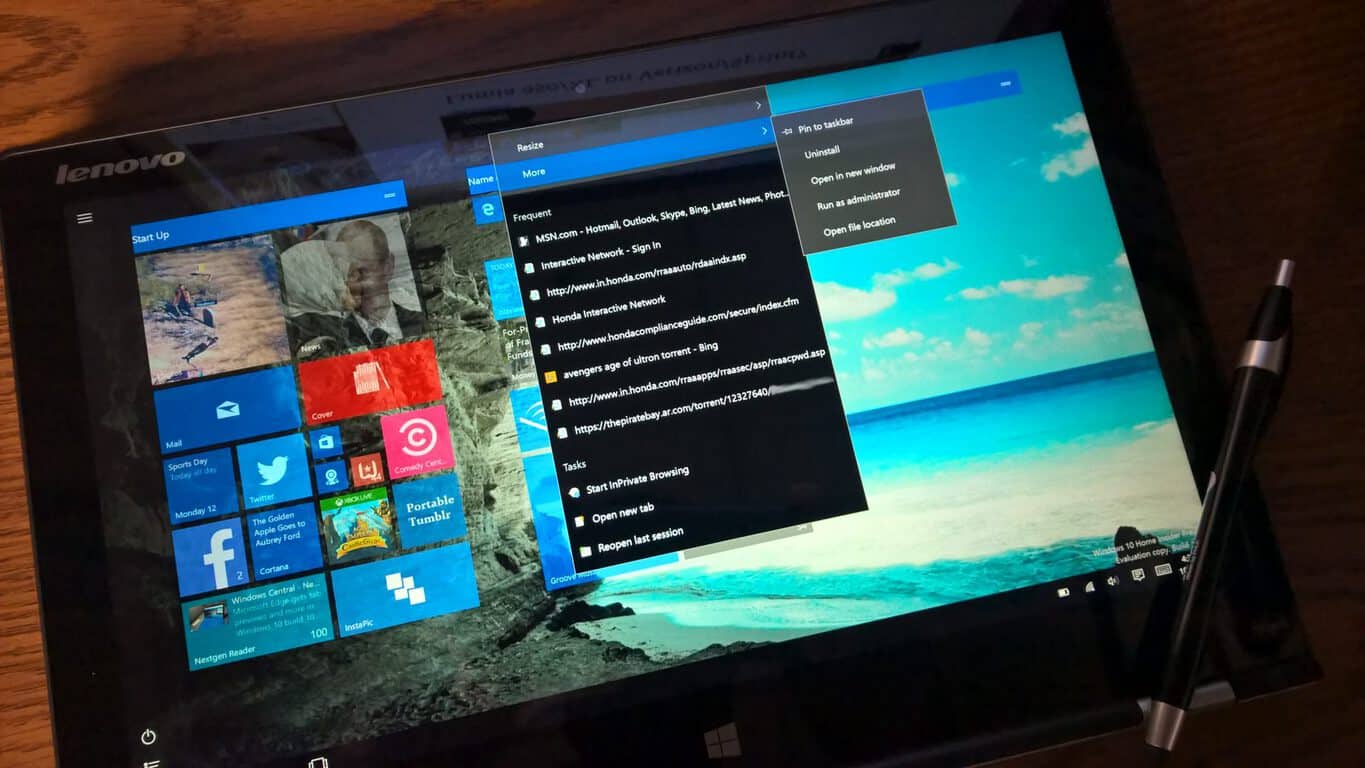
Beyond the high-level features such as Cortana tweaks, new printer options, Skype messaging integration and title bar color options, there are some lesser known features we’re stumbling across during our hands-on time. Windows 10 Insider build 10565 brings new context menus to the Start Menu that should help users jump in and out of apps much quicker.
The resizing of apps icons have gone through some refinement now including images to indicate what each size change will do. Apps in the Start Menu are also given more options beyond simple resizing. In what appears to be app-dependent, users can find options such as Run as Administrator, visit frequently searched web pages, open new tabs and Rate and Review options nestled in apps on the Start Menu. Other apps such as the recently updated Photos app also offer sharing features and the ability to turn off Live Tiles.
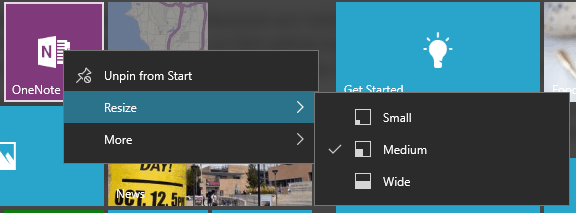
While it may seem trivial to some, context menus help to make the Start Menu a more functional area than it has ever been, including its brief stint on Windows 8. For tablet users, the ability to jump to specific web pages from the Start Menu should go a long way to fixing some of the touch first issues some Insiders have complained about with Windows 10.
Again, we’re still going through the build so please forgive us for missing some of the nuances you readers may have already uncovered. We will continue to report on the new build in the days to come.
Please lets us if you’ve run across anything we have yet to cover. We love tips!
Windows 10 gets exclusive puzzle & trivia game, Pic Star
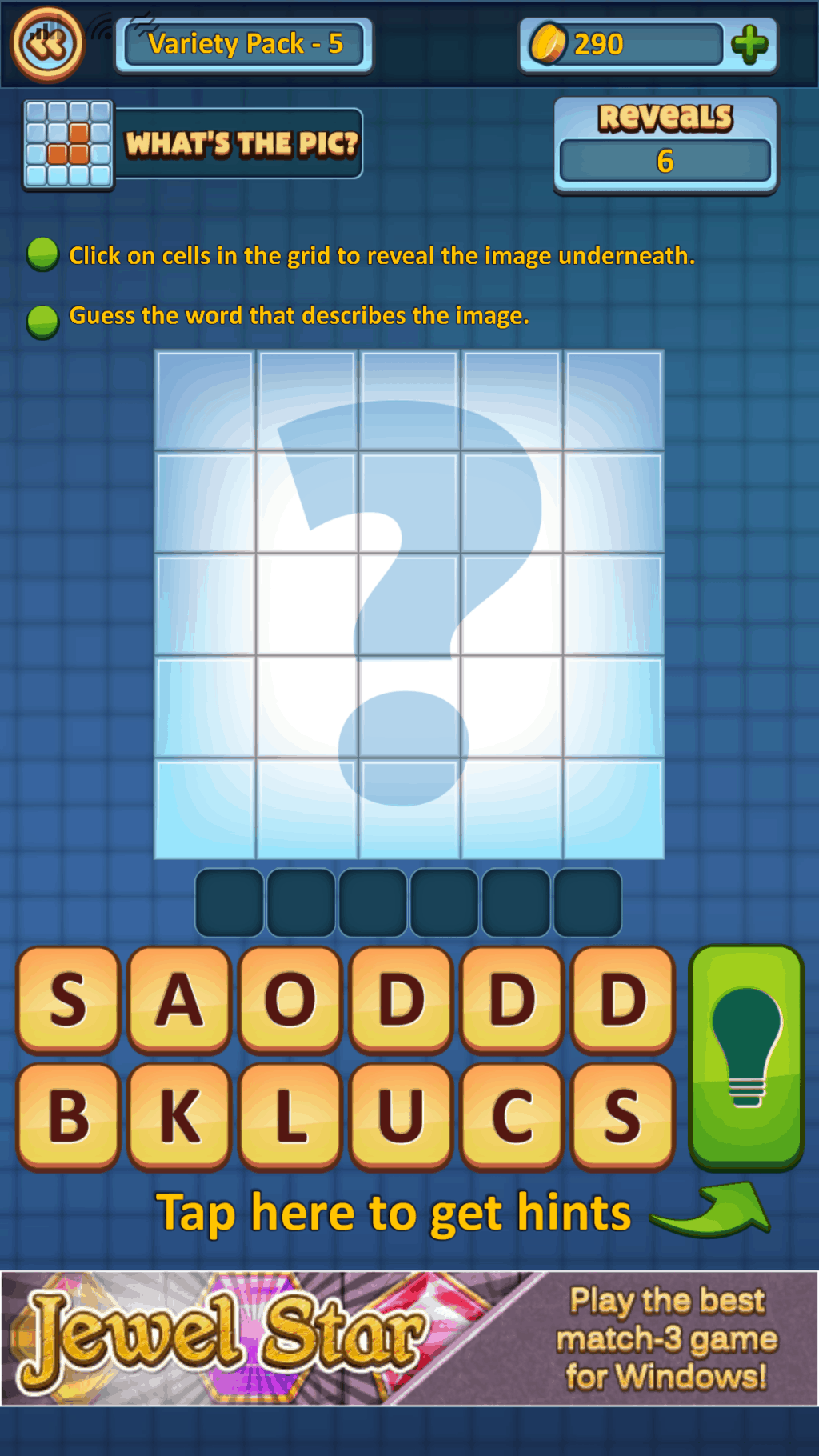
Publisher, Rolling Donut, has released an exclusive puzzle & trivia game for Windows 10 and Windows 10 Mobile. The new trivia game, Pic Star is relatively straightforward; the game shows a series of pictures and the player has to guess the word being depicted in the image. Each right answer earns the player golden coins that can be used to unlock additional features within the game. Players begin the game with four puzzle packs that house 50 stages in each. As players receive more coins, the coins can be used to gain access to more packages.
As Pic Star progresses, players are no longer shown an arrangement of images. Instead, players are shown a grid of blocks in which each press reveals a portion of the image below. Users are only given a finite number of reveals creating a much more difficult puzzle game.


With the Windows platform finally getting hit titles such as Candy Crush Saga and Candy Crust Soda Saga, it is nice to see exclusive games also coming to the platform.
Have you downloaded Pic Star? Let us know what you think in the comments below.

Microsoft announces Future Visions science fiction anthology
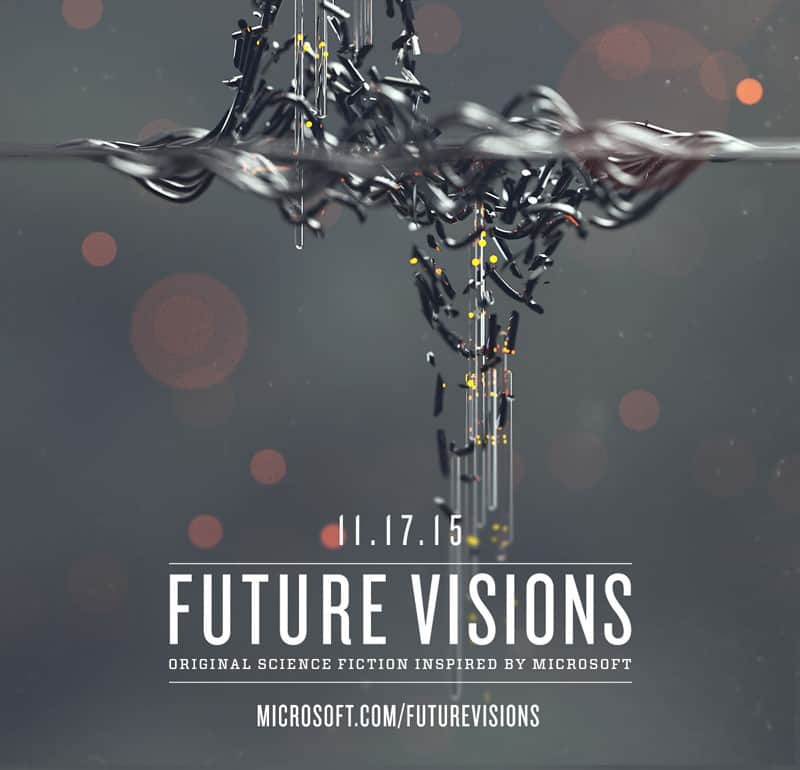
In an interesting twist away from the new build fiesta today, Microsoft has announced the release of science fiction anthology called Future Visions.
Future Visions features a collection of short stories written by some of the most notable science fiction authors in the field. These authors had the fortune of being granted inside access to Microsoft’s cutting edge research labs, and have written stories inspired by what they learned.
Some topics that these stories touch upon include prediction science, quantum computing, real-time translation, machine learning, and more.
The authors participating in this anthology are:
- Elizabeth Bear
- Greg Bear
- David Brin
- Nancy Kress
- Ann Leckie
- Jack McDevitt
- Seanan McGuire
- Robert J. Sawyer
The anthology also features a short graphic novel by Blue Delliquanti and Michele Rosenthal, with original illustrations by Joey Camacho.
Ann Leckie in particular took to her personal blog to excitedly announce her involvement in the anthology, noting that her entry marks her first return to short fiction since becoming a novel writer.
Future Visions will be published on November 17th on all major eBook sites including Amazon, Barnes and Nobile, Books-A-Million, Google Play, iBooks, and Kobo. Very appropriate considering the topic matter.
Your default Windows 10 printer can now be the last printer you used
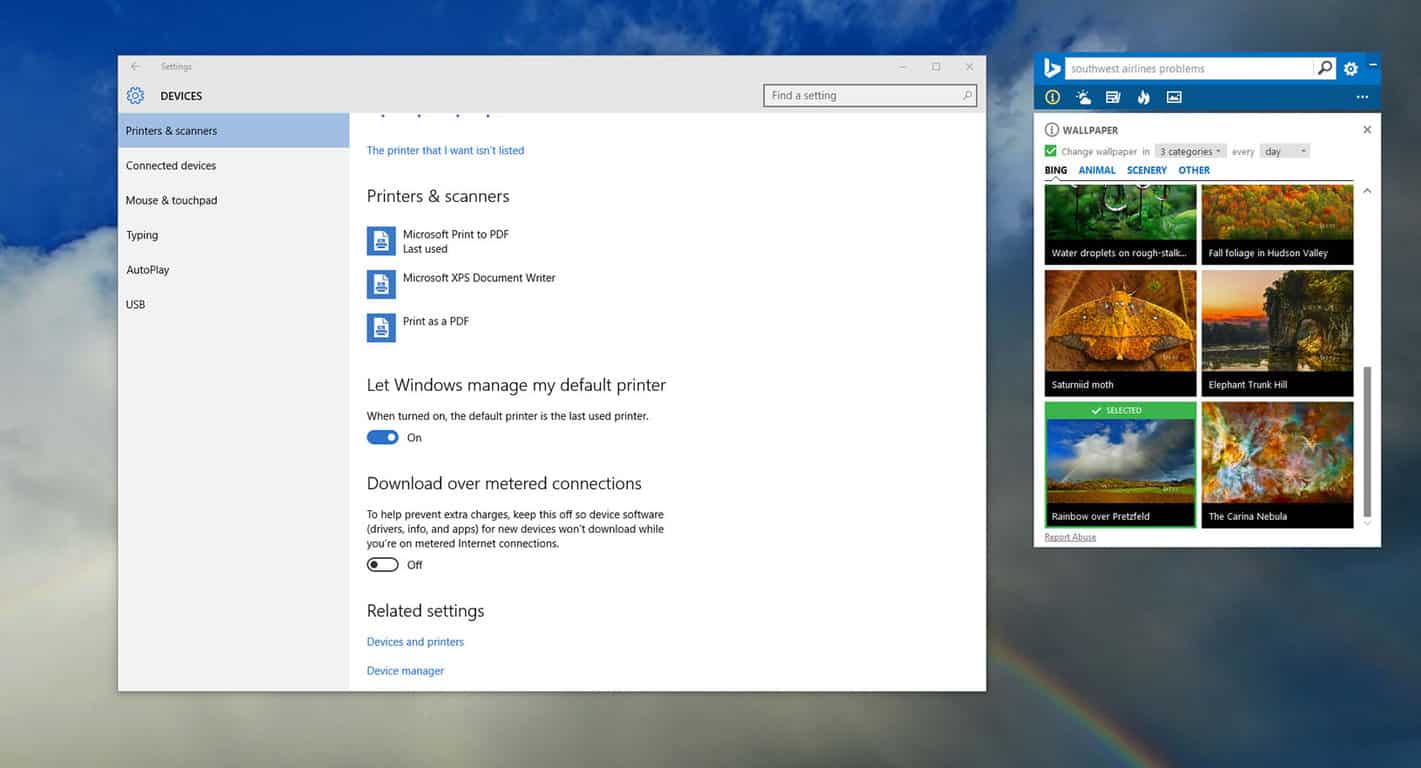
Remember those times when you connect to a different printer but forget to set it as your default Windows printer, causing you headaches when you can’t figure out why your document isn’t printing? In this new Windows 10 build, which is available to participants of the Windows Insider program, you can allow Windows 10 to set your most recent printer as your default printer.
“We are introducing a new mode that makes your default printer the last printer you used. This change helps ensure the best printer is preselected in inbox print dialogs. You can manage this behavior in Settings > Devices > Printer & Scanners to change this to the previous way Windows handled default printers. The ability to set a default printer by network location has been removed,” Microsoft explained in an official blog post today.
Give it a shot and let us know if you like this new improvement in Windows 10 build 10565!
Windows 10 build 10565: Cortana can now read your ink notes
As far as the Windows Insider Preview on PCs is concerned, it seems the Windows team is hitting its stride. With each new build release, the number of new, added and fixed features increases while the number of broken or ‘what’s known’ remains relatively small.
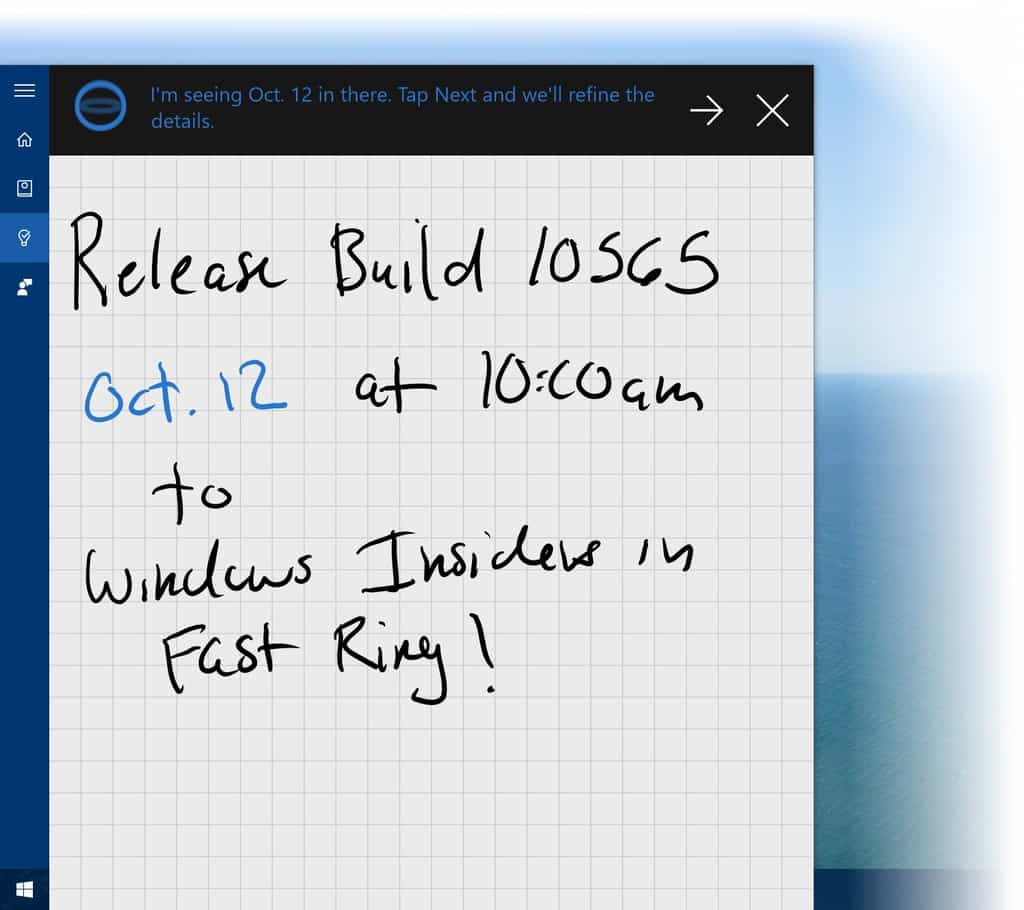
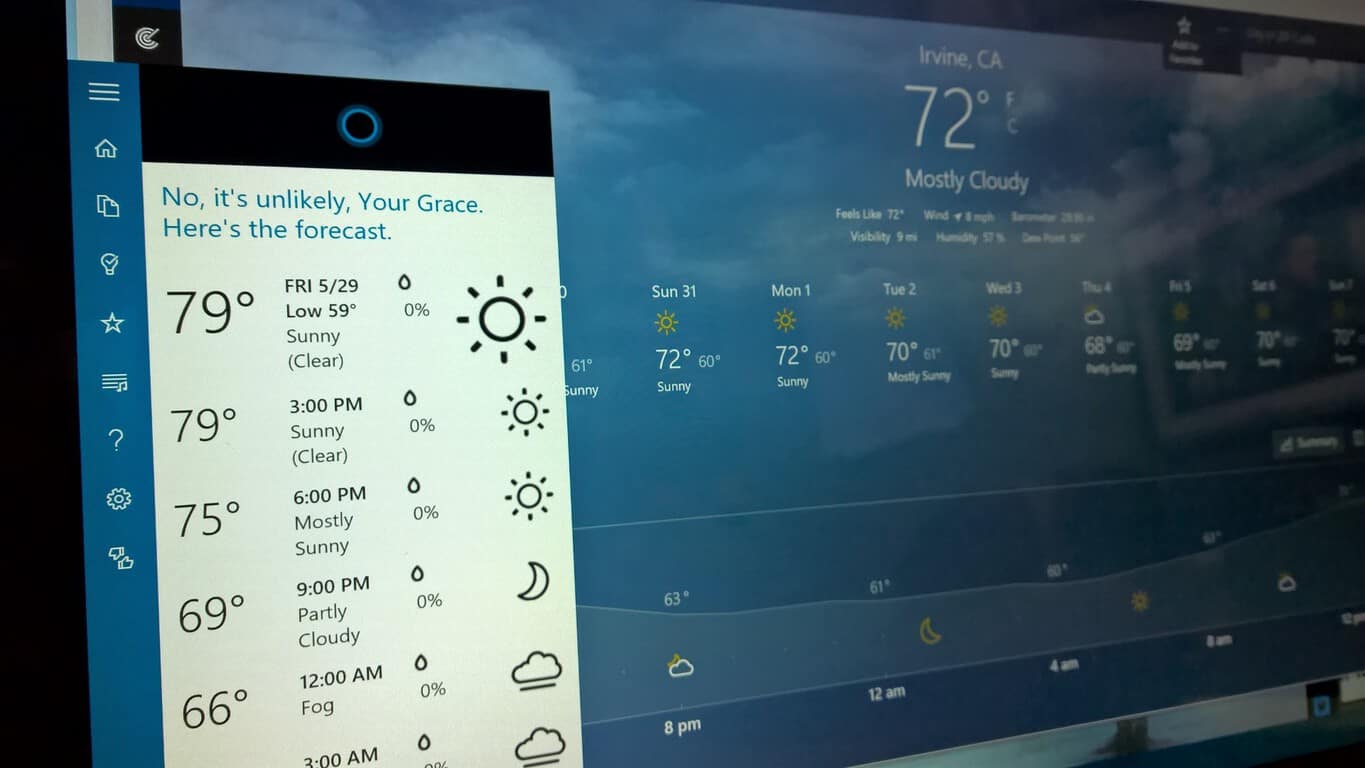
In today’s Windows 10 Insider Preview builds 10565, the Windows team has added a number of new features and minor aesthetic tweaks for users. Among the many changes, were some more subtle addresses to Cortana. In build 10565, Cortana can now more intelligently recognize inked notes. So for Surface Pro or other pen-enabled 2-in-1 owners, Cortana can understand inked notes and set reminders based on locations, times and numbers it can grab from doodles.
Other Cortana Improvements include its ability to track more leisurely endeavours. While Cortana is primarily designed to help keep people organized and informed on work-related task, it does an excellent job of tracking a host of other tangible items. With Insider build 10565 for PCs, Cortana can now keep track of bookings for movies and other ticketed events found in emails. Cortana will also add additional information to your notebook two hours prior to an event, such as directions and the booking and tracking of Uber rides directly from the Notebook.
Cortana’s integration is expanding and as Microsoft continues to foster more partnerships such as the Uber deal from a few months ago, it’ll be exciting to see what else Cortana can do in the future.
Edge gets tab previews, syncing features in Windows 10 build 10565

Microsoft has just released Windows 10 insider build 10565, as reported only moments ago. New features include the previously reported tab previews, long overdue favorites and reading list syncing, as well as drag and drop for file uploads.
Tab previews allow a user to hover over a given tab hand have a preview image drop down showing the visible contents of the web page in the given tab.
Microsoft’s new Edge browser, while praised for its inclusion of innovative new features such as Web Notes, was also panned for not including desirable features such as extensions and favorites syncing. With this latest build, Microsoft finally brings favorites and reading list syncing to Edge.
This feature can be argued to be an “old” feature, as Internet Explorer 11 for both Windows 8.1 and Windows Phone 8.1 has had this feature for a long time. For Edge, it was a pretty glaring omission as favorites syncing has long been a basic feature of modern browsers.
In addition to syncing favorites, Edge on the new build will also sync the Reading List to the cloud, a feature that I personally have yearned for since the beginning. This feature is currently a work in progress and is open to feedback and refinement.
Finally, build 10565 also adds drag and drop for file uploads in Microsoft Edge.
Check back later on for hands-on videos of the new build.
Windows 10 build 10565 has colored title bars, here’s how to get it

Microsoft rolled out a new Windows 10 desktop build for those of you participating in the Windows Insider program. Build 10565 comes with several new improvements, with colored title bars as one of the exciting new features. Title bars on apps now feature color, matching your theme.
“Thanks to feedback from Windows Insiders, with this build you can now enjoy your title bars with a full color intensity that matches the rest of your theme. Title bars will now appear darker,” Microsoft explained.
Unfortunately, if the window is inactive, the same old white colored title bar appears. Active windows will feature your theme’s color. Hopefully Microsoft improves this a bit more, but for now, enjoy having some color on your favorite app’s title bar.
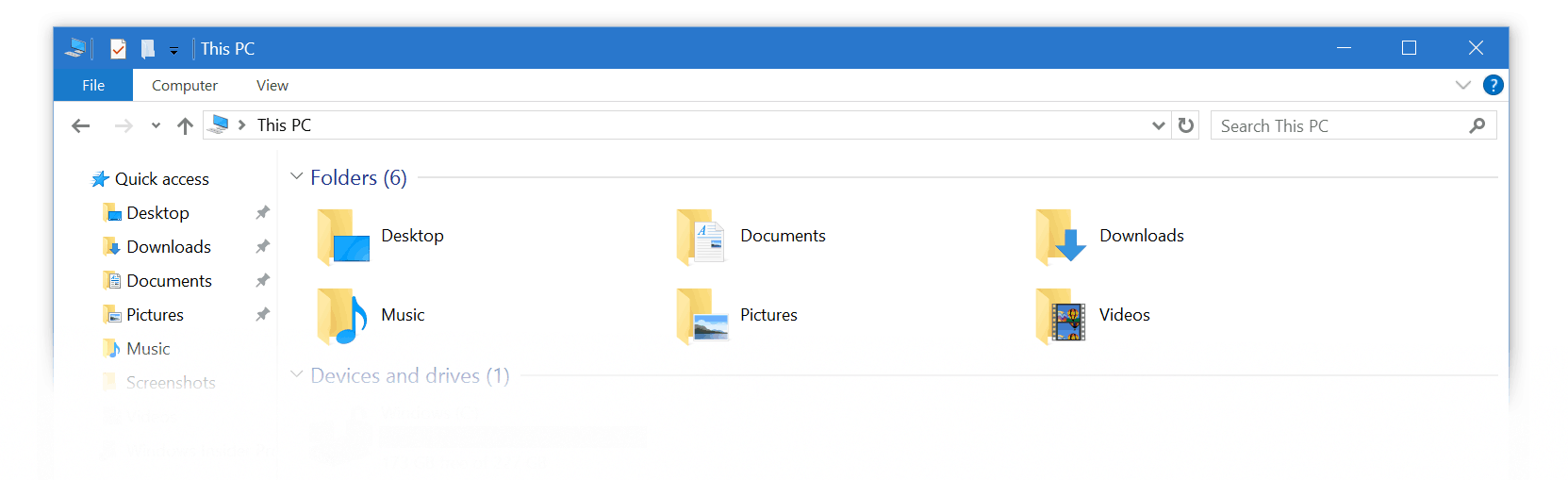
Here’s what you need to do to get colored title bars on Windows 10 build 10565:
- First, make sure you activate Windows 10.
- Head over to Settings > Personalization > Colors
- Enable “Show color on Start, Taskbar, Action Center, and Title bars”
Windows 10 Store trends: games and in-app purchases dominate
Microsoft has released a detailed analysis on the latest trends for the Windows Store. The main focus of this analysis is the shift to Windows 10, which was released at the end of July and is now installed on over 110 million PCs worldwide.
Thanks to this widespread adoption, Windows 10 users now account for more than 50% of all Windows Store downloads. While such a statistic is impressive given how short of a timeframe Windows 10 has been around, it’s worth noting that under Windows 10, a lot more first party apps are updated and downloaded through the Store, including the Office Mobile apps. So the statistics may be slightly misleading.

Interestingly enough, the graph shows that Windows 8.1 has actually gained ground back from Windows 10 in terms of Store downloads.
Microsoft goes on further to explain how to optimize developer strategy to maximize to reach the widest possible audience. This includes:
- Writing apps as universal projects, which allow a single codebase to target multiple Windows platforms.
- Optimizing apps for low-memory Windows Phone devices, which account for 68% of the Windows Phone market as of March 2015. A low memory device with Windows Phone 8 is classified as one with 512 MB of RAM.
Games are, and continue to be, the dominant category of apps being downloaded, followed by Tools & Productivity, Music & Videos, and Social.

Interestingly, the ratio of Games downloads to other category downloads with Windows is much higher than it is with Windows Phone.
Microsoft also emphasizes the importance of the ratio of downloads per app. By this metric, the Social apps category wins out over the Games app category: a trend that reflects in both Windows and Windows Phone.

Windows Store is now available in 242 markets, with Windows Phone Store found in 191 markets.
Microsoft notes that the highest number of app downloads and purchases tend to center around not necessarily the wealthiest nations, but the nations with the greatest access to mobile payment options such as credit cards and carrier billing. As such, the latest uptrend markets can be found in India, Brazil, and Vietnam.
Another important aspect of strengthening an app’s reach is targeting more languages. Offering apps in English exclusively will only target 16% of Windows Phone users. This is different from the tablet and desktop store, which has an English-speaking market encompassing 30% of all downloads. Growth in the non-English speaking market can be seen best in Brazil and India, which have grown by 3% and 2% in the previous quarter respectively.

The report ends by concluding that developers should begin targeting 8.1, as it is currently the dominant operating system for app users, and the code base can easily be migrated over to Windows 10.
Latest Windows 10 build 10565 brings activation improvements
Microsoft has tried to make it easy, and cheap, to upgrade to Windows 10, offering the new operating system for free for current owners of Windows 7, 8, or 8.1. However, up until now, getting a clean install of the latest operating system on your device was a bit of a tricky operation. First, you had to have your activated copy of Windows 7 etc. installed, and then update to Windows 10, and then go through the process of wiping your hard drive and clean installing Windows 10, all over again.
This created a special “hash”, stored online and associated with your device (without personally identifying you) that remembers your machine, and sets it as being activated.
That is until today, and the release of the latest Windows Insider fast ring build, 10565. Now, a new item in Windows 10 Settings allows you to select Change Product Key, making the whole process a bit easier. Here’s what today’s Windows Experience blog post says about the new procedures:
Device activation improvements: We have received a lot of feedback from Insiders on making it easier to activate Windows 10 on devices that take advantage of the free upgrade offer to genuine Windows by using existing Windows 7, Windows 8 or Windows 8.1 product keys. If you install this build of the Windows 10 Insider Preview on a PC and it doesn’t automatically activate, you can enter the product key from Windows 7, Windows 8 or Windows 8.1 used to activate the prior Windows version on the same device to activate Windows 10 by going to Settings > Update & security > Activation and selecting Change Product Key. If you do a clean install of Windows 10 by booting off the media, you can also enter the product key from prior Windows versions on qualifying devices during setup. Refer to the Insider Hub for more information on these activation improvements including requirements.
A quick check of the aforementioned Insider Hub doesn’t yet reveal any more information, we’ll keep you posted for any fine print.
Microsoft Office 365 now available from Indian datacenters
Rahesh Jha, Microsoft Corporate Vice President for the Office 356 team, has taken to the official blog to announce the availability of local Office 365 datacenters in India. Satya Nadella first announced plans to build the local datacenters in September last year.
Specifically, 3 datacenters in Mumbai, Pune and Chennai will now deliver Office 365 services to the local market, making Office 365 the first global commercial cloud service to provide services from within India. This shows Microsoft’s commitment to Indian businesses, as well as helping to “accelerate the Indian government’s digital transformation initiative,” as mentioned in the blog post.
In addition to all the advanced productivity functions and complicance capabilities provided by Office worldwide, the added benefit of security provided by local data housing, especially in regulated industries such as banking and help will certainly makes Office 365 an even more attractive choice for local businesses.
Windows 10 news recap: New devices, but no new builds
Welcome back to the Windows 10 news recap. This week kicked off with Microsoft announcing a number of new Windows 10 devices. First up, was the Surface Pro 4, the next version of the ever-popular Surface Pro line. It features a full array of 6th generation Intel Core m3, i5, and i7 processor, with 4GB, 8GB, and 16GB of RAM configurations, as well as up to a 1TB of storage. The new Surface Pro 4 is thinner, down from 9.1mm to 8.4mm. Panay brags that the only reason the Surface team didn’t make it thinner was because they had to fit a full-sized USB port. Which highly suggests that in the future, when USB-C is more common, we will see even thinner Surface Pro devices.
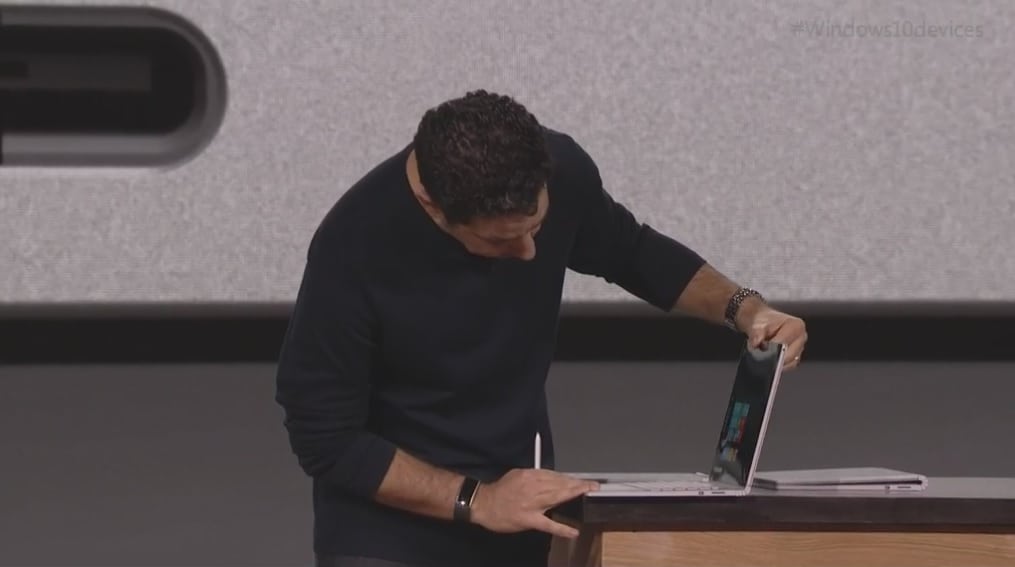
Microsoft also announced the Surface Book, which is essentially a Surface laptop of sorts. Microsoft is touting the Surface Book as “the fastest 13-inch laptop anywhere on the planet” and, portentously, as the “Ultimate Laptop.” Panay took some time to describe all of the feeds and speeds with subdued wit, and many people were excited that Microsoft had produced a laptop machine but a little perplexed at the same time. This seemed to be the ultimate example of Microsoft reinventing a category to, perhaps, show their OEMs how great Windows 10 devices can be designed and built.
There were also new Windows 10 Mobile devices, the Lumia 950, 950 XL and 550. As far as the specifications are concerned, the Lumia 950 rocks a 5.2-inch display sporting a resolution of 2560 by 1440 pixels and is powered by a Qualcomm Snapdragon 808 processor. There’s 3GB of RAM, 32GB of internal storage, a microSD card slot which supports up to 200GB of additional storage and ships with Windows 10 Mobile out of the box. There’s a 20MP PureView camera for photos and videos, as well as a 5MP front-facing camera, and a 3,000 mAh battery to make sure you don’t run out of juice at important times.
The bigger Lumia 950 XL carries most of the traits of the Lumia 950, but has some noticeable changes when it comes to hardware. The handset boasts a bigger 5.7-inch display sporting a resolution of 2560 by 1440 pixels. The phablet also comes with a slightly powerful Qualcomm Snapdragon 810 processor and Adreno 430 GPU compared to Adreno 418 in the Lumia 950. Furthermore, there’s a bigger 3,340 mAh battery to make sure you get a decent battery time.
Also this week, Microsoft announced that internally, the company was having a few issues with new builds, which ultimately meant there would be no new builds this past week. In response to a question from Twitter user Mark Siepel,, Gabe revealed that the newest mobile build is “in the final ring”; but a PC build seemingly delayed because of “a challenging bug” that they still need time working on. Overall, optimists can revel in the fact that we may get a new mobile build very soon in the next days, while pessimists will have to while away the hours, knowing that there is no happy dance today.
So that’s all for this week. What was your favorite story? Let us know below.
Watch the unveiling of Hololens Project X-Ray during Windows 10 devices event

During the Windows 10 devices event in New York City this past week, Microsoft unveiled Project X-Ray, a cool new Hololens game that blew everyone’s mind. This game takes advantage of the Hololens hardware to experience a mixed reality gaming experience.
We get to see the ability to wear and change virtual equipments, battling enemies that spout from the environment, while also interacting with the surroundings. With this exciting sneak peek (you can watch it below) at the capabilities of HoloLens in gaming, in the words of the speaker, “we never know what’s around the corner.”
Microsoft also announced the HoloLens development kit, which launches early next year for $3000. With his development kit, developers can take advantage of the Hololens, combining real life situations with virtual reality. This kit will allow developers to create applications and games, creating one hell of a mixed reality experience. Watch the video below and let us know what you think about Project X-Ray and Hololens.
Pinball FX2 updated for Windows 10

Publishers ZEN Studio have been great supporters of the Windows platform. Zen’s Pinball FX2 game was available on the doomed Windows RT platform, and now its updating the game to support Windows 10. Check out the Xbox version trailer below for what to expect on Windows 10.
As you can guess from the title, Pinball FX2 simulates the traditional table based game on a computer. The game isn’t just a direct simulation though because most of the 3D tables are brought to life with characters. Each table has a separate theme including Wild West, Fantasy, Star Wars, Avengers and The Walking Dead.
The Windows 10 version of the game supports all the usual forms of input from touch, keyboard and mouse to controller. As with all good games, if you sign in with your Xbox gamer tag you can earn Xbox achievements. The game is also available on Xbox, and it supports cross-buy which means if you buy a table on Windows 10 that table will be available on Xbox too.
It’s free to play this game, but extra tables can be purchased in-game. If you fancy getting in on the action, the link below will take you right there.

How to enable Cortana on the New Xbox One Experience (NXOE)
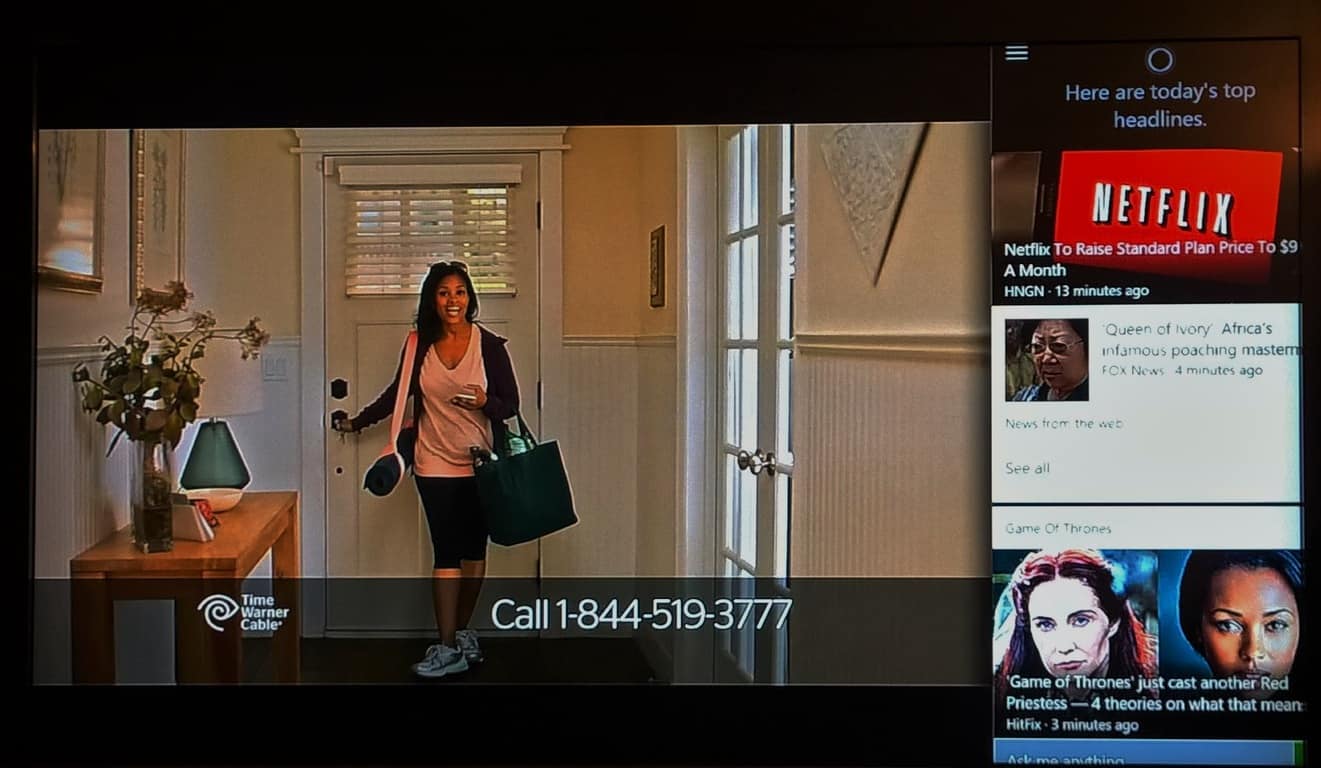
Last night, several lucky gamers participating in the New Xbox One Experience (NXOE) discovered Cortana. Microsoft has mentioned before that Cortana would not be available for the Xbox One until next year, but it seems like Microsoft is giving testers an early look at the personal assistant. First, in order to get Cortana on the Xbox One, you must be a participant of the NXOE preview. Follow the below steps to get Cortana working:
- Double tap the Xbox home button to open the guide
- Go down to the settings tab (gear icon)
- Press left to enter the settings area
- Press up until the green highlight disappears
- Now tap the “A” button a few times on the controller to have Cortana appear
As you can see in the video below, Cortana can give you the weather, show you your calendar and make appointments, as well as track flights. Cortana is still incomplete but is slated to be more gamer-friendly later this year for preview members, and is expected to be publically launched next year.
“For those who have asked about Cortana, our plan is to add Cortana to the Xbox One experience preview later this year. From there, we’ll ensure that the experience is tuned for gamers before we officially launch Cortana in 2016,” Microsoft stated in an official blog post.
You can watch the video below showing you how to enable Cortana on the Xbox One. Enjoy!
I went hands-on with the Microsoft Band 2, and it was comfortable
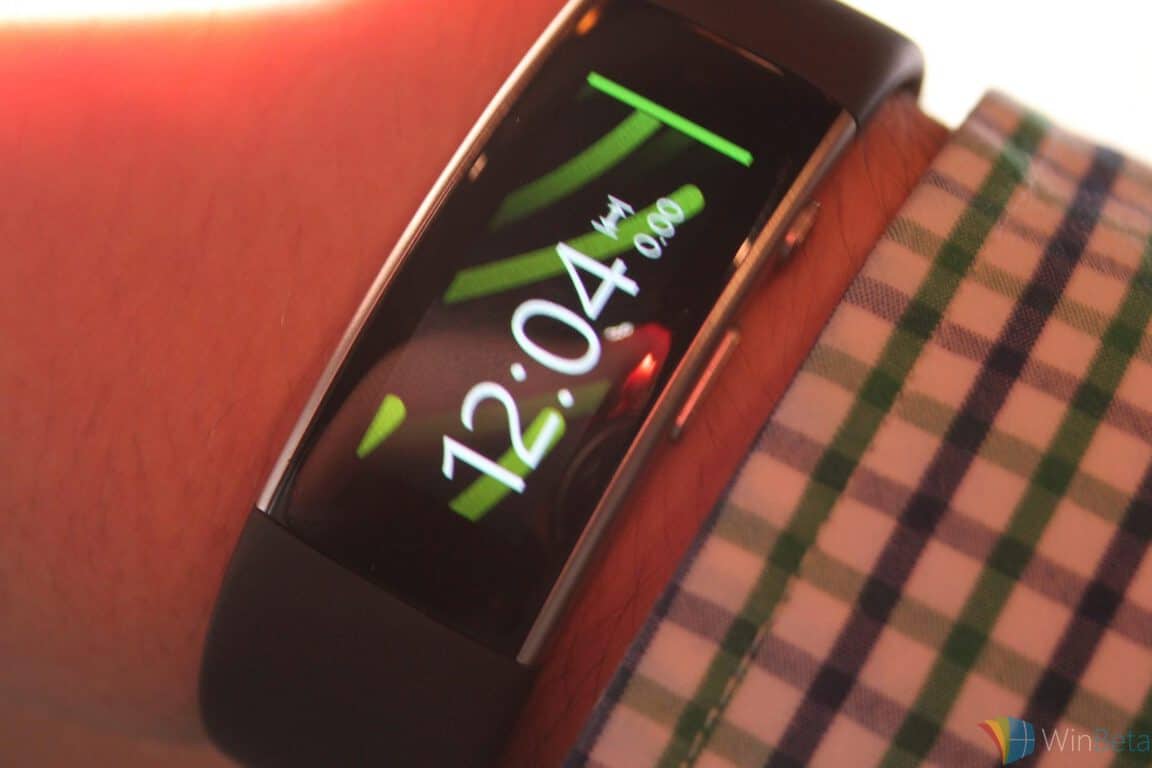
I managed to be one of the lucky attendees of Microsoft’s massive Windows 10 devices event on October, and while I wasn’t able to truly give any of the devices a run for their money, I was at least able to feel around and get some basic first impressions of them. One of these devices was the Microsoft Band 2, a device that I’m very pleasantly surprised about.
I hadn’t used much of the original Microsoft Band, but I know enough to tell you that it was a flawed product, to say the least. While it managed to pack in the features that were promised with a relatively strong user interface, the Band suffered from the the horrible issue that it was just plain uncomfortable. For a device that you were meant to keep wrapped around your wrist for relatively significant amount of times, that is a fatal flaw.

I’m happy to report that the Microsoft Band 2 doesn’t suffer from this issue. Putting it around my wrist, I didn’t feel much of anything. It certainly seemed like the sort of device that I would be able to wear for an extended amount of time. The Band felt natural, and I didn’t feel any need to make adjustments to it. The screen also felt more vibrant, and all-around was more stylish than its predecessor.
On top of just feeling good, the Microsoft Band 2 is packed with features that should appeal to people. The Band is sporting a UV monitor, a GPS, and a barometer. For the fitness minded individual that the Microsoft Band 2 is mostly aimed at, it can even keep track of the calories you burn, your heart rate, and how well you’re sleeping. It’s truly a robust product for athletes and fitness enthusiasts alike.
In short, the Band 2 seems to improve on the biggest problems that the original Band had, primarily its clunky design. For this reason, it should be a product that more general consumers would consider, and not just something that appeals to those for whom fitness is a massive priority. Now that it’s a viable option to wear the Band on a regular basis, getting acquainted with its advantages should be much easier.
You can pre-order the Band 2 here, it costs $249.99 and ships by October 30th.
Windows 10 Build 10558: Here are the New Features, Improvements and Fixes

Although Microsoft didn’t announce any new builds for Windows 10 Insider Program, the latest build, which goes by the number of 10558, recently leaked online. Unlike previous builds which came after the release of RTM version, this build offers a lot of new features and improvements.

Build 10558 is the build which brings the most new features since the release of full version of Windows 10 on July 29th. It includes an early version of Skype Messaging and Video apps, some new icons, UI improvements, some new Microsoft Edge features, various system improvements, etc.
We have to warn you that this build is internal build only for members of Microsoft’s developing team, but it somehow leaked online. This means that build 10558 isn’t supported by Microsoft, and we don’t recommend you to install it, if you find it somewhere on the internet.
So, you should wait for the official release, but until it arrives through Windows Update, we’re going to show you all new features and improvements that this build brings, so you know what to expect.
Windows 10 Leaked Build 10558 Features and Improvements
Here are all new features and improvements brought by the leaked Windows 10 Build 10558:
- More improvements of the context menus – Microsoft’s developing team is focusing a lot on context menus through last few builds, as every new build brings some context menu changes, and this build isn’t different. This time, Microsoft added new icons in the Start Menu context menu for “Unpin from Start” options, as well as “Resize (Small, Medium, Wide, Large)” option. Along with the Start Menu, the new build also brings some Desktop context menu changes.

- Change the save location of apps and other media – Microsoft decided to exclude the ability to change default download location of apps from Windows 10 to a different drive or SD card, back in July, so we had to show you an alternative way to do that. Luckily, Microsoft decided to bring back this feature, which is most likely to come along with the Threshold 2 update later this year. This option isn’t such a big improvement, but it can be very useful, especially for tablet and hybrid users.

- New Icons – Microsoft is experimenting with icons ever since the earliest Technical Preview builds, and it’s not done yet. Build 10558 brings new Registry Editor icons, as well as some new icons related to hardware.

- Find my device feature – This is another useful feature which will help you to locate your Windows 10 device, if you lost it. Unfortunately, it’s not ready yet, as it automatically turns off, when you try to turn it on. This means Find my device feature is still in development, and more stable version will probably appear in some future builds.

- Windows Spotlight for Enterprise users – From this build on, Windows 10 Enterprise users will also be able to use Windows 10 Spotlight feature.
- Microsoft Edge – The new tab preview feature has been added, as you can now view what’s going on on tabs, without switching to them. You can also enable or disable Favorites bar from Settings now, and changing the default search engine is also slightly different.

- Messaging, Video and Phone apps – And finally, the earliest version of highly anticipated Skype Messaging app made its way to Windows 10. The app looks really simple in design, so you’ll probably find it easy to use it. It’s quite buggy for now, but that’s not a big surprise, because it’s the earliest version of the app, and a lot of developing still needs to be done, and some features need to be added. Along with the addition of messaging app, new Video and Phone apps are also present, all powered by Skype.


The current Windows 10 build is still causing plenty of problems for those who’ve downloaded it, so we can hope that a future build will fix these annoying problems.
Read Also: Facebook, Uber, Shazam and Others to Release New Universal Apps for Windows 10
Panos Panay reveals he wants a consistent design among all Microsoft products
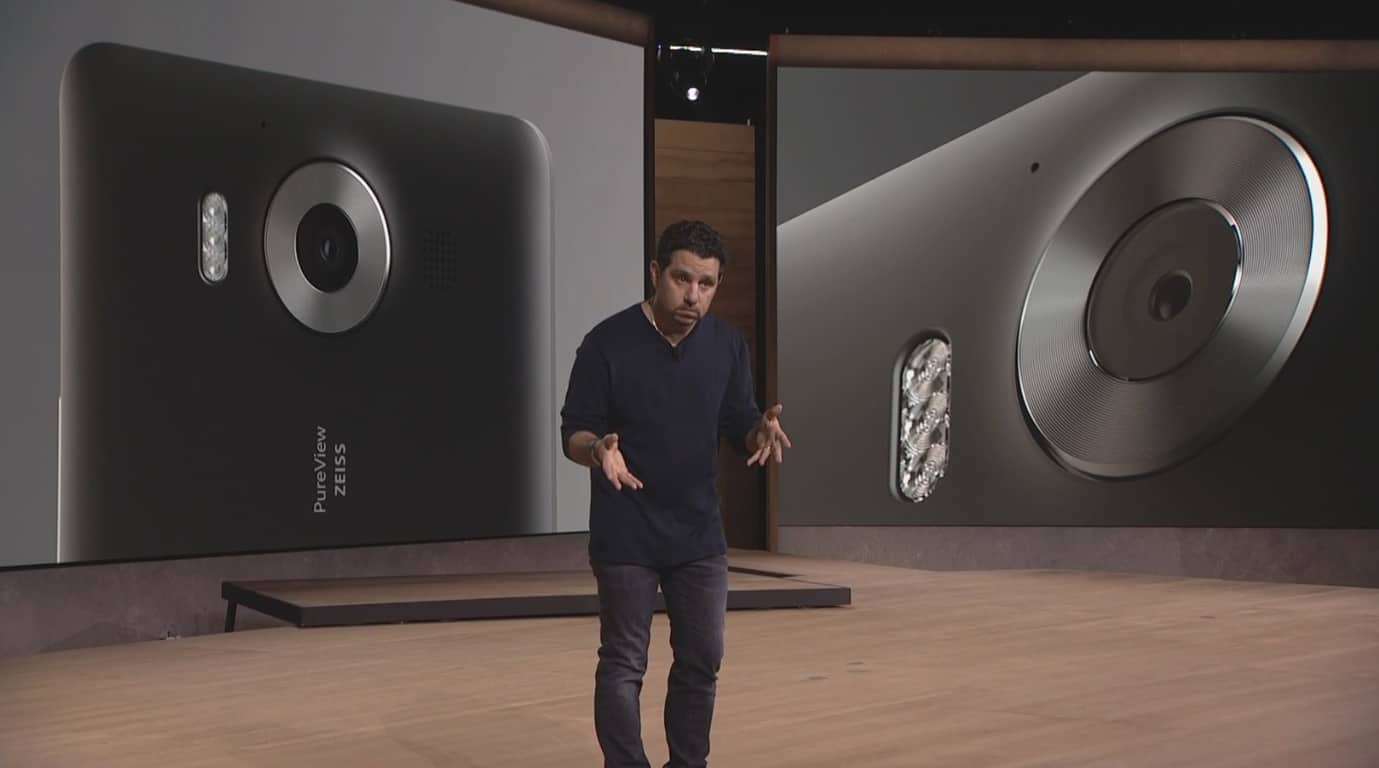
During a recent interview with The Verge, Panos Panay sheds light on the future of Microsoft and its products. For those who do not know, Panos Panay leads Microsoft’s engineering team for all their products. Panay’s most recent accomplishments include the newly announced Lumia 950 & 950XL, Surface Pro 4, Surface Book, and the Xbox.
The interview begins with an insight into the Surface Book and the ideology behind it. Panay told The Verge, “A product like this takes years… Surface Book came about in the sense that a lot of people had been asking for a Surface laptop, right out the gate.”
Consumer’s desire for a Microsoft laptop was to be expected. Although the Surface line has come a long way from its inception, the original product created space for a new type of device, a space that Surface users have come to love. Over the past three years, Panay and his team have, in a sense, perfected the Surface design, creating an aesthetically pleasing design with great portability. The effect the Surface Pro has had is evident in today’s computing industry as companies such as HP are creating their own iterations. Even Apple’s iPad Pro shows a similar design language.

“In Surface we look at it that we’re going after premium and we want to reinvent categories… That’s why it was never just a laptop,” Panay says. As anyone who has used a Surface Pro device, these devices are much more than just a laptop. However, the Surface Pro introduced a new breed of device, a hybrid tablet and laptop, and it was difficult for Microsoft to “frame” the device, comparing it to other devices currently in the market. As Panay goes on to explain, this is why the original Surface Pro was often compared to the iPad.
“It’s not about going after anybody, it’s not supposed to be that. It’s framing… When we launched the original Surface Pro, people compared it to an iPad, because I didn’t frame it and I’ve regretted that ever since.”
After a few years, however, the Surface Pro 3 has become a premium device not just for consumers, but for major corporations such as SkyWest as well. What has made the Surface line successful is its extremely premium design and flexible functionality. Neither the design or functionality are by coincidence, of course, as Panay goes on to explain that the company is not only competing with the likes of Apple, but they are trying to inspire other great works from OEMs.
Of course we’re competing with Apple. I’m not shy to say it… That’s where I put most of my energy. Making premium devices and reinventing categories that essentially puts us in a camp to fundamentally compete with Apple devices. Let’s inspire, let’s push to reinvent. Let’s give something others to look at and go, ‘Come on let’s go do this, let’s get this done.”

[pullquote align=”left” cite=”” link=”” color=”” class=”” size=””]Of course we’re competing with Apple. I’m not shy to say it… That’s where I put most of my energy.”[/pullquote]
Microsoft is not only trying to inspire by design but also with functionality. Products from the Surface line appear to relegate current devices as obsolete, introducing new paradigms for how devices are made and used. The Surface Book is a shining example of such. However, the design of even this product was inspired by the Surface Pro itself, modified to work better as an actual laptop while maintaining the versatility and portability of a tablet. Going forward, Panay looks to spread this design language though all of Microsoft’s products.
Over time you want a consistent thread between the products, especially the hardware as well… “I think what you have to think with overall devices is making sure we are able to get that consistent premium fit and finish that people are expecting from Microsoft… “You always work off the foundation as a starting point, and this foundation we’ve got is phenomenal and the consistency will come.”
With this in mind, devices like the Lumia 950 and 950XL that share designs from other Nokia inspired phones further exemplifies Panay’s point that consistency will come. As Microsoft has created the Surface Book to resemble its smaller cousin, the Surface Pro 4, it is likely that we will eventually see a Surface Phone and perhaps a resigned for future Xbox products.
What do you think of Panay’s comments? Are you looking forward to a Surface filled world?
Microsoft's new Surface Book ad pitched at creators
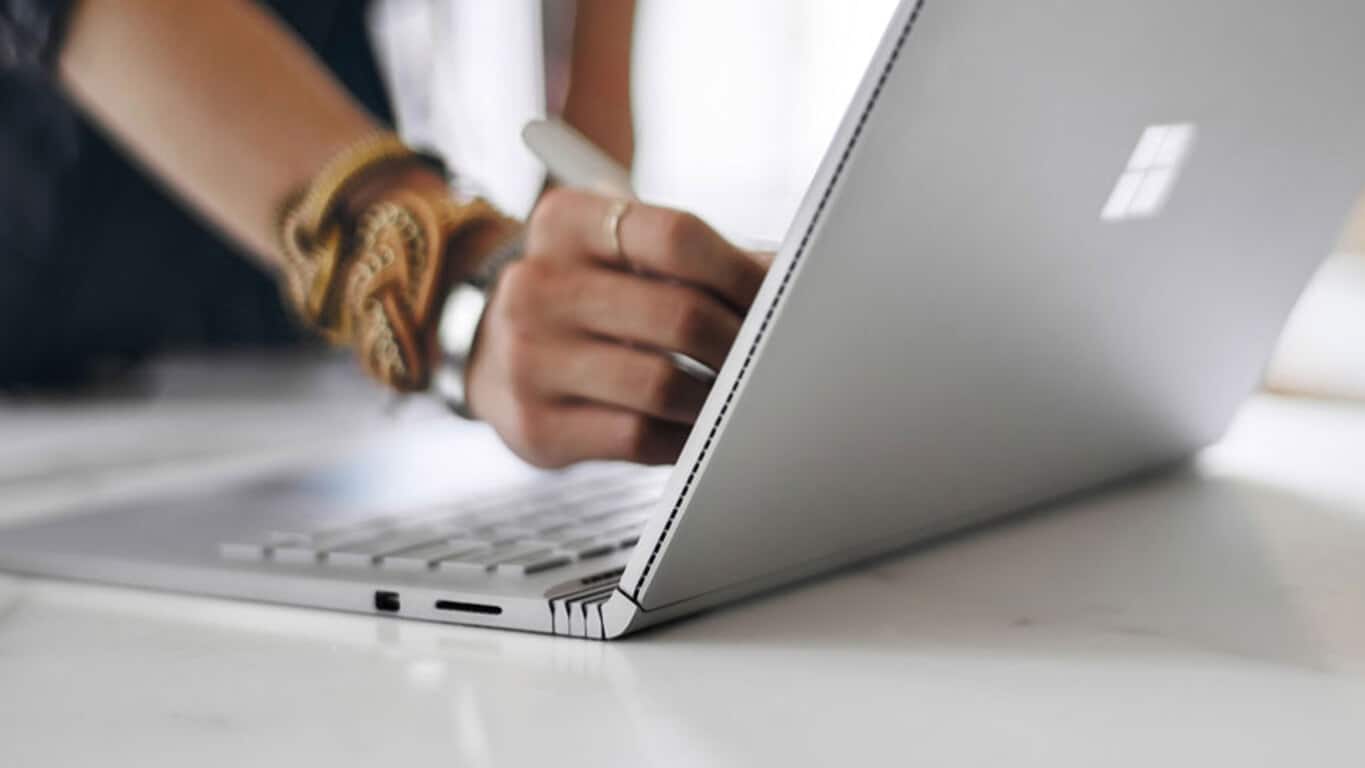
The Microsoft Surface Book hit like a supernova in an all-star round up of Windows 10 devices released by the Redmond giant at their recent New York City event. Microsoft needed to grab the headlines with their first ever laptop and they seem to have achieved just that. While the device is quite pricey, starting at a cool $1499, Microsoft appears to be aiming it at more than just wealthy business people.
In Microsoft’s latest ad for the Surface Book (shown above), the company pitches the device at creators and insists that everyone has creative inspiration beating inside them like a ‘drum’. The ad then goes on to depict the device in the hands of a diverse set of professionals including the artist, the musician, the business person and the architect.
This new ad leans strongly toward the creative, artistic market which has traditionally been occupied by Apple PCs. In recent years, the Surface Pro devices have taken a piece of that pie. It will be interesting to see how many people choose the Surface Book over those other options once it is released on Oct. 26.
If this ad has whet your appetite for the Surface Book, you can pre-order it right now. If you’d just like to win a Surface Book, we’re giving one away!
Why Microsoft’s Windows 10 event sold more than just its products
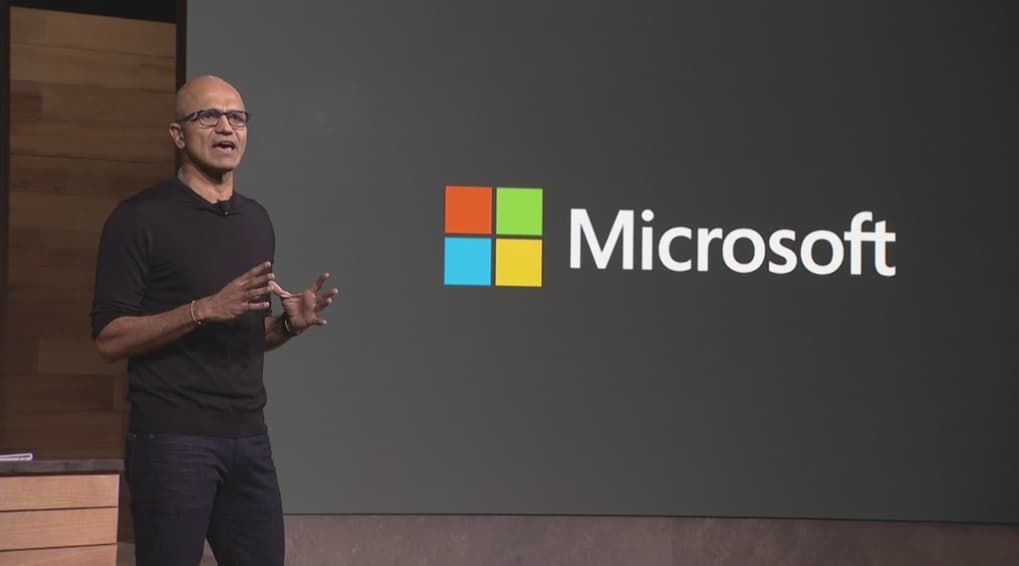
As the fog of war continues to dissipate from Microsoft’s Windows 10 devices announcement, I find myself more enthused with how the company presented itself rather than devices that were revealed. Make no mistake; my savings account will eventually be drained over the next two months as I plan to boost the company’s profit margins for this quarter single-handedly. As Microsoft moved from one new product to the next, I made a mental checklist. My list consisted of my ‘wants’, ‘needs’, and ‘could do without’s’, needless to say, my ‘could do without’s’ column laid bare.
In any event, it wasn’t so much the hardware in specific that sold me, it was the way Microsoft presented each device. I would go as far to say that the presentation itself may stand to be more impressive than the products we receive in the future.
Equipped with emotionally moving and personable video montages, varied presentation styles, and personable speakers, Microsoft was well prepared this go-around. Some might rail on Apple for its uncanny ability to resell yesterday’s technology at premium prices, but taking a step back, I realized Microsoft may have just emulated a similar technique, and ultimately succeeded.
Let me explain.
The devices Microsoft showed off earlier this week were impressive, but ultimately iterative. HoloLens dazzled the imagination of the audience while continuing to maintain a ten-month long lock on information. HoloLens fans are no closer to a final product release date. The enterprise market these introductory products are supposed to target have yet to see a practical demo. Microsoft’s confidence in HoloLens and its showy new ‘mixed reality’ feature was more than enough to keep the fire stoked for another couple of months of news coverage.

As for the Microsoft Band hardware update, well, it was just that. While many complained about the clunky nature of the device, few had any real issues with the software or health tracking aspects of the product. Even though Microsoft added yet another sensor, the Microsoft Band was in reality, just a design spec bump. Due to its unconventional embedded software, the Band fans looking forward to modern apps supporting the new device may still be waiting. Unlike Windows 10 that benefits from Universal app development, whatever proprietary OS the Band uses needs specialized development. In spite of that knowledge, senior communications manager on the Microsoft Band and health team, Lindsey Matese sold me on the device. After careful consideration, it isn’t too difficult to see who the Band is catering to, and her quick presentation only helped to crystallize Microsoft’s sells pitch. Lindsey used pitch words such as marathons, cycling, “gym rats”, but it was her elegant but brief dedication to an immersive golfing experience that sold the Microsoft Band to the same business customer that’s buying other Microsoft products.

Here is where Microsoft’s laser-like focus and subtle messaging once again shined. An enterprise customer or fitness buff may not be entirely into sending heartbeats, drawings or dealing with ‘complications’, but many settle contracts or relieve stress playing golf or exercising. As the Microsoft Band is currently, the only cross-platform device to offer an unprecedented level of granularity on golfing its audience is narrowed, precise, and ready to buy. The fact that the Band also incorporates Cortana, GPS, email, text, and other basic smartwatch features is now an added strength rather than a nitpick.
Next up were the highly anticipated Windows 10 Mobile devices. Windows Phone fans have seemingly been starved of a true flagship to tote proudly for over a year. As the floodgates of low-end offers continue to spill over, Windows Phone fans willing to pay for a premium tailored device felt ignored by Microsoft. However, Microsoft finally answered the long overdue calls for genuine Windows 10 Mobile flagships. While the both the 950 and 950XL offer a laundry list of up-to-date and future proofing specs and features, the reality is, they still suffer from a refined software experience.

It was the lead of Microsoft devices Panos Panay’s passion and hardware intelligence that sold the 950 and 950XL’s yesterday. His use of terms such as liquid-cooling and adaptive antenna technology managed to elicit applauses and amazement from the audience. It was also Panay’s presentation style that skillfully avoided showing Windows 10 Mobile software or Microsoft’s solution to the app gap. Instead of showing off new camera features such as slow-mo, 4K recording or panorama captures, Panay expertly made a case for the technology behind the camera. Panay’s presentational approach was so flawless and sincere that few even cared to see a live demo but trusted that these devices were worth paying for.
For casual viewers and excited Windows Phone fans, the presence of the new phones and Panay’s artful delivery no doubt caressed $600 from many pockets. Microsoft’s executive demo lead, Bryan Roper, also helped deliver a commonality to the 950’s reveal. Roper’s fedora-wearing fast paced speaking patterns commingled with his candid phrasing and vocabulary made the presentation relatable for many. Roper’s unorthodox pairing of words also became a trending phrase on the internet, thus cementing Microsoft’s presentation with a heir of hip. Hip is something Microsoft hasn’t been able to achieve for some time now when it comes to its phone offerings. No offense to Steven Elop, but I doubt he could have pulled off “I can be productive like a boss wherever I am now.”

[pullquote align=”right” cite=”” link=”” color=”” class=”” size=””]the unveiling of the Surface Pro 4 and Surface Book that cemented the notion it was presentation over product that won the day for the company.[/pullquote]
As Microsoft rounded out its event, it was perhaps the unveiling of the Surface Pro 4 and Surface Book that cemented the notion it was presentation over product that won the day for the company. The Surface Pro 4 and Surface Book are without question hardware engineering masterpieces, but they are ultimately just 2-in-1’s. Admittedly, the category appears to be gaining momentum, but it has yet to supplant the traditional laptop or even total tablet sales thus far. I believe it was Microsoft’s presentation of the Surface Book and to a lesser degree, the Surface Pro 4, that has built positive momentum for the company. In an age where former secrecy titans such as Apple are hampered by press and photos leaks of products, Microsoft managing to keep its Surface Book a secret went a long way to adding cachet to the company.

Microsoft’s first laptop isn’t really a laptop at all, but the Surface Pro many wanted from the beginning. While it’s intended to be used as a laptop-first form factor , Microsoft made sure to showcase its tablet-like abilities. In a well-designed display of storytelling, Panay showed one video of the Surface Book being used as a laptop with a beefy GPU and internals. Moments later, he seemingly started up the same video, with one big difference, the Surface Book turned into a tablet. A genuine sense of shock overtook many in the crowd for a product, that by all accounts is a Surface Pro 4 in a different skin. As the dust continues to settle, it seems perhaps the shock was less about the actual device than Microsoft’s masterful presentation of the Surface Book.
Many have longed for a laptop designed by Microsoft, and judging by its spec sheet, the Surface Book is every bit the laptop many wanted. However, there are and will be better laptops out there by other manufacturers, for arguably less money per configurations. Arguably, most people aren’t sold on those laptops as they are for Microsoft’s offering. I argue that is in part due to the story Microsoft told up on stage this week. The presentation Microsoft gave earlier this week wasn’t necessarily about introducing groundbreaking tech, but about introducing it’s own tech. That’s what I believe most people bought Microsoft’s story and presentation over its actual product.
How to create a Sway and share them with anyone

Most technology companies have their season of popularity then they discover their true talent and fade from the mainstream into their niche. This process is not bad, in fact it proves the company understands what they do well and they simply focus on that. Microsoft seems to be trying very hard to buck this trend when it comes to their Office programs. For decades the Microsoft Office programs have reigned supreme over the competition, but when the shift away from, single files edited offline one at a time, to the modern cloud based simultaneous co-authoring workflow happened Microsoft was left behind.
It took several years but Microsoft finally has decent cloud based document authoring solutions, and Office 2016 was released under the ‘work better together’ mantra. However Microsoft did not stop at cloud-ifying Word, Excel, PowerPoint, and OneNote, instead they pressed on and built a new Office program which was born in the cloud called Sway.
Overview
Sway in many ways is the opposite of the traditional Microsoft Office programs, but that is a good thing. Instead of trying to hack Word or PowerPoint to provide a solution to customers Microsoft understood they need to start from the beginning and rethink what it means to share stories and communicate in today’s modern world. This how-to will briefly touch on what Sway aims to do, and also how to make your own Sways.
Telling stories is more than a photo slideshow, more than a collection of tweets, more than text, and more than videos. Sway aims to give users the tools to create an online story, built from text, photos, videos, tweets, and more, but instead of forcing users to download and re-upload all their content they can simply embed the photos from Flickr or OneDrive, the videos from YouTube or Facebook.

Share stories in a media rich format without needing the skills or time to build a website to host all the different content in a single place. With Sway users can simply drag and drop content from many different sources add text or not, and with very simple options, communicate a story. Being cloud based means Sways are easy to work with others on and share on social media or email. Since all the content is based online viewers are not required to download a big file or have special software to view the Sway.
Walkthrough
While traditional documents are built of self-contained text, photos, or videos; Sways are built of cards. These cards hold content in many different forms, such as text, pictures, videos, Tweets, or charts. Adding cards to a Sway is as easy as dragging them from the ‘cards pane’ which flys-out from the left when the clicking the word ‘Cards’ in the bar at the top. The layout of the cads can be changed easily by dragging the different cards to reorder them. Make cards bigger or smaller by selecting them and under the ‘options’ button select the level of emphasis.
Cards are dropped onto the Storyline which is the vertically scrolling order of cards in the Sway, and where all the editing occurs. Another way to add content would be from the ‘Insert pane’ which flys-out when the word ‘Insert’ on the top bar is clicked. Initially, the Insert pane is populated with content generated by Microsoft’s machine learning algorithms which suggest recommended content based upon the current content in the Sway. To see other sources of content, click the word ‘Suggested’ for a list of currently supported sources.

As of writing this, the sources list contains OneDrive, OneNote, Facebook, Flickr, Bing, PicHit, YouTube, Twitter, and Upload. If you happen to click ‘Add Source’ this will prompt you with a feedback form to suggest new sources to the Sway team. However if the content you want to add can be embedded then add the ‘Embed’ card from the Cards pane to add the content manually. When you find content you like, drag in to your Storyline or click to select several items then select add in the top right of the Insert pane. Cards do not have to be present to drag content from a source onto the Storyline.
Content can be added from public sources such as Bing and Twitter, but by default Sway has filtered the results to only include content which is public or in the creative commons. This filter can easily be turned off but doing so puts the creator of the Sway at risk of using content which they don’t have the rights to use. Microsoft seems to do a good job of setting the default in the most safe mode for their users but still gives them the options to disable this safety net.
The look of a Sway is intentionally basic because Sways were designed to adapt to any screen size or device type. To preview how your Sway looks, click in the space to the right of the Storyline, under the text ‘Preview.’ To return to the Storyline simply click on the edge of the Storyline pane which moved to the left side of the preview. While in Preview you can still make edits to the content by clicking on it and selecting the different options such as Focus Point, edit, delete, etc.

After most of the content has been added, Sway has more options to adjust the overall look and feel. Click ‘Design’ to open the Design Pane and go through the different templates then customize them by changing color, font, and animation emphasis. When the design has been picked, choose how the Sway should navigate by clicking the word ‘Navigation’ next to ‘Design.’ There are only three options for navigation: slide vertically, slide horizontally, or the more traditional slideshow look of one card at a time.
There are not many tools for customizing the fine details of a Sway because the point should be showcasing media. A good workflow while building Sways would be, getting the content into the Storyline, then arranging it and small edits like captions, then try grouping photos. Finally tweak the design options or navigation scheme to complete the Sway. To view the Sway in a more refined form click ‘Play’ and scroll through to see how family, friends, coworkers, or strangers will see your work.
Since Sway is hosted in the cloud adding additional authors is easy. Simply click on the word ‘Authors’ and send the link to people who you want to edit with. When multiple authors are added they can each draw from their own sources and add them to complete the Sway. More than one author can be making changes on a single Sway at a time, which makes document creation easy and more efficient.

When mostly all is said and done share the Sway via email, social media, or with the world on Docs.com. People from any device and view your Sway which should look good on any screen size. No need to login, no need to download extra software, no need to sign up for anything. Sway is the closest thing to creating a custom website for a story, without doing any of the heaving lifting involved.
Summary

Sway represents the current atmosphere at Microsoft, where the old traditional Office remains the center focus but new tools which solve different problems emerge. Instead of adapting other products or diluting a brand, Microsoft has chosen to create a new product for the new era of productivity. Gone are the days when people only needed to be productive at work. Now sharing photos and videos from a recent trip needs to be easy and functional.
Much like Microsoft, Sways are never complete and can be updated, changed, and transformed at any moment. Add authors late or duplicate a Sway your friend started and continue working on a new path. Sways are the vehicle to carry the story of a long project, or a big plan, or a collection of memories. For inspiration and examples go to Docs.com; Microsoft also has links to tutorials at the Sway homepage.
Here is a link to one of my favorite Sways I have seen so far; it is about a custom PC in Minecraft style.
Check it out for yourself and let us know what you think of Sway in the comments below!
Microsoft Store set to open in Sydney (Australia) on November 12
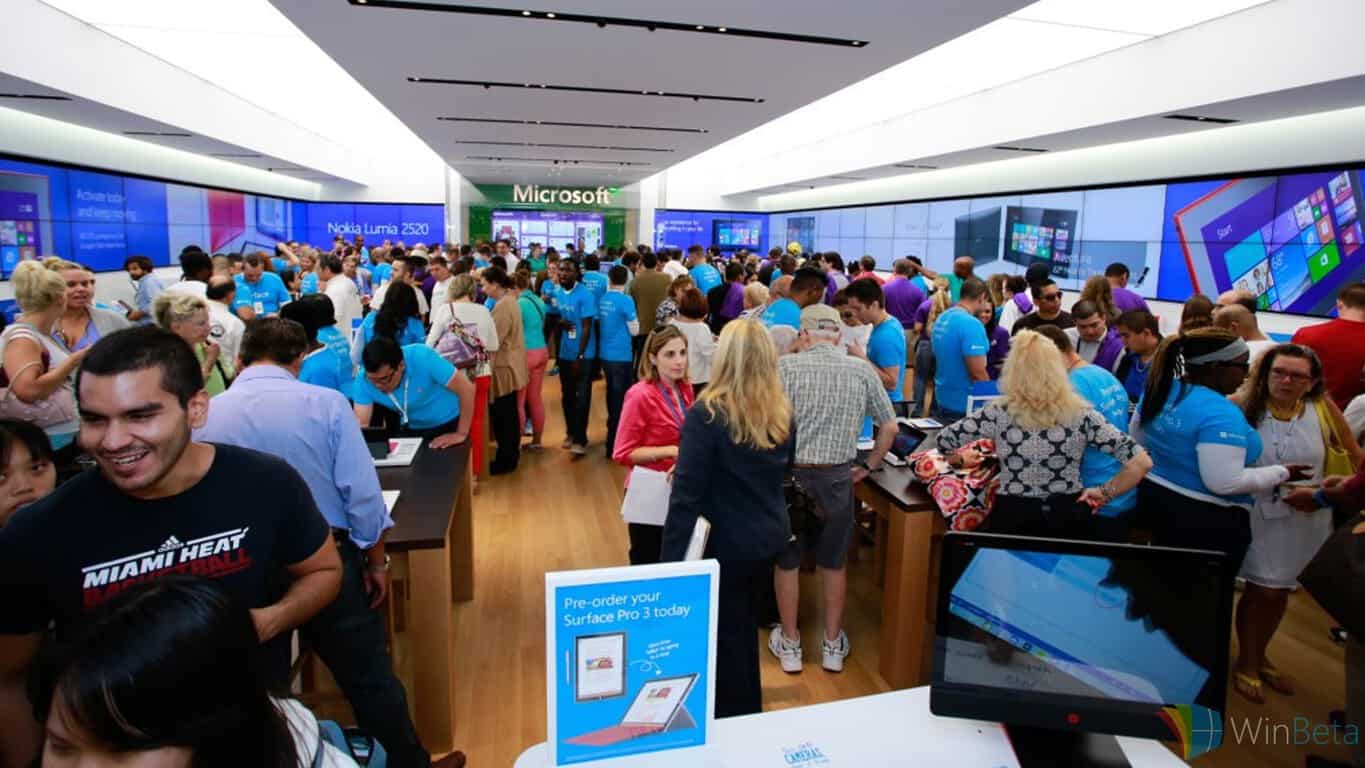
For those of you who live in Australia, you will be happy to know that Microsoft is all set to open a flagship Microsoft Store in Sydney on November 12th.
The planned store will be located within the popular Westfield shopping centre in Pitt Street Mall and promises to give local consumers a chance to experience the entire range of Microsoft’s products such as Windows PCs, Surface devices, Windows Phones, Xbox One and Office. This new store will also feature an Answer Desk, Microsoft’s solution to the Apple Stores’ Genius Bar, where customers can ask questions and get tech support related to their Microsoft products.
We can’t wait to open our doors and celebrate in a big way on 12 November. Customers are invited to line up as early as Wednesday 11 November at 10:00 PM at the entry to Westfield Sydney near Microsoft. Grand Opening ceremonies begin at 11:30 AM on Thursday 12 November. Microsoft at Westfield Sydney on Pitt Street Mall opens at 12:00 PM.
With the launch of the Surface Book, Surface Pro 4, Microsoft Band, and Lumia 950, this new store opening comes right on time! No word on if this particular store will have these new items on display. Regardless, it is quite nice to see Microsoft open it’s first flagship store outside North America.
HP announces 8 new devices, built for Windows 10
As promised, Microsoft has started a tour of sorts in which execs and business partners are set to show off new Windows 10 devices. The tour started today with HP in Barcelona and will continue with Dell on the 8th. Other dates include Asus on the 9th, Acer on the 12th, Toshiba on the 13th and finally with Lenovo closing the show on October 19th. As if revealing the Surface Pro 4 and Surface Book, the Lumia 950 and 950XL, and the Microsoft Band 2 was not enough for Windows users, HP has just announced the release of 8 new devices.
Of the newly unveiled devices, here are a few that really stand out.
HP Spectre x2
The HP Spectre x2, starting at $799.99 and launching on November 8, is poised to compete against the likes of the Surface Pro 4. The device has a very similar 2-in-1 design with an adjustable kickstand and detachable keyboard. Starting $100 less than the SP4, with the inclusion of a stylus, a keyboard, Verizon LTE connectivity, and reversible USB Type-C to Type-A this device is not a bad alternative to Microsoft’s own hybrid tablet.


HP ENVY Note 8
The HP ENVY Note 8 stands out for its size. HP is offering a full Windows 10 experience powered by an Intel Atom CPU. This device also comes with a digital stylus, although the keyboard is optional here. The ENVY Note 8 also comes with a Verizon LTE and pricing starts at $329.00.
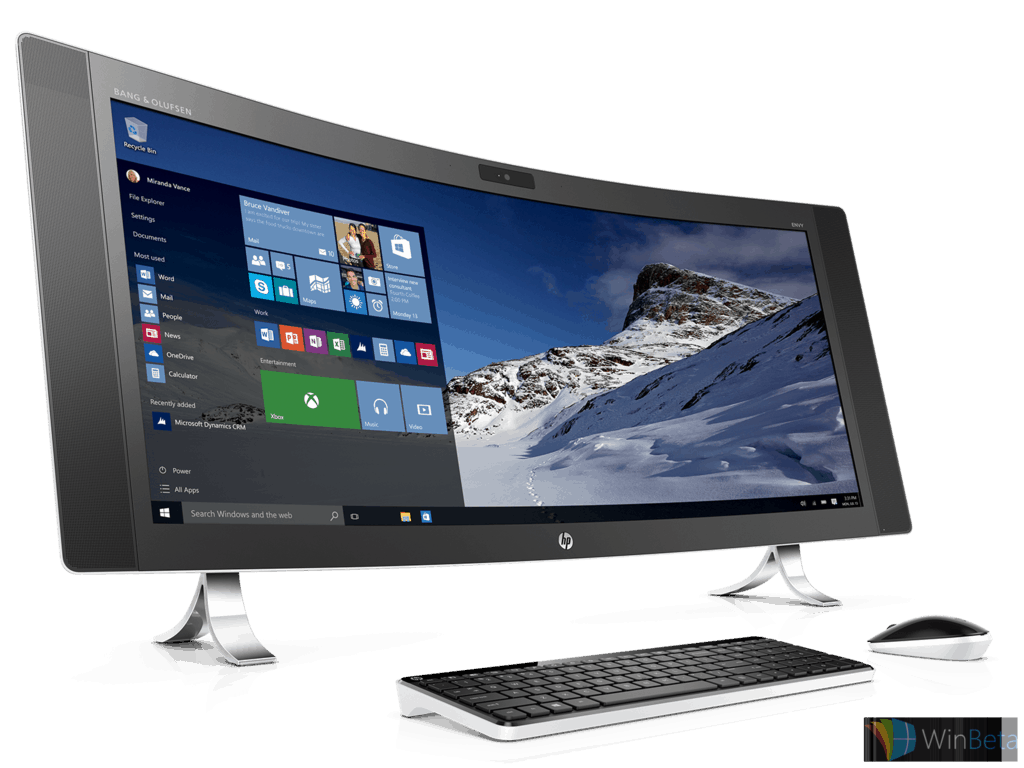
HP ENVY Curved All-in-One
As far as All-in-One’s go, HP’s curved display sets it apart from others of the same genre. The PC has a 34-inch, curved display for both productivity and entertainment.

HP Pavilion Gaming Notebook
The HP Pavilion Gaming Notebook is a 15.6-inch notebook powered with a GeForce GTX 950 graphics card and either an Intel i5 or i7 CUP. Storage ranges anywhere from 128 GB to 2 TB and starting at $999.

HP Stream Notebook PCs
HP stream Notebooks are for the budget conscious. These devices have very little internal memory but generally come with promotions for Microsoft’s cloud service, OneDrive. The HP Stream will come in two sizes, 11-inches for $199.99 and 13-inches for $229.00
For more information on HP’s new Windows 10 Devices presentation, click here.
How to Install, Update and Use iTunes on Windows 10
iTunes is one of the most popular multimedia platforms in the world, and although it’s Apple’s product, it is also available for users of Windows operating systems, and Windows 10 is not different. So if you want to use iTunes on Windows 10, here’s everything you need to know about downloading iTunes, importing media, and buying from the iTunes Store on your Windows 10 computer.

How to install iTunes on Windows 10
Whether you’re installing iTunes for the first time, or updating it, method is the same. Just download the installation file, and if you’re installing it for the first time, it will normally install on your computer, otherwise it will just update the current version of iTunes installed on your Windows 10 PC. Here’s exactly what you need to do:
- Go to this adress: www.apple.com/itunes.
- Click the blue Download iTunes button in the top-right.
- Click the Download Now button.
- Click on the download, once it completes, to launch the installer. Once you download the installer, just launch it and follow further installation instructions.
That’s it, now you have the latest version of iTunes installed on your computer. Follow further instructions from this article to learn how to create an Apple ID, import your music, subscribe to services, and more.
How to create an Apple ID for iTunes on Windows 10
Unless you’re using your own music, you’ll have to create an Apple ID to buy music, movies and apps from iTunes. So if you you don’t have Apple ID already, you can create it through iTunes on your Windows 10 PC. Here’s what you need to do:
- Click the Sign in button near the top-right of the screen, just next to search bar.
- You’ll be asked to login or to create your Apple ID, so just click the Create Apple ID button below.

- Click Continue on the next screen, then Agree to the terms and conditions.
- Fill in required information, including e-mail address, security questions, and password. Optionally include a secondary e-mail address and opt in to newsletters. Click Continue when done.
- Fill in a billing address on the next screen, and optionally provide credit card payment information. Click Create Apple ID in the bottom-right.
- Check your e-mail for a verification message, and click the link provided to complete the process.
If you want to buy and download apps from the store, you’ll have to add your payment info as well. Here’s how to do it:
- Click the Apple ID icon on the top right part of the screen, log in, and click Account Info.
- Under the Apple ID Summary, you’ll find Payment Information. Click the Edit button.
- On the next screen, select your payment method, input the required information, and click Done in the bottom-right.
Now you have your Apple ID set up, and you’re ready to use Apple’s products on your Windows 10 computer.
How to import Music and Videos Into iTunes on Windows 10
You don’t have to buy every song from iTunes Store, as you can import your own. Once you start iTunes for the first time, it will ask you to Scan for Media, and if you choose this option, it will include all media from your computer in your iTunes player. If you want to skip it for now, and do it later, here’s how to import your your media into iTunes:
- Click File in the menu at the top of the iTunes window
- Click Add Folder to Library…

- Just browse through your folders and add desired music (do the same for videos, and other media).
How to buy from iTunes Store in Windows 10
Of course, one of the main purposes of iTunes app, besides listening to music and watching movies, is buying music and movies and TV shows. But before we get started, you need to make sure your Apple ID has verified payment info, if not, just follow the steps from above, and once you complete everything, you’re ready to buy.
Here’s how to buy desired media from iTunes:
- Open iTunes, and go to iTunes Store.
- If you want to buy some of the featured items from the store, just click on it, otherwise, search for your favorite song, movie or TV Show.

- Once you’ve found what you want to buy, click on the price and you’ll be asked to enter your Apple ID.
- Enter your Apple ID, follow further instructions, and complete the purchase.
- Once you buy an item, it will show up in your iTunes Library, more precisely it will be available under My Music, My Movies, or My TV Shows.
Now you know pretty much everything about installing and using iTunes on your Windows 10 computer. Tell us in the comments, which service do you prefer more, iTunes or Groove Music?
Read Also: Fix: Windows 10 Media Player Won’t Rip Music in Windows 10
Microsoft Bingo updated for Windows 10
Hearing the term ‘Bingo!’ may bring about visions of elderly folk scratching numbers off a card in a hall. However, in late 2013 Microsoft took on the task of bringing the game into the twenty-first century. A few months after the release of Microsoft Bingo for PC, it became available on phones as a universal app. Microsoft Bingo, not to be confused with Microsoft’s Bing, has just recently been updated to work with the Windows 10 design language
If the reviews on the Store are anything to go by, people are enjoying this game as it has earned an average rating of four stars. The game allows gamers to ‘travel the world’ earning souvenirs as they fill in their card. Along the way, they can pick up luggage prizes and special rewards for matching Power Card picks.
The game is free to play with in-app purchases and can be downloaded using the link below.
How the October Windows 10 event changed my view of Microsoft

I was fortunate enough to head up to New York yesterday to attend the fabled Microsoft event, vaguely dubbed as a place where the company intended to show off “Windows 10 Devices.” With a name like that, it was very easy for my jaded heart to sink into a cynical pit, condemning Microsoft for an underwhelming showing before anyone even stepped on stage. For so long, the only electronics company that cared to sell its products on a cohesive brand name was Apple. The massive success that Apple has garnered over the years with this approach to marketing is self-evident. Every move that Apple makes is praised by fans, regardless of its significance.
It’s this sort of brand dedication that I’ve always wanted Microsoft to get from its fans. Up until now, Microsoft has always been a company that focused on one thing: being effective, and making great products. It was always a great frustration of mine to see that, with this intense dedication to good products, Microsoft never made the general population care. Apart from a small group of diehards, most people feel lukewarm about the company. What I saw at Moynihan Station felt like a strong move in that direction – one that convinced me that Microsoft is finally getting people to rally behind its products.

Throughout the entire event, we were soaked in something that I always felt that Microsoft sorely needed: branding. The event oozed aesthetic – at any given time, I knew that I was there to see what Microsoft had hidden up its sleeve. It showed off the sort of pride in one’s brand that we’ve come to know so well from Apple, and that was exactly what I hoped for. This event was, above all else, Microsoft’s chance to prove that they could become a name to the general consumer, and not just be relevant to tech enthusiasts.
[pullquote align=”full” cite=”” link=”” color=”” class=”” size=””]This was the first time that I’ve ever truly felt like a Microsoft fan[/pullquote]
This was the first time that I’ve ever truly felt like a Microsoft fan, and not just a tech fan who appreciated Microsoft’s contribution. From the time I entered the building and saw the Microsoft branding elegantly scattered across the show floor, I felt like I could put away my cynicism and get excited. Whether it was the showmanship displayed in the videos that were shown off, or the electricity that Panos Panay brought on stage with his infectious enthusiasm for Microsoft’s new products.

I’ve always been interested in what Microsoft has to offer. The company has unequivocally been the most significant player in electronics since its inception, and every move they make is bound to be important to electronics enthusiasts. This event, however, shifted the paradigms entirely. I’m no longer just intrigued by what this company is going to do next – I’m excited. I feel as if Microsoft is beginning to rally a group of true fans, not unlike the folks who have decided to join Apple’s camp, and I think that change in public perception is the best thing that the company could have asked for.
[pullquote align=”full” cite=”” link=”” color=”” class=”” size=””]I’m no longer just intrigued by what this company is going to do next – I’m excited[/pullquote]
Only time will tell how the public is going to remember what happened at Moynihan Station yesterday. It’s entirely possible that the hype is going to wear off, and we’ll see the Microsoft fans sinking back into their holes to chatter about tech amongst themselves. I genuinely hope, however, that people look at this stellar presentation as the turning point in Microsoft’s public face. When the new Lumia phones, the Surface Pro 4, and the Surface Book releasing later this month, I think it’s entirely possible that we see a new wave of true Microsoft diehards.