Fix: Groove Music App Stops Playing After Minimization

Microsoft recently re-branded and improved its music service, as Groove Music, and users are pretty satisfied with it. But even if the app is well-designed, occasional bugs may occur. This time, some users reported that the music stops when the app is minimized.
groove music problem windows 10
Microsoft support stuff and some other people who were facing this problem reported that simple restart of the app will solve everything. So, if music from your Groove app stops when you minimize it, the first thing you should try is restarting the app, and hopefully, everything will be fine. But, if the problem is still present after the restarting, there are a couple more things you can try.

Solution 1 – Disable sound exclusive mode for some apps

Some applications, like Steam for example, may take the exclusive control over your playback device, which means that they will mute all other apps and programs that are not in focus. And that won’t do anything to your Groove Music app, but it will mute it, when it’s minimized. So, try to disable sound exclusive mode, and after that, check if you’re able to play music when the Groove app is minimized. Here’s how to disable sound exclusive mode:

  1. Right-click on the speakers icon in the taskbar and open Playback Devices
  2. Open your default playback device
  3. Go to Advanced tab and uncheck Allow applications to take exclusive control over computer
  4. Click OK

Now, minimize your Groove music app, and check if the sound plays.

Solution 2 – Include Groove Music into battery saving settings

If you’re using Windows 10 on a laptop, its default battery saving feature will turn off some unused apps that run in the background. To prevent that, you should include the desired app, in our case Groove Music, into “Allowed apps” section, and the battery saver won’t turn them off when they’re on idle. Here’s exactly what you need to do:

  1. Open Start Menu and go to Settings
  2. Go to System
  3. Click on Battery Saver, and then on Battery Saver Settings
  4. Under Allowed Apps, click Add and select Groove Music from the list
  5. Also click on an option above Battery Saver Settings labelled as Battery Use, look for Change Background App Settings then turn on Groove Music

That’s all, I hope this post helped you to solve the Groove Music problem. If you have any other Windows 10-related issues you can check for the solution in our Windows 10 Fix section.

Read Also: Fix: Laptop Won’t Restart After Windows 10 Upgrade

Microsoft releases Visual Studio 2012 Update 5, get your update now!

Over the years, Microsoft has developed a reputation for its long-standing support for much of its software and services. Even as the company introduces new technologies, it typically supports older or legacy products for some time.
Last month, Microsoft launched Visual Studios 2015 and encouraged developers to grab the new download either through visualstudio.com or MSDN subscriber downloads. Visual Studio 2015 brings improvements in C++, productivity enhancements Node.js Tools for Visual Studios and host of other recent technologies. A few days ago, Microsoft also pushed out an update to its older product, Visual Studio 2012. The recent update found on the Microsoft servers is listed as Update 5 for Visual Studio 2012. Based on its details page, the update is mainly a bugfix release for Team Project Rename with support for Local Workspace features.
The lack of ‘new features’ is not all that surprising as Microsoft indicated that Update 4 for Visual Studio 2012 would be the last patch the tool set would receive.
With Visual Studio 2013 and 2015 simultaneously receiving engineering attention, it would be safe to assume that Update 5 may be among the last updates the four-year-old development tools will gain.

Furious 7 now available in Windows Store

The latest installment in the Fast & Furious series, Furious 7, is now available in the Movies & TV section of the Windows Store. For just $14.99, you can own Furious 7 as a digital download in either standard or high-definition format.

Furious 7 follows the story of Dom (Vin Diesel), Brian (Paul Walker) and the rest of the crew as they deal with a new threat, Deckard Shaw (Jason Statham). Deckard seeks revenge for the death of his brother, Owen Shaw, in Fast & Furious 6. Deckard is looking to kill Dom and his crew by any and all means necessary.
Furious 7 is a great movie with plenty of high-speed car chases, giant explosions, and epic fight scenes. Vin Diesel also provides Fast & Furious fans with a poignant tribute to Paul Walker at the end of Furious 7.
Check out all the adrenaline-pumping action of Furious 7, now in the Movies & TV section of the Windows Store for just $14.99.
 

Play DVD movies in Windows 10 without paying $15 for the first-party app

We recently learned that Windows 10 will not be able to play DVDs out-of-the-box, but Microsoft isn’t exactly leaving people out to dry here either. For those upgrading from Windows 7 or Windows 8.1 with Media Center, Microsoft will send out a Windows update that includes its first-party Windows DVD Player app.

Those who do a clean install of Windows 10 or upgrade from Windows 8.1 without Media Center will need to download the Windows DVD Player app from the Windows Store to play their DVDs. The problem, the app isn’t free and costs a rather expensive $15. The good news is that this is Windows we’re talking about, and you can install any application you like on it for free, including one that can play DVDs.

Our personal favorite is VLC Media Player, but if you have another favorite, chances are, it will still work after upgrading to Windows 10. So really, there’s nothing to worry about. Let us know in the comments section below whether you still use DVDs to watch movies, or have since replaced physical disks with streaming media. We’ve included a link to the official Windows DVD Player just in case you prefer first-party solutions.

Windows DVD Player
Windows DVD Player
Price:
$14.99

RealSense camera drivers updated for better Windows Hello support

Intel has just updated their RealSense camera drivers to improve the Windows Hello feature which allows users to log into their Windows 10 computer using just their face, assuming that their computer has a new RealSense camera built in.
The driver updates fix several issues experienced by users such as delays when waking a device from Sleep or Hibernate and system crashes while using Windows Hello. The update also improves camera functionality when being used in outdoor environments.
While currently limited to the few devices with compatible cameras, Windows Hello has still been getting a lot of press. It was a main focus of the Windows 10 promotional campaign and a recent story about a pair of identical twins who couldn’t fool the login method got a lot of buzz online.
For more on Windows Hello, make sure to check out this video demonstration and let us know in the comments if you use Windows Hello or prefer to stick with the good ol’ password or newish finger swipe login methods.

September's Games with Gold for Xbox revealed

Microsoft has just revealed their Games with Gold games for September and there’s some good ones that are well worth a look.
The most noteworthy of the free games is the fantastic, Tomb Raider: Definitive Edition for Xbox One which will be available between September 16th and October 15th. Not only did this game reboot the popular Tomb Raider franchise for modern consoles but it’s also a superbly solid game in general and is a must-play for any Xbox One console owners who haven’t tried it yet.

The much smaller Xbox One game, The Deer God, will be available for free download for the entire month of September. Deer God is described by its developers as “an existential pixel art game” and should appeal to gamers who are after something a bit more alternative.

On the Xbox 360 front, Battlestations Pacific will be available for the first half of September and Crysis 3 for the second half. Microsoft changed the way in which Games with Gold work for Xbox 360 users earlier this year and now allows Xbox 360 owners to also add the Xbox One Games with Gold games to their game libraries even though they are currently unable to play them on their last gen consoles. The logic obviously being that having a lot of Xbox One games will encourage more Xbox 360 users to upgrade to the current gen console while also adding value to the Games with Gold program.

September 2015 Games with Gold

In a similar fashion, Xbox One Gold Members can also grab the Xbox 360 free Games with Gold via the Xbox website (not currently available via the console or SmartGlass app unfortunately) and add them to their library as well.
Thanks to the recently announced Xbox One backwards compatibility feature, many of the previously claimed Xbox 360 games will soon be playable on the Xbox One and all of the Xbox 360 Games with Gold games released for the rest of 2015 have been confirmed to be playable on Xbox One consoles once backwards compatibility launches, essentially giving Xbox One owners four free games a month.
Which of these games will you be playing in September? Let us know in the comments below.

TuneIn launches new premium service

TuneIn, a popular online radio streaming service, has launched a new service called TuneIn Premium. The new service, which costs $7.99 a month, gives users unlimited access to streaming live sports, commercial-free music streaming, tens of thousands of audiobooks, and a few language-learning stations. TuneIn Premium is also available in Canada for $8.99 and for £5.99 in the U.K. TuneIn also plans to bring the premium service to other countries in the future.
The TuneIn app is available on most platforms and its free service allows users to listen to unlimited ad-supported radio stations.
When compared to other premium music services such as Groove Music, Apple Music, and Spotify, TuneIn has parity but doesn’t offer unlimited streaming of specific songs selected by the user.
A 30-day free trial is available for those wanting to try the service before committing.
Do you think this is a good deal? What do you think about TuneIn Premium? Let us know what you think in the comments below!

TuneIn Radio
TuneIn Radio
Developer:
TuneIn
Price:
Free


Windows 10 How-To: Writing an email with Cortana

One of the more versatile and helpful features of Windows 10 is the introduction of Cortana to PCs. Previously, Microsoft’s digital assistant lived only as a beta app on Windows Phone. This is where  a friendly personality and useful abilities to keep track of your favorite news stories, open apps on your phone, and have contextual based reminders such as “remind me to pick up milk when I’m near a grocery store” all began to shine.

Now with Windows 10 Cortana has moved onto the PC and comes with a refreshed look and more helpful new features. In addition to doing nearly everything the phone version can do, Cortana can also help you find files, look things up from within Edge, and be enabled to work with other apps. But one of the nice new features that makes Cortana a truly useful personal assistant as opposed to just a powerful and intuitive search engine, is the ability to quickly compose a new email message.

This guide will show you how to use Cortana to compose, edit and send an email all from within Cortana simply by talking. While everything described in this how to guide can be done with text commands typed into Cortana, the real difference maker in using this new feature is when it is enabled through voice commands or by using “Hey Cortana.”

If you are interested in writing an email purely by voice, even using voice to activate Cortana, you have to enable “Hey Cortana.” Enabling this feature allows your device’s microphone to be passively listening for the phrase “Hey Cortana,” followed by a command. While certainly handy it does also draw some additional power to be always enabled in the background, which is something to pay attention to if you have Windows 10 on a battery powered device (laptop, 2 in 1, tablet). If you aren’t interested in enabling Cortana’s passive listening scroll down to Composing an Email with Cortana.

“Hey Cortana”

To enabled “Hey Cortana” first open Cortana by simply clicking anywhere in Cortana’s search box in the lower left of your desktop next to the Start menu.

hey cortana 1

Next, click the Notebook button to open Cortana’s notebook that it uses to keep track of your interests and preferences. Side note: one of the nice and useful ways Cortana was built is that you always have access to all of the information that it keeps track of for you. By accessing the notebook you can easily review and edit interests and preferences.

hey cortana 2

From the Notebook, click Settings. From the Settings menu you can toggle the option of Let Cortana respond to ‘Hey Cortana.’ Once enabled you will also have the additional option to teach Cortana to respond to your voice. It is a quick process of reading six statements when prompted so that Cortana learns specifically how you speak. Teaching Cortana your specific voice is not necessary but it could be helpful especially if you plan to use voice commands a lot.

hey cortana 3

Composing an Email with Cortana

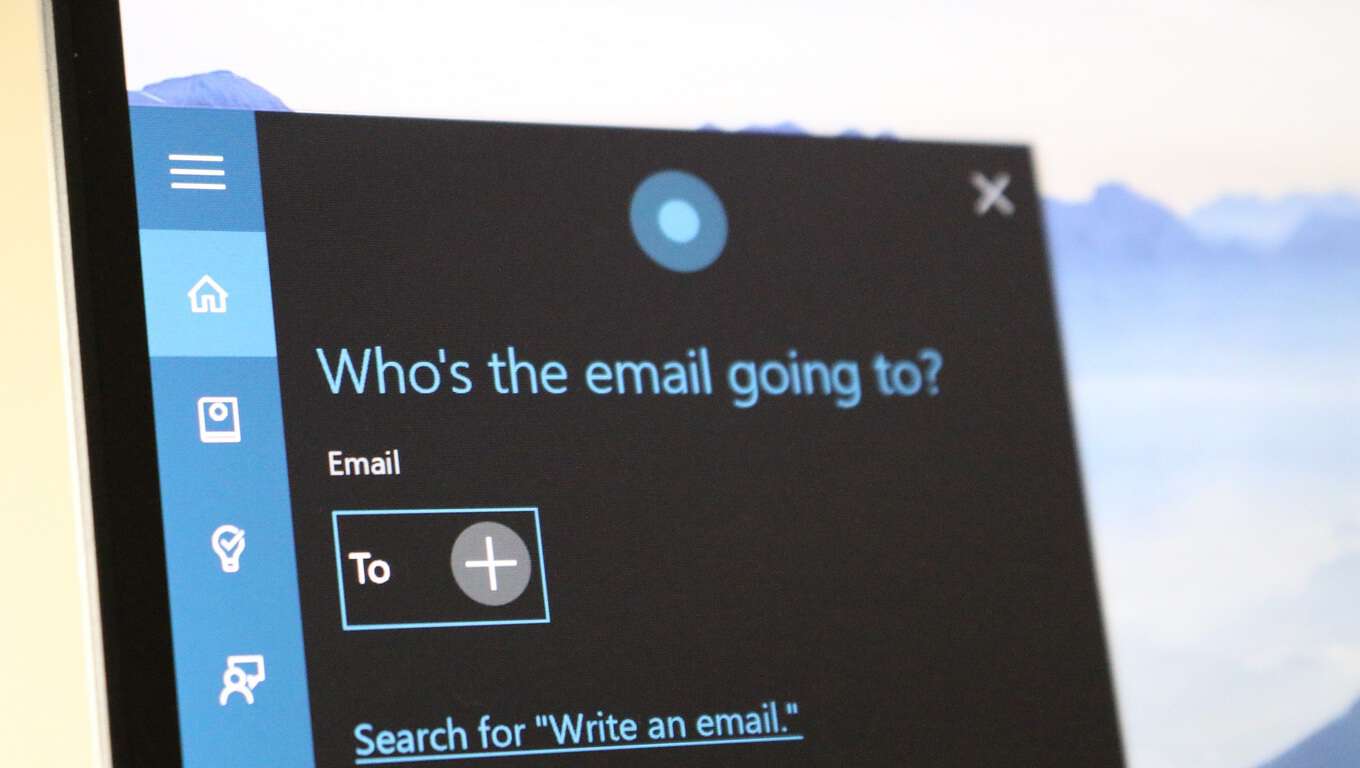
To have Cortana write an email for you, first all you have to do is click the Microphone icon in Cortana’s search box and say “write an email.” If you decided to enable “Hey Cortana,” then all you have to do is say “Hey Cortana write an email.”

cortana email 4

Cortana will then ask you who you want to send the email to. At this point you can either say a person’s name, a person’s nickname that you previously setup in Cortana’s notebook, or you can click the + icon and Cortana will quickly pull up your contacts list to scroll through. You can also say multiple people’s name (for example say James and Bob and Mary) and Cortana will add multiple recipients.

cortana email 1

Next, Cortana will ask you what you want for the subject of the email, followed by what you to say in the body of the email. In my example the subject is “How to write an email?” and the body is “This is how you write an email.”

cortana email 3

Once those three parts of the message are finished, Cortana will ask you if you want to make any changes or if it is ok to send. If you need to make changes to the subject or body of the message you can tell Cortana to Make Changes or simply type in Cortana’s preview of the message. Additionally, Cortana also provides a Continue in [insert default email app] link in this screen to open the message in your default email application. This is helpful if you want to do something more with the message (for example attach a file or add a signature line). You can also choose which of your email accounts the message is being sent from if you have multiple emails accounts setup in your Windows 10 Mail app.

Pro-tip: If you are using Cortana’s email feature it is probably because you are trying to get a message out as quick as possible. To use Cortana’s email feature quickly, you can simply write the entire email with one voice command by saying “Hey Cortana, write an email to [insert person’s name] saying [insert message body].” Cortana will then put the message together and skip to the end of the process I just outlined above. She also automatically adds the subject line Quick Note. You can then revise the message to change the subject line or send it as is. This greatly reduces the amount of time by not taking the process step by step and waiting for prompts from Cortana. In the end, just simply saying the email command with a person’s name and the message, all at once, can allow you to send an email in 15 seconds without touching a keyboard.

And just like that writing an email with Cortana is a quick and simple as saying who you want to email and what you want it to say. It is features like emailing, among others like contextual reminders, tracking flights, and updating you on the status of a package, that give Cortana more of the fell of a personal digital assistant as opposed to a search tool who occasionally remembers what you like to search. While other digital personal assistants like Siri and Google Now do contain some of these features in various forms (but notably not the notebook), it is Cortana’s ability to be cross platform that has the potential to differentiate Microsoft’s personal assistant from the pack in a powerful way.

Microsoft's prototype DisplayCover features a keyboard cover with a touchscreen display

Microsoft’s Surface tablets have a number of added accessories and keyboard covers available to boost user productivity. The current keyboard covers allow users to use a tablet as a laptop and perform a variety of tasks. It now seems that Microsoft is working on another new type of keyboard cover which will come with an embedded touch screen display to offer users with shortcuts and other useful features depending on the app in use. They call it, the DislpayCover (via Engadget).
The DisplayCover features a think e-ink display boasting a resolution of 1280 by 305 pixels and extends the functionality of the screen real estate of the device by 8 percent. The cover supports dynamic UI manipulation, stylus annotation, gestures and trackpad interactions on the horizontal plane. For instance, while working with Photoshop, you can add the tool palettes you need to the keyboard so you can have more screen estate to work and get quick access to tools on the go. This could be a very useful accessory, especially for folks who rely on these kind of apps for their daily work.
Microsoft Applied Sciences Group said in a blog post,

DisplayCover is a peripheral cover designed for compact touch-enabled laptops. A tactile keyboard affords users with the comfort and ease of use provided by physical keys. A thin film e-ink display with a resolution of 1280 x 305 pixels extends the available screen real estate of the slate device by up to 8% (based on a Microsoft Surface Pro 2 with a 10.6”, 1080p, 208ppi screen). We chose this display due to the bistable nature of electrophoretic ink, reducing the secondary screen’s impact on battery life.


Unfortunately, it’s just a prototype device so we can’t be sure if it will ever hit the market. We’ll have to wait and see if it’s incorporated into any new devices. In the meantime, you can check out the videos of the DisplayCover in action above.

Microsoft celebrates Windows 95 anniversary with a free Rolling Stones single

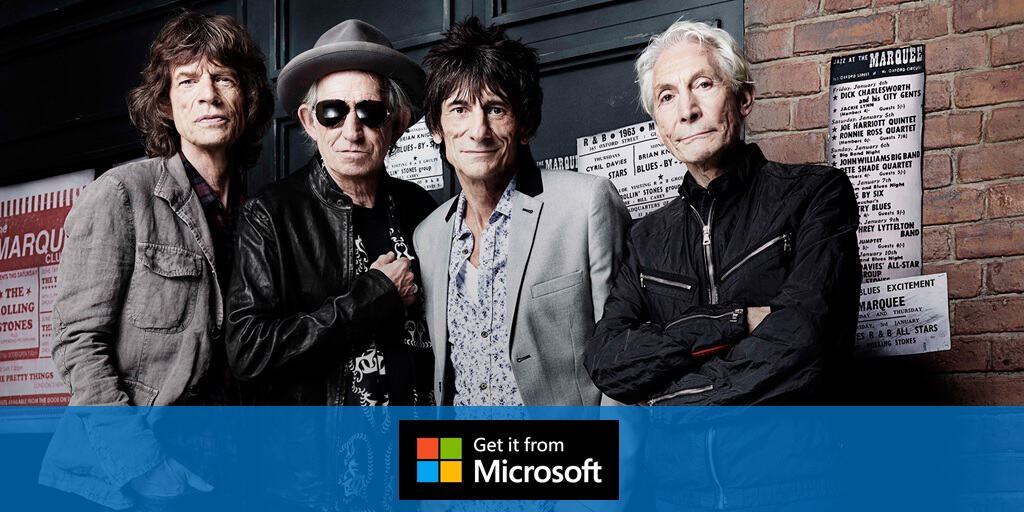
Windows 10 isn’t the only freebie Windows users can look forward to this summer from Microsoft. In honor of Microsoft’s Windows 95 launch 20 years ago, Windows users are being offered another gift from the Windows Store. Fans of the Rolling Stones can head over to the Windows Store to pick up a free copy of the bands 1981 hit song, Start Me Up.


The history between the Rolling Stones hit and Microsoft dates back to the launch of Windows 95. During the launch, Microsoft partnered with the Rolling Stones and used the song to highlight the Start Menu in Windows. The song was featured on a minute long video that showed various individuals using Windows based devices across New York in the 1980’s.

 
The partnership between Microsoft and The Rolling Stones wasn’t entirely altruistic; Microsoft paid a rumored $3 million dollars (US) to use the song for the campaign. According to an excerpt from the Puget Sound Business Journal, Bob Herbold, retired Microsoft chief operating officer discussed the Microsoft’s marketing efforts at the time.

The $200 million Windows 95 campaign was the first grand celebration of the Microsoft name, Herbold said. The company hired Portland ad agency Wieden & Kennedy and for the first time did television advertising.

Ironically, 20 years later, and Microsoft is still campaigning on the utility of its Windows Start menu. I suppose what’s old is new again at some point.
Head over to the Windows Store to grab your copy of Start Me Up.

Microsoft explains the poop in Windows

In May of this year, Microsoft released a blog post that went into detail about the emoji selection process. The post covered the inclusion of new emoji’s such as ‘Information Desk Person’, ‘Vulcan hand Salute’, and the famous ‘middle finger’. Other details covered by Microsoft included the subtle changes emoji would now display in comparison to their Windows 7, Windows Phone and Windows 8 counterparts. While Microsoft explained new pigment colorings for people emoji’s and the new ‘haircut’ emoji, the blog post failed to cover a vital emoji, the poop emoji.
Leaving no stone unturned, Microsoft recently spoke up about its poop emoji. Many emoji users may equate the visuals of a poop emoji to a piece of chocolate soft serve with a cartoonish face. The happy-go-lucky poop emoji many smartphone users are so fond of is an Apple interpretation of the Unicode expressing poop. Microsoft appears to be doing the polar opposite in Windows. The new Windows poop emoji is devoid of any personality (personally I like this option). While some may interpret Microsoft’s choice as a continuation of the company’s perceived ‘stuffy-shirt’ enterprise focused agenda, Microsoft explains the practical reasons for the ‘boring’ decision.
As the Unicode calls for an official poop emoji, it’s up to individual companies on how that is displayed. Like much of what Apple does, the company went its own way when using the Unicode standard for how text is displayed on computing devices around the world. Apple chose a Japanese concept called “Lucky Golden Poo” and Google chose to incorporate vapor lines and flies with its representation. Microsoft however, is sticking to a closer Unicode definition:
emoji-email


As with every Windows release, Windows 10 has been a colossal undertaking for Microsoft. From visual redesigns to memory distribution implementations, the Windows team has combed over much of the minutia that is Windows. The high level of attention the Windows team gave Windows 10 even covered how the operating system is handling emoji’s.

Travel back in time with this hilarious Windows 95 video guide by Microsoft

Windows 95 is 20 years old today, which to some may seem quite young, but with technology constantly evolving, 20 years is actually pretty darn ancient. Even so, Windows 95 was Microsoft’s first major successful version of Windows, and laid the foundation for what all future versions of Windows would be even to this day. Windows 95 was the first to include the Start Menu and taskbar, two very important and much loved features used today.
Those who were upgrading from Windows 3.11 will know that Windows 95 was a drastic change, but Microsoft was nice enough to provide an awesome video guide which taught users the basics of the new operating system. The walkthrough is an hour long, and hosted by none other than Jennifer Aniston and Mathew Perry from the hit sitcom TV show Friends! No kidding!

The walkthrough is an hour of cringe-worthy, hilarious moments showcasing what we thought was amazing back in 1995. I’ve embedded the video above for your viewing pleasure, if you’ve never seen this before then be prepared for something very special indeed. Let us know what you think of this video guide in the comments are. I don’t know about you, but I kinda want to see an updated version of this video guide tailored for Windows 10, don’t you?

Windows 10 How-To: Using Cortana to easily search for files and pictures on your PC

As many of you know, Cortana landed on PCs last month with the release of Windows 10, having been present on mobile since the release of Windows Phone 8.1 back in July 2014. On PCs, Cortana has a slightly different feature set, and one of the things she can do on PCs that she currently cannot do on phones is search for files.

This handy capability makes it dead simple to find documents and files that you’ve worked on recently with your voice, or by typing. Here are some of things you can ask Cortana to do:

“Find document titled ‘Back to School’

“Find PowerPoint presentations from last year”

“Find documents I worked on today”

“What was the last document I opened?”

“Find documents written on the 20th”

“Show me my Excel sheets”

“Find photos from yesterday”

“Find photos from the park”

“Find pictures from the UK”

The best thing about searching for documents is that Cortana will search for them not only on your PC, but also from OneDrive, and thus, your other devices too if you have them synced. Cortana also searches within files so it makes it easy to search for documents (and pictures) if you only remember the content, but not the title or when it was created.

Cortana on Windows 10 is a massive asset when utilized to its full potential. Let us know in the comments section below how often you find yourself searching for files using Cortana, and if you think this is a useful feature.

Microsoft Corporate VP's new series has laughs and big name interviews

IT professionals, tech journalists and engineers are used to their voices being heard in different ways; keynote speeches, feature length articles, and through the products they design. One new way some of the best from these industries are going to be heard is by being recorded while having lunch with Brad Anderson, the Corporate Vice President of Enterprise Client & Mobility for Microsoft. He gets to talk to some of the best and brightest on a regular basis but wanted to share some of these conversations with the world. In a new weekly series that starts this Thursday on August 27th, Brad will post videos of his talks within his luxurious car.

The series is titled Brad Anderson’s Lunch Break. In a blog post by Microsoft, they include the short preview video shown above of what’s in store. It shows off a relaxed comedic style with the industry experts. Some of Brad’s guests include Todd Bishop from Geekwire, Rajesh Jha the Corporate Vice President of Office 365, Scott Guthrie the Executive Vice President of Microsoft (who was asked about his famous red polo shirts), and Professor Ed Lazowska from the University of Washington but there are more on the way.
Brad’s show looks like a great way to hear some funny stories from people high up in the tech industry while also having some fun.

Law firm urging Russian government to investigate Windows 10 privacy

Windows 10 recently has been raising a number of flags for people due to privacy concerns that is leading to more and more paranoia.
Recently, we reported on Ars Technica’s investigation of Windows 10 sending data even when information sharing options are turned off. This was related to data being sent from Bing to Microsoft for the purpose of providing new features and contained no query or search usage data being sent to Microsoft.
Also just over this last weekend, Ron reported that torrent trackers are banning Windows 10 from their P2P networks. The concerns originated from a reading of the Microsoft Services Agreement which allows the company to download software updates and configuration changes that might prevent people from playing counterfeit games. However, the Microsoft Services Agreement is related to Xbox Live and Windows Stores content and is distinct and separate from the Windows 10 EULA.
Now, Windows 10 privacy concerns are being brought to the attention of the Russian Federal government. The Moscow Times is reporting, via Neowin, that a law firm in Moscow filed a complaint with the Russia’s Prosecutor General’s Office over privacy concerns with Windows 10.
The Moscow Times states that the law firm is alleging Windows 10:

…illicitly collects users’ browser history, passwords, location, elements of electronic messages, calendar records and even voice recordings. According to the lawyers, this could breach Russia’s privacy laws, including the law on legal practice.

Microsoft denied the allegations, with a spokesperson issuing the statement:

“The new operating system offers users the choice of how they want it to handle their data and users can change the settings at any point.”

The Russian Association for Electronic Communications, a non-governmental industry group, also issued a statement that Windows 10 has “flexible settings and therefore does not breach Russian law.”
Privacy and transparency are continuing to be important issues surrounding Windows 10’s new Windows as a Service model with automatic updates. The challenge for Microsoft will be to respond in a clear manner to these growing concerns.

Enable the favorites bar and dark theme on Microsoft Edge

For those of you new to Microsoft Edge and wondering where your favorites bar is located, have no fear. There is one easy setting you need to adjust in order to make the favorites bar appear. All you have to do is open up Microsoft Edge, go to the top right of the screen and hit the three dots and then tap or click Settings at the bottom of the flyout. Once you are there, you can set the favorites bar to “on.” And bam, you now have the favorites bar on Microsoft Edge!

But that’s not all. Microsoft Edge also comes with a special “dark theme” for those of you who prefer a darker color scheme. Go to the top right of the browser and hit the three dots, then tap on Settings at the bottom of the flyout. At the very top will be the option to choose your theme. You can leave it at “Light” or you can be daring and select “Dark.” Enjoy! If you change your mind, you can easily return to this area and change it back to Light.

For those of you who are power users, what tips do you recommend for new Microsoft Edge users? Share them in the comments below!

Windows 10 banned by torrent trackers due to privacy concerns

Torrent trackers have apparently banned the sharing of Windows 10 due to “privacy concerns” based on reports that surfaced on the internet a few weeks ago. Windows 10 has been in the limelight about privacy concerns since it was released, with reports claiming that Microsoft can wipe torrents and pirated software from people’s hard drives — a piracy kill switch so to speak.
A torrent tracker, for those that did not know, is a server that communicates between peers using the BitTorrent protocol. Torrents are typically used to share files — sometimes (or maybe most of the time) illegal files too. The tracker server keeps track of where these shared files reside on peer machines, which ones are available at time of request, and helps coordinate the sharing of that file.
The controversy regarding Windows 10 and privacy originates from Microsoft’s Services Agreement, which was recently updated to allow the company to download software updates and configuration changes that may prevent people from playing counterfeit games. The agreement does not go into specifics — which is likely why this paranoia came to be. The agreement does not even explicitly include Windows 10, rather it includes your Microsoft Account, Xbox Live, and Windows Store content.
“Sometimes you’ll need software updates to keep using the Services. We may automatically check your version of the software and download software updates or configuration changes, including those that prevent you from accessing the Services, playing counterfeit games, or using unauthorized hardware peripheral devices,” the Services Agreement states.
Microsoft’s Services Agreement refers primarily to protection against counterfeiting of Xbox Live and Windows Store content, not content on Windows 10 specifically. There is no evidence that any privacy related information is in fact being shared by Windows 10.
But the privacy paranoia has been taken to heart with some torrent trackers, having removed Windows 10 altogether. Torrent groups BB and FSC are considering the removal of the operating system from their trackers, while other groups have already done so. A torrent group by the name of iTS explains that Windows 10 is now “off-limits” because of the amount of data it allegedly shares.
“Many of you might have heard or read about the terrible privacy policy of windows 10 recently. Unfortunately Microsoft decided to revoke any kind of data protection and submit whatever they can gather to not only themselves but also others. One of those is one of the largest anti-piracy company called MarkMonitor. Amongst other things windows 10 sends the contents of your local disks directly to one of their servers. Obviously this goes way too far and is a serious threat to sites like ours which is why we had to take measures,” iTS argues.
“Since last thursday Windows 10 is officially banned from iTS. Perhaps at some point special versions of windows 10 will surface that would successfully wipe all those outrageous privacy violations but until then windows 10 is not welcome here in the interest of this site and all iTS members,” iTS adds.
Torrent group BB claims to have seen it first hand that Windows 10 is gathering information and sharing with anti-piracy groups. This is what they had to say: “We have also found [Windows 10] will be gathering information on users’ P2P use to be shared with anti piracy group… what’s particularly nasty is that apparently it sends the results of local(!!) searches to a well known anti piracy company directly so as soon as you have one known p2p or scene release on your local disk … BAM!”
[pullquote align=”right” cite=”” link=”” color=”green” class=”” size=””]”there is no evidence that any privacy related information is being shared by Windows 10″[/pullquote]
Another group, FSC, is banning anyone who visits their site while running Windows 10. “As we all know, Microsoft recently released Windows 10. You as a member should know, that we as a site are thinking about banning the OS from FSC. That would mean you cannot use the site with the OS installed.”
MarkMonitor, for those that did not know, is a leader in online corporate identity protection. MarkMonitor has worked with Microsoft for the past several years to help combat online identity theft. MarkMonitor basically delivers information about confirmed phishing attacks against its customers directly to Microsoft for use by the company’s Phishing Filter and SmartScreen technology — ultimately protecting those who use Microsoft services.
“Microsoft is committed to increasing consumer confidence in safely using the Internet for commerce and communications. As part of this effort, we’re working with MarkMonitor, a proven anti-phishing technology provider, to help protect our customers,” said John Scarrow, general manager, Anti-Spam and Anti-Phishing Team, Microsoft Technology Care and Safety Group. “MarkMonitor is a recognized leader in monitoring and detecting phishing and other online identity fraud, and this relationship allows us to learn from MarkMonitor’s valuable fraud data and thereby help enhance the protection our technologies can provide for our customers,” Scarrow adds.
Once again, there is no evidence that any privacy related information is being shared by Windows 10. However, if you are concerned about privacy on Windows 10, you can head over here to see how you can adjust a few settings to ease your mind.

How to view or delete your Microsoft Edge browsing history

For those of you who are new to Windows 10 and the Microsoft Edge browser, here is a useful tip for you. If you can’t find how to view or remove your browser history, fret not. The process is very simple. Here’s what you need to do.

Simply open Microsoft Edge, and tap or click on the “Hub” button. From there, tap or click on the button that looks like a clock. You will now be able to see your history, organized by the last hour, by day, and by week. To clear your history, just tap or click the “Clear all history” button and you are done. You can also selectively clear your history by choosing what you want to remove and tapping or clicking the “x” button on the right side.

When you click “Clear all history” you will be presented with a set of options. Browsing history simply refers to the list of sites you’ve visited, including your frequently visited websites. Cookies and saved website data refers to information that websites will store on your PC to remember you (your login, preferences, etc). Cached data and files refers to data that websites will store on your PC to help load the site faster the next time you visit. Download history refers to the history list of files you’ve downloaded, and not the actual files you’ve downloaded. Form data refers to information you’ve entered in forms, and Passwords refers to, well obviously, the passwords you’ve entered.

You can also selectively clear a few other things including Media licenses, Pop-up exceptions, location permissions, fullscreen permissions, and compatibility permissions. These are all lists of websites you have explicitly allowed to grab your location, automatically go in fullscreen mode, automatically open a pop-up, and more.

German city that ditched Windows for Linux wants to go back to Windows

We’ve heard it over and over again. Sometimes it will be an individual, other times a group or organization will will claim Linux is better than Windows. The same is said about open source software like OpenOffice. But rarely are people so daring to follow through with the switch, especially in a large organization.
Back in 2004, the German city of Munich ditched Microsoft Windows in favor of Linux in an attempt to save more than €10m and to be “independent” with open source software. The city of Munich determined that it would save more than €10m by not upgrading to Windows 7, newer versions of Office, as well as associated hardware upgrades. Instead, the city figured it would cost €23m to switch to Linux, as opposed to the €34m it would have costed to stick with Microsoft’s offerings.
The city began the migration from Windows NT and Office 97/2000 to a Linux-based operating system called “Limux” (custom version of Ubuntu), a custom version of OpenOffice, and a variety of free software such as the Mozilla Firefox browser, Mozilla Thunderbird email client, and the Gimp photo editing software. This affected approximately 15,000 city staff members.
And now the city wants to come back to Windows, according to a new report. Two influential senior members of the city’s IT committee have filed a letter asking mayor Dieter Reiter to consider removing the Linux-based OS and to install Windows with Microsoft Office, citing the cumbersomeness and limited use of Linux.

Screenshot of Limux operating system

Despite the high-end devices that were purchased for city staff members, the common complaint has been the inability to use the devices for simple tasks such as word processing and making video calls. “There are no programs for text editing, Skype, Office etc., installed and that prevents normal use,” the two senior members argue. Although the complaint says there isn’t a program for text editing, each of their machines comes pre-installed with LibreOffice.
One of the big complaints from using Limux and OpenOffice/LibreOffice is the incompatibilities with Microsoft Office. As we are all well aware of, sometimes creating documents, spreadsheets, and other files on OpenOffice will appear differently on Microsoft Office, and vice versa. This makes it hard to communicate with other organizations who are most likely using Microsoft Office.
Many city members are using their own devices to overcome these issues. “These devices have already cost a lot of money to acquire. Many town councillors are using their own private notebooks because of the problems,” the senior city members claim. Apparently, because of this issue, a large number of the purchased devices are “going unused” — which means the city wasted money purchasing them in the first place.
Instead of Linux, these senior members want the city to switch back to Windows and to utilize Microsoft Office. The mayor has yet to respond to the complaint, but a review on what option is best to save money is already under way, and frankly, with the recommendations coming from the senior IT guys, the mayor will likely oblige. Oddly enough, there isn’t a widespread dissatisfaction with the use of Linux and other open source alternatives to Office, but that doesn’t mean people are happy with it — the challenges are definitely there.
It’s hard to communicate with other organizations when your open-source created documents are not opening properly on their Windows computers running Office. It’s even harder to communicate and work when your work-created documents are not displaying correctly on your personal Windows device. There’s a reason why Windows and Office are the two most dominant and widely used software in the world. I wouldn’t be surprised if the city switched back — would you be? Should they stick to their pride and make it work with Linux? Or should they make it easier on themselves and jump back to familiar territory?

Windows 10: have File Explorer open ‘This PC’ by default

Here’s a neat little tip for those of you running Windows 10. If you dislike the fact that File Explorer will open up the Quick Access view by default, and you wish to have the old familiar “This PC” open up instead, here’s a simple trick. All you need to do is open File Explorer, tap or click on View, and select Options. Under the General tab, change the value for “Open File Explorer.” Instead of “Quick Access,” change it to “This PC.”

Quick Access was intended to show you a list of frequent folders and recent files, in an attempt to make your computing life a little bit easier. But not everyone wants this feature. The above setting change will allow you to use File Explorer the more traditional way — having you see your Folders, Devices and drives every time you open File Explorer.

You can also clear your Quick Access history by hitting the “Clear” button on the Folder Options dialog. Simply open File Explorer, tap or click on View, and select Options. Look under the Privacy category. If this isnt good enough, you can also right click each folder in Quick Access and remove it (or unpin it).

Windows 10 PCs can now be backed up to the cloud by Azure Backup service

Backing up data may be the one piece of advice everyone knows but most people don’t follow. Microsoft is making it easier for companies to protect valuable data and prevent data loss. With Azure, companies can back up their files and folders automatically and not worry about storage limits. Predicting data loss is nearly impossible but many companies still don’t have reliable back up systems.
IT staff can manage Azure backups and make it easy to ensure all data is securely backed up to the cloud. By giving companies the flexibility to schedule their backups freely peak times can be avoided and network traffic shouldn’t suffer. Simply grab the Azure Backup agent software and get started. Of course, you will need an Azure subscription in order to utilize the service. Microsoft offers a free one month trial.
“Windows 10 client machines can now be backed up seamlessly to cloud by Azure Backup service. Customers with machines running Windows 10 (64-bit) operating systems can protect their important file-folder data to Azure in a secure manner and restore data on any machine,” Microsoft explains.
If you are interested in how to backup your company’s PCs or if your place of work doesn’t have a backup solution then send them over to this blog post by Microsoft where everything is explained. The service is available to 17 regions worldwide which means there should be a data center close by for fast recovery and reliable management.

There are more people who love Windows 10 than hate it. Surprise!

It’s been just over three weeks now since Windows 10 launched, and with this new version, Microsoft worked hard to polish the spotty image Windows 8 received before it.
According to analysis done by BrandWatch, more people online, be it on social media or forums, expressed that they love Windows 10 compared to those that said they hate it. Of the 7000 posts, 92% loved the new OS from Microsoft. An overwhelming majority.
Although, BrandWatch noted that there is a “trend towards growing hostility” which can also be observed. Still, on average, about 500 people express their love for Windows 10 daily compared to the 100 a day that do not share the same view.
windus
In terms of specific features, people seem to be enjoying Cortana integration and the Edge Browser the most, with the Start menu coming in third on the “love” list. Yet, if we look at the “hate” list, the Start menu also happens to be the most disliked feature. Interesting. BrandWatch put the two lists together, and the chart below is the result.
Screen-Shot-2015-08-06-at-2.25.33-PM
Keep in mind that this analysis takes into account a rather small sample, especially when you think about the millions of Windows Insiders who have witnessed Windows 10 develop since late last year. We don’t know who the sample of 7000 used here represents either, so it’s hard to judge where all this love is coming from; vocal Windows Insiders who have seen their feedback implemented, or the general public? Also, it’s only been three weeks since launch, how will these numbers look like when people have more time to settle with Windows 10? We’ve yet to find out.
I wouldn’t call this analysis “scientific” by any serious measure, so I wouldn’t take it as conclusive evidence of people’s love for Windows 10, but it does fit with what we’ve seen so far. Windows is exciting again, so it’s no surprise that people are talking about it positively.
What about you? Generally speaking, does Windows 10 fall under your love, or hate list? Let us know in the comments section below.

Microsoft wants to shock you through your clothes when receiving a text

News about wearables tends to center around what device is being sported most often on the wrist of people. From the Galaxy Gear to the Fibits and Apple watches, the conversation around wearables is in an infantile state and usually results in a limited scope of coverage.
At CES this year, some product manufacturers attempted to expand the category by combining the Internet of Things (IoT) and the practicality of wearables. Cloud connected pants, athletic shirts, and bandages were finally broadening the concept of what people should expect from a ‘wearable’.
During its 2015 developer conference, Microsoft discussed its vision for Windows 10 and the IoT and today, a patent was found that points to a future Microsoft wearable technology. Microsoft issued a patent application for the creation of clothes that react to a wearer’s usage. Originally filed in February of last year, a report from SkyNews indicates that Microsoft is looking to smarten up clothing. Part of the patent goes into technology that can be used to measure and notify wearers on the longevity of clothing by alerting them to when their clothes are about to wear out. Perhaps most interesting was the notation about sending notifications to wearers through mild electrocution.
[pullquote align=”right” cite=”” link=”” color=”” class=”” size=””]a person’s attire could act as a notification conduit[/pullquote]
Specifically, “Techniques are described herein that are capable of providing electrical stimuli to the skin of a user to convey information to the user. For instance, the electrical stimuli may inform the user of an event, a condition, etc.” Microsoft further clarifies that, in contrast to vibrating wrist wears or missing vibrating notifications from tucked away phones, that a person’s attire could act as a notification conduit. Supposing the patent works out, people could receive stimuli from shirts, shoes, hats, etc. when receiving notifications, directions or personalized navigation based alerts such as shopping locations or favorited restaurants. Similar to several companies, Microsoft is looking past the use of current smartphone trends and into how users evolve with the technology.

For instance people often text, conduct telephone calls, check messages, search the Internet, etc. Using mobile devices in such a manner may raise any of a variety of concerns, namely safety and or etiquette. In an effort to address such concerns, companies are developing devices that are capable of delivering content to users in an unobtrusive and/or hands-free manner.

Whether or not the patent becomes a tangible product, it serves as an insight into Microsoft’s vision of how people will interact with information in the future.
Thanks for the tip David!

Latest Chrome Canary build works well on Windows 10 build 10525

Chrome users who recently installed Microsoft’s latest Windows 10 Insider build, 10525, may be experiencing some issues. A Chrome related bug on the Windows 10 Insider build surfaces for users specifically browsing with Google’s Chrome beta browser with 64-bit support.
Since the release of Windows 10 Insider build 10525, Windows and Chrome forums have populated with complaints of the 64-bit version hanging and or crashing when in use. Similar to the YouTube for Windows Phone situation, the Chrome team attempted to develop around Microsoft’s APIs for Windows 10, rather than using the costly official tools for Microsoft’s 64-bit systems. Understandably, the Chrome team chose to find a solution that did not cost $9,995 (the cost of Microsoft’s 64-bit tools) to implement. Unfortunately, for the Chrome team, without the official tools, the beta version of the Chrome browser fell victim to the new way Windows 10 manages memory.
Fortunately, the Chrome team has a solution in the works and is pushing an update through their Canary channel. The Canary channel is similar to the Windows 10 Insider program, in that it is a testing ground for future Chrome updates. The Chrome team has issued an update that carries “support for int 2e fallback system call stub in Win10” and as of right now; the update is currently working on the 64-bit Chrome Canary version 46.0.2489.0. There are probably still a few more days if not weeks of testing to be done before the beta channel lands the fix. Until the fix is pushed out to the Chrome beta channel, users on Windows 10 Insider build 10525 are encouraged to use the ‘no-sandbox’ version to avoid crashes.
 

Microsoft releases Office Developers Tools for Visual Studio 2013 August update

Microsoft has rolled out the August update for Office Developers Tools for Visual Studio 2013. Along with the previously released Visual Studio 2015 RTM, you can now get the latest Office development features in either version of Visual Studio.
So what are these tools? With Office Developer Tools for Visual Studio, developers can target their apps and add-ins to Office 2016 and SharePoint Online. Office add-ins can now support the new capabilities in Office web apps, desktop clients, and mobile/tablets. Office 365 APIs can now be integrated into projects using Connected Services.
“Whether you are new to the Office and SharePoint world or an experienced Office developer, our new tools are packed with features that will help you focus on solutions, while saving you time and reducing issues. Get the latest Office Developer Tools and checkout the new features for yourself!” Microsoft explained. You can head over here to check out the tools.

Microsoft confirms 2,300 upcoming job cuts and site closing in Finland

Earlier this Summer Microsoft announced that they would be laying off 7,800 employees as part of what Microsoft CEO Satya Nadella called a “fundamental restructuring of our phone business.” Microsoft has now confirmed that a manufacturing plant in Salo, Finland is being closed and 2.300 jobs are being cut there. Reuters (via Windows Central) reports that sites in Espoo and Tampere in Finland will remain open.
Cutting this many jobs and shutting down a plant certainly qualifies as a “tough decision” for Satya Nadella. Despite it being tough and affecting thousands of former employees, the decision is viewed by many as necessary to move forward with Microsoft’s overall strategy. The Nokia acquisition of Nokia has been followed up by struggles in sales and a $7.6 billion write-off. That isn’t to say that it’s without merit. Almost every Windows Phone on the market is a Lumia device and the future of Windows Phones will likely flow through that brand.

.Net Native, the code platform behind Universal Windows Apps, explained

Managed code vs. native code, it’s one of the great debates of our time.  Microsoft began working on the .Net Framework back in the late ’90s, and .Net 1.0 was released way back in 2000.  Basically the idea is that instead of writing code that performs all the mundane and common duties like memory management for each and every application, a “common language runtime” or CLR, would perform all the low level duties of the program and developers would be able to concentrate on the higher levels of their code.  This worked great and reduced the intricacies of writing code, but performance has always been an issue, as that transformation from high level code to the CLR to the actual instructions to the computer inherently slowed things down.
Now Microsoft thinks it has hit upon the best of both worlds with a new programming paradigm it’s calling .Net Native.  Developers who have grown up with .Net and call Visual Studio home will be able to use all their familiar tools including C# or Visual Basic and common .Net libraries, but once the code is compiled, these .Net Native programs will start up and run faster, and won’t require the installation of a .Net Framework version on the client’s computer to run.
.Net Native Windows Store
In a post on the Building Apps for Windows blog, Microsoft Program Manager Daniel Jacobsen describes .Net Native, and offers a number of reasons why Microsoft thinks it’s better:

  • Up to 60% performance improvement on cold startup times
  • Up to 40% performance improvement on warm startup times
  • Less memory consumption of your app when compiled natively
  • No dependencies on the desktop .NET Runtime installed on the system
  • Since your app is compiled natively, you get the performance benefits associated with native code (think C++ performance)
  • You can still take advantage of the industry-leading C# or VB programming languages, and the tools associated with them
  • You can continue to use the comprehensive and consistent programming model available with .NET– with extensive APIs to write business logic, built-in memory management, and exception handling.
Because compiling these new .Net Native applications can take time, Microsoft has introduced a “Debug” mode in Visual Studio that allows developers to write code much as they did with traditional .Net applications, and run it in Visual Studio without fully compiling to Native code.  This can speed up the development process, although Jacobsen warns that testing code in “Release”, or fully compiled mode is important throughout the development cycle.
Microsoft’s Univeral Apps, the apps that will run on any Windows 10 device from desktop to tablet to phone to Xbox, are all written in .Net Native.  For the developer, that means familiar tools but faster programs, and for the end user it means not having to sort out which versions of the .Net Framework you need to run your applications, and those programs will be lighter and run faster.

Windows 10 updates won't always have highly detailed update logs

With Windows 10 being so new and being regularly worked on by Microsoft, users have received three cumulative updates in less than a month. These types of updates don’t add any new features but address bugs and other issues that have hampered early adopters of the new operating system. With these early updates, Microsoft has included detailed supporting documents, or KB articles, outlining the changes. Both users and journalists appreciate these as they provide a way to know all the little things that are being changed. Those detailed documents are not always going to include extensive details when new updates arrive however.
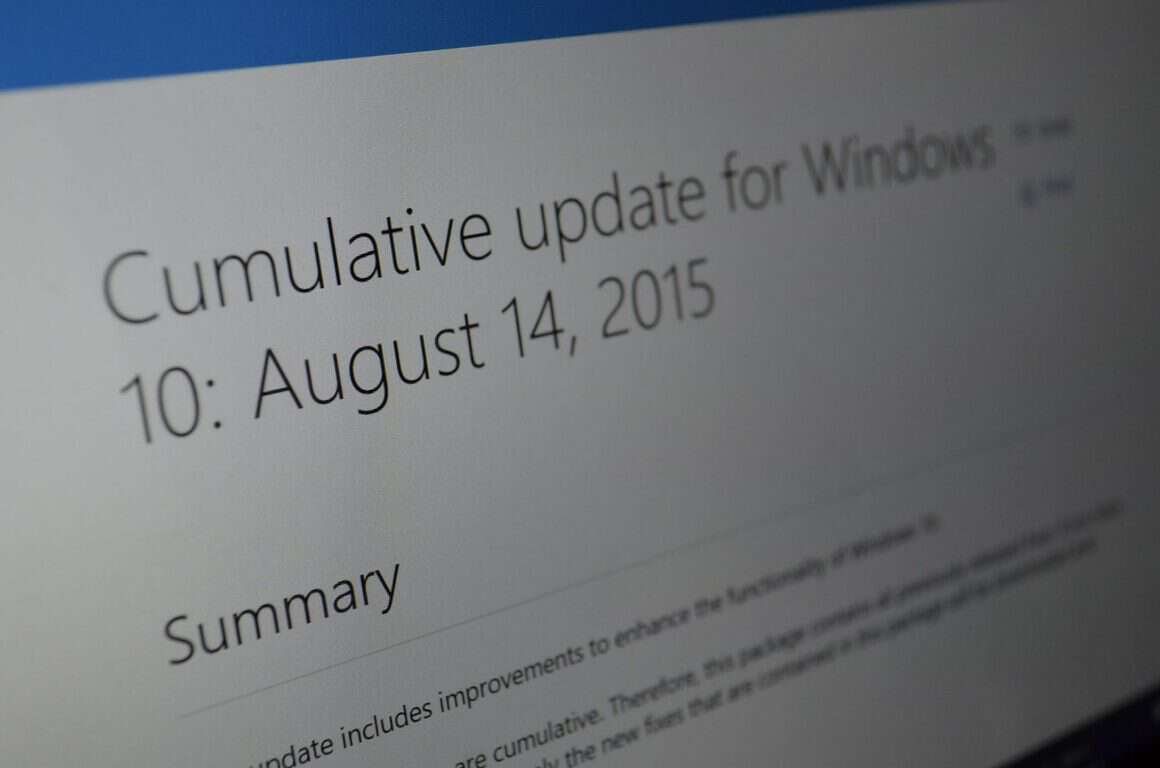
With cumulative update 3, Microsoft’s KB article on the update was very short. The summary only stated “This update includes improvements to enhance the functionality of Windows 10” and added that the updates are cumulative so installing just the most recent one is fine. This contrast in KB article length by Microsoft raised some eyebrows.
Because Microsoft has been so forthright with the previous updates, some are taking this recent KB article lacking detail negatively, claiming that it’s related to Microsoft’s security related poor publicity. It’s not clear from Microsoft’s statement if that’s true but many people are upset about Microsoft’s default security settings for Windows 10. With a group of user’s trust of Microsoft wavering, some have reacted quite harshly to an update not outlining every change.
In response to an inquiry from The Register (via Neowin) regarding the most recent KB documentation, Microsoft stated

“As we have done in the past, we post KB articles relevant to most updates which we’ll deliver with Windows as a service. Depending on the significance of the update and if it is bringing new functionality to Windows customers, we may choose to do additional promotion of new features as we deploy them.”

While almost weekly articles on Windows updates may seem dry to some but there are many users that want to stay on top of every little change. Microsoft will release varying amounts of information depending on the changes significance.

Microsoft Store has military discounts on Windows 10 PCs and more

For those that did not know, the Microsoft Store offers special discounts to those of you who are active duty members, reserve military personnel, and/or a military veteran. Individuals eligible to purchase from the Microsoft Store for Military includes current, former, and retired members and family members of the US Military, National Guard and Reserve in the United States. This offer is only valid in the United States and items can only be shipped in the United States.
Microsoft is offering over 5 percent off select Windows PCs, including the Asus Zenbook UX305FA-USM1 Signature Edition Laptop ($664.05 after a $34.95 discount) and the Razer Blade Signature Edition Gaming Laptop ($2,564.05 after a $134.95 discount). The popular Dell XPS 13 Signature Edition Laptop is discounted by $45. Military personnel are also able to snag a Surface 3 for $25 off the normal price as part of the military discount, bringing the $499 device to $474.05. The Surface Pro 3 is also discounted by $40, and the Surface Pen is discounted by $2.50.
Accessories and phones are also available at a decent price — the Microsoft Band is $20 off ($179.99 after discount), and the Lumia 635 is $6.45 off ($122.55 after discount). Here are the terms of this offer:

Valid until 12/31/2015, or while supplies last. Military discount not combinable with other promotional pricing. Available in Microsoft online store in the US (including Puerto Rico). Only available for active, former or retired US military personnel and family members. Institutions are not eligible for this offer. Shipping to US only, no shipping to APO/FPO addresses. Offer only valid on select products. Limited quantities may be available. Not valid on prior orders or purchases; cannot be transferred or otherwise redeemed for cash or coupon code. Not combinable with other offers. Taxes may apply. Void where prohibited or restricted by law. False representations of eligibility voids this offer, and Microsoft reserves the right to collect the full price of product(s) ordered. Limit of 3 items per order. Bulk orders not valid and may be canceled.

For those interested, head over to the Microsoft Store for Military and check out the deals. This is definately a great way for Microsoft to say thanks to those who sacrifice for the freedom of the country. Lead image credit: US Army.

Microsoft educates Insiders on how Windows 10 handles memory

Memory management is becoming a hot topic of discussion as the ubiquitous use of smartphones and application management is helping previously computer illiterate users become more aware of its importance. When apps crash, pages fail to load, or the overall operating system of a smartphone begins to experience unsightly jitters and freezes, many users now intuitively run to their task manager panels to close apps. While not as sophisticated as PC and software memory management, smartphone users have a better grasp of the concepts and are now looking to their PCs for the same sorts of principles.
With the Windows 10 Insider program back up and running, the Windows team is giving Insiders some insight into how Windows 10 is using new memory compressions to tighten up memory management. In a rather extensive posting found in the Insider Hub (yes, it’s back), the Windows team covers memory policies and the new Memory Compression built into Windows 10.
Without true competition in the market, Microsoft could withstand the deleterious perception Windows was slowly incurring over the years. As times have changed, so has Microsoft’s awareness, at least publically, of users poor perception of Windows.

“One of the primary goals of any operating system is to manage and share resources efficiently. How well and operating system arbitrates competing memory requirements is particularly important, because it impacts the user’s perception of system responsiveness.”

To combat this, Microsoft has enabled the Memory Manager (MM) to compress infrequently used memory pages. Doing so, reduces the number of reads and writes to the disk and results in improved responsiveness from the operating system. The new Memory compression reduces the amount of memory used during applications while simultaneously allowing the operating system to maintain more applications in physical memory. Specifically, Memory Manager’s new policy compresses data being written to or read from the disk down to 40% of its original size. Ultimately, users should notice faster animations snappier responses when launching apps.
6013.11_thumb_4ABE23D8
Prior to the change, Windows team discusses how Windows 8 handled MM. “But when Windows 8 added the ability for Universal Windows Platform (UWP) applications had to be swapped out in their entirety – i.e. at app rather than page granularity.”
Apparently, the reason for this happened to do with Microsoft choosing to suspended UWP apps when they were not in the foreground, very similar to some smartphone OS management. Windows 8 users understood (perhaps not) that if apps weren’t on screen, they wouldn’t run until the user switched back to them. The ‘all or nothing’ approach is being updated with Windows 10 introducing a layer between the pagefile and normal paging activity. Now, when faced with memory pressure issues, MM will determine which pages should be moved to the modified list in a process called trimming. The modified list is a secondary list of pagefiles backing up a list of standby pagefiles. A backup list is captured in case memory is reclaimed from the standby list by another process, and the original process comes looking for its page. Instead of all or nothing, Windows 10 MM will compress unused pages rather than writing them to disk. With less writing, the result should be fewer disk operations – thanks to the compression – and now more data can be stored in memory.
Similar to a recycling process, Windows 10 now uses a concept called compression store, where collected compressed pages are sorted out. While Microsoft may have sought to deprecate the desktop, Windows 10 is fully embracing it once again. Doing so, however, means a mix of Windows desktop and non-UWP apps all vying for memory. The compression store now sorts through a collection of compressed pages by Windows Runtime (enabling trimming and swapping) and Windows desktop apps, then stores them accordingly for better use. [pullquote align=”left” cite=”” link=”” color=”” class=”” size=””]Windows 10 writes pages out to disk only 50% as often as previous versions of the OS[/pullquote]
According to the Windows team, “In practice, compressed memory takes up about40% of the uncompressed size, and as a result of a typical device running a typical workload, Windows 10 writes pages out to disk only 50% as often as previous versions of the OS.” If all goes according to plan, Windows users could be experiencing reduced waiting times for all devices as well as extended lifespans on systems that have flash-based hard drives.Memory Management
With a bit of understanding around compression, getting the data back or decompression is a much easier concept. Decompression is also something Windows 10 is designed to do well. Windows 10 is using the combination of parallelizability and sequential reads to produce pages into memory once called. The new decompression should result in a speedier experience as Windows 10 is simultaneously decompressing data and reading it in parallel using multiple CPUs. Older versions of Windows may have felt sluggish because of the transfer rates between the disk.
Microsoft seems to be finally taking perceptual criticism about Windows to heart. The new Memory compression concepts should help in making Windows 10 appear snappier and more responsive than earlier versions, even on existing hardware. By making better use of available memory through reduced memory utilization, Windows users who once complained about ‘how slow’ Windows felt, may now attribute their lackluster experiences to hardware rather than Microsoft’s software.
For those wondering, this new memory feature is available right now on Windows 10 build 10525, via the Windows Insider Program. This feature will eventually be rolled out to non-insiders.

Microsoft Releases First Post-RTM Build for Windows 10 Insiders

Microsoft kept its promise, and announced the first build for Windows Insider Program after the release of full version of Windows 10. The new build will go by the number of 10525, and will be available for the Fast ring users first.
Print
It all started with Microsoft Insider Program! Way before the full release of Windows 10, millions of people tested the system and their own nerves with still bug-prone Windows 10 Technical Preview. When Windows 10 got released Microsoft had a little break from Insider Program, but the company announced that Insider Program will ‘live’ even after Windows 10’s full release, and now, we finally have the first post-release build.

The new build 10525 will be available to the users on Fast ring first, so if you’re still a Windows Insider, go to Update section of your Settings app and check if the update arrived. If you want to get this build right now, you can also switch from Slow Ring to Fast Ring in Advanced Update Settings, and you’ll receive the new build shortly.

So what does the first post-RTM build for Insider Program bring? As usual, Microsoft didn’t reveal all bug fixes and improvements it included in this build, but there’s one notable UI change that might catch your attention, title bars can now have the same color as your theme, instead of being ‘locked’ at white color only, like it was the case in previous builds and the RTM version. So, if “Show color on Start, taskbar, and action center” is enabled in your Settings, you’ll have your title bar matching the color of your theme.

It wouldn’t be Insider build if it didn’t bring any bugs, as well. Actually there are some bugs in the surprising areas, that need to be fixed as soon as possible. Perhaps the biggest one is the fact that sharing mobile connection doesn’t work properly. And some bugs in the Movies & TV app could be fixed, as well. So if you thought that it won’t be any bugs after the RTM release of Windows 10, you’ll have to think once again.

Read Also: Parallels 11 Brings Windows 10’s Cortana to Mac Users

How to disable Secure Boot on Surface Pro devices

What do we have here? Are you feeling all experimental, attempting to install something other than Windows on your Surface Pro device? Is it Android? Ubuntu? Dare we ask, Mac OSX? Whichever the case, you’ll need to disable Secure Boot on your Surface Pro before you can proceed. Here’s how to do that.

Step 1: Shut down your Surface Pro

Step 2: Press and hold the volume-up button

Step 3: Press and release the power button while holding down the volume up button

Step 4: Release the volume up button when the Surface logo appears

Step 5: Select ‘Secure Boot Control’

Step 6: Select ‘Disable’

Step 7: Select ‘Exit Setup’, then ‘Yes’ to save and restart the device

That’s it, you should now be able to continue with your OS installation, or boot into an OS from an external storage device.

NOTE: Disabling Secure Boot will change the Surface boot screen to red, this is normal. Enabling it will return the boot screen to its original ‘Surface’ on a black background.

Microsoft interns leverage their creativity to develop new Power BI dashboard tool

Last month we reported on Microsoft’s Power BI coming out preview. Microsoft’s visualization framework tool became available to the general public on July 24th as well as Power BI business analytics service. Alongside the news of general availability, Microsoft also highlighted its contributions of Power BI visualization framework and its complete library of visuals to the open source community under an MIT license.
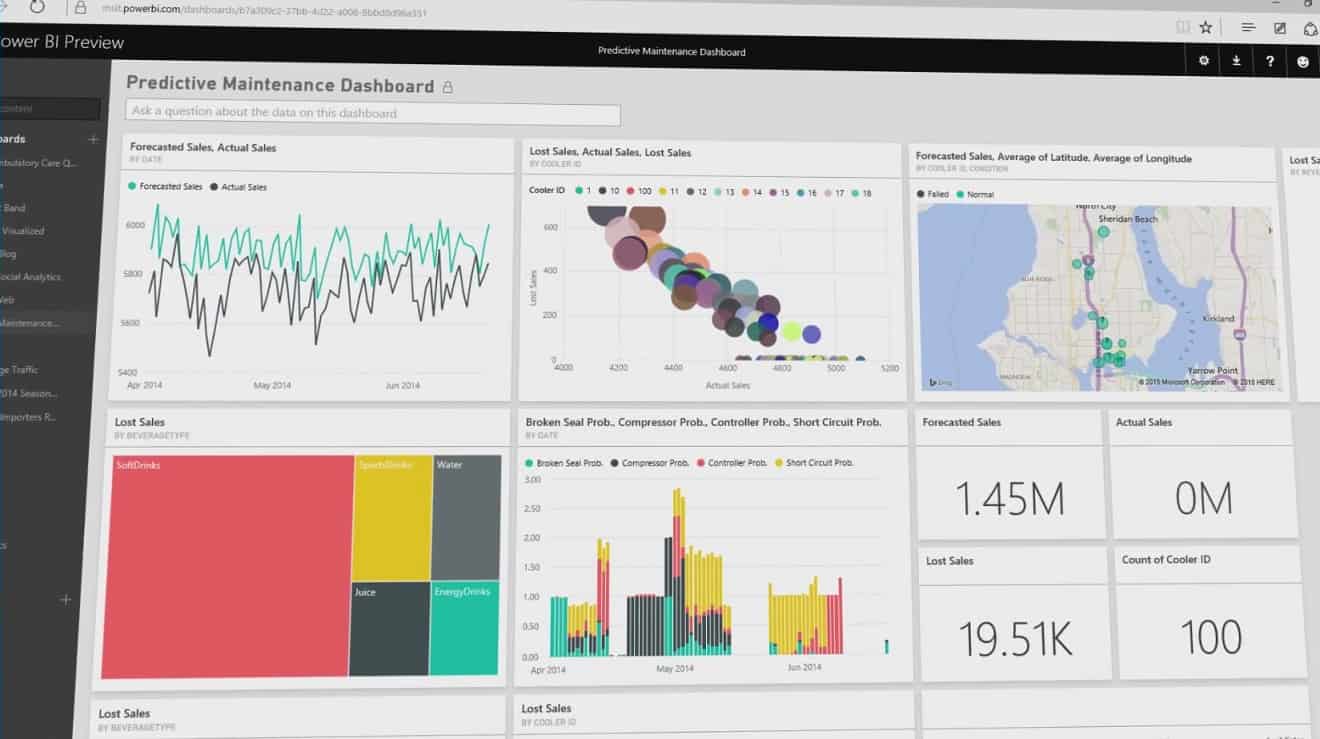
With Power BI available to the general public, a four-member team of Microsoft interns are showing what Power BI can accomplish with a little bit of time and creativity. Allison Fisher, a Microsoft intern and member of the project helped develop a real-time health dashboard that correlates SQL Azure deployments with essential performance metrics.
What Allison and her team did is considered a bit of a hack, but she does offer some insight into the process.

In order to be actionable, our dashboard needed frequent refresh (every 5 minutes), and we also needed to be able to include data from different sources in the same report. We really wanted to be able to leverage the interactive slicing capabilities of Power BI in our report, which meant that we needed relationship detection to inform Power BI how to slice every element of the report together, regardless of the source.
We knew that the Power BI Designer Preview provided auto-relationship detection among datasets, and we knew the Power BI REST API allowed us to push the data as frequently as we wanted. However, there was no way to marry these two capabilities with the existing Power BI product.
Our tool, Post to Power BI, is a solution that allows users to join data from multiple sources and push it to PowerBI in a low-latency refresh loop.

Allison continues with more detailed steps in the process. Their efforts help enhance Power BI hot-path data reporting tool by effectively joining data from multiple sources in a low-latency refresh loop.
Not bad for a summer project done by interns.

More evidence points towards a Windows 10 with Bing SKU

While not significant in North America, Windows 8.1 with Bing was a relative success in other areas. Back when Windows 8.1 was shipped to devices, Microsoft toyed with the option of offering a low-cost alternative to traditional Windows upgrades by offering Windows 8.1 with Bing. Microsoft developed Windows 8.1 with Bing as a way to price compete with Android to entice more OEM’s to ship Windows on tablets and lower end PCs over the alternative.
According to a report from Liliputing, China was a welcoming recipient of Windows 8.1 with Bing, Microsoft saw an increase in Windows-based tablets being shipped in the area. With Windows 10 out on the market, it looks like Microsoft may be going back to the Windows with Bing well one more time in China.
Telcast, a Chinese company that is currently shipping Windows 8.1 tablets, spoke with Liliputing and confirms that its upcoming expansion strategy includes new markets as well as new devices shipping with Windows 10 with Bing. Understandably, Microsoft has been very tight-lipped around Windows 10 news as the company’s new strategy is in a fragile execution stage. The business around OEM licensing and how Microsoft plans to help OEMs sell against free is still a bit murky.

Teclast X98 Air 3G will dual-boot Android 5.0 and Windows 10 with Bing

Even without an official announcement regarding Windows 10 with Bing, Telcast confirmed via a press release, that Windows 10 with Bing is on its way. Telcast is planning on shipping a dual boot version of the X98 Air 3G, which will run Windows 10 with Bing and Android 5.0. Other mentions of Window 10 with Bing were found in an Intel Compute Stick roadmap obtained by Liliputing.
As for the differences between Windows 10 and Windows 10 with Bing, there are relatively little. Users who grab a Window 10 with Bing device will have roughly the same experiences as those with Windows 10, except that Bing is set as the default search engine. Users of Windows 10 with Bing are free to change the Bing default setting at anytime, however, with lower licensing cost, OEMs are perhaps incentivized to discourage that activity somehow.

Windows 10 by 10 series for developers continues with Live Tiles and notifications

Last week Microsoft kicked off their Windows 10 by 10 series for developers by focusing on how to engage customers through the Windows Store. Now in week two, the Windows Apps Team is detailing how developers can engage customers through Lives Tiles and toast notifications in Windows 10.
In this week’s Windows 10 by 10 post, the Windows Apps team details what is new for notifications and Live Tiles in Windows 10 and how developers can use them to create more interactions with their customers. This week’s post details the following features for developers to use in their Windows 10 apps:

  • Universal Action Center – Toast notifications appear in a new system area called the Action Center. These notifications show up in Windows desktops, laptops, tablets and phones, and allow for users to interact with them directly in the Action Center.
  • Adaptive and interactive toast notifications – In Windows 10, Toast notifications across Windows devices are interactive, so users can act on the notification within the action center. This allows for apps to capture input, and even run app code, within the notification center and without taking the user away from whatever else they were doing on their device.
  • Adaptive Live Tile Templates – Live tiles can be organized by a simple markup language, enabling a full flexibility for how content is displayed across devices with varying sized screens, so that the Live Tile always looks right for the device it is on.
  • Improved secondary tile pinning behavior – Pinning is now down without any customer or system interaction, so developers Windows 10 apps can execute additional code after the tile is pinned. This enables multiple tiles to be pinned at once and for tile notifications to be sent to them immediately.
  • Synchronizing Live Tiles and toast notifications – This enables background tasks to update the app’s Live Tile whenever the app’s notification collection is changed by anything other than the app itself. This allows for the app to automatically execute code whenever the user dismisses a notification, when notifications expire, or new notifications are pushed through.
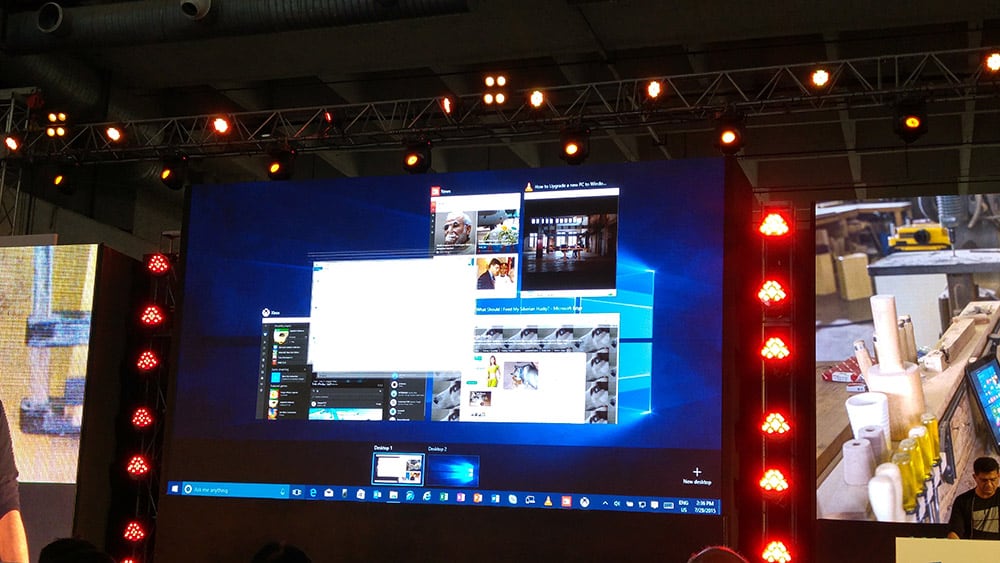
  • Badge unification – Live Tile badges are now unified across devices, ensuring that Live Tile displays are consistent on all devices from Windows 10 PCs to Windows 10 Mobile phones.

The rest of Windows Apps Team’s post includes more technical resources and examples for how to implement adaptive Live Tiles and send adaptive and interactive toast notifications.
1_win10FullDesktop
Interestingly, the post’s section on Windows 10’s Universal Action Center reveals a screenshot with Microsoft’s unreleased new Messaging app for Windows 10. The screenshot is a perfect example of the interactive features this week’s Windows 10 by 10 post is detailing, as it appears the new Messaging app allows users to respond to messages within the notification center itself. This isn’t the first time that the Messaging app has shown up unexpectedly, as Winbeta reported the app appearing in Microsoft’s 10 reasons to upgrade to Windows 10 videos.
The Windows 10 by 10 post also encourages developers to head over to DVLUP’s “It’s Alive!!!!!!” challenge to claim points and XP for updating apps and implementing the topics suggested by the Windows 10 by 10 series.
As with all the Windows 10 by 10 posts, the weekly articles are meant to kick off conversations with developers on Twitter @WindowsDev using the #Win10x10

Windows 10 How to: Tracking your favorite teams with Cortana

Cortana is Microsoft’s easy to personalize assistant. In addition to tracking packages, flights, and more, she can keep tabs on your favorite sports teams. Once you’ve set up your favorite team in Cortana’s notebook, she can bring you your favorite team’s updates, scores, and upcoming games. While Cortana has been doing this for awhile on phones, she now can give you this information directly on the desktop in Windows 10.

To have Cortana track your favorite teams you start out by opening Cortana’s notebook. You access this by clicking the search bar in the lower left hand corner of your screen and selecting Notebook, the third icon from the top. You then scroll down and select “Sports.”

Cortana sports notebook setting

Once there, make sure that Sports cards is toggled on. There are separate options to have her show updates and/or upcoming games as well so you can control how much information you see. Below that is the most important part of customizing Cortana for sports, selecting your favorite teams.

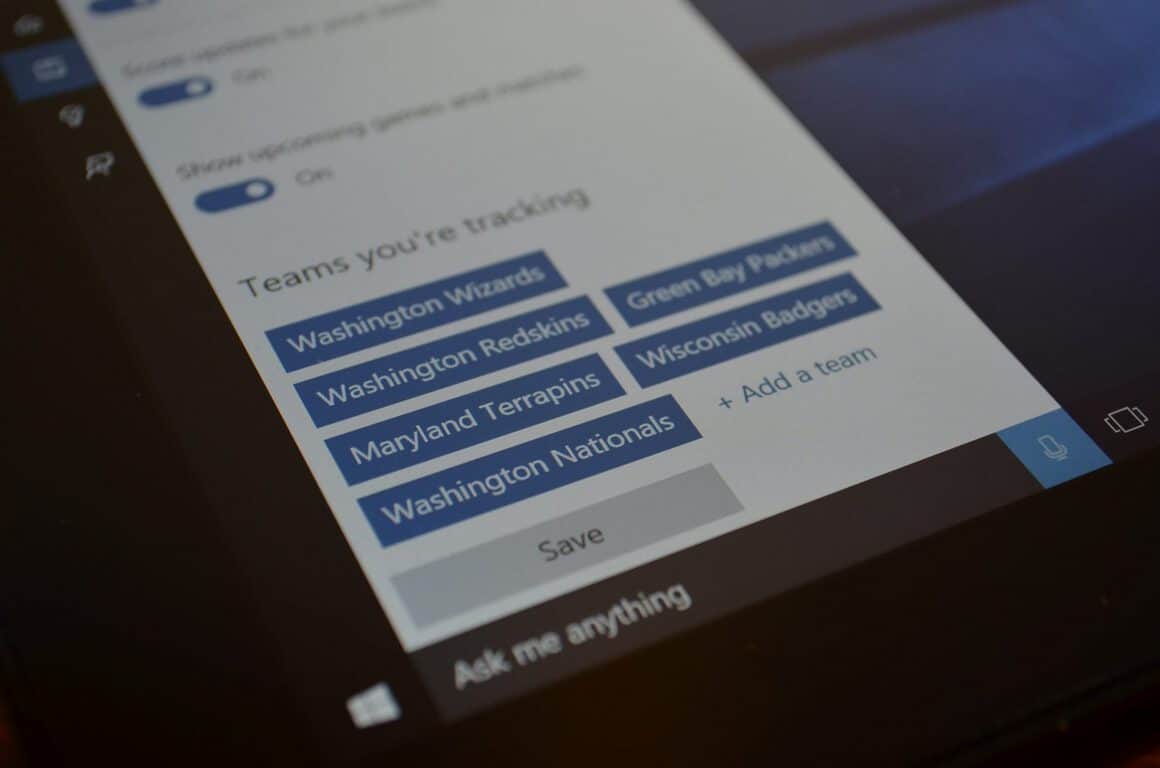
Cortana tracking teams settings

As you can see in my Notebook, I’m a big Washington DC area sports fan but I also have some teams from my parents’ home state of Wisconsin. Cortana lets you follow a long list of teams from many major sports and regions. You just click on “add teams” and search for your favorite ones. At the moment she yields results for many major sports but some are missing such as the NHL and college basketball.

Cortana sports update

Once you set that up, you’ll see game preview, scores, and more. Cortana won’t replace your favorite sports app or notification service but she does create an easy way to see updates and scores on the desktop and on your phone.