Windows 10: Updates will soon be deliverable via P2P

Windows 10

Word about a P2P feature for Windows Update in Windows 10 began circulating towards the end of 2014 thanks to a dummy UI found in one of the early Windows 10 builds which showcased P2P abilities. In build 10036 which leaked recently, it appears that feature is still being built and improved upon.

For those who don’t know, P2P allows users to download Windows Updates from one PC, and then distribute it to other PCs on your network. This will save bandwidth for those who are on metered connections. It’s not entirely clear if said feature works correctly just yet, as no updates for build 10036 have been issued.

The recent leak of build 10036 has unveiled a number of new additions which the company has been working on. The UI is being improved, and additional features are being added throughout the operating system. Keep checking WinBeta for more regarding Windows 10 and the latest leak.

Windows Insiders have now submitted over 1 million bits of Windows 10 feedback

Windows 10

Microsoft’s Gabe Aul has today announced via Twitter that the company has now surpassed 1 million bits of feedback being sent in from Windows Insiders using Windows 10. That’s a huge amount of feedback, and makes Windows 10’s development one of the biggest beta programs in history.

The announcement comes shortly after the leak of Windows 10 build 10036, which introduced a number of new elements to the operating system whilst being plagued with a rather annoying bug which results in the Mail, People and Calendar apps from not launching.

We’re not sure whether Microsoft is going to highlight the piece of feedback which hit 1 million. One could guess that the feedback was actually submitted via todays leaked build, which would be funny.

So, Windows Insiders, have you been submitting feedback to Microsoft? Let us know your thoughts on this story below!

Upcoming Windows 10 build lets you track your feedback stats

Windows 10​

The upcoming Windows 10 build for Insiders includes an updated Insider Hub which allows Insiders to track their feedback statistics across the many devices they use Windows 10 with. This is excellent news for those avid Windows Insiders who’d like to see their statistics within the Insider program.

This new update also allows you to see your most upvoted piece of feedback, so you can now see whether people agree with what you have to say or not. Perhaps Microsoft will begin introducing rewards for avid Windows Insiders, much like the Xbox program. I guess time will tell.

You can see the new feedback app in action in our hands on video, which you can check out below (at the 4:35 mark). Microsoft is making a number of different tweaks to the upcoming Windows 10 builds which further stabilize and feature-complete the operating system. Hopefully Microsoft will release a new Windows Insider build soon.

Hands on with Windows 10 build 10036 showcasing new features and changes (video)

Windows 10​

Windows 10 build 10036 has been a topic of conversation over the last few days. It includes a number of new features and changes which further improve the operating system. The build is also rumored to be leaking this weekend, so keep an eye out for that. As per every build that leaks (or is rumored to leak), we’ve created a super quick video demonstrating the new changes!

You can check out our video below. One feature which I was not able to get working is the new Install UI, which you can see here. All the other major changes are in the embedded video below, so give that a watch if you’re up for it.

Build 10036 was originally intended for Windows Insiders, but was not sent out to the public as it includes a number of nasty bugs. Microsoft could still opt to push out the build next week with a patch, or they’ll drop an entire new build for Insiders to play with. I guess we’ll have to wait and see.

Windows 10: The out-of-box-experience gains new features and UI (video)

Windows 10

Recent builds of Windows 10 now include an updated (out-of-box-experience) which adds a few extra settings and gives the whole experience a new design. Setting up your PC now matches that of Windows Phone, where you can setup Cortana and more.

We’ve embedded a short video below detailing the new features. You can create a new Microsoft account (without an ID too if you’re wondering), or sign in with your current one. From the OOBE, you can now also enable Cortana, something which wasn’t possible before.

Microsoft is further aligning the desktop / phone experience in their latest builds, which is excellent news. What do you think of this updated OOBE? Let us know in the comments below!

Windows 10: Task View receives major update in latest builds (video)

Windows 10

Microsoft has been working hard on the Task View feature found in Windows 10. WinBeta has gained access to a pre-release build which includes the new Task View functionality, and we must say it’s worlds better than the one found in 9926.

We’ve embedded a video below for your viewing pleasure. The new changes include an updated UI, true multi-desktop functionality and the ability to move windows between desktops.

Stay tuned at WinBeta for more news regarding Windows 10. We’ve got a few more special things to show you so keep checking back!

When is your Windows PC too old and when is it time to buy another?

Vintage PC

One of the questions I am most commonly asked is how long a person’s personal computer may last. Consumers are always curious to know how long they can stretch their money and what combos might last them the longest. Today, we are going to attempt to answer that not-so-simple question and determine when a computer is truly obsolete.

The Ideas

Let’s start by establishing a few key ideas. The first is that everyone has different needs for their unique situations. My grandmother, who simply browses Facebook and sends emails, can last a lot longer on an older machine than someone like myself who needs to run Photoshop and Lightroom. An Intel Core 2 Duo may still be decent for the web surfers of the world, but most of us are going to want a Core i processor capable of handling multimedia better.

The second idea that we need to acknowledge is that people have different levels of patience and tolerance; different people will interpret the word “obsolete” in a variety of ways. Is obsolete when a computer can no longer run modern day applications or is it when the user feels they have to wait too long for actions to complete?

Working in a Computer Lab

Lastly, for the purposes of this article we are going to be talking about notebooks and not desktops. Notebooks tend to age quicker and are the primary form of full-PC computing in 2015. For our examples, we will be basing our comments on standard consumer machines at the specified times – not budget netbooks or high-end gaming desktops.

The Users

With these ideas in mind, we have created a scale that rates computers all the way back ten years ago. Yikes! Can you imagine using a computer from ten years ago? Do you remember what was released back then at the time? In 2005, you could find the average consumer rocking a single-core Pentium 4 processor along with a stellar 512MB of RAM. If you were really awesome then you might even have a full gigabyte at your disposal. Hard drives were almost always 5400rpm (or lower) and if you could get your hands on 120 GB of storage – you were the cool guy on the block.

Two men using computers

We have divided our recommendations into three basic groups – low, medium, and high. We are defining “low users” as those who can survive on minimum computing power – these individuals usually spend their time surfing the web or using Microsoft Office. “Medium users” are defined as the average users who focus on a variety of tasks including web browsing and multimedia viewing. Lastly, our “high users” are defined as those who use power intensive applications; these may include Adobe Photoshop, Audition, Premiere, etc.

The Research

Within our research, we found that those in the low category can use a machine all the way back to 2009, while feeling perfectly comfortable. Machines in 2009 generally ran high-end Core 2 Duo processors with 2 GB of RAM – perfect for the web browsers and writers. We believe that some users may be able to use machines back to 2006, while still having a decent, yet minimal, experience. In 2006, Core 2 Duo had just been introduced and 1 GB of RAM was a comfy seat. However, that is it – we cannot recommend using anything before 2006 for those in the low category.

Dell Studio Laptop

The medium category is what most people fit within – those looking to browse the web, use Office, watch HD videos, and play basic games. We believe that those in the medium category can happily use a machine dating back to 2011 without any trouble. Walking into the year 2011, Intel’s Core i processors had recently been announced and users could be found using 4 GB of RAM on average. If you are within this category and using a machine between 2010 and 2008, you can still have a decent time, but anything before that is not recommended. For those curious, in 2008, most users could be found using their Core 2 Duo processors and 2 GB of RAM.

Dell XPS 13

Lastly is the high category, these are the users who need the power and can’t live with an outdated machine.  In general, if you are in this category, we recommend owning nothing before 2013. A cycle period of two years is typically recommended for high category users. Although, it is possible for a user in this category to use a machine dating back to 2010 – the introduction of Intel Core i3/5/7 processors – anything before that should be avoided.

The Conclusion

After conducting our own research, we have concluded that the average consumer should switch out their computer every five years on average. Consumers, unless having very minimal demands, should upgrade before their machine before eight years have passed.

We cannot stress enough that this is a general guideline based on average consumer needs and compelled with the processing technology of each year. Many people may fall outside these guidelines, as they are only that – guidelines.

If you are in the market for a new PC, stay tuned to WinBeta as we explore a multitude of options for each category of user previously aforementioned.

Stay up to date on Site Recovery in Azure with email notifications

Stay up to date on Site Recovery in Azure with email notifications

It would seem with cloud-focused Nadella at the helm, the Azure team is quickly becoming the All-Star team of Microsoft. While fixing Windows appears to be a priority for Microsoft, the news of development and its future propositions seem to pale in comparison to Azure at the moment. While the Windows team stumbles around trying to patch updates and drip out preview builds for both PCs and phones, the Azure team is netting commercial and government contracts, expanding the reach of Office 365, poised to expand the development scale of Xbox and Windows 10 gaming as well as releasing update after update at neck-breaking speeds. Right now the Azure team is running at full stride.

With that being said, Azure just gained a new email notification feature for Azure Site Recovery. This feature allows users to monitor the replication health of their virtual machines from anywhere they can receive email. Users can now configure their Azure Site Recovery vault to send Email notifications for any event they deem interesting. The emails can be configured to send information about replication issues like low bandwidth, recovery storage failures, and network connectivity failures.

Stay up to date on Site Recovery in Azure with email notifications

In order to access this new feature, the user can go into the Events tab, which is accessible from the top of the Azure pane. Once notifications are selected at the bottom of the Events tab pane, the user will be given the configure notifications option. This option will then enable email notifications.

Stay up to date on Site Recovery in Azure with email notifications

The Azure team mentions on their blog that they are hard at work attempting to extend the email notification feature further by soon adding support for monitoring additional events like DR provider connectivity issues, and SAN array replication issues. As per the ‘new’ Microsoft, the team is also welcoming feedback and suggestions through their Azure Site Recovery user voice forum.

Head on over and let them know what you think of the new feature as well as what you might like to see in the future.

Microsoft updates OneNote Clipper: redesigned UI, location picker, more

Microsoft updates OneNote Clipper: redesigned UI, location picker, more

Microsoft has just announced its latest in a steady string of updates to OneNote, this time updating Clipper, a browser add-in that helps to capture and enhance content from around the web and gather it in to OneNote.

Clipper 2.0 is a major step forward for the OneNote accessory, and includes a revamped UI that takes up less space and offers a clean new look, but perhaps the biggest improvement to Clipper 2.0 is the inclusion of a location picker.  With the previous version, any clipped content was sent by default to your Quick Notes section in OneNote.  Now, however, you can choose from any of your notebooks and sections, making organizing your clippings easier.

Clipper 2.0 location picker

Once you set a location, Clipper 2.0 will remember it for the next time, useful if you’re clipping a lot of recipes, or clippings for a research project you’re storing in one notebook section.  You can even set a shared notebook with the location picker, making it easy to share clippings with others.

Another new feature of Clipper 2.0 is its ability to clip and save certain types of content, currently Articles, Recipes, or Products, and only save a cleaned up version of that content.  To use it, Clipper 2.0 will automatically detect if you’re browsing a page containing an Article, Recipe, or Product.  Just click on the appropriate button on the right side of the Clipper, and it will show you a preview of the content, without all the clutter.  Then just select Clip, and save the now all cleaned up content to OneNote.

Here’s an example, with the contents of the article pulled cleanly out of the website, saving a lot of steps in removing all the unnecessary stuff:

OneNote Clipper 2.0 Article picker

Clipper 2.0 also includes a new Region clipper, available for Chrome. With the Chrome extension installed, you can save regions of the web page you’re clipping, rather than the full page or the article/recipe/product clippings.

You can download OneNote Clipper for your browser from the download link below.

How to Install Windows 10 for Phones on Supported Devices

Windows 10 Technical Preview for phones has been released recently, and it surely produced a lot of hype. While some users were complaining on how they’re unable to install it on their lower-end devices, other ones tested their new operating system.
install windows 10 for phones on non-supported devices
There’s also a third  kind of users, those who are able to install Windows 10 on their Windows Phone devices, but not sure if they should. So, if you’re someone who understands how technical preview works, but is unsure how to install it, here’s a tutorial for you.

Installing Windows 10 Technical Preview on supported Windows Phone devices is actually pretty simple. All you have to do is to download the Windows Insider app from the Windows Phone Store, choose your rollout option, and confirm the terms. After that, just check for updates and you’re good to go. The process of installing the new Technical Preview could take between 10 minutes and 2 hours, depending on your device. You can also choose two enroll options, depending on how you want to use your Windows 10 Technical Preview.

Here’s a step-by-step tutorial on how to install Windows 10 Technical Preview for phones on supported devices:

  1. Open Windows Phone Store and search for windows insider
  2. Download and install the Windows Insider app from the Windows Phone Store
  3. Once the app is installed, open it to receive Technical Preview builds and tap on Get preview builds
  4. After that you’ll have to select a enroll option. There are two enroll options, Insider Slow and Insider Fast. If you select Insider Fast, you’ll get new updates sooner, but with a less solutions for bugs and other problems (conversely for Insider Slow)
  5. After you decide which enroll option you want to use click on next, confirm the terms of use and finish the installation
  6. When the installation is completed, Windows Insider app will close out
  7. Now go to your phone’s Settings and go to phone update section
  8. Press check for updates and your phone will begin to download all necessary files for Windows 10 Technical Preview (it can take some time, depending on your device)
  9. When downloading is finished, you’ll get a pop-up to install Windows 10 Technical Preview for phones
  10. Just press install and the installation will begin
  11. After the installation is finished your phone will restart and next time ti boots, it should be running Windows 10 Technical Preview

All your settings from Windows 8.1 should be transferred to Windows 10 TP, so you’ll probably have the same settings and everything else, but just in the new, improved environment of Windows 10 Technical Preview. If you’re not satisfied with the new Windows 10 Technical Preview for phones, don’t worry, because Microsoft took care of that. Because you can simply bring back your old Windows 8.1 with Microsoft’s Rollback Tool.

Have you tried the new Windows 10 Technical Preview on your device? What are your expressions about the Technical Preview, do you like it or not, and what would you change? Write about all of that in the comment section, we would love to hear that.

Read Also: Download Early 2015 Firmware and Driver Updates Available for Surface Pro Devices

DuOS first impressions, the closest you’ll get to native Android in Windows

DuOS first impressions, the closest you'll get to native Android in Windows

Installing operating systems other than Windows on Microsoft’s Surface Pro line of PCs is not a new concept. While Secure Boot prevents one from doing so, turning it off is easy. After that, the Surface is just another PC; you can throw Windows 7 on it, Ubuntu, OSX, Android or any other Intel x86-compatible OS, although getting working drivers is another story entirely.

Last year, the Console OS team managed to get Android 4.4 KitKat running on Windows having successfully funded the project on Kickstarter. We installed Console OS on the Surface Pro 2 and because it ran natively on the device rather than being emulated, the experience was smooth and lag-free. Console OS dual-booted with Windows so you always had the option of running one or the other. The team also promised a way to instantly switch between the operating systems, somehow having both run natively side-by-side, but the project is still under development and that feature hasn’t been added yet.

Is there a market for Android in Windows, and is it something you might be interested in?

Unfortunately, we did run into some issues, the Type Cover didn’t work on the first release of Console OS (DR1), and neither did Wi-Fi, Bluetooth, brightness control, the accelerometer, sound, or the cameras, so that certainly hampered the experience, but such issues were expected at that early stage. Additionally, long-term issues also presented themselves due to the complex nature of the install. While the install process itself was relatively straightforward and only took 5 minutes, getting the Surface back to running only Windows was not easy. Secure boot had to be turned off to allow for the install, and for some reason turning it back on resulted in a ‘Secure Boot Violation’ causing Windows to fail to boot.

We had to completely format the Surface using the recovery images provided by Microsoft to get Android out. Besides the barrage of sensors not working, this was another downside to having Console OS dual-boot with Windows. We expect the uninstall process to be much smoother and simpler once Console OS is out of development, but in the meantime, having Android run within Windows is the safest way to go.

Installation

DuOS first impressions, the closest you'll get to native Android in Windows

There are many solutions to run Android within Windows, all of which are emulated. This means that you will sacrifice performance significantly. Android would lag every step of the way and you can forget about playing 3D games. That was true until AMIDuOS (DuOS) came along. Developed by American Megatrends – the same company that produces the BIOS on the Surface Pro line – DuOS apparently runs “natively” according to the company within Windows.

“AMIDuOS is nothing less than the full Android experience, with all the features that the latest version of the popular mobile operating system has to offer. It runs fast, looks crisp and sharp and performs with no limitations – because it is 100% native Android running on your Windows hardware!” – American Megatrends

DuOS first impressions, the closest you'll get to native Android in Windows

DuOS is installed just like another other Windows application and it runs in its own full-screen window. With it you get stock Android 4.2.2 (Jelly Bean), and although the Play Store doesn’t come built-in, you can easily download it from the DuOS website and have it installed, giving you access to all the Android apps.

Android Surfaces Again

DuOS first impressions, the closest you'll get to native Android in Windows

Once Android is up and running, it may feel outdated, especially if you have used Android 5.0 Lollipop, but now that the Play Store is installed, you can easily download the official Google Now Launcher and Google Keyboard apps which would give you a very-close-to-Lollipop look and feel. It even supports launching Google’s Cortana counterpart Google Now by simply saying ‘OK Google’, the always-on microphone will pick up your voice just fine. You’ll also be glad to know that the state of the OS is saved, so closing DuOS and restarting it is just like doing so on a real Android tablet. Your wallpaper, folders, game saves, are left exactly where you left them.

Issues Faced

DuOS first impressions, the closest you'll get to native Android in Windows

While DuOS runs fine on the Surface Pro, there have been a few issues faced. Firstly, there doesn’t seem to be any Bluetooth support. The option is missing from settings, and the device simply cannot be detected by other Bluetooth devices or peripherals. Also, plugging in a USB flashdrive does nothing. Even using some of the best third-party file managers from the Play Store, DuOS doesn’t detect flash drives, so you can rule out getting content directly into DuOS using that method.

The good news is that DuOS supports shared folders. That means that you can select existing folders for music, videos, pictures, and documents that DuOS can then access, including those in a MicroSD card. It did take a few tries to get this working properly but it did eventually. The VLC for Android Beta app was able to detect the videos and music in the shared folders and they played just fine. This makes up for the lack of USB storage support and it also means that you don’t have to copy files over, which would duplicate them in both Windows and Android.

Performance

DuOS first impressions, the closest you'll get to native Android in Windows

Surprisingly, Jelly Bean runs rather well on the Surface Pro. There are a few hiccups here and there, but it’s a lot, really (a lot) better than the other Android-within-Windows clients. Navigating around the UI is smooth for the most part and everything works as expected, including all the aforementioned sensors (except Bluetooth) and the Type Cover.

Gaming also works very well on DuOS. Building crazy vehicles packed with TNT and rocket launchers in Bad Piggies works as expected, and even during the most intense explosions, no dips in framerates were noticed. The same goes for Angry Birds Go, racing around the track with multiple players and using the accelerometer to turn works like a charm. Usually the lag happens during the first few seconds of getting into a game, but after that, games are very playable.

Speaking of gaming, DuOS has recently been updated with controller support. I couldn’t get this to work though, even with games that support controllers like Angry Birds Go and Badland, but it does mean that the USB port and DuOS are indeed talking, so why no USB storage support then?

DuOS first impressions, the closest you'll get to native Android in Windows

As can be expected, playing games will require more resources, so you will be hearing the fans on the Surface start to kick up as well as the heat. Having a look under the performance tab in Task Manager with a game running in DuOS, you’ll see that all cores of the CPU are being utilized and the memory is almost maxed out. With DuOS on idle or doing simple tasks like web browsing on Chrome the CPU drops to around 50% and the RAM at around 70%.

Battery Life

DuOS first impressions, the closest you'll get to native Android in Windows

This brings us to battery life. It’s poor. That kind of resource usage even on idle or when doing tasks that shouldn’t otherwise be resource intensive will cause the battery life on your Windows tablet to run out fast. You can however adjust how much system RAM is allocated to DuOS, this would allow you to squeeze out more battery life at the expense of performance.

This kind of battery consumption makes us question that “100% native” claim that American Megatrends made, as battery life on the truly native Console OS was excellent.

Final Thoughts

DuOS first impressions, the closest you'll get to native Android in Windows

DuOS is a great tool to have on your Surface Pro, mainly for the apps. It means that should you ever need to use an app that isn’t available on Windows (like proper Twitter, not some abandonware) you can easily do so by firing up Android. DuOS doesn’t even take that much space, and most importantly, it’s easy to uninstall at this point and doesn’t require you to mess with your Secure Boot settings.

My only suggestions for the developers is to have DuOS upgraded to Android Lollipop and the addition of external USB storage support which would be convenient. Otherwise, DuOS is what I would recommend if you’re looking to run Android apps on your Windows devices, at least until Console OS adds in support for that InstaSwitch miracle of a feature.

Hopefully Windows 10 and its Universal Apps will close the “app gap” between the platforms, but until then, DuOS is the way to go. You can have DuOS for only $9.99 over at the source link below. There is a 30-day trial period too so you can check out how well it performs on the device you plan on using it on before you purchase, whether that device is a desktop PC, a laptop, or a tablet.

Is there a market for Android in Windows, and is it something you might be interested in? Let us know your thoughts in the comments below.

UPDATE: I was informed by AMIDuOS representatives that work is being done to upgrade DuOS to Android Lollipop. Doing so should introduce a new design language, even better UI responsiveness, and many of its new features. No exact release date for the Lollipop upgrade but it’s coming soon.


Principal Designer and Researcher Bill Buxton and Kat Holmes discuss design at Microsoft

Part of human nature is to ingest information and categorized it. It makes identification quick and seamless, and allows the human brain to better multitask. Hence why a toddler may identify everything with four legs as a dog at first, or why your mother thinks every subsequent gaming console is a ‘Nintendo’. This type of mental deduction puts our 3 dimensional world into digestible 1 dimensional pieces. As we quickly ingest and digest information, the brain hits a slight road bump when it stumbles across something that isn’t an ‘or’ but an ‘and’. It takes just that much more processing time to figure out the ‘and’.

Principal Researcher at Microsoft Research Bill Buxton and Principal Designer at Microsoft Kat Holmes are working behind the scenes to make Microsoft an ‘and’ company by incorporating a level of design philosophy that goes beyond what consumers actually see. While companies like Google are judged and defined by their creativity and Apple by its attention to detail or ease of use, Microsoft is typically known for functionality. Microsoft is the ugly work horse, that you pull out to plow the fields but leave in the barn when it comes time to go to the fair. Buxton and Holmes would like to change that analogy and they go into detail in an interview on The Next at Microsoft podcast about their philosophy of design.

The thing that we both work on the most isn’t a thing, it’s actually the design of the culture. You design your values then you design your culture around your values and then construct what are the skills we need and your teams to execute and then the products are easy. -Bill Buxton

Both Holmes and Buxton have very unique philosophies about how to inject a new sense of design into not only the product they work with like human-computer interactions, multi touch inputs, Windows, Xbox or Cortana, but imbuing the entire company with a new design, something indicative of Microsoft’s future.

Holmes mentions that in order to better help her achieve this goal, she looked  towards practical solutions like getting out of Redmond, out of Seattle, out the west coast and helping her teams reach out to other parts of the nation and world to understand what is going culturally elsewhere. She also mentions her team’s work in Spike Jones’ award nominated film, Her. One of her take-aways from that project was a sit down she had with  KK Barrett, the Production Designer on the film. Barrett and her team never set out to create a vision of the future but rather take things we have available and remove all the unnecessary clutter. This approach to simplicity is what Holmes is trying to incorporate into the design of projects like Cortana.

Believe it or not Microsoft may be looking beyond the Metro typography subway signage and into a much more in depth approach. Holmes mentions in the interview that she looking into how a city is designed rather than the simple navigation of it. How to bring life and energy to a product more so than simple schemes.

Buxton also believes that well designed products are worth learning. This sentiment seems to ring true for much of Apples product lines. Well designed laptop or phones with seeming deficiencies become instruments people learn to live around, because they are well built.

During the interview we finally get some clear insight into what CEO Satya Nadella has been preaching for over a year now about ‘mobile first’. Buxton clarifies that mobile first isn’t about devices but the mobility of the person, and how Microsoft can help assist in that mobility (might be a dagger into the heart of Windows Phone fans).

The interview continues at length about more approaches to designed and Microsoft’s ultimate goal in reaching their audience. If you have the time, it’s a really refreshing listen.

Microsoft teases a 'tech-filled trip' to Redmond for lucky Windows Insiders

Microsoft

Announced on Twitter earlier, lucky Windows Insiders can win a ‘tech-filled trip to Redmond’.

The Windows Insider project has proven to be something of an unmitigated success story for Microsoft. As announced during the Mobile World Congress (MWC) there are now over 2.8 million Windows Insiders across the world, and from this number over 900,000 pieces of feedback have been received.

As such, Redmond owes a great deal to the community which has responded so magnanimously (relatively) to its advances. This may go some way to explain this tweet from @Windows:

What this ‘tech-filled’ trip entails is anyone’s guess; anything from a unique HoloLens experience to the delights of Azure server management is on the table. Most likely, the trip will involve a close look at a somewhat close to finished version of Windows 10, though at the moment this is pure speculation.

As may be guessed by the information provided, this is a developing story at the moment; we will update this page with more information once it is provided.

Will you be entering to win the ‘tech-filled’ trip to Redmond? Let us know in the comments below.

Microsoft looks to be preparing for a faster Windows 10 Insider system

Windows 10

Earlier today, Microsoft accidently published a new update on the Insider Hub, which announced changes to the fast Windows Insider ring. The announcement was meant for internal employees and partners only, however it appears the announcement was incorrectly marked as external.

The announcement warns internal users on the fast ring that said ring was about to get even faster, and that if they’d like to stick with the current pace of build drops, should drop to the slow ring immediately. The fast ring will now receive builds as soon as they’re ready, instead of being tested by OSG first.

As said above, this announcement was meant for internal users only, meaning us Windows ‘Insiders’ won’t be affected by this change. However, it does seem peculiar as to why Microsoft is making this change internally. Recently, Gabe Aul announced in a blog post that they were considering speeding up the frequency of build drops for the public Windows Insider program.

Windows 10

Perhaps this internal change is in preparation of this new, faster system. The company may be moving everybody up one group, Microsoft testers will now get builds even faster, and as a result us Windows Insiders will receive what those Microsoft testers received prior to this change, which usually consists of a new build drop weekly.

Of course, this is all speculation as of right now. It’s still early days, so anything could happen. What are your thoughts on this?

Thanks for the tip, Chris G!

Download Early 2015 Firmware and Driver Updates Available for Surface Pro Devices

This year Microsoft has rolled out a series of important updates for its Surface Pro devices, all three of them that is. Let’s take a look and see what’s new.
Surface_Pro_Updates
The biggest updates have been rolled out for the Surface Pro 3 devices but the overall aim of these updates is to improve the graphics and security experience. The updates are visible in the updates history under the name “System Firmware Update – 1/15/2015”. These firmware updates cannot be uninstalled or reverted to an earlier version.

The Surface updates are delivered in stages to Surface customers. This means that not every Surface will receive the update at the same time. If you have not received the update, you can manually check Windows Update and, of course, install it manually.

Let’s take the updates one by one.

Surface Pro:

  1. Surface Pro UEFI update (v1.7.50) further enhances the system security.

Surface Pro 2:

  1. Surface Pro UEFI update (v2.05.0150) improves the PXE boot experience with the 1 gigabit Surface Ethernet Adapter and further enhances the system security.
  2. HD Graphics Family driver update (v10.18.14.4029) enhances display stability and performance, improves user experience when using Miracast adapters. Improves compatibility with DisplayPort monitors and daisy chaining.

For Surface Pro 3:

  1. Surface Pro UEFI update (v3.11.450.0) adds support for updated HD Graphics Family driver.
  2. HD Graphics Family driver update (v10.18.14.4029) enhances display stability and performance, improves user experience when using Miracast adapters. Improves compatibility with DisplayPort monitors and daisy chaining.
  3. Wireless Network Controller and Bluetooth driver update (v15.68.3073.151) addresses connectivity issues while Hyper-V is enabled. Adds an advanced feature to control the 2.4Ghz and 5Ghz band preference.
  4. Surface Home Button driver update (v2.0.1179.0) ensures compatibility with the Surface Hub app.
  5. Microsoft Docking Station Audio Device driver update (v1.31.35.7) improves the user experience while using the Surface
  6. Pro 3 Docking Station so that sound is available when a speaker is not connected to the docking station.

If the updates have not been installed automatically, you can download the updates pack from here.

Patch Tuesday comes with critical updates for Windows and firmware for Surface

Patch Tuesday recieves critical and massive updates today

Ladies and gentlemen another Patch Tuesday is upon us and for the security conscious or the glutton for punishment type, that means another round of time consuming updates that get applied to your Windows devices. While some might see Patch Tuesday as a mild annoyance it’s a still a service that should be greatly appreciated by all.

Today’s Patch Tuesday comes with some very important and critical updates, many of which address remote code execution. There are updates to the security of Internet Explorer, Adobe Font Driver, VBScript, vulnerabilities in Office, the Kernel Mode Driver, PNG processing, photo decoder and others for PC devices:

MS15-018

Cumulative Security Update for Internet Explorer (3032359) 
This security update resolves vulnerabilities in Internet Explorer.           

MS15-019

Vulnerability in VBScript Scripting Engine Could Allow Remote Code Execution (3040297) 
This security update resolves a vulnerability in the VBScript scripting engine in Microsoft Windows.

MS15-020

Vulnerabilities in Microsoft Windows Could Allow Remote Code Execution (3041836) 
This security update resolves vulnerabilities in Microsoft Windows. 

MS15-021

Vulnerabilities in Adobe Font Driver Could Allow Remote Code Execution (3032323) 
This security update resolves vulnerabilities in Microsoft Windows. 

MS15-022

Vulnerabilities in Microsoft Office Could Allow Remote Code Execution (3038999) 
This security update resolves vulnerabilities in Microsoft Office.

MS15-023

Vulnerabilities in Kernel-Mode Driver Could Allow Elevation of Privilege (3034344) 
This security update resolves vulnerabilities in Microsoft Windows. 

MS15-024

Vulnerability in PNG Processing Could Allow Information Disclosure (3035132) 
This security update resolves a vulnerability in Microsoft Windows.

MS15-025

Vulnerabilities in Windows Kernel Could Allow Elevation of Privilege (3038680) 
This security update resolves vulnerabilities in Microsoft Windows.

MS15-026

Vulnerabilities in Microsoft Exchange Server Could Allow Elevation of Privilege (3040856) 
This security update resolves vulnerabilities in Microsoft Exchange Server.

MS15-027

Vulnerability in NETLOGON Could Allow Spoofing (3002657)
This security update resolves a vulnerability in Microsoft Windows.

MS15-028

Vulnerability in Windows Task Scheduler Could Allow Security Feature Bypass (3030377) 
This security update resolves a vulnerability in Microsoft Windows.

MS15-029

Vulnerability in Windows Photo Decoder Component Could Allow Information Disclosure (3035126) 
This security update resolves a vulnerability in Microsoft Windows.

MS15-030

Vulnerability in Remote Desktop Protocol Could Allow Denial of Service (3039976) 
This security update resolves a vulnerability in Microsoft Windows.

MS15-031

Vulnerability in Schannel Could Allow Security Feature Bypass (3046049) 
This security update resolves a vulnerability in Microsoft Windows that facilitates exploitation of the publicly disclosed FREAK technique, an industry-wide issue that is not specific to Windows operating systems.

Patch Tuesday recieves critical and massive updates today

Other Microsoft devices are receiving a truckload of updates and patches, for security, Office, and general updates, as well as some firmware updates for the Surface Pro 3 and the original Surface RT.

The Surface Pro 3 is receiving a Surface Pen settings driver update (as wells a name change to the Surface Hub: Surface app) and after a long hiatus, the original RT devices are getting a firmware update to address audio and displays.

You Can Now Save Outlook Email Attachments to OneDrive

Microsoft Outlook is the main email service used at work. Sometimes, dealing with many files can be nerve-wrecking, especially if you are looking for a file you have already sent as an email attachment but somehow you can’t find the exact email in your Outbox. No more worries, OneDrive now lets you save Outlook email attachments to the cloud.
Save_Email_Attachements_to_OneDrive
Cloud storage services are extremely popular because they are efficient. And if you want to get rid of that messy inbox/ outbox folders, you can rely on the cloud storage systems. Thanks to the “Save to OneDrive option” you can now save all the attachments you have sent or received straight to the cloud.

We’ve made it simpler and tidier to manage these email attachments. When you receive an email with an attachment or group of attachments—documents, pictures, music or videos—you can now save them to OneDrive in just one click.

OneDrive then creates a folder called “Email attachments” and you can sort the files as you like. If you need to quickly check that 2014 profit and loss file, all it takes is a single click. There are no restrictions, the feature is available to all users.

You can also select which files you want to save to the cloud. Select the file you want to save, then click on the drop-down menu and click “Save to OneDrive”. However, if you try to attach a OneDrive file to an outgoing email, this won’t be possible. But you can send a link to the OneDrive file to your recipients and they can use it to download the file.

Being able to save you email attachments in the cloud does not mean you no longer have the possibility to save the files to you local drive. Both are available.

READ ALSO: Download Latest iTunes Version for Windows to Fix Outlook Syncing Problems

Microsoft on World's Most Ethical Companies list 5 years running

Microsoft on World’s Most Ethical Companies list 5 years running

Today, the Ethisphere Institute released its annual list of the World’s Most Ethical Companies. Microsoft is included on the list for the 5th year in a row. This is a great achievement for Microsoft as it continues to evolve and innovate as a company, as well as expanding across the globe to help and educate people to help others through the power of technology.

In a post on Microsoft on the Issues Blog, Microsoft’s general manager of Citizenship and Public Affairs, Lori Forte Harnick, describes the pride that she and everyone at Microsoft feel about this honor:

“Trust is paramount to the success of any business. At Microsoft, we work hard to build and maintain trust through a shared commitment to ethical and transparent business practices.

Our commitments to ethical business practices and strong corporate governance policies are designed to promote the long-term interests of our shareholders, maintain internal checks and balances, promote accountability at all levels of our organization, and foster responsible decision making. 

We are highly appreciative of this honor. Our customers and society expect us to maximize the value of technology while preserving values that are timeless. We recognize there is more work to be done and we commit ourselves to ongoing improvement as we help others do more and achieve more.”

The Ethisphere Institute’s World’s Most Ethical Companies list includes 132 companies in 50 industries representing 21 countries. For the full list of companies, check out the Ethisphere Institute’s World’s Most Ethical Companies in the link below.

PyCmd is an Alternative to Windows Command Line Console

The Windows Command Line Console has not changed in years. And let’s admit it, it’s very ugly and counter-intuitive. However, alternatives do exists and PyCmd is one of them.
PyCmd
It’s true, Microsoft’s has improved the Windows command line console in Windows 10 but most users are using previous Windows versions. So, if you’re looking for a better command prompt, you can test PyCmd.

PyCmd is a smart command prompt extension for Windows’ cmd.exe for advances end users. Its goal is to emulate a few power features of UNIX shells while remaining 100% compatible with the cmd.exe syntax.

PyCmd is free and installing it is very easy. Download the file from the internet, unzip it and launch the exe. file.

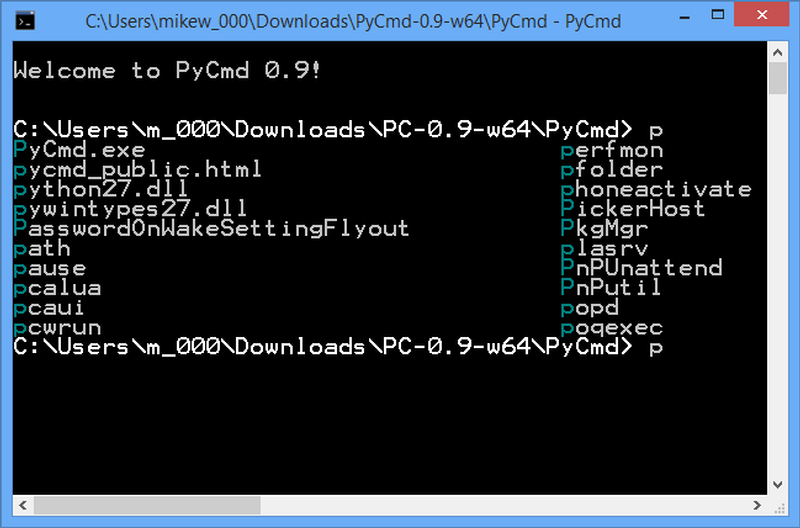
PyCmd also helps you to save time thanks to a better autocompletion feature. For example, if you type a partial file or an internal command variable, and then press Tab, and the program displays a list with every match. Moreover, PyCmd inserts quotes automatically if your file name includes spaces.

Also, a history of all the commands is kept and you can access it at anytime.

However, regular functions such as F1, F3 do not work at all, as BetaNews reports.

Of course, there are other such programs worth testing such as Cmder or Cygwin until the official launch of Windows 10.

The summed up  list of features include:

  • Smart Tab-completion (similar to e.g. bash)
  • Searchable, persistent command history
  • Enhanced editing (copy/paste, undo, emacs key bindings)
  • History of recently visited directories

You can download PyCmd from here.

The program is compatible with the following operating systems: Windows XP / Vista / XP X64 / Vista64 / 7 / 7 x64 / 8 32-bit / 8 64-bit.

READ ALSO: Fix: Microsoft Visual C++ Runtime Error in Windows 10

The Xbox team just got some help from HoloLens executive Kudo Tsunoda

Phil Spence just got some help from Kudo Tsundoa

As part of the continued restructuring of Microsoft, teams are coming together, management being shared and projects sharing resources; today that trend is making it’s way to Microsoft’s gaming endeavors.

The Xbox team just bolstered their roster today. In an announcement, the team over at Xbox shared the news that Kudo Tsunoda, the driving force behind the creative direction and experience of Microsoft’s HoloLens; will now expand his charter on the Xbox team.

Phil Spencer will continue to head franchises like Halo, Gears of War, Forza and Minecraft, but now Kudo will lead the “vision and experience” of other studios in Microsoft’s portfolio that range across their North America, European, and other global markets.

With this new development, it seems like we’ll finally start to see this new generation of console gaming finally move beyond the traditional gaming context from last generation.

Microsoft considering third ring for Windows Insiders, allowing more frequent Windows 10 drops

Windows 10

Microsoft published a blog post earlier today which spoke about how the company goes about testing and releasing Windows 10 builds to Windows Insiders. Now, within the blog post, Gabe Aul mentioned that he had been in talks with his team regarding a third, new Insider ring which would allow the public to get access to builds more frequently.

This is something I, and many other Windows Insiders have been wishing for since talks of a Windows Insider program began. The blog post briefly mentions talks of a new ring:

We’re debating right now about whether we should simply adjust the speed/risk balance of the Fast ring or whether we should create a new ring for people who really want the fastest pace possible (I had serious conversations last week with my team about a “Ludicrous Speed” ring, no joke.)

This new ring, now known from this point onward as “ludicrous speed” ring, would essentially give Windows Insiders access to Windows 10 builds more frequently. I’d be happy with a weekly drop, every Friday, regardless of stability. Microsoft seems to forget that we’re Windows Insiders, we know some builds might not work. That’s fine with us, as long as we get the chance to attempt an install, we’re good.

As of right now, this new ring isn’t set in stone. Aul says he’ll follow up if they decide to make any changes to the current selection of Insider rings. So right now, we can only hope that someone at Microsoft is smart enough to realize that a ludicrous ring would be an excellent addition for Windows Insiders.

All of us, via Twitter should tweet @GabeAul letting him know that a ludicrous insider ring would be an excellent idea, and one we’re all for! Hopefully we’ll get a response from him soon enough.

And again, we understand what a faster ring would entail, Microsoft. More bugs and more crashes, heck some builds may not even install on some hardware. But in the long run, Microsoft wins here. The feedback we provide from these unfinished builds would help them make an even better build for the fast / slow rings, right?

Update to Microsoft.com brings easier navigation and featured stories

Microsoft.com front page

The Microsoft.com homepage has received an update that revamps the layout of the website. The newly updated site has large images, easily distinguished sections, and an overall easy to navigate layout. The new design also leaves room for a large feature photo and story which at the moment features “girls who love science.”

Below the featured image is a bar for ‘support’, ‘downloads’, ‘apps’, ‘security’, and ‘shop’. There’s also a very easy distinction between ‘For Home’ and ‘For Work’ with four large boxes being contained in two separate sections. Microsoft has an ever increasing range of products and services. Their customers include users from a wide variety of sectors and the new site layout makes it significantly easier to navigate to a specific area.

At the very bottom of the site, excluding lists of links to other Microsoft websites, is another featured story. The current story is titled “Technology disrupted: Meet 11 women leaders changing the innovation ecosystem.” March is Women’s History Month and Microsoft is featuring women from inside and outside of the technology industry through multiple websites. In addition to the newly designed Microsoft.com featuring two stories about women, a search result on Bing for ‘women’s history month’ yields a well-designed layout displaying influential women in history and a summary of Women’s History Month.

Upcoming Windows 10 desktop build to include improved Task View behavior

Windows 10

One of the many new features in Windows 10 is the introduction of a native multi-desktop switcher called Task View. Windows users can finally use a built-in UI to create new desktops and organize their windows productively.

Task View in the most recent public build of Windows 10 works fine, but is somewhat confusing to a number of users. Task View seems to display your open windows on all desktops, even if the window that’s open is on a completely different desktop than the one currently. This isn’t the expected behavior of a multi-desktop tool, and it appears Microsoft understands that.

WinBeta understands that in the most recent builds of Windows 10, Microsoft has added the option to change this behavior, making windows only display on the desktop they were opened in, meaning you can finally truly keep your desktops organized productively. Unfortunately, there’s still no word whether Task View supports multiple desktop backgrounds just yet, but we imagine if there’s high-demand for it that it will eventually happen.

Office 2016 for Mac Preview: A closer look at what Microsoft has for OS X

Office 2016 for Mac Preview: A closer look at what Microsoft has for OS X

As a Mac user who loves Microsoft, I have been eagerly awaiting a new release of Office for the platform. The latest version of Office for Mac was back in 2010, and a substantial overhaul of the software suit has since been needed. Microsoft has announced the Office 2016 preview is now available for Mac, with the final version coming later this year.

While there is a lot to see in Office 2016, there isn’t a lot to talk about. The significant change in the most recent edition of Office is simply its UX design. While the old version of Office felt dated even at the time it was released, the latest design for Mac is on par with the Windows variation – if you have seen Office 365 for Windows, then you have seen Office for Mac 2016. The new design is cleaner and features an enhanced ribbon bar; icons reflect the new flat design changes introduced to OS X Yosemite.

Beyond the surface changes, there are fixes under the hood for improved stability and tighter OneDrive support – that being said, remember that this “preview” should be treated as a beta release. Accessing File Save, and File Open menus drop users directly into their OneDrive folder, as many are already used to on the PC. Collections of new templates are also available – bringing welcomed changes to Word, Excel, PowerPoint, and Outlook.

Users downloading Office 2016 for Mac will notice that Outlook looks familiar; that is because Microsoft has already released Outlook as a standalone application. In addition, OneNote is not included in the bundle and continues to serve as a separate download (for free) directly from the Mac App Store. Note that OS X Snow Leopard (10.6) or higher is required to access the App Store.

Check out the above video to take a quick look at what Microsoft has to offer Mac users with their latest desktop Office Suit. I apologize ahead of time that I am not able to bring you the beautiful accent that Zac is known for in his WinBeta videos – I hope you enjoy nonetheless.

WinBeta Podcast 5: Windows 10’s Spartan meets Cortana

WinBeta Podcast 5: Windows 10's Spartan meets CortanaWelcome to the weekend and the latest episode of the WinBeta podcast! If you haven’t already listened to our previous episodes, you can check them out on your favorite podcast clients including SoundCloud, TuneIn, iTunes, and the Windows Phone Podcast app. Eager listeners can also use the RSS feed provided below to use their favorite applications not aforementioned.

This week, the team discusses the latest Windows 10 build screenshots, the wonderful experience of using Cortana’s Spartan integration, and the way in which Microsoft may change how you game in the future. Plus, take a close listen and learn how you can help us change the world with the power of a tweet.

Update from Zac: Just to clarify, when we talk about Cortana and Spartan in the podcast, we say she scans webpages to display users with relevant information. I believe this is incorrect, and instead she queries information from Bing. So those worried about her reading the webpage, you can relax.

Be sure to hit up the download links below to start listening or check out the embedded Sound Cloud option we have right in this post. For more information on the articles discussed, you can check them out below.

This episode of the WinBeta podcast is dedicated to HoloLens Designer, Mike Ey, who recently lost his life in a fatal car accident. Our thoughts are extended to Mike’s family and friends.

Click here to view and retweet Sean Michael’s world changing tweet.

Included stories this week:

More screenshots from Windows 10 build 10031 leak onto the internet

Windows 10

More screenshots from a recent Microsoft partner drop build has leaked onto the internet, which gives us a better look at the transparent Start Menu. Interestingly, Spartan is yet to be demoed, perhaps it’s not included in this build?

We know build 10022 didn’t include Spartan, so it’s entirely possible for 10031 to not include it too. Microsoft may be planning to push Spartan out to Insiders via the Windows Store, but as of right now we just don’t know.

What are you most looking forward to in the upcoming Windows Insider build? Leave your comments in the comments area below!

Microsoft confirms FREAK vulnerability affects Windows as well

Microsoft confirms FREAK vulnerability affects Windows as well

For some, their high horse ride has come to an end. Windows users who were standing on their soap boxes and pointing fingers at Android, Mac OS and iOS users who were subjects of an SSL/TLS vulnerability, will now join them to some degree.

Microsoft confirmed today, the FREAK Attack vulnerability that exists in Secure Channel (Schannel), affects all versions of Windows.  The Schannel is a security package that implements the SSL/TLS authentication protocols. The authentication process can now be used as an exploit that allows would-be attackers the ability to downgrade an encrypted SSL/TLS session while forcing client systems to use a weaker and export-grade RSA cipher in the process.

Essentially this is a man-in-the-middle (MITM) exploit that allows attackers the ability to intercept and decrypt  encrypted traffic. Bad stuff.

This FREAK Attack is garnering a lot of attention as it is  reported to have affected more than a third of HTTPS servers with browser-trusted certificates. Most of the top used browsers have been or are affected including, Internet Explorer, Chrome on OSX, Android, Safari, iOS, stock AOSP Android browser, BlackBerry browser, Opera on OSX,  and Linux.

Microsoft confirms FREAK vulnerability affects Windows as well

Google has already issued a patch for Chrome on OSX and Apple will be following suit with a patch for Safari sometime next week.

While Microsoft says that they have found no evidence that this exploit has been in use for Windows users, they will be making an effort (possibly applying an off-scheduled update) to address this attack.

“Upon completion of this investigation, Microsoft will take the appropriate action to help protect customers. This may include providing a security update through our monthly release process or providing an out-of-cycle security update, depending on customer needs.”

There are precautions Windows users can take while they wait for Microsoft to patch this vulnerability. Microsoft is advising that Windows users disable RSA key exchange using Group Policy Object Editor, which has been an available option in Windows since Vista. This stop-gap disables the attacker’s ability to launch the FREAK attack as it is reliant on server support of export-grade cipher suites.

Samsung to announce partnership with Microsoft to bundle Office 365 with Knox

Samsung to announce partnership with Microsoft to bundle Office 365 with Knox

Samsung will soon announce a partnership with Microsoft where the Korean giant will bundle Office 365 productivity suite with their Knox enterprise workspace. Samsung’s Dr Injong Rhee while speaking at the Samsung’s Enterprise Mobility Showcase, part of Mobile World Congress in Barcelona, said the company announce the deal next week or so.

Rhee said,

Today I’m going to tell you about additional productivity applications from Microsoft. We have a deal with Microsoft which will be announced in a week or so, we’ll have a big announcement, so you have a sneak preview. We’ll have Microsoft OneDrive, and OneNote, and Office 365 come with Knox Workspace. When you download Knox Workspace, this comes pre-loaded.

The deal would definitely boost Microsoft’s presence in the enterprise world. Ever since Satya Nadella took the charge of the company, we’ve seen the software giant take the “mobile first, cloud first” approach, and this is yet another step towards it.

How to Upgrade from Windows 7 or 8 to Windows 10 via Windows Update

At one point or another in your Windows usage you might want to upgrade your system to the Windows 10 Technical Preview version but you want to do this through the Windows Update feature available in the operating system. So by following the tutorial below you will learn how you can use the Windows Update feature and upgrade to the Windows 10 Technical Preview in the shortest time possible.
How to upgrade from Windows 7 or 8 to Windows 10 via Windows Update
You should know that only in the Windows 10 Technical preview build 9926 can this feature work, so if you want to upgrade your Windows 7 or Windows 8 to an older build of Windows 10 Technical Preview it will not be possible but since this is the latest build released by Microsoft there should not be any issues following the lines below

Tutorial for upgrading Windows 7 or Windows 8 to the Windows 10 Technical Preview build 9927:

  1. While on your Windows 7 or Windows 8 operating system left click or tap on the link posted below.
  2. Click here to go through with your Windows Update feature for Windows 10 Technical Preview
  3. Now on the page you have accessed you will need to left click or tap on the “Start upgrade Now” button situated on the left side in this window.
  4. Now it will give you a pop up.
  5. Left click or tap on the “Save File” button in the pop up above to save the “Windows10TechnicalPreview.exe” file to your device.
  6. Go to the folder in which you downloaded the executable file and double click on it.
  7. Follow the instructions on the screen to finish the Windows Update process and get your Windows 10 Technical Preview build 9926 installed on your device.

That’s it folks, a quick way to install Windows 10 Technical Preview build 9926 directly from your Windows 7 or Windows 8 operating system but if you run into trouble along the way in this tutorial you can write us below in the comments section of the page and I will help you further with the information needed to get your brand new Windows 10 up and running.

READ ALSO: VAIO Announces New PCs – Vaio Z and Vaio Z Canvas, Bring Top Notch Performance

Windows 10 build 10031 screenshots leak with transparent Start Menu

Windows 10

Windows 10 build 10031 screenshots have leaked today revealing transparency in the Start Menu, something Microsoft has said is coming for a few weeks now. Judging by the screenshots, it appears transparency is only apparent in the Start Menu.

We expect transparency to begin showing up in other areas of the UI soon, but it’s great to finally see transparency begin showing up in some places. Hopefully an ‘aura’ effect will get added to it for maximum attractiveness.

Microsoft was expected to release a new Windows Insider build this week, however that doesn’t seem to have happened yet. Still, it’s Friday meaning today could be our lucky day. If not, then I guess we’ll have to wait and see until next week.

More Spartan for Windows 10 functionality showcased in new leaked screenshots

More Spartan functionality leaked in new screenshots

Thanks to a Russian site, some patience, and Bing translator, we’re getting yet another round of Spartan browser information. Russian blog site MSWin, has some detailed screen shots of an upcoming build of the new browser. We’re still not exactly certain whether or not these screen shots are representative of the Spartan browser confirmed by the Windows team to be included in the next build of Windows 10 Technical Preview, but we can sure hope.

The blog starts off showing the new tab functionality of Spartan. It looks like users will now get suggested options as they look to open up a new tab. This was present in IE before but it was dedicated to an entire screen which arguably didn’t make good use of it’s ‘Spartan’ interface.

More Spartan functionality leaked in new screenshots

More Spartan functionality leaked in new screenshots

Next up is an example of Spartan’s adaptive design. It looks like there will be a limit to the how far the browser can be vertically manipulated; very similar to the way Modern Apps operate in the current build of Windows 10 Technical Preview.

More Spartan functionality leaked in new screenshots

We’ve been seeing a lot of what the browser looks like on phones and desktop, but very little is mentioned about how this browser will scale for those on tablets or two-in-ones. The screen shot below shows how the UI adjust from desktop to tablet modes, removing the header and outlines.

More Spartan functionality leaked in new screenshots
Perhaps we can chalk this up to early development but it looks like the browser will only offer a minimal set of user actions from the start.

More Spartan functionality leaked in new screenshots

Other features are also missing in this preview. Right now users will not be able to create InPrivate tabs, restore previously closed tabs or add to the favorites menu through tabs. Again, we’re not sure which version this is, and we suspect these features will come fast and furiously as the browser will now be treated like an app rather than an attached piece of the OS. It does however look like users can still utilize navigation keyboard shortcuts that are present in previous versions of IE.

More Spartan functionality leaked in new screenshots‘

From interface and navigation to settings and features

It looks like this section is just a bare as the UI. The browser does however offer, 5 basic browser settings: enable/disable the favorites menu, click to identify phone numbers on pages (similar to the way Skype highlights actionable numbers), changes to the address of the homepage and finally users can customize the read mode appearance.

More Spartan functionality leaked in new screenshots

Users now get a glimpse of the integrated Reading List options built into the browser. It’s noted on the Russian blog site that some of the features have not been activated yet or function properly at this point.

More Spartan functionality leaked in new screenshots

Lastly, the blog highlights the much anticipated Cortana integration. Sadly the blog was unable to fully utilize the feature as Cortana hasn’t made here way to Russia just yet. So we’ll have to reserve judgment on this (or you can decide for yourself by watching our exclusive hands-on with this feature). It does look like sprinkles of her assistance did make it to testing. In the image below, users can quickly use her search capabilities inline while they wok within the browser.

More Spartan functionality leaked in new screenshots

The blog goes on to note some of the frustrating issues that are present in the leaked build. Items like confusion in Windows 10 Technical Preview of default IE usage. When moving to tablet mode, the OS consistently brings a pop up asking to switch rather than seamlessly adjusting the current UI of Spartan. It also does not replace Modern UI usage with Spartan in tablet mode without effort. Another noted issue is the lack of communication between Modern IE and Spartan. Saved links, favorites, and general settings are not communicated through browsers, so users should be prepared to start a new session with Spartan, at least as far as this leaked version is concerned.

Finally those looking to test the Chrome-like extension will have to wait a bit longer as leaked documentation is informing that the this implementation will only occur after the final version of Windows 10 and Spartan are released. Microsoft is also said to not to be supporting ActiveX in Spartan in any form, and we suppose that functionality will still remain in ‘classic’ IE for compatibility reasons.

Visual Studio Update Has Problems With Windows 10 Install

Microsoft Visual Studio is probably the most popular development tool for Windows developers, but it still contains some bugs and lags. In order to fix as many things as possible, Microsoft released the KB3001652 update for Visual Studio, but eventually something went wrong.
Visual Studio Update Has Problems With Instalation
Some time ago, Microsoft started to rollout the update for Visual Studio. The update goes by the name of KB3001652 and it was intended to bring some improvements and lag fixes to the software. The main purpose of this update is to install 2010 tools for Office Runtime, update the premature shut down thread in the WPF user interface, slow Office Shutdown for Visual Studio Tools for Office add-ins on touch-enabled devices that use the WPF controls, and prevent “Unknown Publisher” prompt to show up even if the publisher is fully trusted.

Well unfortunately, users were unable to test these improvements because they weren’t able to even install the update. Reportedly, when you try to apply the patch, it begins to install, but never finishes, making the update system repeating constantly. This problem is not solved even if you reboot your computer. We believe that main cause of this problem are Microsoft’s currently-unstable servers, and that the company would try to fix the things as soon as possible.

For now, we advise all Visual Studio users to avoid installing this update until we have some more information and news, because your Visual Studio software won’t be updated and you’ll be left alone with the endless loop of update installation. Microsoft will surely try to fix all the problems with installation as soon as possible in order to provide its developers proper environment to develop new apps for Windows Store, so stay tuned and we will inform you about the changes as soon as they’re made.

Read Also: Fix: Hard Disk Disappears After Updating to Windows 10 Build

Microsoft adds 'Movie & TV' section to Windows 10 Store in recent update

Windows 10

Earlier today, Microsoft pushed out an update to the Windows Store for Windows Insiders running Windows 10 build 9926, which added a new section to the navigation bar titled ‘Movies & TV’. Could Microsoft be planning to release an updated Xbox Video app?

As of right now, the new category does nothing. It’s a redundant section with the message “Sorry, this page isn’t yet available in the preview”. Perhaps this new area of the Windows Store will be made available in a newer build for Insiders, which has been rumored to be coming sometime this week.

Late last year, build 9901 leaked which had this category as well as a music category in the store too, so we know the ultimate goal here for Microsoft is to have one Windows Store for all your content. Hopefully the introduction of the ‘Movies & TV’ category in build 9926 is the beginning of that vision coming to life.

Deutsche Telekom and Microsoft announce agreement to expand throughout Europe

Microsoft Logo

The already growing market share for Windows Phone in Europe could continue to rise on the back of an international deal between Deutsche Telekom and Microsoft. News of the deal broke today at the Mobile World Conference in Barcelona Spain. The agreement is a continuation of a partnership between Microsoft and the telecom giant that has existed for years.

Details of the deal were released by the Microsoft news center and focus on how the hope is to build the Microsoft ecosystem in which they stated

“Through this partnership, both Deutsche Telekom and Microsoft aim to expand the Microsoft ecosystem to new consumer and business customers, enabling people to do and achieve more. The agreement includes a joint international marketing campaign spanning advertising, sales support and training, custom application development, and experiential activities, tailored by market.”

Both sides specifically mention business and personal use for Microsoft devices. The Managing Director of Telekom Deutschland GmbH spoke on the ease of switching between personal and business devices within the Microsoft ecosystem

 “Together with Microsoft’s broad portfolio of devices, services and platforms, we reach customers who wish to switch their phone quickly and easily between professional and private use. Thus, we are able to provide a seamless user experience with benefits for both our private and our business customers.”

In addition to the partnership with Microsoft, Deutsche Telekom will also carry the Lumia 640 in countries in which it will be available.

Deutsche Telekom is in 12 countries throughout Europe and has a strong presence in Germany. The deal with Microsoft is a strong push within a continent that is already receiving Windows Phone better than The United States. Western Europe, specifically, is an area of success with a Windows Phone market share of 6.8% in 2014. We did a complete breakdown of Windows Phone and Microsoft market shares in western Europe which can be found here.

Windows Store finally reaches the 200,000 app milestone, but are you impressed?

Windows Store finally reaches the 200,000 app milestone, but are you impressed?

The Windows Store, home to apps and games for Windows RT and Windows 8, has finally reached the 200,000 app milestone. To put things in perspective, the Windows Store passed the 40,000 app milestone back in January of 2013, reached the 100,000 app milestone back in July of 2013, and finally hit the 150,000 app milestone in March of 2014.

In just one year, the Windows Store has gone from 150,000 apps to 200,000 apps, globally. “There are more than 585,000 apps in the Windows and Windows Phone Stores combined. Hundreds more are added every day,” a Microsoft spokesperson told WinBeta.

Microsoft has been working very hard over the past two years, by offering developers new app availability settings and simplified certification requirements so apps can be published faster. Sure, 200,000 is an impressive number, but in an attempt to make it easier for app developers to publish apps to the Store, Microsoft has also opened up Pandora’s box creating new issues.

Just recently, we reported about Darkest Dungeon, one of the most popular new RPG games available for Windows via Steam, appearing in the Windows Store for $3.99, illegally. How did this app make it through the certification process?

This is just one of many examples of apps that are in the Windows Store. Other paid apps were straight up misleading. These paid apps had official titles such as “Temple Run” but hidden in the app description was a secret message saying “my app will provide you the best way to finish.” In other words, consumers would purchase this app thinking it was Temple Run, but in actuality they were being mislead into wasting their money.

Microsoft: We strive to make the Windows Store a high-quality experience for customers

In August of last year, Microsoft responded to fed up users who were tired with Microsoft’s Windows Store reporting process and Microsoft’s lack of response to malicious app reports. The Redmond giant proceeded to remove more than 1500 apps from the Windows Store, deemed to be malicious or scam apps.

“We strive to make the Windows Store a high-quality experience for customers and also accessible to the broadest audience of developers. Based on customer and developer feedback, we recently took actions to help users discover the specific app titles they’re searching for and improve the overall Store experience. Those updates provide clear guidance to developers and also improve our ability to identify, audit and remove problematic apps. We recognize that there is more work to do and will continue to re-evaluate our policies to strike a balance between the opportunity for developers and the app quality that our customers expect.” — Microsoft Spokesperson, 2014.

With any store, regardless of platform, it is incumbent upon users and app developers alike to be more involved in reporting fake or scam apps. Microsoft cant be the only one, nor is the Windows Store ever going to be free of scam apps. That’s like trying to make the world crime-free. Not gonna happen. But you can help clean it up.

“Every app store finds its own balance between app quality and choice, which in turn opens the door to people trying to game the system with misleading titles or descriptions. Our approach has long been to create and enforce strong but transparent policies to govern our certification and store experience. Earlier this year we heard loud and clear that people were finding it more difficult to find the apps they were searching for; often having to sort through lists of apps with confusing or misleading titles. We took the feedback seriously and modified the Windows Store app certification requirements as a first step toward better ensuring that apps are named and described in a way that doesn’t misrepresent their purpose.” Microsoft, 2014.

However, as of March 2nd, there are 200,000 apps in the Windows Store, globally. This does not account for Windows Phone apps. It has taken one year just to add 50,000 apps and one can argue that this is such a weak number that shows developers are not that interested or it can prove that Microsoft has been actively removing malicious/scam apps, listening to consumers who are sending in reports. And let’s not get into the Quality vs Quantity debate — because we can easily go hours discussing whether or not “Cinta UGM 3” is a useful “app” or not.

With the push towards Universal Apps, this number as well as the quality of apps may significantly improve. Universal Apps provide one app code which can be used across all device types, encouraging developers to write good apps for Window because they can reach more users on more devices with the same amount of work. For example, Windows 10 provides the standard platform across IoT, phones, tablets, convertibles, laptops, desktops, all-in-ones, Xbox, large form displays, and HoloLens to run apps fast, efficient, and consistent regardless of input type or screen type. An app developer does not need to sit down, focus on an app for Windows Phone, then start all over for Windows. With Windows 10 and Universal Apps, less work is needed from app developers, making things much more appealing on the development side.

“People building universal apps today are already on track to support Windows 10”

“Our universal app and single store model will make it easier for developers to create apps that span Windows devices while also introducing more ways for people to discover and engage apps across the operating system. People building universal apps today are already on track to support Windows 10,” a Microsoft spokesperson told WinBeta.

Head over to the Windows Store and browse the catalog of apps. Are you impressed with what you see? In my opinion, I am much more impressed with the quality of apps in the Windows Phone Store, as opposed to the Windows Store.

We are seeing big name apps make their way to the Windows Phone Store in droves, even before arriving to the Windows Store. I hope the Universal Apps initiative changes things for the better. Regardless, the fact of the matter does not change — the Windows Store has reached the 200,000 app milestone. That’s a lot of ‘apps’ and something Microsoft is most likely proud of. The question is, are you impressed?

The new Unreal Tournament for Windows is now available in Pre-Alpha and it looks amazing

The new Unreal Tournament for Windows is now available in Alpha and it looks amazing

For those that did not know, Unreal Tournament was a popular first-person shooter (FPS) video game co-developed by Epic Games and Digital Extremes — back in the early 2000s. This game was based on the same technology that powers the Unreal engine.

Unreal Tournament was designed as an “arena first-person-shooter game,” with head-to-head multiplayer deathmatches being the primary focus. The game featured deathmatches, team deathmatches, capture the flag, and more, giving shooter fans something fun to play with (think Halo).

The last edition of Unreal Tournament was back in 2007 and it was called Unreal Tournament 3. Now, Unreal Tournament 4 has been released on Windows as a Pre-Alpha, unique because the development is crowdsourced and open to contribution from anyone, breathing new life into the old classic.

You can head over to the VIA link below to register and download the Pre-Alpha. Please keep in mind that the game is buggy and will likely not work all the time. It took me several tries before i was able to enter a deathmatch, and for the 10 minutes I was alive, I had lots of fun. Check it out and let us know if you like the game. You can also check out a video below showcasing the new graphics.