Microsoft recently sent out invitations to a cloud event taking place today in San Francisco. The event takes place at 11AM PDT and CEO Satya Nadella will be in attendance along with Executive Vice President of Cloud and Enterprise, Scott Guthrie.
Microsoft is expected to talk about ‘Cloud OS’ and how it enables businesses to build, do, and make in a mobile-first, cloud-first world. Microsoft is also expected to talk about Azure, which is the foundation for the company’s cloud offering, along with what differentiates Microsoft’s approach to the cloud.
There will be a webcast of the event, and as usual, we here at WinBeta will be providing you with full live-coverage of the event. We’re curious to see what Microsoft has in store, especially on the cloud front. What are you expecting from Microsoft’s event on the 20th? Sound off in the comments below. You can also check out the live blog below, as our very own Dilraj Singh is at the event.
Microsoft’s cloud event takes place at 11AM PST and the company is set to talk about the company’s Cloud OS and how it enables businesses to build, do, and make in a mobile-first, cloud-first world. Microsoft is also offering a live webcast of the event, embedded below for your viewing pleasure.
The event is scheduled to be one hour long. Microsoft CEO Satya Nadella will be in attendance along with Executive Vice President of Cloud and Enterprise, Scott Guthrie. We’re curious to see what Microsoft has in store, especially on the cloud front. What are your expectations for this event? Let us know in the comments below.
Microsoft is currently in the process of developing and testing its next version of Office, currently codenamed Office 16. This new version of Office is rumored to be the first iteration of the suite to include dedicated touch-first Modern UI apps. Microsoft has issued a private group of users an early build of Office 16, and we’ve managed to get our hands on with this pre-release build.
First and foremost, as this is an early pre-release build of Office 16, everything seen in the video and in screenshots does not represent the final product and is subject to change before public launch. Also, considering how early of a build this pre-release is, many core features such as dedicated Modern UI apps are not currently available. This pre-release focuses entirely on the desktop side of things.
Still, there are a number of new changes in this build. For those keeping count, this pre-release build of Office 16 reads 16.0.3030.1016. Included in this build is as follows:
Tell Me
Insert images with the correct orientation
Enable pan and zoom while loading large Charts/SmartArt
BI in Excel – upgrade, backend DLL, search in field list
Timeline View – Multiple Timeline Bars and Custom Date Ranges
Attaching/Sharing Most Recently Used (MRU) local and cloud files on OneDrive (Consumer and Business) and SharePoint
Accessibility (Keyboard access for Shape Panel) in Visio
Content Refresh in Visio
Information Rights Management (IRM) protection now added for Visio files
Black Theme
Lean Outlook storage footprint on small devices
Visio Getting Started Feature
These features are early work in progress, meaning they are subject to change. Features like Tell Me aren’t exactly new to Office, as Tell Me has been available via the Office web apps for sometime now. It’s a new addition to the desktop application suite however, and Microsoft is conducting feedback similar to how they’re doing it with the Windows Technical Preview.
Another new feature which isn’t exactly new is the return of the Black Theme for Office. According to Microsoft, the top-requested feature for Office 16 was the return of the Black Theme from Office 2010. Microsoft listened and have redesigned the Office 2013 UI to include a new black theme, which is available for testing in this pre-release build.
It’s currently unclear when Microsoft is planning to issue a build of Office 16 to a more open audience. Right now the Office 16 preview is under strict NDA and is only available to a small subset of users. Here at WinBeta we understand that right now Microsoft is only issuing this build to a tiny handful of users who signed up for the Office Beta Program and have an active Office 365 subscription. Microsoft is not currently issuing this Office preview to users who outright purchase Office, just a small amount of users with an active Office 365 subscription.
We’ve got ourselves a hands-on video of this early build of the Office Word app which has been embedded below. We’re going to be talking lots about the new version of Office over the coming weeks, so stay tuned.
Windows has a large number of keyboard shortcuts. Some are very common such as pressing Alt+Tab to switch between open programs. Windows 7 has also introduced a couple new handy features such as Aero Snap; this feature makes it easy to snap an application to one half of the screen, making it more efficient to multitask between two programs. An Aero Snap can be done easily with the keyboard by holding the Windows key and pressing the right or left arrow key.
Much like Mortal Kombat, Windows keyboard shortcuts have the best affect in combos. For example, a common task in any operating system is copying files from one folder to another. Using four quick key presses, there can be two Windows Explorers side by side awaiting file transfers. The combo is: hold the Windows key and tap E, left arrow, E, right arrow, then you can release the Windows key.
Maneuvering Around
Pinning programs to the taskbar can save time in finding and launching programs, but if you are typing and want to open a program but don’t want to take your hands off the keyboard, there is a way. By pressing Windows Key + 1, you open the first program pinned to the taskbar. Windows Key + 2 opens the second program on the taskbar, and so on. Using this shortcut with the window snapping makes a nice combo.
This shortcut can become confusing if you have multiple instances of a program open such as multiple file folders or multiple Internet Explorer windows, then the number applies to the group of windows associated with the program. Pressing the number (while holding the Windows key) will cycle through the different windows. If you hold the control key with this shortcut, Windows will jump to the first window in the program’s group.
Accessing a jump list to a pinned taskbar shortcut can save a lot of time. Luckily there is a keyboard shortcut to open the jump list of pinned programs. The shortcut is, Windows Key + Alt + number, then release the keys and use the up or down arrows to navigate to an item and press enter to select it.
Accessing the Right Click Menu
The most forgotten key known to Windows users is the ‘menu’ key. This key is on the bottom row of the keyboard usually to the right of the spacebar and has the icon of a menu, sometimes with a cursor on it. This key functions as the right click. So if you are navigating through folders and you want to open the right click menu on a file or folder, press this key. It is worth noting that some keyboards, such as the one included with the Surface, have done away with this key.
While writing a paper in Microsoft Word, if you find a word has been misspelled and thus underlined, use the arrow keys to go to the word and press the menu key to select the proper correction. This key combo can be very helpful when trying to do more complicated tasks, while avoiding the mouse.
Files and Folders
An all too common task with computers involves renaming a batch of files — doing this with Windows is easy and quick. Automatically rename files or folders by pressing F2, then press Tab to rename the next file. If you want to rename the file above the selected one, press Tab + Shift. If you need to edit the properties of a file press Enter + Alt. Then use Tab and the arrow keys to navigate, and the Spacebar to check and uncheck boxes.
Navigating through folders, or websites can be slow with a keyboard. Luckily there are a couple special keys to help out. The Home and End keys will jump to the top or bottom of a web page or folder. If you are typing, Home and End will move your cursor to the beginning or end of the line. PageUp and PageDown are handy, but I find myself using Home and End way more.
Application Menus
Did you know there are shortcuts all over applications you use every day? You may not know the exact keys to press but Windows makes it easy. When you are in a program, Windows Explorer for example, and you want to make a new text document, you can do it quickly and easily with just the keyboard. Tap the Alt key to activate the keyboard shortcuts.
The underlined letter indicates the key which corresponds to that menu item. For example, to make that text document, tap Alt, tap F, tap W, then tap T. If there are no underlined letters in the item you want, try using the arrow keys to get there, or just guess a key and see if it works. This shortcut also applies to dialog boxes; usually N is no and Y is yes, but the underlined character corresponds to the key to press.
You can also improve your navigation skills by learning how to search for text and commands using Ctrl + F on Windows. This shortcut is essential for quickly finding content in files, folders, or application menus without u_
Switching between open windows is easy with Alt + Tab, but did you know you can reverse the order you cycle through them by also holding Shift? There is also a similar keyboard shortcut to Alt + Tab, but is used when switching between items like tabs or documents. This shortcut is Control + Tab, and you can also hold Shift to reverse the cycle order. Most web browsers also allow jumping directly to a tab by pressing Control + (tab number), so to get the first tab press 1, second 2, etc.
To close a window press Alt + F4. This will close the active program window, but if you need to save a document it should ask first. To close the active tab in a browser press Control + F4. This makes switching between tabs and closing them easy to do with just the keyboard.
Conclusion
There a lot of time saving mechanisms built into Windows. Even with the changes to the OS the keyboard shortcuts tend to stay about the same. The shortcuts mentioned in this article should work with Windows 8, 7 and some work with Vista and XP. Working with the keyboard can make common tasks easier and faster, but a little practice is required. It is also important to experiment with different ways of doing something and find the method which makes the most sense. Usually the fastest way to complete a task is a combination of input methods.
Usually, whenever Microsoft releases its monthly Patch Tuesday updates, there are a bunch of problems related to the update files. Here are the problems related to this months’s release. Let’s have a look at some more details.
We’re getting some new reports of recent botched patches that are causing a lot of problems for Windows users – especially Windows 8, but also Windows 7 ones. If you too have been affected by these problems yourself, leave your comment below and let us know the exact details. This will help rectify these botched updates and hopefully, Microsoft will issue a fix via the Windows Update feature in the near future.
Botched update KB 3000061
This is a kernel mode driver update from MS 14-058, one of Microsoft’s zero-day patches this month. And here’s one of the users describes a problem with installing KB 3000061 on a Windows 8.1 computer. This could be replicated on others, of course, but this is what we know so far:
After rebooting it started the configuring and then gave an error “Failure configuring windows updates, reverting changes” After restarting Windows update still showed the same 18 updates. I ran the update troubleshooter from https://support.microsoft.com/kb/949358 and it showed that it fixed 3 errors. Same thing happened when I tried installing all the updates from the control panel. I then installed all the updates one at a time and everything worked OK except KB3000061. I ran the troubleshooter again and manually installed KB3000061. Same error on reboot.
Botched update KB 2984972
This update enables the Remote Desktop Connection client to perform restricted administration logons and also enables the Remote Desktop Service that is running on an RD host to perform restricted administration. Here’s how some recent problems have been described as:
AutoCAD itself was not affected but Revit, Navis, DWG TrueView all were. Not got to the bottom of why yet (the explanation for the update does not sound like it would make any difference) but simply removing the update from client PCs fixes the packages which will do me for now.
Harjit Dhaliwal, on the Patch Management forum, also added his input:
Heads up, KB2984972 on Server 2008R2 RD server caused issues with our Wyse thinclients – it caused them all to span desktops across multiple monitors rather than presenting multiple monitors to the host OS. After uninstalling & rebooting clients are presented with multiple monitors again.
Botched update KB 2949927
This adds SHA-2 hashing support to Win7 and Server 2008 R2 and here’s how some of the concerns surrounding it sound like:
All 3 of my own Win2008R2SP1 servers got stuck in a triple auto-reboot Windows Update Failure this morning. All had 16 updates… They did eventually recover after 2 or 3 auto-rollback reboots… Checking updates on them all now shows this one still to install: Security Update for Windows Server 2008 R2 x64 Edition (KB2949927)
Sombeody else from the TechNet forum says:
KB2949927 will fail to install and revert the changes at the next boot if you have BitLocker disabled. The “fvevol” service must be started, and it must be registered in the “LowerFilters” value under this registry key: HKEY_LOCAL_MACHINE\SYSTEM\CurrentControlSet\Control\Class\{71a27cdd-812a-11d0-bec7-08002be2092f}. If you don’t have it, KB2949927 will fail!
Botched update KB 2995388
This one is said to be causing problems with VMware. Here’s how problems sound like:
After installing the patch, every time you try to boot a virtual machine, you get a message: “Not enough physical memory is available to power on this virtual machine with its configured settings.” The VMware folks recommend you not install KB 2995388; if you have, they recommend that you uninstall it.
Have you encountered any of these issues? Sound off below.
Microsoft has encouraged users to give feedback for their Windows 10 technical preview, and one way they facilitate that idea is with a UserVoice forum, where you can leave feedback yourself, as well as vote and comment on others’. Here are the top 15 current suggestions:
Add Persian calendar to Windows
Windows store for Iranian people
Add tabs to Windows Explorer/File Explorer
Make Windows free for everyone
Please give the people of Iran to access the Microsoft Store. Thank you.
Make Windows Update the one stop for all drivers
Please merge PC settings and Control Panel!
Redesign & replace ALL aero-themed objects in Windows 10
Add support for .rar .7z and .bz2 file types within File Explorer
Windows Calendar Event Support
Provide a better Notepad application
Bring back Aero Glass from Windows 8 Developer Preview
Built-in support for multiple codecs
Let me pin ANYTHING I want to the start screen (shortcuts and files and any other thing that I want, not just executables).
Give us the ability to customize the Login Screen
As you can see, a lot of international users want a more optimized experience that is on par with the US version. Some of the feedback, however, is overly optimistic, and somewhat misguided. For example, making Windows free will depend on financial analysis, it is not really something you can request. Notepad priority is probably pretty low, as there is a lot of competition from coding (sublime text, Notepad++, Visual Studios, etc.) and editing (Microsoft’s own Word, OneNote, etc.) perspectives — however, a desktop app store could give easy access to those alternatives and reduce complaints.
The codec and file support feedback is the same since Windows 7. Not all these formats are free, and Microsoft isn’t very open as to why they don’t ship them out of the box. I am assuming it’s not much different to why they no longer support DVD playback — licensing. You can download alternative players that either license all the different technologies, or rely on open source projects, such as VLC, in countries where the law is different than the US (VLC’s justification: “Neither French law nor European conventions recognize software as patentable … Therefore, software patents licenses do not apply on VideoLAN software”).
You can view all the feedback, and submit your own here. This is only one of the ways to provide feedback, and since anyone can vote or submit, probably not as specific to Windows 10 as the feedback received through the operating system’s built-in mechanism.
When it was originally released, the Dell Venue 8 Pro was one of the best Windows 8 tablets available on the market, and even now, it’s not that bad, either. And it seems that it could be getting a nice price cut.
As discovered initially by TabTec.com publication, Amazon.de has recently listed a new version of the Dell Venue 8 Pro that is said to start shipping November 4th at prices starting at 159 Euros. So, if turns out to be true, then the new Dell Venue 8 Pro will be priced at about $159, which is an amazing price, considering that it comes from Dell.
However, it seems that the price cut has been caused by a decrease in specs, as well. The new model is less powerful, sporting just 1GB of RAM instead of 2GB on the old model. The new Venue 8 Pro also ditches the digitizer but this seems to be just about it.
There’s still a quad-core Intel Atom Z3740D processor clocked at up to 1.8GHz per core, an 8-inch display running a resolution of 1280 by 800 pixels, a 4830mAh battery, a 5MP primary camera, and a 1.2MP front facing camera with the same design.
The new Dell Venue 8 Pro comes with a one-year subscription to Microsoft Office, while the previous cersion came with the full version of Office Home & Student. So, it will be a real pity if this turns out to be true, but this would justify the much cheaper price.
The current-generation Dell Venue 8 Pro is available at $249 in the US, but comes with 2GB of RAM. If the new one halves that to just 1GB, then it might not run as smoothly as this one.
Microsoft has worked hard to truly transform itself into a feedback-driven company, be it for hardware products such as Surface or software including Windows Phone, Xbox Music, and Cortana, Microsoft is listening, even though they have hundreds of ideas to sift through.
To help facilitate this “two-way conversation” between Microsoft and its ever so dedicated customers, the software giant has turned to the UserVoice platform which uses a voting process for shared ideas. And to show just how much Microsoft cares about user generated feedback, the company may have several UserVoice sites covering different aspects of a single product, as is the case with Internet Explorer.
“Our UserVoice site (both vote counts and comments) will be an important source of input into our feature prioritization going forward and will be regularly monitored,” said Jonathan Sampson, Program Manager of the Internet Explorer team.
Earlier this year, Microsoft established a UserVoice site for Modern IE so that users could send in their suggestions on new features, improvements to existing features, and communicate what they like or don’t like about the software. Now, Microsoft have announced in a MSDN blog post that it has launched a UserVoice site for IE that caters to the web development community, which will hopefully result in IE support for tools and web standards that are in demand, and an overall better web browser. Top rated features will then be moved to another Microsoft site where contributors can monitor the progression of their development and integration into Internet Explorer. Talk about transparency!
The company did emphasize however that bugs reports should continue to be submitted via the company’s Connect site rather than the UserVoice sites to better help with categorization. If you haven’t already joined or submitted your ideas via UserVoice, now is the time to get involved and help improve Microsoft’s products and services for the better. Below is a list to some key Microsoft UserVoice sites.
Mozilla has recently updated its Firefox browser for both mobile and desktop platforms, bringing it to version 33.0. If you have it running on your Windows 8, 8.1 or even the Windows 10 preview, you need to know what are the new features. Let’s have a look.
The latest version of the Firefox browser for Windows 8 brings some new features to improve the video streaming and viewing experience for users, and the usual bug fixes and performance improvements that are present in every release. There’s huge competition between between Firefox, Chrome and Internet Explorer, as every company tries to come up with new features.
The desktop version of Firefox 33.0 now features improved search thansk taster JavaScript strings, search suggestions on the Firefox Start and new tab, improved reliability of session restoration, and Azerbaijani language support. All these are nice and much awaited updates, so make sure you update to the latest version from your browser.
Firefox 33.0 for desktop now suppors OpenH264 for WebRTC-based video chat; however, the H.264 functionality is used only for WebRTC-based video chatting, and doesn’t yet support web videos. To update to the latest version, perform the following:
Click the menu button, click help and select About Firefox
The About Firefox window will open and Firefox will begin checking for updates and downloading them automatically
When the updates are ready to be installed, click Restart to Update.
Microsoft recently launched the Windows Insider Program for all enthusiasts which to help test and supply feedback for the Windows 10 operating system. Microsoft also has a dedicated UserVoice forum for Windows, which allows users to submit suggestions regarding new features and more, much like the Windows Phone and Xbox forums.
Microsoft is actively watching its UserVoice forums for any new features which are popular amongst users. The way UserVoice works is simple. Someone posts an idea for a feature, and other users vote and comment. The most popular ideas are then forwarded to Microsoft to be looked at. If reasonable (and sensible,) Microsoft will work towards getting said feature into their products.
Compared to the Windows Insider Program (which generally focuses on feedback on features already in Windows), the UserVoice forum will allow users to suggest new things that aren’t currently available in the Windows operating system. One of the most popular UserVoice suggestions right now is the inclusion of Windows Explorer tabs, something users have wanted for many years.
Give the UserVoice forum a look around and make sure to vote for your favorite features and ideas. Who knows, perhaps your vote could help towards bringing new features to Windows 10!
Microsoft’s Windows Phone platform serves as a breakaway from the traditional, and more popular, Android and iOS operating systems. In this two part feature, we are first taking a look at the Top five reasons to dump your Android/iOS device for a Windows Phone. Join us later this week for the sequel, where we will discuss the top five reasons to keep your Android/iOS device and avoid Windows Phone.
Let us begin — why should you switch to Windows Phone — here are five reasons!
Live Tiles
It is difficult to talk about Windows Phone, without mentioning the revolutionary start screen at the heart and soul of the platform. Live tiles provide a glimpse into each application, allowing you to quickly take in information with one glance. While other platforms use static icons or widgets, Windows Phone’s live tiles allow applications to display mass amounts of information, without putting stress on the phone’s battery life. In addition, due to the ability to resize tiles, many more Windows Phone Live Tiles can be fit onto a screen than Android Widgets.
Cortana
Ah, Cortana – the sweet robotic woman that lives within Windows Phone. While, recent tests showed that Cortana lacked behind Siri and Google Now’s custom responses, she has a collection of tricks up her sleeve. Presenting some of the most seamless integration into third party apps, Windows Phone’s voice assistant can do things that no other can; even if it is something as basic as ordering a pizza via voice command using the Domino’s app. In addition, Cortana goes beyond a voice recognition bot, with her ability to take down your interests and more to alert you of your day ahead.
Hubs
When Windows Phone was first announced, the concept of hubs was touted everywhere, but it seems that the excitement has died down in Microsoft’s marketing campaign. Either way, hubs allow you to access a plethora of related features all in one central location. For example, with the People Hub, there is no need to jump between address books, Facebook, Twitter, LinkedIn, and other groups – simply launch the People Hub and all the information you need is condensed into one spot. Other hubs include the Music and Video hubs, which allow you to access related content without jumping around your phone.
Live Lock Screens
Both iOS and Android provide beautiful and semi-customizable lock screens, but Windows Phone’s Live Lock screens allow third party applications to take full control of what you see the moment your phone is clicked on. Want to see you Facebook friends, the weather forecast, a Reddit gallery, new music videos, or the latest deals on Groupon? Thanks to Microsoft’s open ideal, you can have almost anything you want on your screen.
Lumia Exclusives
Now, we technically know that not all Windows Phones are Lumia devices, but they still hold their post as the most popular devices for the platform. Microsoft, then Nokia, has released a number of great additions that allow you to take your mobile experience one step further. Our personal favorite is the Glance Screen, which allows you to peak at the time or notifications without having to wake up the device. Other Lumia exclusives we love include Nokia Camera, Lumia Creative Studio, Lumia Panorama, Lumia Cinemagraph, and Lumia Selfie (for when you have to look perfect for Instagram).
These are our favorite reasons to ditch your Android/iOS device for a Windows Phone, but we want to know all about yours in the comments bellow! Be sure to stay tuned to WinBeta, as we will soon be publishing the top 5 reasons to keep your device and avoid Windows Phone (yes,we will be talking about the app ecosystem)!
Apparently, numerous people are receiving copyright infringement notices from Microsoft regarding videos uploaded to YouTube. This created a bit of fuss on the internet as people began wondering why Microsoft would issue these notices for videos that involved Windows 8, or various other Microsoft products.
Turns out, Microsoft targeted some of these videos for having stolen product keys embedded in the comments section. Microsoft had no intention of targeting legitimate YouTube content.
“While we are still investigating the recent YouTube takedown notices, it appears some of these videos were inadvertently targeted for removal because there were stolen product keys embedded in the comments section of the videos. Our intention was not to target legitimate YouTube content and we are sorry for the impact this has had. We have already taken steps to reinstate legitimate video content and are working towards a better solution to targeting stolen IP while respecting legitimate content.” – Microsoft spokesperson
We’re looking at the YouTube notices ASAP. It is NOT the intent to target great content!
And this statement makes perfect sense and brings this issue to light. Majority of the videos that were affected dealt with tutorials for Windows 8. In the comments section, there is always some idiot who will post a retail key or link to download a retail version of the operating system. I’ve personally caught these types of comments in stories we have written here and have removed them immediately.
Take Scott Hanselman for example, he is a Microsoft employee who posts helpful content on YouTube. He was also targeted with the copyright infringement notice — a process that is typically automated.
So Microsoft did a copyright takedown on my “How To use Windows 8.1” @youtube video. I kind of work for Microsoft. https://t.co/SDsFAJGbQr
The FixWin 2.0 software is a free tool that you can use to fix various problems related to Windows 8, Windows 8.1 and Windows 10.
The program lists 50+ common problems and symptoms across a range of categories: “File Explorer”, “Internet & Connectivity”, “Modern UI” and more that you will discover below. And what’s really cool is that the software is available completely for free, so go ahead and follow this link in order to download. See below all the fixes that it comes with.
File Explorer
– Recycle Bin icon is missing from Desktop
– Reset Folder view settings to default when folders are showing different command bar than content
– Fix Folder Options. Folder Options is missing from Control Panel or has been disabled by administrator or malware
– Fix Recycle Bin when its icon doesn’t refresh automatically
– Explorer doesn’t start on startup in Windows
– Thumbnails not showing in File Explorer
– Reset Recycle Bin. Recycle Bin is corrupted.
– CD drive or DVD drive isn’t recognised by Windows or other programs
– “Class not registered” error in File Explorer or Internet Explorer
– “Show hidden files, folders and drives” option isn’t shown in Folder Options
– Right Click Context Menu of Internet Explorer is disabled
– Cannot connect to internet. There’s some problem in Internet Protocol (TCP/IP)
– Problem regarding DNS resolution. Fix it by clearing DNS resolver cache
– Long list of failed and installed updates. Clear Windows Update History
– Problem with Windows Firewall settings. Reset Windows Firewall Configuration
– Reset Internet Explorer To Default Configuration.
– Runtime errors are appearing in Internet Explorer while surfing
– Optimize Internet Explorer maximum connections per server to download more than two files at the same time
– Internet Options are missing in Settings under “Advanced” tab of “Internet Options” dialog box
– Repair Winsock (Reset Catalog)
Modern UI & Windows Store
– Having problem downloading Apps from Store. Clear and reset Store cache
– The Application wasn’t installed from Windows Store. Error Code: 0x8024001e
– “Something happened and your purchase couldn’t be completed”
– “Something happened and Windows Store is no longer working”
– “Something Happened and this app couldn’t be installed” Error: 0×80080008
– Reset PC Settings. PC Settings doesn’t open
– Disable OneDrive. OneDrive runs in background and syncs huge amount of files.
– Closing Windows Store Apps By Dragging Down From Top Method Is Very Slow
– Repair Windows Component Store.
System Tools
– “Task Manager has been disabled by your administrator” or Task Manager Option is disabled
– “Command Prompt has been disabled by your administrator” and can’t run any cmd or batch file
– “Registry Editor has been disabled by your administrator”
– Enable MMC Snap-ins. Some viruses disable Snap-ins which prevents Group Policy (gpedit.msc) and similar services to run
– Reset Windows Search to defaults. This will fix issues related to Windows Search
– “System Restore has been disabled by your administrator. Please contact your system administrator.”
– Device Manager isn’t working properly and not showing any devices.
– Repair Windows Defender. Reset all Windows Defender settings to default.
– Action Center and Windows Security Center don’t recognise installed AntiVirus or Firewall or still identifies old AV as installed.
Troubleshooters
The following built-in Windows troubleshooters can be launched directly from FixWin:
– Playing Audio
– Recording Audio
– Power
– Printer
– Shared Folders
– Homegroup
– Internet Explorer Performance
– Internet Explorer Safety
– Windows Media Player Settings
– Windows Media Player Library
– Windows Media Player DVD
– Internet Connections
– Hardware and Devices
– Incoming Connections
– System Maintenance
– Network Adapter
Additional fixes:
– Enable Hibernate. Hibernate option is missing from Shutdown options
– Restore the Sticky Notes delete warning dialog box
– Aero Snap, Aero Peek or Aero Shake isn’t working
– Fix Corrupted Desktop Icons. Fix and rebuild corrupted icon cache.
– Taskbar jump list is missing or doesn’t store MRU file list
– Balloon tips aren’t being shown in Notification Area
– Windows Script Host access is disabled on this machine
– App Switcher isn’t being displayed correctly
– The recovery image cannot be written. Error code – 0x8004230c
– Windows Media Player shows following error: “An internal application error has occurred.”
Xbox One gamers can rejoice, as four new titles have hit the Xbox Store. The Evil Within, a survival horror game, joins Ducky Dynasty, Sleeping Dogs Definitive Edition, and The Walking Dead The Complete First Season. These games are available via the Xbox Store and your pricing may vary.
I have personally been looking forward to The Walking Dead The Complete First Season! It is a fantastic game. Check out the games below and let us know which one is on your must-buy list!
“Developed by Shinji Mikami, The Evil Within embodies the meaning of pure survival horror. Highly-crafted environments and an intricate story are combined to create an immersive world that will bring you to the height of tension. With limited resources at your disposal, you’ll fight for survival in this perfect blend of horror and action.”
The pre-order bonus for the game is available through October 28th, allowing you to snag the game immediately. If you purchase the game now, you can receive The Fighting Change Pack, which includes items that allow players to survive a tad bit longer.
“Hunt, Race and Prank to Become a Robertson! Take on the role of Willie’s son John Luke as he learns how to become one of the Robertson Duckmen! Interact with Willie, Uncle Si, Jase and the rest of the family from the hit TV show. Go duck hunting, varmint shooting, off-roading and play office pranks in the Robertson’s hometown of West Monroe, LA. Will you learn the way of the beards?”
If you love the TV show, you will love this game. You can do all sorts of crazy things like hunt Louisiana wildlife including squirrels, frogs and fish. You can join Jase in a duck call room. You can even race against Willie in an airboat. Endless hours of entertainment with this game.
“A vibrant, neon city teaming with life, Hong Kong’s exotic locations and busy streets and markets hide one of the most powerful and dangerous criminal organizations in the world: the notorious Triads. Play as Wei Shen – the highly skilled undercover cop trying to take down the Triads from the inside out. You’ll have to prove yourself worthy as you fight your way up the organization, taking part in brutal criminal activities without blowing your cover. Destroy your opponents in brutal hand-to-hand combat using an unmatched martial arts system. Dominate Hong Kong’s buzzing streets in thrilling illegal street races and tear it up in explosive firearms action. Sleeping Dogs’ Hong Kong is the ultimate playground. Undercover, the rules are different.”
This special edition of Sleeping Dogs has been rebuilt and remastered for Xbox One. All the previously available DLC content from the Xbox 360 edition have been integrated into this game — all 24 extensions in fact. The story-extending episode Year of the Snake and the horror-themed Nightmare in North Point are also included in this edition.
“A five-part game series set in the same universe as Robert Kirkman’s award-winning series. Play as Lee Everett, a convicted criminal, who has been given a second chance at life in a world devastated by the undead. Experience events, meet people and visit locations that foreshadow the story of Deputy Sheriff Rick Grimes. A tailored game experience – actions, choices and decisions affect how your story plays out across the entire series.”
If you are a fan of The Walking Dead, this game is a must-have. This game allows you to make choices and determine the course of action. Should you save her or should you let the zombies attack her? It is totally up to you in this game.
Microsoft is continuing their improvements and response to user feedback by improving the settings in the Outlook Web App (not Outlook.com). The improvements focus on a cleaner User Interface while still improving discoverability, and a better experience for tablet users. Also, this will enable the team to add features in the future while keeping the settings familiar.
Currently, if you click the gear icon (upper right), and select an option you go to this pane:
In the future, following these steps will take you to:
This new interface offers an options tree on the left that houses all your settings. Each subset of options is nested in an appropriate section. For example if you want to mark a message as read, you can expand the ‘Automatic procession’ to click on that option directly. This is also more intuitive to users that have used other software such as Office for Desktop which follows a similar settings structure.
These improvements will be hitting the Outlook Web App for Devices mobile apps, and on tablets you will have the entire options that are currently available only to web users. On phones, the options will remain limited to those ‘best suited to that layout.’ These changes will be rolling out in the coming months for all users. There are a few options not added to the new interface, and those are still accessible through get icon or through ‘Other’ on the bottom of the new interface’s tree.
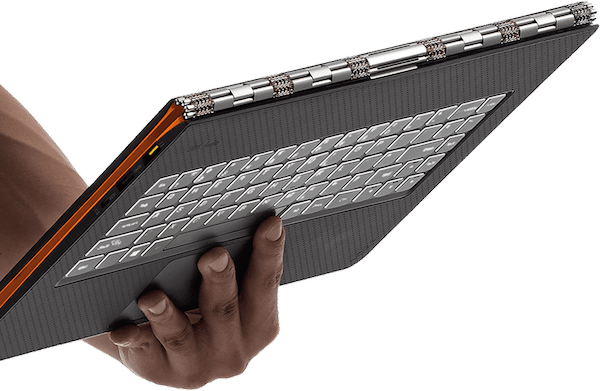
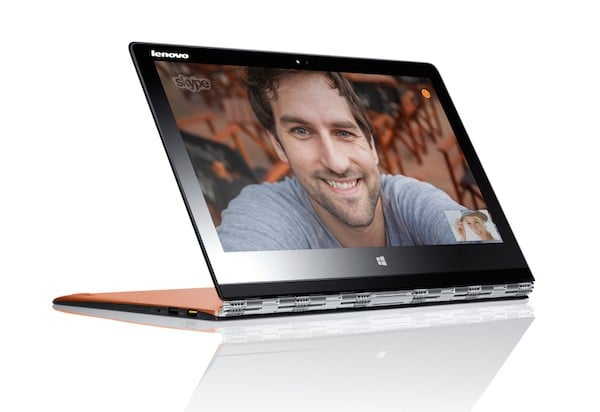
Lenovo is one of my favorite companies, with millions of customers all over the world. After we have previously spoken about potential specs of the upcoming new Lenovo Miix tablet, it’s time to have a look at the Lenovo Yoga Pro 3. The newest Lenovo Yoga 3 Pro comes with top notch hardware inside a sleek and sexy body which is said to have been constructed of about 800 individual pieces of steel and aluminum, with six attachment points across the display. The device is 17 percent thinner and 15 percent lighter than the Yoga 2 Pro, and sports the impressive 3200 x 1800 QHD+ display and has Intel’s new Broadwell processors on this inside.
Lenovo says the device will have up to 9 hours of battery life, thanks to the new Broadwell chips and will be available with up to 8GB of RAM and 512GB of flash storage. The 3200 x 1800 pixels QHD+ screen is much better than the hyped Retina display (2560 x 1600 pixels) on the MacBook Pro.
Also, the new Yoga 3 Pro is one of the very first laptops to charge over USB, which makes it really portable. On the inside we also find the JBL-tuned speakers with WavesAudio processing at the bottom of the laptop along with two USB 3.0 sockets, a micro HDMI port, a headset jack, and an SD card slot. The laptop also comes with 5GHz 802.11ac support out of the box and the latest Bluetooth 4.01.
The Windows 8.1 Lenovo Yoga 3 Pro featurs “Harmony”, an option that can automatically adjust settings to optimize whatever app you’re using. It will change the brightness and color temperature according to the environment lighting. However, the new Yoga 3 Pro is available at a starting price of $1349 and it comes in three colors: silver, orange, and gold.
Despite the high price for a 13-incher laptop, I think this is a special device and is much better than the MacBook Pro. So, if you have the money for it, then it’s a no-brainer. And considering that it will make the jump to Windows 10, then you have another reason to make use of it.
READ ALSO: OneDrive App for Windows Devices Gets Fixes for Problems Linked to Files Downloads
Sunset Overdrive is set to be the next big hit game for Microsoft’s Xbox One entertainment console. The highly-anticipated game, exclusive to Microsoft’s console, is set to make its debut on October 28. Pre-orders are already under way.
For those of you who are excited about the game, you can head over to your local Microsoft Store on October 27th at 10PM to pick up a copy of the game and receive exclusive swag, giveaways, and more as part of a special launch event. Here is what Microsoft has to say about it:
Come join us at your local Microsoft retail store for the launch of Sunset Overdrive! Free and early game play kicks off at 10pm (local time) on Monday, October 27. Be one of the first customers to pick up a copy of Sunset Overdrive at midnight to receive exclusive SWAG, giveaways and more*! Plus, enjoy food and play games to receive a raffle ticket to score additional prizes – one lucky winner will receive an exclusive Sunset Overdrive bundle and other awesome prizes!
If you haven’t preordered the game yet, you can do so now and get a $10 Xbox gift card digital code, along with melee weapons for the game. You can also purchase the Sunset Overdrive Xbox One Console Bundle and score a Microsoft Store exclusive white controller stand to match your new white controller.
Visit your local Microsoft Store on Monday, October 27th from 10PM to 1AM. The following stores will have different hours (October 28th from 6PM to 9PM): Garden State Plaza, Rockingham Mall, Fashion Centre at Pentagon City, Westroads Mall, and Roosevelt Field.
You can take a look at a trailer of the game below. If you are wondering why Sunset Overdrive is an exclusive title to the Xbox One, you can find out here.
When Microsoft announced Windows 10 on September 30th, everyone’s jaw literally dropped. We were all expecting Microsoft to unveil Windows 9. Even members of our news team were in shock that Microsoft skipped a version number — It simply was not expected.
So what happened? Well, according to Microsoft’s marketing boss for Windows, Tony Prophet, “it came and it went.” That is literally the answer we are getting for why Microsoft skipped Windows 9 in favor of Windows 10.
Here is what Prophet had to say further during the Dreamforce conference in San Francisco: “Windows 10 is not going to be an incremental step from Window 8.1,” he explained. “Windows 10 is going to be a material step. We’re trying to create one platform, one eco-system that unites as many of the devices from the small embedded Internet of Things, through tablets, through phones, through PCs and, ultimately, into the Xbox.”
Interestingly enough, Microsoft CEO Satya Nadella has been saying pretty much the same thing as Prophet. And it makes sense too. Windows 10 is not just another operating system. Microsoft has been taking a whole new route in terms of feedback, with the inception of the Windows Insider Program.
Microsoft revealed today that the Windows Insider Program has seen one million registrants in under two weeks. On top of that, Microsoft has received 200,000 pieces of feedback from eager testers. Windows 10 is shaping to be Microsoft’s best operating system yet.
Remember those “Windows 7 was my idea” advertisements that Microsoft was running several years back? Sounds like it needs a comeback — Gangnam Windows 10 style.
According to a Gartner analyst, Microsoft is being relatively quiet with Windows 10 in the consumer front, so people don’t flake on purchasing new PCs this holiday season. Microsoft recently unveiled Windows 10 and launched the Technical Preview, which was aimed at enterprise customers.
“Microsoft can’t make a big bang and talk about a new version of Windows in September with the holidays coming and consumers deciding that ‘if Windows 10 is coming, I’m just going to wait and not buy a PC,’” said Michael Silver, an analyst with Gartner. “That’s why last week’s announcement was pretty quiet and enterprise focused,” Silver added. “That’s why the hype [about Windows 10] is so low.”
This bold statement does make sense and explains why Microsoft launched a preview for the enterprise first, rather than consumers. Microsoft touted changes in Windows 10 that would benefit corporations and a less of an emphasis on Windows 8’s dual user interface (Modern UI vs desktop). Clearly businesses will find Windows 10 a much better solution as the line between touch and non-touch have been further blurred.
As Computerworld points out, the key message during the September 30th unveiling of Windows 10 was that users would not be confused when making the move from Windows 7 or Windows 8. “..whether they’re coming from Windows 7 or Windows 8, the workers at these companies will be immediately productive,” said Windows chief Terry Myerson during the Windows 10 unveil.
Once the 2014 holiday sales season is over, Microsoft is expected to talk more about Windows 10 for consumers. “Early in 2015 we’ll introduce the consumer chapter and talk much more about other device types and more consumer features,” Myerson added.
Microsoft has launched a new Bing experience for the upcoming elections (United States). In fact, Bing now gives you a 360-degree view into Elections 2014, with various perspectives and predictions.
With the new experience, Microsoft wants to arm voters so they can make decisions based on the most comprehensive information available. Microsoft is introducing a personalized Voter Guide which includes side by side comparisons of candidates’ positions as well as a tracker to find the nearest polling sites in your area. Here is what Microsoft had to say:
“As the U.S. approaches one of the most hotly contested political seasons in years, Bing has launched a new election experience at Bing.com/election that helps you get 360-degree view – from local to national – into Elections 2014. Bing brings you the latest news from the right, left and center perspectives, up-to-date predictions across governor and national congressional races, a personalized Voter Guide* that includes side by side comparisons of candidates’ positions as well as a tracker to find the nearest polling sites in your area.”
Microsoft is also launching an interactive map of the United States as part of the new Bing election experience, allowing you to see which party is predicted to win across the Senate, House, and gubernatorial races. All you have to do is hover over a state or zoom into a district to see who is going head-to-head and their respective odds of winning. You can sort by incumbents, Bing Predicts, and receive a view of real-time exit polls on election day.
Microsoft is also adding a “My Ballot” option to the right side of the page at Bing.com/Elections. Bing will display everything that will appear on your ballot as well as the location of the nearest voting station. With this feature, you can compare candidates, dig into propositions and even see predictions from Bing as to which candidate has a higher chance of winning the elections.
If you are curious to see how the 2014 elections unfold, keep an eye on Bing!
Windows Media Center is a program many are still clinging onto. With Windows 8.1, it was possible to purchase a license which would add Media Center to your operating system replacing the branding of “Windows 8.1 Pro” to “Windows 8.1 Pro with Media Center”. It appears, due to a bug, it is possible to upgrade to Media Center with the Windows 10 Technical Preview too, but according to Microsoft this will stop you from receiving any future updates to the operating system.
Those who have upgraded to Media Center with the Windows 10 Technical Preview will notice that the operating systems branding changes from “Windows Technical Preview” to “Windows 8.1 with Media Center”, rather obviously this bug causes anomalies with the branding within the operating system. Because of this, the Technical Preview will not receive any future updates, so you’ve essentially just opted-out of updates if you’ve installed Media Center.
Don’t worry though! There’s an easy-fix for this, according to the Microsoft support forums, an in-place upgrade will fix this problem. We’re yet to try this so don’t take our word for it. How many of you decided to install Windows Media Center, and if you did why haven’t you stopped using it yet?
If you own a Surface Pro 3, you must download this app right now. New to the Windows Store is an app called Surface Hub, which is designed to complement the Surface Pro 3 by allowing you to set your Surface Pen preferences and more.
“Get the most out of your Surface. Surface Hub provides you with customization for your Surface Pro 3 device. Configure your Surface device. Give feedback on your experience so we can keep making it better,” the app description reads.
The app allows you to set the Pen pressure sensitivity to your liking by simply adjusting a slider. You can then test your pen sensitivity within the app. The second option allows you to dictate whether the top button on the Surface Pen opens up OneNote (modern) or OneNote (desktop application).
The app also allows you to provide feedback directly to Microsoft. It is a very basic form that lets you rate your Surface Pro 3 experience by asking you if you would recommend the device to a colleague or friend. You can also type up some feedback and send it to Microsoft.
The app is very basic at this time and clearly this app coincides with the recent firmware update that Microsoft released. In fact, that particular update for the Surface Pen Driver (v2.0.1145.0) enabled “additional upcoming configuration options for Surface Pro 3.” We knew this app was going to be released, but had no idea it was going to be made available so soon.
Hit the download link below to snag the app for your Surface Pro 3.
For many Windows Phone users, Cortana has served as a sense of pride; she is our fight against Apple’s Siri and she assisted Master Chief when he needed help the most. Cortana provides quick access to information and allows users to perform complex actions, such as calendar scheduling, with a simple voice command. However, when we get in our cars, it can be hard to call upon her without taking our eyes off of the road – or is there a better way?
Cortana on the Road
After Microsoft introduced Windows Phone 8.1, a new subtle feature was added to devices that many users are still unaware exists. To put it simply, when you connect your Windows Phone to a car’s Bluetooth system, a once hidden contact for Cortana appears in your address book. Thanks to this new functionality, Cortana’s useful features are only a steering-wheel button press away.
We are going to show you how to easily access Cortana while you are driving, but you will need a few things to make this possible. First, you will need a Windows Phone device running the latest version of the operating system, 8.1. Second, you will need an automotive vehicle with built-in Bluetooth. Instructions will vary depending on your vehicle, but we will try to give a broad overall explanation, so that you can take this advice back to your very own car.
Setting the System Up
To start, we are going to have to pair our Windows Phone device with the car’s Bluetooth system. Begin by swiping down from the top edge of your device and selecting “All Settings”. Next, select the “Bluetooth” menu option and ensure that the toggle switch is set to the “ON” position.
For this example, we are going to be using a 2014 Toyota Corolla with Toyota’s Entune audio display system. Start by selecting the Setup button in the upper right corner of the home screen (Note: on some models, it is a physical hardware button), then select Bluetooth, and finally, the “Add” button.
Now, head back to your Windows Phone and look for the name of your car in the Bluetooth settings list – in this example, my car was named “TOYOTA COROLLA”. Once you have selected your car, give the unit a moment to connect, and if prompted, enter the provided Bluetooth pairing PIN on your phone.
Once a connection has been established, your phone will ask permission to transfer contacts from your device to the car’s system – select yes; this process may take a bit of time depending on how many contacts you have on your device. My Windows Phone has over 800 contacts, and the process took almost five minutes.
If you do not have a Toyota with Entune, your system may still be similar. Look for a settings menu, and then an option to access Bluetooth and add a device.
Using Cortana on the Go
Once the car and phone have been connected, you are ready to go! You will find a listing for Cortana in your car’s address book. If you have voice recognition in your vehicle, you can simply activate it (Toyotas have a button on the right side of the steering wheel), and state “Call Cortana”.
Once again, if you do not have a Toyota with Entune, the process may be similar in your vehicle. Check your owner’s manual on how to initiate a phone call via the auto’s Bluetooth system.
After stating, “Call Cortana”, you will hear the typical beep letting you know that she is listening, and you can make any requests as usual. For Example: “Text John Smith that I will be late to tonight’s party.”
To create an even better experience, head into the settings of your Windows Phone once again, but this time select the “Speech” menu option. From here, you can tell Cortana to read text messages out aloud when you are connected to a Bluetooth device. She will let you know who is texting you, and then you can either ignore the text, respond back by voice, or initiate a phone call.
We are here to Help
We hope this helps, as it has made my drives much easier over the last few weeks. Remember, if you have a different model car with Bluetooth, you should consult your owner’s manual for detailed instructions. If you need any additional help, be sure to comment below and we will try to help you out as best as we can!
Disclaimer: We are not aiming to promote Toyota — it is simply the car I own. If you would like to send me a BMW, Mercedes, or Tesla to test out, I will gladly write a tutorial just for you. ?
Earlier this year, HTC released the Windows Phone version of their flagship device dubbed as the HTC One M8 for Windows. The handset brings all the goodness of HTC One M8, but with Windows Phone 8.1 as its operating system. Currently, the HTC One M8 for Windows is available from Verizon Wireless, but it seems more carriers will offer the handset in the coming months.
In the US, AT&T is also expected to add the handset to its product portfolio in the coming weeks. As per our friends at WPCentral, the HTC One M8 for Windows will hit retail at AT&T on November 7th. What’s even more surprising is that it’s the same date when the carrier is expected to begin selling the Lumia 830. This is definitely a welcoming news if it’s legit as customers will now get more choice, since most of the popular Windows Phone handsets are available at Verizon.
The report didn’t mention anything about the pricing of the HTC One M8 for Windows on AT&T, but it shouldn’t be too different than Verizon. As for the Lumia 830, the mid-range flagship retail price is around 330 Euros so we do have an estimate.
HTC One M8 comes with Windows Phone 8.1 as its operating system, and rocks a 5-inch display sporting a resolution of 1920 by 1080 pixels. There’s a quad-core Snapdragon 801 processor under the hood, 2GB of RAM, and 32GB of expandable storage, supporting microSD card of up to 128GB. It also retains the Duo camera setup with a 4MP UltraPixel camera and a depth sensor.
The HTC One M8 is superior to the Lumia 830 when it comes to hardware, expect the photographic capabilities. That’s one area where Lumia 830 takes the lead, thanks to its 10MP camera featuring Pureview technology and Carl Zeiss optics.
There’s no official confirmation from AT&T at the moment, but we’ll keep an eye on the news, and notify you as soon as anything official comes up.
We recently wrote about the advances in JavaScript performance in Internet Explorer in the Windows 10 Technical Preview. Today Microsoft has revealed more details into the areas they are targeting.
Chakra is the JavaScript engine that interprets JavaScript code into functionality in Internet Explorer 9 and up.
How it works
Chakra supports a three-tiered architecture. There is a an interpreter focusing on fast start up times, a JIT compiler used to produced highly optimized code, and a garbage collector that reduces pause and improves responsiveness.
Once Chakra gets JavaScript code from an app or website it checks it for any syntax errors, which are statements that violate language rules. When a function is executed Chakra creates an abstract syntax tree (which is the source code represented in a tree data structure). This is used to make byte code (non-human readable code used by interpreters for languages such as Java and Python also). This is interpreted immediately (the browser is acting upon the code) while the JIT Compiler creates more optimized machine code by collecting data. It also optimizes loops, parts of code that are being run multiple times, so that it is not reading them over and over. Once the JIT compilation is complete, every time the function is called, Internet Explorer will run the faster machine code, rather than interpreting the slower byte code.
This is a simplified version of the process, but now you have a general understanding of what happens to JavaScript code in Internet Explorer. Here is a diagram for a visual recap.
New Optimizations
Now, we get to the improvements to this flow that Microsoft is working on.
The first is a Simple JIT that accompanies the Full JIT compiler. The JIT compiler produces machine code that runs much faster. However, it takes time to produce this code. So the slower interpreter is running byte code while Chakra waits on the Full JIT. To reduce the time it takes from executing slower byte code to machine code, Microsoft has added the Simple JIT. This will ignore complex optimizations but will produce machine code faster than the full JIT, enabling Chakra to switch from slower byte code to faster machine code earlier. Once the full JIT is finished, the Chakra will switch to that code.
So far, there has been three threads used by Chakra. But some hardware can handle more than this workload. Chakra can now determine when the hardware is capable of more, and then starts multiple threads for JIT compilation. This also decreases the time it takes to switch from slower byte code to faster JIT machine code.
The last improvements come to the JIT compiler itself. So far, I’ve tried to make it as easy as possible to understand for those of you without a technical background, but here it becomes impossible to delve into details. The JIT compiler takes byte code and turns it into machine code that is read by the computer directly. New optimizations make the resulting code more efficient and produce performance boosts when it is run by Chakra.
Wrap-up
If your head is already spinning, no worries, this is not easy to follow even for some programmers as it is very low level material.
Here is a “tl;dr”– JavaScript is an ‘interpreted’ language, which means that it requires a program to read and execute its instructions. Other languages like C++ are ‘programed,’ which means they are compiled into machine code that the computer directly understands. In fact, the program that reads interpreted languages is usually written in programming languages such as C++. What Chakra does is read and execute JavaScript while producing faster machine code for it. The optimizations are aimed at transitioning to this machine code as fast as possible, and making the machine code more efficient.
Note: lead image is just a snippet from the jQuery source code.
Microsoft has made a number of announcements today to show its commitment to business users who utilize their line of Surface tablets. The company assured users that it will be providing long-term support.
Microsoft introduced a new support bundle “Microsoft Complete for Business” wherein it will be offering a three-year extended warranty, accidental damage protection, setup support, and faster exchange service. It also announced a “laptop replacement” bundle, where it is offering $150 off when you purchase a new Surface Pro 3, Type Cover, and Docking Station together.
In addition, the company also announced that all the Surface Pro 3 tablets will be upgradeable to Windows 10 when the operating system releases next year. As far as company’s current portfolio of Surface accessories are concerned, it also asserted that all the existing accessories are forward compatible, which means that they will work on the next generation Surface tablets.
“Enterprise-class device that can deliver great end user productivity. Microsoft is putting its full and sustained support behind the ongoing Surface program as one of a number of great hardware choices for businesses large and small.” – Microsoft CEO, Satya Nadella
Additionally, it may bring a smile to many faces to hear that the Surface Pro 3 qualifies the US Environmental Protection Agency’s Energy Star Program for computers. The company says that many of its clients prefer devices that meet such criteria, and with Surface Pro 3, that should help them reach their goals.
Usually, sending big file sizes to your friends or co-workers can become a big problem, especially if you want to do it for free. Luckily, Send Anywhere has landed on the Windows Store and takes care of these problems for you. Send Anywhere is a simple, unlimited, instant file transferring app that will make file sharing easier than ever before. Send Anywhere is a file sharing service that has been downloaded million of times on Windows Phone, Android, iOS, Chrome, and Amazon. Now it is being released on the Windows Store for Windows 8 and Windows 10 customers.
Send any file type of any size with this Windows app
The sending process is really simple, as you just need to select a file and click “Send”. This will generate a 6-digit one time key (OTK) which you will share with the person you want to send the file to. It’s also possible to send a push alert to one of the nearby/recently used devices in the list. And if you are receiving the files, you just need to enter the 6-digit OTK on the receiving device.
By using the My Devices release, you can also remotely manage every Windows and Android device that you’ve registered with Send Anywhere. You can access files downloaded on your Windows computer from your Android phone as well as send those files to another device. A must-have app if you were looking for this functionality!
READ ALSO: VLC App for Windows 8 Completely Revamped for Windows 8.1, Windows 10 Support
Snapping windows is pretty old news at this point. If you’re a Windows 7 or 8 user you probably think you’ve seen all there is to ‘snapping.’ But if you did think so, you’d be wrong. There is more, much more. Well, maybe not much more, but there is more.
First is the guided ‘snap assist.’ To trigger it, you start with no snapped windows, and then drag a window to either side of the screen. It will snap this window, and on the other side of the screen give you an option of windows to snap alongside it. To select, use the arrow keys + enter, or click on one. If you don’t want to snap anything else, simply click anywhere but the choices.
They have also made it smarter when you are resizing snapped windows. Let me give you an example. You snap a window on the left or right. Then you resize it, as it doesn’t need half the screen. Now you go to a different window, that was full screen, and snap it next to the window you just resized. In Windows 7 and 8 it would snap and take up half the screen. It now takes up the rest of the screen.
Lastly, you can now snap into corners. Once a window is snapped to either side, pressing windows + up/down arrow will snap it up or down. So now you can have two, three, or four windows snapped in seconds.
Here is my best advice. Hold down the windows key, and go nuts with the arrow keys. Only though this can you see the new way windows react to ‘snapping.’ Try resizing the windows and snapping windows next to them, and snapping them in different directions. This is the best way you’ll understand. And once you can adjust multiple windows on your screen in seconds, you’ll at the least feel very productive.
One annoyance I do have with the system is the way my windows turn out ‘post-snap.’ If I go from a window that takes up most of my screen, snap it to a corner, and then un-snap it, it remains the same size as it was when snapped. Intuitively, once I am done multi-tasking and want that window back, I want it back to the size I had it. How do you feel about it?
Note: when i say window(s) … I mean windows of programs. Not the Operating System (unless Windows is followed by a number).
Microsoft has rolled out a new firmware update for Surface Pro 3 owners today, and interestingly enough, this update is out-of-band. Microsoft typically releases firmware updates for the Surface tablet during Patch Tuesday of every month, but this month, we get one firmware update early.
The update is for the Surface Pro 3 and affects the Surface Pen. This is what the release notes state: “Surface Pen Driver (v2.0.1145.0) enables additional upcoming configuration options for Surface Pro 3.”
It is not quite clear exactly what new configuration options are going to be available for Surface Pro 3 owners, but this firmware update is definitely welcome. Head over to Windows Update right now and snag this update. Any guesses as to what these new configuration options are?
Gone are the days of Internet Explorer being a thorn in a web developers side. In fact, Internet Explorer has evolved into a browser that harnesses the power of modern and open web standards.
In an official blog post today, Microsoft has unveiled a partnership with CyArk, revealing a brand new world heritage website that showcases 3D content. Furthermore, the 3D content is best viewed in Internet Explorer, which Microsoft is touting as a browser that lets you experience the best touch experience with fast and responsive app-like performance. Here is what Microsoft said today:
Designed from the ground-up for the modern touch browser, the all-new CyArk.org is built to scale with CyArk on their mission to document 500 heritage sites within five years. The new site utilizes advanced hardware acceleration and WebGL – a web technology that allows users to enjoy 3D content usually limited to apps but here available within a browser as well.
Similar to other Rethink experiences, the new CyArk.org is more than just a showcase of one technology or browser, it is a real-world site that takes what folks do on the web today and transforms it into something more beautiful and engaging through the power of modern and open web standards. And that is what IE is all about, creating real world, forward-thinking sites that let you experience the best touch browsing on a tablet, hardware-accelerated 3D Web graphics, and fast and responsive app-like performance.
The 3D website, which is located at CyArk.org, features jaw-dropping models scanned and built by CyArk showcasing a number of geographic icons in some of the most detailed 3D content on the web. The website uses advanced hardware acceleration and the WebGL web technology.
Microsoft hopes that this project will ‘pass along a deep appreciation’ for these world heritage sites. On top of that, Microsoft wants you to see that Internet Explorer is the best browser that utilizes the best the web has to offer, right at your fingertips.
If you are running Internet Explorer, head over to the VIA link below to check out the 3D website.
With the Windows Technical Preview build 9841, Microsoft disabled a few features which were present in builds previously before that. Features like the Notification Center are not enabled in the current build of the Windows Technical Preview, meaning users are unable to check out what’s new in the Notification side of things. Luckily, a smart man has gotten the basics of it working for us to test out on our machines.
Now before we continue, we must stress that enabling the Notification Center is not for the faint of heart. It requires adjusting permissions in the registry, as well as moving a few files around and perhaps using the CMD. If you’re not sure you know what you’re doing with either three tasks, then stop here and wait for an official preview build with the Notification Center enabled.
This tweak will not permanently enable the Notification Center, nor does it add a Notifications button to the taskbar. This hack/tweak simply reveals the Notification Center UI, and considering build 9841 is an early build, it isn’t quite finished just yet. To do the tweak, you need to download a few files to get started.
Thanks to Adrian (@adeyblue) on Twitter, you can now test out the Notification Center in all its unfinished glory. Adrian has included a readme file with all the instructions as to how to enable the Notification Center. Check out the download links below to get started! For now, this only works on x86 machines, however a x64 version is in the works.
Back in July, we broke the story about Microsoft’s pre-release beta program for Office. Microsoft was offering everyone a chance to become an early adopter and test early versions of Office productivity apps before they hit retail and have your feedback monitored by Microsoft.
Now, for those of you who were lucky enough to sign up for the program, Microsoft is sending out the first round of invites to the Microsoft Office Pre-Release feedback program. This means Microsoft is ready to begin the beta program for Office on Windows and Windows Phone (which is what this specific invite states). This Beta program basically applies to tablets, phones, and desktops.
Here is a snippet of the email Microsoft sent out today, which apparently asks you to accept the invitation, review the Participation Agreement, and await further instructions:
Many months ago we opened a process to allow our individual customers to indicate their interest in being considered for future Microsoft Office Pre-Release feedback programs. At this time our records indicate that you have successfully completed our nomination form and are currently in a holding pattern waiting to be considered for a program(s). If you no longer wish to be considered, you can remove your information by emailing us.
Here’s a bit of background on how the programs will work. After you complete the onboarding steps below, you will be added to our list of available participants. As features and experiences become ready for feedback, we will contact participants meeting the necessary profile with details about that program and extend an invitation to provide feedback. The programs will vary in length from a few weeks to as long as several months. As cloud services and devices become more ubiquitous in our lives, it’s an exciting new landscape ahead with endless possibilities! We look forward to exploring it with you and making the next wave of Office products the best we’ve offered to date.
No word on what pre-release beta software you will be testing, but with touch-centric Office (codename Gemini) and Office 2015 on the horizons, you might get a chance to provide feedback on the company’s biggest release yet. Office for Android is also on the table. And let’s not forget that you can help be a part of any upcoming updates to Office 365 or Office 2013.
Interestingly enough, Microsoft co-founder Bill Gates recently stated that he believes Microsoft’s Office productivity suite is in need of dramatic improvements, and that it should be the software giant’s top priority to make that happen.
Microsoft has snagged up a few new domain names recently, including ProjectCaboStore.com, AzureOperationalInsights.com, and AnarchistFashion.com. Microsoft is known to snag up domain names for an upcoming game, project, or event, but details are not known at this time exactly what these three specific domains refer to.
Microsoft tends to register domain names for internal projects or for projects that never see the light of day. But then there are projects like Office Sway, which was discovered by the internet when the domain name was registered. Either way, we are curious to see what these three domains have in store. Could ProjectCaboStore.com refer to a new Microsoft Store? Does AnarchistFashion.com have something to do with Sunset Overdrive? We’ll have to wait and see.
Microsoft recently launched the Windows Technical Preview to begin conducting feedback for the upcoming Windows 10 operating system. The first build of Windows 10 to be issued via the Windows Technical Preview was build 9841, which can be clean installed or upgraded with an ISO. There’s also another way Microsoft is testing the distribution of Windows 10, and that’s natively via Windows Update.
We’re not entirely sure if this has been openly covered, or if many people know about it, but Microsoft is currently delivering the Windows 10 Technical Preview to Windows 7 users via Windows Update natively for thos who have signed up for the Insider Program and are on Windows 7. Much like any normal update, Windows will see it as an update and install it, and depending on whether you’ve got automatic updates enabled, Windows 10 could just be installed without the user needing to do anything.
Microsoft hasn’t talked about this update process at all, and it’s not entirely clear if Microsoft is planning to use this as the official distribution method for Windows 10 when it launches next year. These tests are currently not being conducted for users running Windows 8 or Windows 8.1, but we imagine it would work in a similar fashion to that on Windows 7.
Of course, for Windows 7 users to actually see the Windows Technical Preview as an update in Windows Update, they need to sign up for the Windows Insider Program and download a small file. Still, it’s interesting to think how Microsoft will handle this update process when Windows 10 hits retail.
This isn’t the first time Microsoft has distributed an operating system via Windows Update. For the last few months, Microsoft has been issuing Windows 8.1 via Windows Update for Windows 8 users. The most interesting thing about Windows 10 being delivered via Windows Update is the fact that it’s happening on Windows 7 too — is this a sign that Windows 10 will be free for existing Windows 7 users?
Microsoft is currently conducting feedback and other data for this update method, meaning you can test it out yourself. Let’s hope Microsoft sticks with this update method, it’s fast and reliable and it simply works. This will also be the best way to get all users updated to Windows 10, and by offering them a simple and clean way to update how can anybody say no?
Last year at CES Microsoft showed off their ‘IllumiRoom’ concept, which extended the screen of your TV to the walls using projectors linked to the Xbox. Microsoft is now showing off the evolution of that in the ‘RoomAlive’ concept; and in RoomAlive the TV is gone, only the walls are left.
‘RoomAlive’ projects a game to every wall of your room, and the floor. Players can “touch, shoot, and dodge augmented content that seamlessly exists with their existing physical environment.” Not only do your walls become a canvas, but objects such as your table can also become a battlefield.
You can physically touch objects in side a game on the walls and your furniture, or shoot them with a gun controller. If you want a more classic experience, you can use an Xbox controller to play as a character — with the added bonus of having him run up and down walls.
The concept is made possible by projectors and Kinect devices on the ceiling. Obviously, this is not coming to your living room anytime soon, but it will be interesting to potentially see parts of it integrated into the Xbox in the upcoming years. Until then, we can’t wait to see what Microsoft does with it next year.
Windows 10 Technical Preview was made available to the public last week. For those of you who have the operating system installed, you should be providing feedback to Microsoft. After all, by joining the Windows Insider Program in order to download Windows 10, the idea is to submit feedback directly to Microsoft from the Windows Technical Preview and gain access to pre-release builds of the operating system.
With the Insider Program, you have an opportunity to shape the future of Windows with your feedback. Providing feedback is not difficult at all and don’t worry, you don’t need to send any lengthy and detailed emails or documents, all you have to do is launch the Windows Feedback app and type a few words.
In this guide, we are going to explore the Windows Feedback app and show you how to use it to provide feedback to Microsoft. First of all, launch the app from the Start menu. Once you have the app open, you will notice the main feedback screen (see image below).
As you can see from the image above, you have quite a few categories to choose from on the left side of the app. In my case, I selected the ‘Start’ category and was presented with a few subcategories to provide feedback. For example, you can provide feedback on installing apps, as well as provide feedback on the most used apps list.
In this example, I selected ‘Tiles’ so I can give feedback about the appearance of Tiles on the Start menu. Once I click ‘Tiles,’ I was taken to a new screen that allows me to report a problem or submit feedback. You can even look at existing feedback and offer a vote (see image below).
As you can see, there are already a number of existing feedback topics, with a number on the left side indicating how many ‘upvotes’ it has received. One of the most popular suggestions presented as feedback by a Windows Insider participant is the idea of pinning tiles to the desktop, rather than the Start menu.
When you click or tap on that feedback suggestion, you are taken to it’s specific feedback page where you can agree with the suggestion or add more details to it (see photo below).
On this screen, you can hit the ‘Me too!’ button to easily offer your support for the idea, or type your suggestions into the ‘Add more details’ field. Tapping the back arrow will return you to the previous screen, where you can look at other feedback topics and offer your suggestions.
Tap the ‘New feedback’ button to provide your feedback to Microsoft about the topic you are in. You will be presented with a text field and an option to submit a screenshot (see image below).
After you type in what you have to say and you hit ‘send’ to fire off your feedback, you will be presented with a ‘thank you’ screen (see image below).
So, as you can see, providing feedback to Microsoft as part of the Windows 10 Insider Program is quite easy. If you have yet to provide feedback to Microsoft and you are running Windows 10, we highly recommend you fire up the Windows Feedback app.
You have the fantastic opportunity to help shape the next versions of Windows. Who knows, perhaps your feedback or idea will be liked by many Insider Program participants and Microsoft may even implement it in Windows 10.
What are you waiting for? Launch the Windows Feedback app and start sending in your feedback! If you have already done so, let us know in the comments below what feature suggestions you made.
Editor’s note: The Windows Feedback app features a search functionality that lets you search for topics and suggestions within the feedback app. Unfortunately, the search feature can be a bit slow and sometimes not work at all. Be mindful of that when using the search feature.