Simplified Office 365 admin experience arrives for SharePoint Online admin center

Simplified Office 365 admin experience arrives for SharePoint Online admin center

Microsoft has simplified the SharePoint Online admin center, as part of the company’s journey to simplify the Office 365 admin experience. You can now choose between a simple or advanced admin experience, control top navigation items, and block workflows from being used from your environment.

“Narrow in on what is important – the task at hand. And when that changes, refocus. The journey to simplify the Office 365 admin experience continues, this time with a focus on simplifying the SharePoint Online admin center. For those admins who don’t specialize in deep SharePoint management, our goal is to allow you to manage the service more easily while maintaining access to the most common controls,” Microsoft stated in an official blog post.

The simple admin center experience displays only the essential options used in the most common scenarios. This includes site collection management, user profile management, and the main settings for external sharing, Information Rights Management, and more. The advanced admin center, on the other hand, offers access to all SharePoint Online management capabilities. This includes Business Connectivity Services (BCS), the Term Store, the Secure Store, and more, in addition to site collections, user profiles, and settings.

Admins can now show or hide the OneDrive for Business, Yammer/Newsfeed, and/or Sites in a users’ top global navigation bar. This allows for a streamlined view that matches your corporate policy. On top of that, admins can block specific workflows too.

“If you manage workflows into SharePoint Online from SharePoint Designer 2013, and you select Block 2013 workflows, your users will not be able to create a new workflow,” Microsoft adds.

Admins can also opt into the latest Office 365 releases, by heading over to the Office 365 admin center, Service Settings > Updates, and turning on First Release.

Visiting Google using Windows and Internet Explorer? Expect to be prompted to use Chrome

Visiting Google using Windows and Internet Explorer? Expect to be prompted use Chrome

By default, Windows comes with Internet Explorer as the web browser — unless you live in Europe, in which case you’re prompted to choose between several browsers. Thanks to this, most average users stick with IE, while many techie folks simply use it to install either Chrome or Firefox. Now Google is targeting those regular customers. 

IE web surfers who visit Google’s site to search for something are now finding an interesting prompt to the right of the search box. The wording is very straight-forward — “A faster way to browse on Windows. Install Google Chrome.”

Clicking the link will result in a page prompting the installation of both Chrome and the Google search app. There are even instructions for how to put them on your Start screen. 

Google prompting users to switch browsers isn’t entirely new, but the specific targeting of Internet Explorer is new. It’s hard to say how many people will actually take advantage or disadvantage of the prompt and make the switch.

Surface Pro 3: i3 and i7 models are now available for purchase at your local Microsoft Store

Surface Pro 3: i3 and i7 models are now available at your local Microsoft Store

You can now head over to your local Microsoft Store and purchase all models of the Surface Pro 3. As of today, the Core i3 and Core i7 models are available for order. If you were one of the first to pre-order these models, you should have already received a shipping notification letting you know that your new Surface Pro 3 is on its way.

The Surface Pro 3, powered by Windows 8.1 Pro, features a 12-inch ClearType Full HD display (2160×1440), 800g in weight, and 9.1mm thin with its Magnesium casing. The RAM is dual-channel LPDDR3 and varies between 4GB and 8GB depending on how much you are willing to pay. The front-facing speakers are also Dolby Audio-enhanced. The device also features a 5MP and 1080p HD front and rear facing cameras, Bluetooth 4.0 low energy technology, and Wi-Fi 802.11ac/802.11 a/b/g/n.

The device also features the following ports: Full-size USB 3.0, microSD card reader, Headset jack, MiniDisplayPort, Cover port, and Charging port. The device has the following sensors: Ambient light sensor, Accelerometer, Gyroscope, and Magnetometer. The device comes with a 36W power supply (including 5W USB for accessory charging). Battery life is up to nine hours (web browsing). The N-trig pen features 256 levels of pressure sensitivity.

The Surface Pro 3 has been well received by critics and consumers. The device looks nothing short of a work of art. The display is crisp, clear, and accurate. In fact, an independent display analyst firm DisplayMate has found Surface Pro 3’s display to be “one of the very best and most accurate displays available on any mobile platform and OS.”

You can snag the entry-level Surface Pro 3 (64GB of storage and a Core i3 CPU) for $799. You can also purchase the Core i5 model with 128GB of storage and 4GB of RAM for $999. The Core i5, 256GB/8GB model runs for $1,299, while the Core i7, 512GB/8GB model runs for $1,549. The high end Core i7, 512GB/8GB model will run you a whopping $1,949.

You can also snag the Type Cover, which runs for roughly $130, while the docking station will run you close to $200. 

The Surface Pro 3 allows you to be productive anywhere you go with its lightweight design, allowing you to easily slip the device into your bag or backpack. Powered by Windows 8.1, the Surface Pro 3 is fast and is touted as a tablet that can replace your laptop. The device also features a Surface Pen, which offers natural writing and drawing experience. 

Head over to your local Microsoft Store, or check out the store online. You can also snag these devices at BestBuy and Staples. We’ve also embedded the very first Surface Pro 3 TV commercial below in case you missed it.

How to Zoom Out/In With the Mouse on Windows 8, 8.1

Windows 8 is a great OS especially if you are using a portable or touch based device. Why? Well, because with the release of Windows 8 Microsoft created and provided a new platform that wants to help you in all your actions, whether we are talking about business related activities or entertainment purpose.zoom out mouse windows 8
Thus, Windows 8 is featuring a friendlier user interface along with other in built apps and capabilities that can improve your Windows experience. In that matter, you should know that you can perform classic operations easier and faster by using some new features. For example you can zoom out or in within Metro apps by using your mouse. Doing so is easy, but if you haven’t used this feature you might have problems in understanding how to use your mouse in order to zoom out or in on your Windows 8, or Windows 8.1 based device.

Therefore, let’s see how to easily use this new feature that is integrated on Windows 8 system.

How to Zoom Out/In With Mouse on Windows 8 and Windows 8.1

When you are in Metro and using your mouse as soon as you swipe your mouse pointer over a certain title, on the bottom of your screen a scroll bar will be displayed. Now, for zooming out or in you don’t actually have to use that scroll bar. All you have to do is to move your mouse pointer to the middle of the right or left edges of the screen. While doing so the Metro will automatically scroll in the direction you are pointing in with your mouse. Moreover, for obtaining similar results you can zoom out or zoom in by using the wheel from your mouse.

Moreover for zooming out or in while in certain app you can use the classic method: press Ctrl keyboard key and while pressing and holding the mentioned button scroll down or up using the wheel from your mouse.

Well, that’s how you can scroll and zoom out and in with your mouse while using the Windows 8 or Windows 8.1 platform.

How to Name a Group of Tiles on Windows 8, 8.1

Windows 8 comes with a redesigned user interface along with several in built features that are dedicated for portable and touch based devices. The system is also featuring different settings that can be applied in order to personalize and customize the default UI, so in that matter we will be checking how to rename a group of tiles on Windows 8 and Windows 8.1.name group of tiles windows 8
As you know by default Windows 8 is featuring a Home Screen where you have organized several in built apps and processes. These apps are being displayed in titles mode and you can use the same for having instant access to your email account, to Windows Store and to other locations and programs from your computer. Now in case you want to personalize the user interface from your Windows 8 or Windows 8.1 laptop, tablet or desktop you might want to group some titles and to name that group so that you can easily access the same. In that matter, you should take a look over the guidelines from below.

How to Name a Group of Tiles on Windows 8 and Windows 8.1

  1. First of all you need to see all the tiles from your Home Screen. In order to do so, you have to point your mouse cursor on the bottom right corner of your screen where you need to left click on the dash icon.
  2. Good; now you will zoom out and you will be able to see all the tiles.
  3. From that point all you have to do is to select the group of tiles you want to rename.
  4. So, right click on the mentioned group and from the settings panel select Name Group.
  5. Type the new name that you want to assign in the dialog box and click “ok” in the end.
  6. In the end from your keyboard press the dedicated Windows button in order to zoom in and you are done.

Perfect; now you know how to easily and quickly name a group of tiles on Windows 8 and Windows 8.1.

Microsoft’s newest board member John Stanton: I’m excited to help shape Microsoft’s future

Microsoft's newest board member John Stanton: I'm excited to help shape Microsoft's future

Microsoft announced today that John W Stanton, touted by the Redmond giant as a pioneer and innovator in the global wireless industry, has become Microsoft’s 11th board member. Stanton is entering Microsoft’s mobile-first cloud-first era and will help the company transform.

“John brings extraordinary experience in the mobile communications industry and deep business acumen, and we are delighted that he is joining Microsoft’s board of directors,” said John W. Thompson, Microsoft chairman. 

Stanton, who currently serves as the chairman of a private equity fund called Trilogy Equity Partners will join the Compensation Committee of the Microsoft board. Stanton is married, has two sons, and has an MBA from Harvard Business School.

“I’m happy to be joining Microsoft at such a pivotal moment in the company’s history. I know firsthand what an indispensable role Microsoft plays in the technology industry, in the lives of countless people around the world, and in the Puget Sound region, so I’m excited to have the opportunity to help shape Microsoft’s future,” Stanton stated.

Microsoft's newest board member John Stanton: I'm excited to help shape Microsoft's future

“John’s insights into mobility around the globe and his expertise in working with organizations as CEO and as a board member will be invaluable as we transform Microsoft for growth and leadership in the mobile-first, cloud-first world,” said Microsoft chief executive officer Satya Nadella. 

Stanton joins Chairman John W. Thompson, Steve Ballmer, Dina Dublon, Bill Gates, Maria M. Klawe, David F. Marquardt, G. Mason Morfit, Satya Nadella, Charles H. Noski, and Dr. Helmut Panke.

How to Use Two Windows Open on Windows 8, 8.1

Windows 8 was designed to be great for portable and touch based devices, which means that multitasking is a must when considering the latest OS released by Microsoft. So, for completing various multitasking actions you will first have to learn how to use two windows open side-by-side feature and that’s exactly what we will be checking during the guidelines from below.windows 8 side by side
Using multitasking features on Windows 8 is easy as there are dedicated solutions that can be applied each time you need or want to switch between apps or to compare processes and programs. In that matter, using two windows on the same time will be often required whether you just want to complete classic copy-paste actions or if you have to compare different projects, presentations or other tools. So, if you still don’t know how to use two windows side-by-side on Windows 8 or Windows 8.1, then you have all the reasons for checking the lines from below.

How to Use Two Windows Open on Windows 8 and Windows 8.1

This first thing you can try is to open your windows; then just drag a window’s title bar against one side of your screen and at some point your window will fit at one side of your screen. You should repeat this operation for the other window you want to use and voila, there you have two windows open side-by-side on Windows 8 and Windows 8.1.

For getting the same results you can also right click on any blank space from your taskbar. From the list of options that will be displayed just select “Show Windows Side by Side”. This of course is the easiest way in which you can start planning your multitask actions.

Also you can make a window to fit one of your screen half sides by pressing and holding the Windows dedicated keyboard key while pressing on left or right Arrow button.

So, there you have it; that’s how you can anytime use two windows side-by-side on Windows 8 and Windows 8.1. Try each method from above and see the results by yourselves; also do use the comments field from below if you have something to share with us and with our users.

Microsoft is fighting the US government’s demands to hand over emails

Microsoft is fighting the US government's demands to hand over emailsToday Microsoft is in court. Not for doing anything wrong, you understand. This time around, big M is standing up for its customers, and standing up for privacy. The hearing centers around the US government’s attempt to force companies to hand over customer emails regardless of whether they are stored within the US or not.

Microsoft shares the view that many people hold — that these requests are unacceptable. There are, of course, instances in which it would be appropriate for the government to request access to someone’s emails, but Microsoft argues that the correct legal channels should be used rather than request automatically being honored.

The hearing hinges on deciding who owns emails that are stored in the cloud — is the person whose account they are held in, or the company who hosts them? If Microsoft ‘owns’ the emails, then the government can request access to them as ‘business records’. Different laws applies when it comes to accessing personal data.

As the activities of the NSA have made people aware, legally the government is only able to obtain limited data about phone calls — who phoned who, when, and where. If the content of the phone calls needs to be accessed, a court order is needed. Microsoft says the same thinking should apply to accessing emails. But as the Wall Street Journal points out, “under well-established case law, a search warrant cannot reach beyond US shores.”

It will be fascinating to see how the case at the New York federal court pans out. Whatever the result of the hearing is, there could be very wide-reaching consequences. It just remains to be seen whether the consequences involve a loss of privacy.

Visual Studio Tools for Unity 1.9 released, features faster startup, debugger, and more

Visual Studio Tools for Unity 1.9 released, features faster startup, debugger, and more

Microsoft has released an updated Visual Studio Tools for Unity add-on, adding a few new features and bug fixes with the update. If you are a game developer, read on to find out more about this update.

For those that did not know, Visual Studio Tools for Unity (VSTU) is Microsoft’s free Visual Studio add-on that enables a rich programming and debugging experience for working with the Unity gaming tools and platform. This is Microsoft’s first release since the acquisition of SyntaxTree, and the company is excited that they can reach out to the Unity development community with Visual Studio.

SyntaxTree was the original developer of the UnityVS Visual Studio add-on for developers building games on the Unity framework. Now known as Visual Studio Tools for Unity, this news is a major step forward for game developers who utilize Microsoft’s Visual Studio software.

Here are the key improvements to Visual Studio Tools for Unity v1.9:

  • Faster debugger. Attaching and detaching the debugger as well as expanding local variables is now faster.
  • Faster startup. Opening VSTU projects is now faster.
  • Better handling of C# constructs. The local variables window is now properly populated when debugging iterators or when variables are accessed inside closures.
  • Start your game and your debugging session in one click. You can now attach the debugger and start the game by simply changing the debug target. This is only available in Visual Studio 2012 and 2013.
  • Many more new features and bug fixes

Hit the download link below to snag the updated version. You can also check out the complete change log by heading over to the VIA link below.

You can now receive Office 365 service communications in Microsoft System Center

You can now receive Office 365 service communications in Microsoft System Center

Microsoft has rolled out a new feature to Office 365’s admin experience, by adding the ability to receive service communications in Microsoft System Center. For those that did not know, Microsoft System Center is an integrated management platform that helps you manage data center, client devices, and hybrid cloud IT environments.

Office 365 admins, who use System Center, now have the option to import the Office 365 Management Pack, which enables you to view all service communications within Operations Manager in System Center. This tool provides admins with access to the status of subscribed services, as well as active and resolved service incidents. Admins can also view Message Center communications.

“Today, we’re providing Office 365 admins with more ways to stay informed with Office 365 service communications. You can now receive Office 365 service communications in Microsoft System Center by importing the newly available Office 365 Management Pack. And you can integrate Office 365 service communications into your monitoring systems and tools by interfacing with the Office 365 Service Communications API,” Microsoft stated in an official blog post.

These System Center alerts can also be sent as email notifications, so admins can stay on top of what’s going on.

Microsoft is also rolling out the Office 365 Service Communications API, which lets you create or connect your tools to Office 365 service communications, making it easier to monitor your environment. 

How to Turn off Mouse Swipe on Windows 8, 8.1

Disabling the touchpad gestures on Windows 8 or Windows 8.1 might represent a real problem, especially if you can’t figure how to manage the Mouse Settings within your Windows system. So, in that matter during the following guidelines I will try to explain you how to turn off mouse swipe feature on your laptop, or desktop.swipe gestures windows 8
As we all know the mouse swipe in Windows 8 brings a dedicated menu and launches other processes depending on each device. Well, if this feature might be useful in many cases, in some situations, when you accidentally launch the swipe feature you might want to turn it off, especially if this action is becoming stressful or annoying.

Now, even though on each device, depending on the manufacturer, you can access the Mouse Swipe feature differently, you can still manage to disable swiping actions by following a general troubleshoot solution. Do note though that the steps from below might vary a little bit, but by following the same you should be able to easily disable touchpad gestures whether we are talking about Windows 8 or Windows 8.1 based devices.

How to Turn Off Mouse Swipe on Windows 8

On your Windows 8 device go to your Home Screen. From there launch the Control Panel window and keep following the next steps: from Control Panel choose the Devices and Printers main category and within the same select Mouse; the Device Settings tab should be then displayed – click on the same; then go towards settings and just uncheck the Enable Edge Swipes option.

If that isn’t working for you, or if you can’t find the Device Settings option, then you should make some changes within the Registry Editor. Of course, before doing so, save your system data by making a system restore point. Now, all you have to do is to open a Notepad document. There you should copy-paste the following lines:

Windows Registry Editor Version 5.00
[HKEY_CURRENT_USER\Software\Synaptics\SynTPEnh\ZoneConfig\TouchPadPS2\Right Edge Pull]
“ActionType”=dword:00000000
[HKEY_CURRENT_USER\Software\Synaptics\SynTPEnh\ZoneConfig\TouchPadPS2\Left Edge Pull]
“ActionType”=dword:00000000
[HKEY_CURRENT_USER\Software\Synaptics\SynTPEnh\ZoneConfig\TouchPadPS2\Right Edge Pull Extended Zone]
“ActionType”=dword:00000000
[HKEY_CURRENT_USER\Software\Synaptics\SynTPEnh\ZoneConfig\TouchPadPS2\Top Edge Pull]
“ActionType”=dword:00000000

Save your document as gestures.reg and in the end just run the same. This should resolve all you problems as the swiping gestures will be automatically disabled on your Windows 8 or Windows 8.1 device.

Read Also: How to Fix Windows 8, 8.1 Won’t Wake Up From Sleep Mode

How does Wi-Fi Direct file transfer on the Surface Pro stack up to other means of file transfer?

How does Wi-Fi Direct file transfer on the Surface Pro stack up to other means of file transfer?

Bluetooth remains one of the most convenient ways to quickly transfer files from one device to another, and while the protocol has gotten faster and more power efficient with Bluetooth 4.0, it’s still relatively slow. Try sending 1GB worth of video over Bluetooth, you’ll be waiting a while.

We’ve since fallen back to the ever so reliable USB thumbstick to handle the heavy lifting, but that’s a several step process of copying, switching devices, and pasting. Not that big of a deal particularly with “SuperSpeed” USB 3.0 and a relatively new (and immature) contender in the mobile consumer space; Wi-Fi Direct.

The real question is of course, how fast is Wi-Fi Direct in real-world applications? And how does it compare to existing means of file transfer in terms of not only speed, but ease of use/convenience? Today we put Wi-Fi Direct to the test.

Using the Microsoft Surface Pro 2 as the host PC, Wi-Fi Direct was used via the ‘Send my Files’ app available on the Windows Store. A 1.5GB file was then sent over Direct to another Windows 8.1-based PC that supports the protocol. The test was then repeated over Bluetooth 4.0, USB 3.0, and USB 2.0. See the results below.

How does Wi-Fi Direct file transfer on the Surface Pro stack up to other means of file transfer?

Compared to its wireless counterpart, Wi-Fi Direct took just over 9 minutes to complete the transfer verses the 2 hours it took using Bluetooth 4.0. While it couldn’t match the speeds of USB 2.0, let alone USB 3.0, Wi-Fi Direct is a viable method of transferring large files wirelessly.

The protocol becomes especially convenient when transferring smaller files, this was tested by repeating the same process mentioned earlier, but with a 20MB file.

How does Wi-Fi Direct file transfer on the Surface Pro stack up to other means of file transfer?

The results are much closer this time. Clocking in at 7.7 seconds, Wi-Fi Direct was just over a second slower than USB 2.0, and keep in mind, USB speeds did not include the time it takes to safely disconnect the drive, and plugging it into the second PC to initiate the copy process. So you could argue that Wi-Fi Direct is faster overall.

Microsoft’s next task is to make transferring files over Wi-Fi Direct as native and as easy as it is with Bluetooth. Give Direct a try, let us know what your experiences with it are. Note that you must have Wi-Fi Direct supported devices to use it.

Patent filing reveals Microsoft’s idea for price differentiation by market for in-app purchases

Patent filing reveals Microsoft's idea for price differentiation by market for in-app purchases

A new patent filing, discovered by WinBeta today, details Microsoft’s plan to offer price differentiation for in-app purchases (IAP) depending on the market. 

In the patent filing, Microsoft provides an example with Apple, stating that they do not provide a way for developers to charge different prices for an item in different markets. Rather, developers are forced to select a single price tier that is used across each market. 

Microsoft wants to change that with the Windows Store and Windows Phone Store. In fact, Microsoft wants developers to be able to associate different prices for an IAP based on the market that is associated with the user. 

The idea here is simple. Let’s say you were playing Top Gear on your Windows 8.1 device in the United States. You will be charged a different price for an item within the game, compared to someone who is playing the same game in another country or market. 

Microsoft’s patent filing also details the IAP process in Apple’s app store. According to the filing, Apple developers must pick one of eighty-seven price tiers for their product, ranging from $0.99 to $999. Based on what is selected, Apple will automatically determine the relative pricing to adjust for various currencies within that price tier. Once that tier is selected by the developer, it is automatically used across different markets.

If Microsoft does follow through with this idea, it does seem that this ability to adjust the price for IAP based on market would be a feature that allows developers more control over their product. It also allows developers to adjust IAP pricing depending on the market. 

For those of you who are app developers, how do you feel about price differentiation for in-app purchases? Sound off in the comments below.

Indian youth arrested for stealing and selling Microsoft product keys

Indian youth arrested for stealing and selling Microsoft product keys

The Central Bureau of Investigation (CBI), India’s foremost investigating police agency, has arrested a man for stealing product keys of various Microsoft products and selling them online. The convict has been identified as “D. Prabhu.”

A complaint was lodged by Microsoft, which lead the agency to investigate and find the person who was causing a loss to the software giant. Prabhu is suspected to have hacked into government websites which use Microsoft’s software, and possibly steal their licensed product keys.  The bureau is still quantifying the exact loss.

The agency has filed a case under different sections of the IT Act 2000 on the allegations that Microsoft Volume License Service Centre (VLSC) agreements in many respects were violated. The CBI has also recovered several hard drives, a router, and a number of Microsoft product kits and other documents from the convict’s home. The agency also froze his bank account in which he used to collect the sale amount.

Software piracy and online fraud have become sort of custom in the nation. While CBI’s success in tracking down Prabhu is appreciable, we are looking at a very big culprit business here. The ease with which one can purchase pirated copies of Windows software (or any other product) is rather shocking.

Yammer cofounder David Sacks leaves Microsoft after two-year tenure

Yammer cofounder David Sacks leaves Microsoft after two-year tenureYammer co-founder David Sacks is leaving Microsoft. On Wednesday, Sacks tweeted a thank you and goodbye to his former bosses. The software giant acquired Yammer — enterprise social networking and chat tool– for $1.2 billion in 2012.

As for the Yammer technologies, Microsoft has been further integrating it into Office 365, SharePoint and will eventually expand it to Outlook as well. As ZDNet’s Mary Jo Foley reports, Kristian Andaker from Office team will be spearheading Yammer engineering.

“Thank you to my current and former YamFamily for 6 great years and to Microsoft for the last two. I look forward to new adventures,” Sacks tweeted. He had always been considered as a transformative figure, who even was reportedly considered as a potential candidate to replace Steve Ballmer last year.

Yammer is now used by more than 500,000 organizations. Microsoft thanked Sacks for his contribution, and wished him the best for his future endeavors. “We thank David for his commitment to Yammer and Microsoft and wish him the best in his future endeavors. Yammer has grown tremendously since the acquisition in 2012, and is now an integral part of Office 365 and used by more than 500,000 organizations. As part of our long-term plan, David has played an instrumental role over the past two years in building a strong leadership team to set a solid direction for Yammer as part of Microsoft Office 365 and our vision for enterprise social”, Microsoft said in a statement to ZDnet.

Microsoft just wants to have fun: watch the ‘Click it and I Note it’ LMFAO parody video

Microsoft just wants to have fun: watch the 'Click it and I Note it' LMFAO parody video

Let’s face it, working in an IT or software development environment can be stale and boring at times. We’ve all been there. Sometimes it helps to be creative. In Microsoft’s case, sometimes creativity leads to parody videos. In this case, Microsoft’s OneNote team has created a parody to LMFAO’s “I’m Sexy and I Know It.”

Now, before you say this is in poor taste or that this is a horrible marketing job, keep in mind that this is simply a parody video done in an attempt at humor. You have to admit, it’s pretty funny. 

Just recently, the OneNote team introduced us to Gary, a man who uses sticky notes to keep important notes. Unfortunately, this results in a mess and an overload of information. Thankfully, we have Microsoft’s OneNote product, which can help you stay organized without the mess. Clearly, the OneNote team is just trying to have some fun.

Don’t expect to see this parody video on TV, since it was simply intended to entertain us Internet folks. “This is a parody of “Sexy and I Know It” by LMFAO celebrating our new integration with Surface Pro 3. It was recorded and produced by the OneNote Engineering Team,” the video description reads.

We’ve embedded the video below for your entertainment pleasure. Enjoy!

Thanks for all the tips, guys!

These are the thirteen new Microsoft Stores set to open in US and Canada over the next few months

These are the thirteen new Microsoft Stores set to open in US and Canada over the next few months

Microsoft is set to expand its retail footprint with several new Microsoft Store locations, set to open over the next few months. These locations include United States and Canada, with no stores yet to be revealed in any other country.

A Microsoft Store offers an assortment of products and services, including Windows 8.1 PCs, tablets, Windows Phones, Xbox One, Office 365, and much more. Customers can also receive support and services from staff members who can make recommendations and more. A kiosk-style specialty store is a smaller store that features the best of what Microsoft has to offer in a smaller space.

Over the next few months, Microsoft will open up new stores in various locations (confirmed to us via a Microsoft Store spokesperson). The new locations in both US and Canada are:

  • Chinook Centre in Calgary, AB Canada
  • The Streets at Southpoint in Durham, NC
  • Westfield Topanga in Canoga Park, CA (opens September 21st)
  • Baybrook Mall in Friendswood, TX
  • SouthPark in Charlotte, NC
  • Destiny USA in Syracuse, NY
  • NorthPark Center in Dallas, TX
  • Chandler Fashion Center in Chandler, AZ
  • Lakeside Shopping Center in Metairie, LA
  • Westfield Montgomery Mall in Bethesda, MD
  • Los Cerritos Center in Cerritos, CA
  • Toronto Eaton Centre in Toronto, ON Canada
  • Woodland Hills Mall, Tulsa, OK

No specific details have been revealed about these store locations, but as soon as we find out more information, we will let everyone know. Keep in mind that new store openings usually feature a wide assortment of festivities as well as giveaways and discounts on Microsoft products.

Do you live near any of these new locations? 

Fix Windows 8.1 Hangs at ‘Finalizing Your Settings’

installing windows 8.1

Are you having problems while trying to install Windows 8.1 OS? In case you can’t manage to safely end the installation wizard or if you get various hangs at relevant flashing points, such as a screen freeze on ‘Finalizing your settings’, don’t hesitate and use our dedicated troubleshooting solutions.
In that matter, you can anytime learn how to offline install Windows 8.1, how to apply the update without using a Live Microsoft Account, or how to get past the ‘Next You’ll set up your account’ freeze issue. Moreover, by checking the guidelines below now you can easily learn how to solve the problem that is occurred when receiving the ‘Finalizing Your Settings’ prompt, which is related to the last stage of the Windows 8.1 installation process.

As you can see, flashing Windows 8.1 is not as easy as we might think; even though the firmware is free distributed and can be anytime downloaded from Windows Store, more and more users are reporting different issues that are related mainly to the installation process. So, due to some reason, we will try to safely address all these problems for you.

How to Fix Windows 8.1 Hangs at ‘Finalizing Your Settings’

First of all, if you are dealing with this problem you should ensure that you have the latest drivers compatible with your device and with the Windows 8 or Windows 8.1 system. So, in order to address this issue, before starting the flashing operation uninstall your drivers; then access your manufacturer’s official website and from there download the latest drivers for your laptop, tablet, or computer.

We recommend as well using a solution that will keep your laptop away from future malfunctions because of old, faulty, or corrupt drivers. A third-party utility will let find the best currently compatible drivers for your laptop and will let you choose which one to install.

⇒ Get Fortect Driver Updater

Now, if that isn’t working for you, try to follow and complete the guidelines from below:

  • It is recommended to temporarily deactivate your security protection – you should do that because antivirus and antimalware programs might interfere with the Windows installation process.
  • Disable the disk utility software, including DVD/CD burning tools or third-party defragment programs that you might use on your computer.
  • You should apply all the Windows 8 updates before updating to Windows 8.1.
  • If external devices are connected to your computer, before starting the flashing operation you should disconnect the same.
  • Your hard disk must be checked against errors; in that matter, you should run a scan disk operation – open a cmd window and on the same type “chkdsk /r /f”.

By applying these guidelines before starting to install Windows 8.1 on your computer you will be able to prevent issues such as the ‘Finalizing Your Settings’ freeze screen problem. If you are still experiencing issues, don’t hesitate and share your thoughts with us by using the comments field from below and we will assist you as soon as possible.

Solve ‘Your Windows 8.1 Install Couldn’t be Completed’ Issue

As you know managing your Windows 8 updates is easy and almost intuitive as Microsoft is providing in that matter a dedicated program to assist you: the Windows 8 Upgrade Assistant tool. Anyway, by using this feature you can apply general updates and you can also download and install Windows 8.1 OS for free.windows 8.1 issues
Getting and flashing Windows 8.1 represents official operations that can be completed for free on any Windows 8 based tablets, laptops and desktops. The update can be anytime downloaded from Windows Store, or from Microsoft’s servers in case you want to offline install Windows 8.1 on your device. But, as you might already know, when trying to apply the Windows 8.1 platform you might experience various problems; the firmware might not be available in your region, your migration choice isn’t compatible or you can even be prompted with the following alert: ‘Your Windows 8.1 Install couldn’t be completed’.

All these issues aren’t real problems though as there are some situations that are causing these malfunctions. Well, due to same reasons you should learn how to troubleshoot your problems by using dedicated tutorials. Thus, by following the guidelines from below you will be able to learn how to deal and how to address the ‘Your Windows 8.1 Install couldn’t be completed’ error message with ease and within a few minutes.

Easily Solve ‘Your Windows 8.1 Install couldn’t be completed’ Issue

The ‘Your Windows 8.1 Install couldn’t be completed’ issue is being reported by many users who are trying to download the Windows 8.1 update from Windows Store. It seems that during the download process the mentioned message will be displayed. Of course a retry will not fix anything as you will be facing with the same problem.

Resolving this Windows 8.1 malfunction is easy as there is in fact an incompatibility problem in the middle of everything. It seems that if you haven’t applied all the official and default Windows 8 updates, you will not be able to download and install Windows 8.1 OS from Windows Store. So, for resolving the ‘Your Windows 8.1 Install couldn’t be completed’ error, you just have to update your Windows 8 system first.

In that matter, on your device head towards PC Settings from where access the Windows Update feature. On your way, click the “Restore hidden updates” option in order to apply the hidden updates and install everything that is being displayed as an Windows 8 update.

In the end you should be able to download and install Windows 8.1 from Windows Store without dealing with the ‘Your Windows 8.1 Install couldn’t be completed’ alert message.

Fix ‘Verify your Identity on this PC’ on Windows 8.1

Getting your machine updated to Windows 8.1 is free as the OS can be anytime downloaded from Windows Store by the users who are already using Windows 8 as their default OS on their tablets, laptops or desktops. But, after flashing Windows 8.1 you might experience some issues, which must be addressed by using dedicated tutorials.verify your identity windows 8.1
In that matter during the guidelines from below we will be checking how to easily fix the ‘Verify your identity on this PC’ alert that is usually prompted after updating to Windows 8.1 firmware. It is still unclear why this error is being occurred, though it might be possible to experience the same if while installing Windows 8.1 you couldn’t ensure an internet connection – check how to offline install Windows 8.1 for further details.

Now, the ‘Verify your identity on this PC’ message can become quite annoying and stressful as a pop-up will be displayed on your computer very often. Furthermore, as you will notice there aren’t offered info on how to deal with this issue, so you will have to manually address your problem – of course here is when this guide becomes helpful for you.

How to fix ‘Verify your identity on this PC’ Issue on Windows 8.1

Method 1

  1. Go to the Home Screen of your computer and click on the Start button.
  2. Then choose PC Settings and head towards your Accounts.
  3. Click on the Verify button that is being displayed.
  4. On the bottom left of your window you need to select “Cancel Updates” option.
  5. An email address will be set as an backup address – if it is a valid email address then press OK and wait for your new code (it will be send on the new address).
  6. In the end enter the code you received, save your changes and reboot your device.

Method 2

  1. Once more go to your PC Settings.
  2. From there access Accounts and select the “Disconnect” option.
  3. Your account will be now switched to Local.
  4. Type your email from Windows Apps and enter your email and password to confirm.
  5. Once more a new backup address will be displayed; use the same for receiving a new code.
  6. Enter the code you received and save everything before rebooting your Windows 8.1 machine.

There you have it; that was how you can anytime address the ‘Verify your identity on this PC’ alert on Windows 8.1. So, try the methods from above and then return here for sharing your experience with us and with our readers by using the comments field from below.

Microsoft’s decision not to ship Surface Mini reflected in 2014 cost of revenue

Microsoft's decision not to ship Surface Mini reflected in 2014 cost of revenue

Today’s earnings call from Microsoft includes some interesting facts and figures. While financial results don’t tend to make for particularly fascinating reading, the FY2014 results are surprisingly revealing. We already know that revenue from the Surface range was $409 million, but the revelation hides another little snippet of information.

Microsoft says that–whilst managing to avoid naming the device directly–that the cost of revenue played a role in the decision not to release the Surface Mini earlier in the year:

“Current year cost of revenue included Surface inventory adjustments resulting from our transition to newer generation devices and a decision to not ship a new form factor.”

The Earnings Release for the year is not really the place to discuss in detail what the future holds, so there is no hint at when the Mini might be released. COO Kevin Turner, said: “Looking forward, we are excited by the amazing opportunities enabled by our technology roadmap and our strong engagement across partners, customers, and developers.”

Microsoft adds emphasis on design excellence, is trying to make devices attractive and desirable

Microsoft adds emphasis on design excellence, is trying to make devices attractive and desirable

When you think of a Microsoft product, do you think of “cool” or “attractive?” Do these Microsoft products seem desirable? For some of you, your answer might be no. Well, Microsoft hopes to change all that — by adding emphasis on design excellence, in an attempt to make devices seem attractive, cool, and desirable.

According to a new report from AP, Microsoft is looking to make its products more competitive than ever, especially against rivals Apple, Google, and Amazon. Microsoft is typing to stimulate hardware partners to dream up new and innovative devices to offer more competitive offerings.

Apple is known for offering devices that are sleek, comfortable, and easy to use. Microsoft wants to jump on board that bandwagon and produce products that have the same qualities.

In fact, Microsoft has placed a priority in designing devices that work around people’s lives, help reduce information overload, and become intimate and knowledgeable with users — all this over the past few years. But this is not enough. Microsoft wants to make devices that are attractive, cool, and desirable.

Microsoft has already doubled the number of designers it has to roughly 1,400 — each with a wide variety of experience in filmmaking, food, and footwear. The company’s 64,000 engineers make up over half the workforce, but designers are the ones who are shaping the company’s products, user interfaces, and concept devices. Designers play a key part in a product’s development. They are a central figure in the early stages of product development, all the way to the marketing aspect.

“Microsoft is empowering its designers”

“It used to be that engineers ruled the roost and engineers would bring in designers to make icons. It’s changed now,” says Joe Belfiore, Microsoft’s corporate vice president overseeing personal computers, tablets and phones. Microsoft is “empowering” its designers to challenge the conventional notions of what Windows devices can do.

Microsoft is also promoting designers to more prominent leadership roles within the organization. For example, Albert Shum, who was a former designer for Nike, was part of the team that “revolutionized the Windows Phone software design to feature the boxy live tiles that are central to the Windows 8 touch-based interface.” Shum is now in charge of “interaction design” for Windows, Windows Phone, and Xbox. 

The company is focusing on its modern design philosophy, which stresses content over chrome — all while adding clean typography and nice motions. This design philosophy is central to all products and services. In fact, Microsoft’s products and services for non-Windows platforms like Apple’s iOS and Google’s Android should retain the same look and feel of the Microsoft brand. 

Microsoft has a lot of work to do. We already know that Microsoft wants to make greater use of the tiles in an upcoming version of Windows (codename Threshold) by adding live tiles to the returning Start menu. Microsoft is also looking to expand Cortana with new features and even expand Cortana to more than just Windows Phone.

We’ve begun to see a unification in various stages in various products. We’ve begun to see unified Windows Store and Windows Phone Store apps, and soon Windows Phone and Windows RT will merge. We recently wrote about Windows OneCore, a modern UI framework that works across all devices — PC, smartphone, and Xbox.

Microsoft’s main goal of offering products that are attractive and desirable is slowly coming to fruition.

How to Fix ‘Windows 8.1 not Available in your Region’ Error with Ease

If you want to update to Windows 8.1 you should know that you can do it for free as the OS is freely distributed by Microsoft for all those who are already running on Windows 8. But, as you might have already noticed, there are several issues caused by the update process and we will check how to resolve the same.windows 8.1 isn't available for download
In that matter, today I will show you how to address the ‘Windows 8.1 not available in your region’ error that might be experiencing when trying to download and install the latest OS update on your Windows 8 based laptop, tablet or desktop. Furthermore, if you want to obtain other tips on this topic you should check our previous tutorials where we have explained how to offline install Windows 8.1, how to flash Windows 8 without using a Live Microsoft account or how to resolve the “your migration choice isn’t available” issue.

The easiest way in which you can update to Windows 8.1 is by using Microsoft’s in built feature dubbed as Windows 8 Upgrade Assistant. This program will check if your device is compatible with the Windows OS and if the update is available in your country. Then the same tool will take you through the update process.

Now if when using Windows 8 Upgrade Assistant you will get the same ‘Windows 8.1 not available in your region’ alert and you know for sure that the update is available in your region (you can check that by going here), you should apply the steps from below for being able to address the mentioned issue with ease.

Fix ‘Windows 8.1 not available in your region’ alert in a minute or less

  1. First of all close the Windows 8 Upgrade Assistant software in case it is still running on your computer.
  2. Then navigate towards the folder where the upgrade assistant is installed.
  3. Within that folder find the .exe file (the assistance executable file) and right click on the same.
  4. Select “Properties” from the displayed list of options.
  5. Choose “Compatibility” and from there select “Run this program in compatibility mode for:” and from the dropdown menu pick “Windows XP (Service Pack 3).windows 8 upgrade assistant
  6. Apply all the changes and in the end run Windows 8 Upgrade Assistant once more.

That’s all; now you should be able to install Windows 8.1 update on your machine; do tell us how things worked for you by using the comments field from below.

How to Quickly Close Apps on Windows 8, 8.1

Since Windows 8 and Windows 8.1 are two platforms designed especially for touch based devices, managing your daily tasks will be different since you were used when talking about older versions of the Microsoft OS. Therefore, closing apps on Windows 8, 8.1 might be a tricky thing to do, especially if you have no idea regarding to the same operation.easily close windows apps
As you know Microsoft is providing two different versions of its Windows 8 system, depending on the UI you choose: tile based metro UI and normal desktop mode. With the desktop mode you will be able to open, minimize and close your apps by using the classic method (you have the “x” icon available) but when coming to metro UI mode, the apps aren’t featuring the classic interface which means that you can’t close them in the traditional way.

Anyway, Microsoft designed its Windows 8 and Windows 8.1 OS in matter of usability and portability. Thus, all the apps will not slow down your machine – even when you will not use a certain app, the same will still run on background and after a short time the Windows system will automatically close the mentioned tool. But, if you want to close all of you apps, or a certain software, right after using it, you should take a look over the guidelines from below as I will show you how to quickly close apps on Windows 8 and Windows 8.1.

How to Close app on Windows 8, 8.1 and RT

The easiest way in which you can close a certain app is to move your cursor (or drag it from the top of the screen to the very bottom) to top of the app window; at that point your cursor will become a hand and then you will have to left click and hold the mouse while dragging the app to the bottom of the screen.

In case you want to close multiple apps at the same time, move your cursor to the top left corner of the app window. A list of opened apps will be then displayed; just right click on the app you want to close and choose “close”.close apps windows 8

Of course you can also use the Task Manager in order to end various processes and even the “ALT+F4” combination in order to close a certain app (though not all apps are detecting the ALT + F4 keyboard combination). So, choose the method you prefer the most and manage with ease any app you want, whether you are using a touch based device or a desktop or laptop Windows 8, Windows 8.1 or Windows RT powered machine.

That was all for now; if you have questions or any other problems related to this topic, don’t hesitate and share your thoughts with us – use the comments field from below in that matter.

How to Install Windows 8.1 Offline on any Windows 8 powered device

Microsoft released Windows 8.1 as an official and free Windows 8 update, which means that if you are currently using Windows 8, you can anytime head towards Windows Store from where to download and install Windows 8.1 on your own tablet, laptop or desktop.windows 8.1 offline install
Even though Windows 8.1 represents a free update made available for the Windows 8 users, downloading the firmware might raise some issues in term of availability. Why? Well basically because for updating to Windows 8.1 on several devices it is implied a separate download procedure for each computer in part. Thus, you cannot install Windows 8.1 on multiple devices at the same time. This is not good especially if you don’t have a free internet connection or if you are located in a place where you cannot go online at all.

In that case downloading Windows 8.1 from Windows store might seem like an impossible thing to do. Anyway, there is a trick that you can use in order to install Windows 8.1 offline; I will detail this trick during the guidelines from below, so don’t hesitate and check it all out.

Windows 8.1 Offline Install method available

By using the steps from below you will be able to download the Windows 8.1 ISO from Microsoft’s servers by using your Windows 8 product key. Then, by using this ISO you can create your own DVD or USB media to update your Windows 8 device to Windows 8.1 for free and offline.

  1. First of all go to this page.
  2. From there select the “Install Windows 8” option.
  3. Follow the on-screen prompts and run the “Windows8-Setup.exe” executable file and when asked enter your Windows 8 product key.
  4. Up next just close the installation window and confirm that you want to exit.
  5. Now, you will be back on the main window page from where this time you should select “Install Windows 8.1”.
  6. Follow the on-screen prompts and run the “WindowsSetupBox.exe” executable file. The Windows 8.1 ISO file will now be downloaded.download windows 8.1 iso
  7. In the end, select “Install by creating media” and choose whether to burn a new DVD or to create a new USB media in order to update to Windows 8.1 offline.

There you have it; that’s how you can choose to install Windows 8.1 offline. Of course, you will not be able to make a clean install by using this method as the steps from above should be applied only for skipping the Windows Store download process. Do tell us if you have problems while trying to complete the steps from above and we will assist you as soon as possible.

If you missed it: Microsoft job cuts, Windows 9 for enterprise, Lumia Cyan updates, and wearable tech

If you missed it: Microsoft job cuts, Windows 9 for enterprise, Lumia Cyan updates, and wearable tech

The news from camp Microsoft was not all good this week. Rumors had been flying around for a while that there were a number of job losses on the horizon, but the announcement that was made was worse than just about anyone had imagined. In total, some 18,000 ended up losing their jobs as Satya Nadella attempts to refocus Microsoft. Jobs weren’t the only things on the chopping block at Microsoft this week. Also getting the cut was Microsoft’s interest in Android and Xbox Entertainment Studios. The intriguing McLaren handset was also dropped.

Looking to the future, Microsoft Research is working on Project Adam a fascinating artificial intelligence project that can understand speech, text, and images. Potential applications for the AI project are plentiful, and the same is true of Smart Alice, a new wearable project that could help blind and partially sighted people. Of course, what most people are interested in is Windows 9, and this week we learned more about how the next version of Windows could look.

Talking about Windows 9, also known as Threshold at the moment, Microsoft COO Kevin Turner said that this release is going to include game-changing features for enterprise — we can only assume that there will be similarly impressive features for home users as well. This was a fairly upbeat message delivered at this year’s Worldwide Partner Conference, but Microsoft also admitted it has a lot a work to do in terms of increasing its device share, which currently stands at just 14 percent. On a more positive note, we did learn that the Lumia 520 remains the most popular Windows Phone, having sold more than 12 million handsets. With Satya Nadella praising Google’s marketing, perhaps we’ll see Windows Phone taking a leaf out of Android’s book.

We always get excited about the latest handsets to roll off the production lines, but with so much choice out there it can be difficult to decide which one is right for you. We compared the Lumia 930, Lumia Icon, Lumia 630, and Lumia 635, and also learned that the much loved Lumia 1020 could be coming to the end of its life very soon. It’s a device famed for its incredible 41MP camera, and Microsoft highlighted this in a new Windows Phone video. Interestingly, unlocked versions of the handset went on sale through Microsoft, and while individual Windows Phone handsets are much-loved, we learned that the highest levels of brand loyalty are still enjoyed by Apple.

More pleasingly, Windows Phone is currently the fast growing mobile OS. Existing Windows Phone users awaiting the delivery of the Lumia Cyan update have a website they can use to keep track of the schedule after the rollout started. If you need a rundown of what to expect from the update, check out our guide.

Hopefully this coming week will be rather more position in tone, but we’ll be sure to bring you all the latest news whatever happens.

How to Manage (Disable/Configure) Windows 8.1 Bing Web Search Service

With Windows 8 and Windows 8.1 Microsoft tried to bring a user friendly OS that can be used on both portable, touch based devices and also on classic computers or desktops. Thus, new features and in-built services were added, the Bing Web Search engine being one of these new tools available by default on Windows systems.bin web search windows 8
With Bing Web Search service you can search everything you want, right from web and within your default Windows 8.1 Start Page. So now each time you want to search or find something, the Bing feature will take you right on the web. Of course only relevant results will be displayed on your Home Screen and while sometimes this service might be useful, in most of cases the same is slowing down your computer, especially if you are using a poor Internet connection.

So if you want to learn how to easily manage the Bing Web Search engine for configuring or even for disabling the same, you can anytime check the guidelines from below, where I have explained everything you need to know.

Disable or configure Bing Web Search in Windows 8.1 within a minute or less

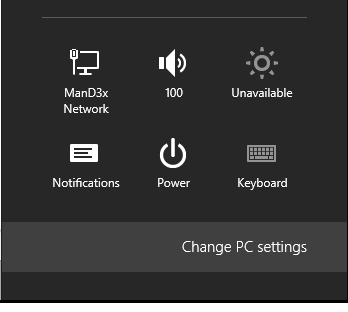
  1. Go to your Home Screen and place the cursor of your mouse in the top right or bottom right corner of your device.
  2. From the list that will be displayed click or tap on “settings”.
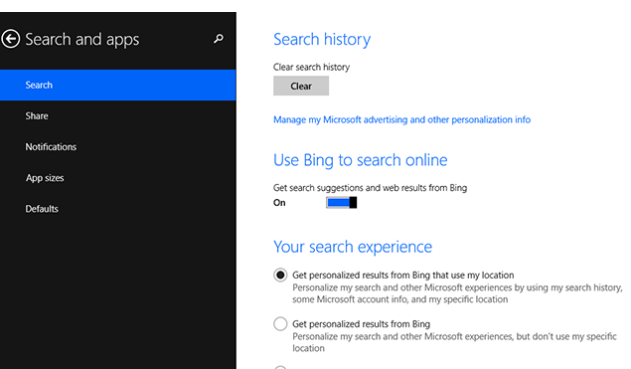
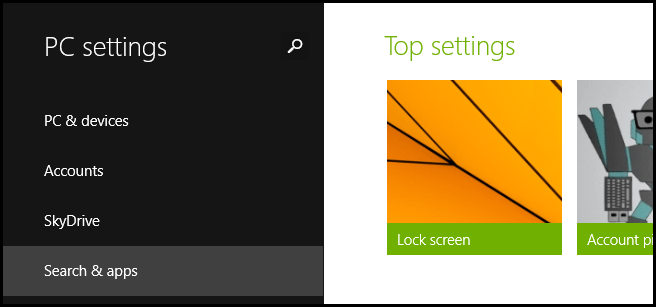
  3. Then choose “Change PC settings” followed by “Search and apps”.change pc settings
  4. From the side bar click or tap on “Search”.search and apps windows 8
  5. Now you will be on the main menu of Bing Web Search.
  6. From there you can clear your search history, you can disable Bing online search and you can customize your search experience.
  7. Make the settings you want, save it and then reboot your machine.

That’s how you can anytime configure the Bing Web Search engine in your Windows 8.1 powered laptop, tablet or desktop. In case you have other questions, share the same with us during the comments section from below (if there are problems we will try to resolve your issues as soon as possible).

Solve Windows 8 Error: ‘Your Migration Choice isn’t Compatible’

Updating to Windows 8 from previous versions of Windows might be a tricky thing to do, especially if you are experiencing issues such as the following alert: “No compatible offers are available. Your migration choice isn’t compatible with the offers available in your country/region. Please go back and try again after changing what you chose to keep.”.updating windows 8
Well, by using the guidelines from below you will be able to learn how to address this issue and how to safely and quickly update to Windows 8, or at least you will be able to check if your machine is compatible with Windows 8 or not.

As we all know, there are several problems with the Windows 8 or Windows 8.1 updates. We can mention incompatibility issues, reported bugs and even lags or force close errors caused by official updates released by Microsoft. Basically these problems can be resolved either by uninstalling the update or by reinstalling your drivers. Now, since the ‘Windows 8 your migration choice isn’t compatible’ error will be issued when trying to update to Windows 8, you will have to try to resolve your problem by using other troubleshooting solutions.

Fix ‘Windows 8 your migration choice isn’t compatible’ issue

First of all, before deciding to install Windows 8 on your device, run a system compatibility sequence. You can do that easily by using a program provided by Microsoft, this feature being dubbed as Windows 8 Upgrade Assistant. You can download this service from here; then scan your computer with the same in order to see if you can download and install Windows 8 on your device and also to see how you can flash the firmware on your dekstop or laptop by using dedicated steps provided by Microsoft.windows 8upgrade assistant

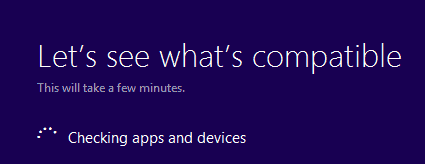
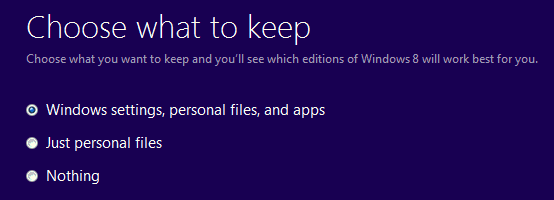
After scanning your computer you will get a message that will tell you how many apps are being compaible with Windows 8 and which software to review before appliyng the update. Finally, you will be prompted with a question, just like in the image from below.windows 8 assistant

Well, if you will choose “Windows settings, personal files and apps” you might be prompted with the ‘Windows 8 your migration choice isn’t compatible’ alert. If that happens, go back and choose “just personal files”; now you will be instructed with the steps you need to follow in order to download and install Windows 8 on your machine.

In addition, if you are still experiencing this update problem, just buy the official Windows 8 DVD from store or download the same from other sources.

So, there you have it; that’s how you can check if your device is compatible or not with Windows 8 system and also this is how you can solve the ‘Windows 8 your migration choice isn’t compatible’ error. Do share your experience with us and with our users – use the comments field in that matter.

Despite being the biggest job cut in Microsoft’s history, impact on India is ‘very very small’

Despite being the biggest job cut in Microsoft's history, its impact on India 'very very small'

Microsoft had its biggest-ever layoff in company history by letting go 18,000 employees. Of the total 18,000, about 12,500 will be removed through synergies and strategic alignment of the Nokia Devices and Services business. But despite being the biggest layoff, it will only have “minimal” impact in India.

The company pledged to save $600 million within the next 18 months after the completion of Nokia’s acquisition. “The first step to building the right organization for our ambitions is to realign our workforce. With this in mind, we will begin to reduce the size of our overall workforce by up to 18,000 jobs in the next year,” wrote Nadella.

India is one of the most important geographies for Microsoft. There are about 6,500 Microsoft employees working in the country. However, the impact of the job cut will be “very, very small”. “We have about 6,500 employees in India, which also includes employees from Nokia. The impact will be minimal. It will be very very small.” said a Microsoft spokesperson to Press Trust of India.

But again, not to forget the drama going on in the Chennai-based factory where thousands of employees recently lost their jobs.

Microsoft gearing up for Nokia X2’s launch in India, but do you care anymore?

Microsoft gearing up for Nokia X2's launch in India, but do you care anymore?

Arguably at the worst timing ever, Microsoft is gearing up for the launch of Nokia X2 handset in India. The import manifest data available on Zauba states that the company has imported 25,000 units in the country, suggesting that the launch is imminent.

In the emails sent to the employees, CEO Satya Nadella, and Vice President of Microsoft Devices, Stephen Elop have officially stated that the company is ending further development of the Android-powered Nokia X, entry level smartphones Asha lineup, and feature phones Series 40 in favor of Windows Phone.

Nokia X2 is a step up from the company’s first Android smartphones — the Nokia X series. Originally introduced last month, Nokia X2 sports a 4.3-inch WVGA ClearBlack display with the same 480×800 screen resolution. Powered by 1.2GHz dual-core Snapdragon 200 processor and coupled with a gig of RAM, the device runs on Nokia X software platform 2.0, which is based on AOSP Android JellyBean.

Although it will be tough for the company to rope many buyers for this handset, Nokia X2 still offers great value for money. There is a 5MP shooter with LED flash, and a 0.3MP camera upfront. On the connectivity front, the device supports WiFi and 3G and Bluetooth.

While the company is yet to reveal the pricing, we expect it to be around Rs 8,500 ($140). Would you consider getting one of these handsets? Or rather stick with other Android smartphones? Or maybe get yourself a Lumia 630 instead, or a Lumia 520? Let us know in the comments.

Microsoft Research says there’s nothing wrong with using weak passwords

Microsoft Research says there's nothing wrong with using weak passwords

Passwords are something we all have to deal with on a daily basis, and the advice has long been to use complex passphrases, to use unique passwords for each site and service, and to change them on a regular basis. But Microsoft Research has different ideas. A paper published by researchers Dinei Florencio and Cormac Herley and Paul C. van Oorschot from Carleton University, Ottawa, Canada suggests taking a rather different approach.

The paper recognizes that users now have a large portfolio of passwords to remember, and goes on to say that “mandating exclusively strong passwords with no re-use gives users an impossible task”. What does this mean? Essentially, the researchers are saying that by encouraging, or even forcing, users to select complex, lengthy, unique passwords, the likelihood of forgetting them is greatly increased.

The researchers admit that their findings “directly challenge accepted wisdom and conventional advice”, but continues to say that “portfolio strategy ruling out weak passwords or password re-use is sub-optimal”. The use and re-use of simple passwords for low-risk websites is not only not discouraged by the paper, but actively encouraged. Strong, difficult-to-remember password should be reserved for sites and services that pose a high risk.

The aim is to overcome the problem of poor memory. If you have super-strong, unique passwords for every site and services, sure you’ll probably keep out the bad guys, but there’s a high chance that you’ll also lock yourself out when you ultimately forget them. You could write them down, but this defeats the purpose of a password. Password managers are another solution, but they are not perfect and can be vulnerable to attack. There is also the problem of the “finite-effort user” to take into account — users can only be expected to be willing to do so much in the name of secure access.

While the advice of the paper comes across as slightly counter intuitive to start with, with a little consideration it is easy to understand the thinking behind the advice — which boils down to the question “why make life any harder than it needs to be?” It’s a trade-off between the level of security you want, and the amount of effort you want to put in.

Microsoft in talks to acquire Israeli security startup Aorato

Microsoft in talks to acquire Israeli security startup Aorato

Microsoft may be on the verge of loosening the purse strings and making a new security investment. According to sources close to Microsoft, the company is in talks to acquire Aorato, an Israeli security startup. Talks are believed to be at an early stage, and it is likely that Microsoft is not the only interested party.

A potential price tag of $200 million has been suggested, but the figure has not been confirmed. Neither Microsoft nor Aorato have released a statement yet, but it is possible that the deal could be concluded within a couple of months.

Aorato came into being back in 2011, and managed to raise $10 million earlier in the year, following investment from Accel Partners, Innovation Endeavors, and Glilot Capital Partners.

If the talks do conclude with Microsoft acquiring the company, it will represent yet another step into enterprise for Nadella’s company. Aorato is best known for producing software that monitor access to active directory components to check for unauthorized access.

Office 365 Public Folders limit gets a 10x increase, bumped to 100,000

Public Folders limit gets bumped to 100,000 folders in Office 365

Microsoft has scaled up the limits for Public Folders in Office 365. Now, the folder count limit is capped at 100,000 folders — a 10x increase over the previous limit. This is simply the first round in the public folder scale improvements that Microsoft is working to deliver with Exchange Server 2013 to receive it next.

“We have made investments to scale up the limits for Public Folders in Office 365. Today we are raising the folder count limit to 100,000 folders. This is a 10x increase over the prior limit as defined in the Exchange service description limits. This enables migration of larger existing public folder hierarchies and increased use of the feature in Office 365. Customers can immediately take advantage of this new scale for public folders,” Microsoft stated in an official blog post.

With this increase, the number of public folder mailboxes and the total public folder quota remain unchanged. The folder count limit has been increased for all Exchange Online users with public folders. Exchange Server 2013 will receive this increase in cumulative update 6.

Microsoft to add ‘Academic Researcher’ to Cortana’s curriculum vitae

Microsoft to add 'Academic Researcher' to Cortana's curriculum vitae

Cortana has been praised for her ability to keep you better connected to your family and friends with people-based reminders, she has made a name for herself with her predictive capabilities, and soon, she’ll present you with academic search results that will help you ace your essays. You are probably well aware of the fact that referencing Wikipedia is a big no-no in the academic community, so Microsoft is prepping Cortana to become a “researcher’s dream assistant.”

Powered by the Microsoft Academic Search engine, the virtual assistant/heroine will gain the ability to follow the works of specific researchers that interest you, in addition to tracking conferences that you may wish to attend. Users will be also able to take advantage of Cortana’s Notebook feature for finer control over how much academic content she should track for them, further enhancing her abilities as a research assistant.

“Since the academic audience is an important user segment and a source of innovative suggestions and feedback, we are announcing the new development during the Faculty Summit to broaden our engagements with this community.” Says Microsoft’s Kuansan Wang emphasizing the importance of the academic community to Microsoft Research.

It will be interesting to see how Cortana is received in the academic world and whether or not she’ll be the next big thing for students and researchers alike.

Microsoft’s Project Adam: a deep-learning ‘brain’ that can see, hear, and read

Microsoft’s Project Adam, a deep-learning “brain” that can see, hear, and read

The mad-scientists over at Microsoft Research have been hard at work creating a computer system that they hope will evolve into “true artificial intelligence.” While a computer than can emulate the human brain as it is today is still a far way off, Microsoft believes that a computer than can recognize speech, interpret images, and read documents is a good foundation to build on.

Microsoft’s Project Adam is a deep-learning system that utilizes a massive data set of information to help it better recognize speech and classify images. For example, Project Adam can look at a picture of a dog and be able to identify its breed, and that breeds sub-breeds, in addition to warning you if that bug you just took a picture of is poisonous.

The system is designed with the help of technology from the University of Wisconsin. It mimics the human brain in a sense as it has it has a number of processors (think neurons) that can work independently of each other, but write to the same memory location. With nothing preventing them from overwriting each other’s data, it might sound like a giant mess but it works in certain situations.

Google on the other hand, are also using a similar artificial brain that is today used to perform some of the computational calculations required across Google services. Although Microsoft claims that Project Adam out-shines the competition in efficiency; requiring 30x fewer machines, and having 2x the accuracy of competing systems.

According to Microsoft Research head Peter Lee, there are no plans to release an app for Project Adam yet, but there is a lot of potential for the system in e-commerce, robotics, and sentiment analysis.

Experience Tumblr on Windows 8 by Using this New App

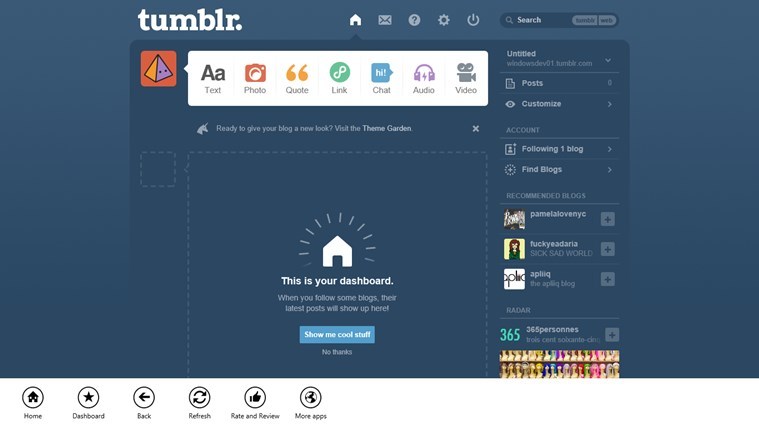
Tumblr is one of the most popular platforms used by worldwide users, so experiencing the same on your Windows 8 device is a must, especially if you want to stay in touch with everything that’s new. Therefore, you might want to test this new Tumblr client which has been recently released on Windows Store.tumblr + windows 8
In that matter Tumblr + will offer instant access to your favorite social media platform; the software is based on Tumblr mobile website and brings all the stock features that can be managed within the official desktop client.

As you might know, Tumblr represents a microblogging platform and social networking website, where you can post personal multimedia or other related content for free. You can also share your posts, read other articles and follow other users that are using the Tumblr platform. Of course, your personal account can be customized as you can add your own pictures, or set biographical data.

Tumblr +: Your Tumblr account optimized for your Windows 8 device

Tumblr + is especially optimized in order to smoothly run and fit on any Windows 8 based device, whether we are talking about portable devices (such as tablets or laptops) or about desktops or classic computers. The app also features an easy to use interface providing support for various operations such as following other users, post text, photos, links, music, videos or any other content right from your browser and even sharing your info and history on Facebook.experience tumblr on windows 8

Tumblr + will work on any device you want, the app being compatible with all three Windows based systems: Windows 8, Windows 8.1 and Windows RT. The tool is priced $2.99 on Windows Store but you can download a free trial version before spending your money in order to test the software by yourselves – you can also share your experience with us and with other users, who might want to use Tumblr +, by using the comments field from below.

Download Tumblr + from Windows Store.