With all the fuss over patents, especially between Microsoft and Google recently, the software giant has expressed its new-found belief that transparency is imperative when it comes to patents. On top of that, Microsoft has launched a patent tracker to showcase every single patent that the company owns.
“Transparency around patent ownership will help prevent gamesmanship by companies that seek to lie in wait and “hold up” companies rather than enable a well-functioning secondary market. Of equal importance, transparency is a prerequisite to enforceability of patent licensing pledges, whether to standards bodies or to the world at large,” Microsoft stated in an official blog post.
Via the company’s new patent tracker, one can search an entire downloadable Excel file for Microsoft’s patents or simply search by patent number, patent title, country, and if the patent is held by Microsoft or a subsidiary.
Microsoft believes that transparency is important and without transparency, it would be impossible to determine is a company is ‘abiding by those commitments.’ Microsoft wants other company’s to jump on board this bandwagon and do the same.
Photographers and photo enthusiasts that work on Windows 10, Windows 8 have a few drawbacks. At this time, there are still some very important services missing from Windows 10, Windows 8, and while Instagram can be somewhat replaced with Metrogram, there are still many more missing. One such popular image service is 500px, which is used by thousands.
Even though the official 500px app is not yet available, users who use this service regularly can still benefit from its services by using another service: Picfinity. What Picfinity does is it brings 500px to Windows 10, Windows 8, and anyone can use it as they would the web service.
How good is Picfinity?
Right off the back, I can tell you that Picfinity is one of the best photography apps I’ve seen in quite a while. It comes closest to the service it tries to provide than pretty much any other app and it does it with style. Everything comes together in harmony creating a perfect environment to view photos and all of this while not compromising performance.
After you install Picfinity, the first menu you see when you open the app is the Popular photos, and by scrolling to the right, you can see other categories, such as Upcoming, Editor’s Choice and many others. Also, you have the possibility to open each category and browse photos from it.
For an even easier transition between categories, you can select which category you want to view from the drop-down menu at the top right corner. Also here, you have your Log In button which opens a window with the 500px login page. Before the page is opened, you will see a notification prompting you to use the username/password log in method, as the Facebook or Twitter methods are not working currently. Also, probably the only thing I didn’t like about the app is the tiny browser window that only shows half of the 500px page.
Maybe in the future, with the next updates, these problems will be sorted out and we’ll have an app that pretty much has it all. Also, after you log in to your 500px account, you can view your profile and upload photos by clicking on your avatar. On the profile page, you will see your info as well as your photos and an upload button. Uploading is fairly simple: you use the default file explorer to find your photos and then you add all the info to the photos. When you are done, you can upload them by right clicking anywhere and selecting “Upload” from the bottom menu.
Users can also search whiting the app using the Search charm from the Windows 8, Windows 10 OS. Also, when they open a photo, by right clicking they reveal all the options they have at their disposal: Like, Set as Lock Screen Photo, Purchase Photo, Add to Favorites, Comment, Show Details, Return to Home or Start a Slide Show. While most of these options are usable within the app, if you decide to buy a photo, it will forward you to the 500px website.
The possibility to add any photo as your lock screen is pretty awesome, allowing users to customize their Windows 8, Windows 10 devices as they please. However, for those of you who are more technical, the Show Details feature might be of more use, as it shows all the information about the photo (Camera, Shutter Speed, Aperture etc).
After testing the app and playing around with its features, I was pleasantly surprised to see how well it works. Picfinity provides all the possible features that a regular user might want. The functioning of the app fluent and fast, making it a perfect tool for every photography lover.
We all know by now that Windows Blue is set to bring forth much-needed updates for Windows 8. But did you know that Windows Blue will also feature improved sync settings so you can have your custom Start Screen tile size and layout saved, as well as have it displayed on other devices?
According to a new report, Windows Blue will further enhance the Start Screen syncing feature already seen in Windows 8. Currently in Windows 8, you can save your Start Screen background across your Windows 8 devices via your Microsoft Account. With Windows Blue, you can save not only the color scheme but also the tile sizes and layout.
Windows Blue will also allow for syncing of File History, quick links, app secondary tiles, tethering, and device input personalization. Internet Explorer in Windows Blue will also see some new syncing functionality, including synced tabs across your devices. Bluetooth will also be associated with more than one Windows Blue device, once you pair it with one Windows Blue device.
The latest rumor states that we will see a public preview build of Windows Blue during the upcoming Build 2013 developer conference taking place in San Francisco on June 26th. It’s going to be interesting to see what new features we will see in that build, compared to the leaked Windows Blue build of 9364. These new sync features are a welcomed addition in enhancing our Windows 8 experience!
Internet Explorer 11 (IE11) in Windows Blue appears to be rocking a few new features which are yet to be talked about. These new features include a dedicated downloads list and a new feature called Tracking Protection. The downloads list is self explanatory, it allows you to remove, run, check the status and delete downloads. The Tracking Protection allows you to enable or disable the feature.
The new downloads list is a must have feature for those who don’t want to use IE11 on the desktop. The downloads list is accessible by tapping on the wrench icon and then tapping on View Downloads. This feature should have been in the Metro version of IE since the start. At least they’re working on it now.
The second feature is the option to enable or disable Tracking Protection. Currently, this setting is unchangeable in IE10, but with IE11 you can switch it on or off. The setting can be accessed from the Internet Options option from the settings charm when the app is open.
With the recent Windows Blue leak, many hidden features are beginning to emerge from the new operating system. It appears Microsoft may be working on a new way of searching in Windows Blue, the feature is still heavily in development and doesn’t work properly.
The Search charm in Windows Blue appears to be getting an update, as enabling a few hidden registry tweaks presents you with an incomplete version of the Search charm that allows searching on the web and locally. Currently, the web search feature is broken, along with most of the charms UI, however searching for local apps works just fine. Microsoft will obviously fix many of the problems seen in the video above before Windows Blue hits RTM.
This feature fits well with a recent rumour that claimed that Windows Blue would improve dramatically on searching via the Search charm. We can’t wait to see the final outcome of the charms new features!
Microsoft has hired a new President for the company’s North America Sales and Marketing role. In an official press release today, Microsoft revealed that the software giant has hired Oracle’s Judson Althoff to be the man in charge of sales and marketing in the good ol’ USA.
As the President of North American Sales and Marketing, Althoff will manage a team of sales, marketing, and services professionals across the United States and Canada. This group is primarily responsible for Microsoft earnings. In fact, this group managed to earn Microsoft a whopping $73 billion dollars during the fiscal year 2013.
“Judson has a track record of successfully developing, growing and leading global sales organizations with a culture of execution excellence. Judson’s proven leadership will enable us to continue to excel in delivering the best devices and services experience to our customers including businesses and consumers, Microsoft Chief Operating Officer Kevin Turner stated in an official press release.
Althoff was previously the Senior Vice President, Worldwide Alliances and Channels, reporting to Oracle President Mark Hurd. Althoff spent 14 years at Oracle. Althoff will begin his new role at Microsoft beginning Friday, March 29th and will report directly to Microsoft Chief Operating Officer Kevin Turner.
More Windows Blue news hitting the internet for your reading pleasure. This time, Microsoft has allowed users to automatically update their modern Apps from the Windows Store with the flick of a setting.
As you can see from the screenshot above, there is a setting in the Control Panel that allows a user to easily update apps automatically, without having to open up Windows Store and see an “update” link at the top-right of their screen anymore.
This is indeed a great feature, although it is so minor, because it allows users to automatically update their apps without having the need to check the Store every time or be bothered to update an app while browsing the Store. Currently, this feature is present in the leaked Windows Blue build 9364, which leaked yesterday.
Windows Blue is bringing forth a plethora of changes and tweaks to make your modern experience that much better. We recently learned about the File Manager app that Microsoft is working on. It is still in early stages of development but it is a good start nonetheless.
Yesterday, we reported the possibility of Microsoft working on a File Manager app for the next update to Windows 8. The references to this new File Manager app was seen in the leaked Windows Blue build 9364. Now, an image has surfaced showcasing the File Manager app.
If you are one of the lucky ones to get your hands on this leaked build, you will notice the presence of the File Manager app, but you cant run it. However, someone was able to get it running and now we get our first look at this File Manager app. (see screenshot below)
As you can see, the app functions like your typical file manager app. You can create new folders, rename folders, add an item into a folder, delete or rename files, etc. It still has a long way to go before it replaces the useful File Explorer in Windows 8.
This app also presents a threat to all those third party File Manager apps that are currently available in the Windows Store. With Microsoft creating their own app, the need for those third party apps will no longer be there. More on this as it develops.
The frenzy over Windows Blue has begun. It has been over 24 hours since the leak of Windows Blue build 9364 and new details are emerging about this update to Windows 8. Is it just for Windows 8? What about Windows RT or Windows Server?
According to references within Windows Blue, Windows 8 will not be the only operating system receiving Windows Blue. As a matter of fact, Windows RT and Windows Server will also receive the Blue treatment. Great news for those on a Surface RT.
Obviously Microsoft should update Windows RT with the same new features that Windows 8 will receive from Windows Blue. It only makes sense. Microsoft shouldn’t neglect Windows RT, especially Surface RT owners, if the company wants to boost sales of that device.
Aside from Windows RT, the update will also be for Windows Server as well. There is a reference to “Windows Server Blue” in a file called WindowsProducts.adml, which can be seen in the leaked build of Windows Blue.
While Microsoft has yet to reveal any information about Windows Blue or even confirm if Windows RT will receive Windows Blue, the leaked build is giving us all the indication we need. However, once the company makes an official mention, we will gladly keep you updated.
Windows Blue build 9364 was leaked earlier today and we got our first look at the upcoming update to Windows 8. One thing we know for sure is that the Start Screen will have better customization options, especially when it comes to re-sizing the Live Tiles. Now you can see it for yourself in this video.
In the video (below), you will see the new Start Screen tile interactions, which allow you to re-size a particular Live Tile to double its size or even to half its current size (resembling the Live Tile on a Windows Phone device). There are also other user interface tweaks when it comes to interacting with Live Tiles, as you will see in the video.
Keep in mind that this video was recorded on a device that had Windows Blue displayed via an RDP connection, therefore you will see lag. The operating system itself is pretty damn fast, as you can see from our exclusive video from when this news broke earlier today.
Windows Blue seems to have several user interface tweaks that make Windows 8 what it should have been. What other tweaks or features are you hoping to see in Windows Blue?
Many multi-monitor improvements are apparent in Windows Blue, and we’ve created a quick video demonstrating its usefulness! Windows Blue allows those who are using more than 1 monitor to have 2 or more apps open over 2 or more screens at the same time. This means you can have the Mail and People app open on both screens at once, or the Start Screen and Desktop!
Of course, as this is a pre-release build of Windows Blue, bugs are apparent. Just ignore them, we’re certain they’ll get fixed before the RTM version of Windows Blue. In the meantime, get excited, as we expect many more cool features to be part of Windows Blue!
Currently in Windows 8, it is not possible to have the Start Screen or any Metro app opened on one monitor while the desktop is in use on another monitor. The Metro app or Start Screen will disappear. In other words, the Metro app will not remain in full screen on the second monitor. This feature is apparently being worked on in Windows Blue and it partially works as of the leaked build from today.
The video was made with a Virtual Machine, which means both monitors aren’t really monitors (mind boggling!). Check out the video below!
It appears Windows Blue will be better suited for desktop PC’s, as the recent Windows Blue leak has revealed changes to the core that allows for 3 or 4 apps to be snapped on screen at one time, as well as 2 or more metro apps running across multiple screens! This is a feature many have been waiting for.
These changes, along with many more for Windows Blue are still in development, which means they are absolutely full of bugs. Other changes include more tile sizes, a wider variety of colours, and a dedicated mode which allows you to move, pin and unpin multiple apps at one time.
We hope Windows Blue will include many more awesome features for the desktop, but in the mean time, stay locked in at WinBeta.org!
It appears the recent Windows Blue build that leaked onto the web is indeed real, as screenshots from the build have began leaking online. Along with the screenshots, it has been revealed that Windows Blue will indeed support a smaller tile size, just like in Windows Phone 8. Also, metro apps can be ran side by side evenly now, instead of having one of the apps in a smaller size.
The new personalization and larger tile sizes are a surprise to many, but are very much welcomed changes. We assume this build has many more goodies to be discovered. These changes, are all apart of the build which recently leaked onto the internet. We are yet to confirm these images are real, so look at them with the knowing that they could be fake.
The build that leaked had been compiled at build 9364, which is rather recent. This means this build will have a few features noticeable that Windows 8 doesn’t. Keep checking back at WinBeta.org for more as it happens!
Word Twist is a terrific Windows 8 and Windows 8.1, Windows 10 word game not only for yourself, but for your family and friends: start playing!
We just can’t have enough of word games on Windows 10, Windows 8, do we? After reviewing Wordament for Windows 8 and Adlib, now it’s time for Word Twist: a word game for Windows 10, Windows 8 that wants to bring back the classical fun, if we can say so. Word Twist has a 4 out of 5 rating based on almost 1500 votes and is currently free in the Windows Store with no pro version around, but the free one is good enough to keep you entertained.
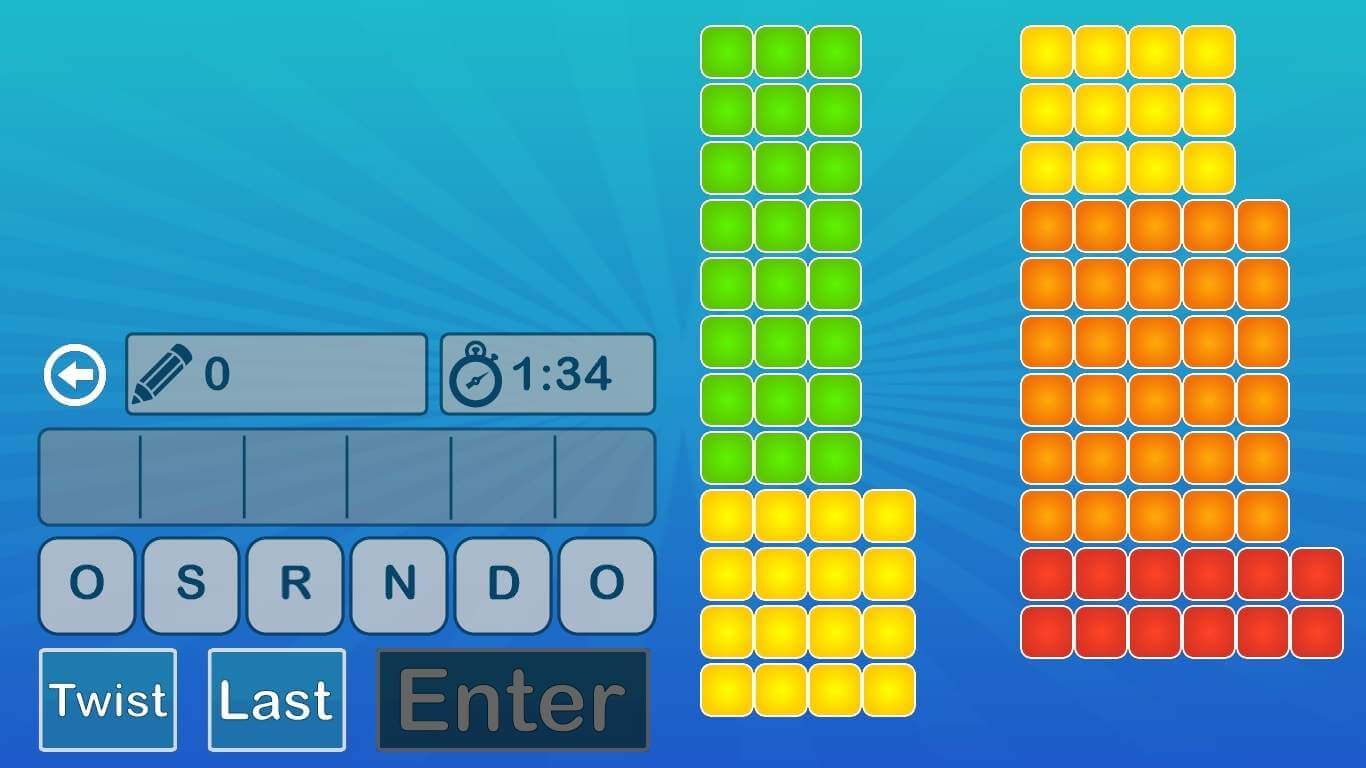
What makes the game appealing is the simplicity behind – you have only 6 letters to play around with. Random Salad Games, the creator of the games, has done a pretty decent job, the colors and interface of the game being very pleasant to the eye. The are four game modes: Classic, All or Nothing, Blind, and Kids modes and three levels of difficulty. What’s really awesome is that there are dictionary definitions for all of the words!
Enrich your vocabulary with WordTwist
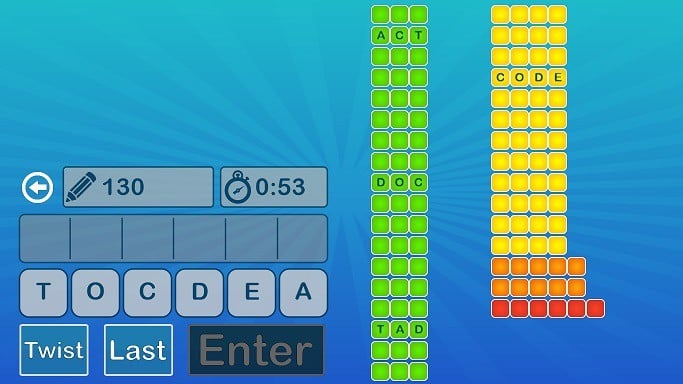
You have two minutes at your disposal to make a word and score as much as possible. But because the application is free, there will be times when you will be annoyed by that advertising banner. I am suggesting developers to try a different placing, as it really troubles the player. You can use the Twist button to arrange differently the letters, if you’re out of ideas. And sometimes, that really helps!
Also, the achievements board is another motivational tool to get those words flipping. You have 4 different colors, according to the difficulty, which is represented by the length of the word you’re going to create. So, if you’ll make a word out of 3 letters, you’ll fill out the green column and so on. And, of course, you will get a smaller score for doing that and a bigger one for managing to discover a longer, more difficult word. And if you’re playing in team, you can always prove that your word “makes sense” with the help of the dictionary tool, which proves to be very useful.
Check the gallery for more images with the in-game action and give WordTwist a try on your Windows 10, Windows 8 or Windows RT device if you’re into word games and you won’t regret it!
Are you running Windows 8 or Windows RT and love shopping at Staples? Well, this app was made just for you! Check out the new Staples app for Windows 8 and Windows RT, its free and available for download in the Windows Store.
The new Staples app makes it easy for one to shop for products, redeem coupons and rewards, view order history, update your shopping lists, and search for the toner ink you need, all within the comfort of your Windows 8 or Windows RT device.
“Staples customers are very excited about the new computers and tablets featuring Windows 8, and we’re enhancing the Staples.com experience for Windows 8 users. Staples makes things easier for small businesses by using the latest technology, and the Staples Windows Store app enables customers to shop Staples even faster,” Steve Bussberg, Senior VP of Staples.com stated in an official press release.
The Staples app even features the weekly advertisement so you can see your local store’s advertisement deals. Users can also search for store locations near them as well as build and save shopping lists for easy ordering and reordering. The app also utilizes the ability to pin certain aspects of the Staples app onto the Start Screen, such as ink and toner finder, a printer finder, and shopping lists.
“Staples Windows 8 was built to provide an enhanced shopping experience on a touch medium like tablets and convertible desktops while also optimizing for a mouse and keyboard control,” the app description page states.
We gave the app a try and enjoyed the responsiveness and usefulness of the app. This app actually makes us want to shop at Staples a little more than before! Hit the download link below to grab the Staples app from the Windows Store! Happy shopping!
Update – the official Twitter app for Windows 10 has now been released. One of the best-known social networks of all, Twitter, until recently had next to no support for Windows 8.
However, now the official Windows 8 app is freely available for users to download and install on their devices.
The app comes as a much-needed addition to the Windows Store, and this is the ice breaker for other social networks to come with their official apps in the near future. Also, the Twitter app for Windows Phone has gotten a major user interface upgrade, bringing it closer to the iOS or Android versions.
Twitter for Windows 8 – The Official App
As described on the Windows Store, Twitter for Windows 8 brings users the most used features of the popular social network, all wrapped in a Windows 8 style UI that is both aesthetically pleasing as well as very fast:
Twitter for Windows 8 brings you all the design, features and functionality of Twitter combined with the fast and fluid technology of Windows 8
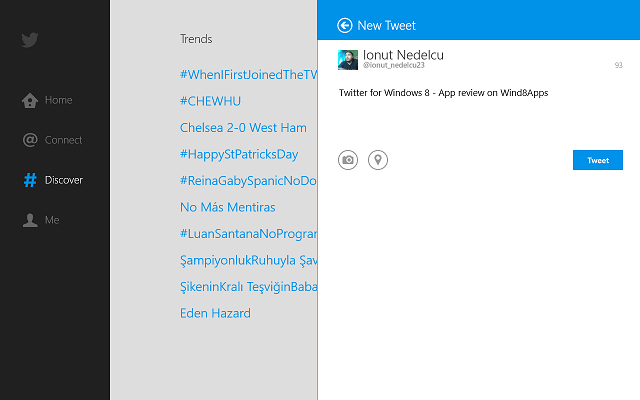
The app itself is pretty straight forward, providing users with all the options that they would have on the web version or the Twitter apps that are available on other mobile platforms. Although the app’s UI was developed in Windows 8 fashion, it is still familiar and very easy to navigate.
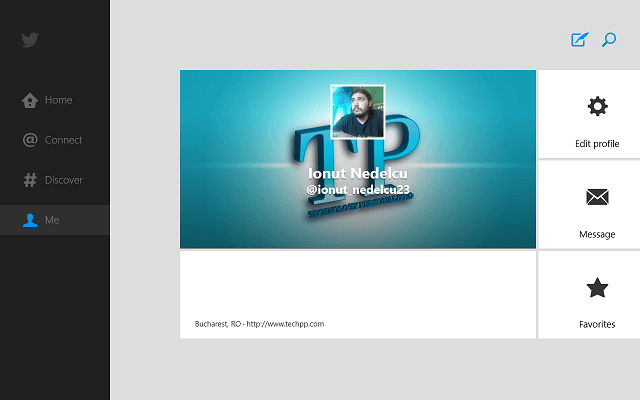
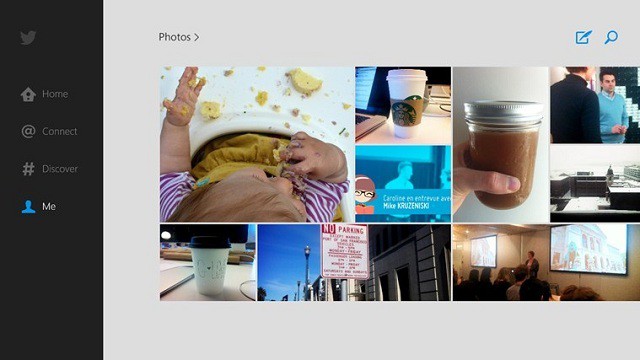
Users can access all the content from their account from the menu on the left side of the main window, just like in the web version. Also, the profile page has a tile interface in Windows 8 fashion than allows you to see your Followers, Following, and other information.
One issue I noticed using the app was the lack of a scroll bar for the Followers / Following users, making it impossible to scroll the page.
Thanks to the seamless integration with Windows 8, the Twitter app allows users to use Snap View, a Windows 8 feature that allows two apps to be placed side by side on the screen. This makes it much more easier to multitask or talk with their friends and get some work done at the same time.
Also, there is no way to change Account Settings from within the app; when you select this option, it will automatically redirect you to the web version. Apart from this, everything is pretty simple. For sending tweets, there is a button in the upper right corner, and the search button allows users to search for other users quickly.
The “Discover” option is something that I deem very useful, allowing the user to find content like topics or people to follow and see tweets and pictures.
As the name suggests, it allows the user to discover new content and filter through the massive amount of information on Twitter, and because it’s based on the user’s own network, it renders a list of topics that are of interest to him.
The app runs very smoothly and the pages load in an instant. Apart from the initial log-in that took a few seconds, everything else loads in the blink of an eye. I enjoyed using the app, and with the addition of features like saving drafts or adding multiple accounts, Twitter for Windows 8 could become as good as the other Twitter apps from other platforms.
Technology has proven its worth to us time and time again, and with each advancement and with each next generation of devices, it provides better and better support. One area where technology has been of impressive help is learning. The Internet has proven to be a great resource where everyone can find the information they need with only a few keystrokes.
For students, the Internet is priceless and it is considered an invaluable resource. The amount of information available cannot be quantified. However, there is need for a system to organize it and give it to the users. Such a system is Kno Textbooks. This service allows students to buy books and organize them as they seem fit, making it easy to learn.
Kno for Windows 10, Windows 8 – The virtual library
There are a lot of services out there that allow users to search for information and resources, and each of them has its strengths and weaknesses. However, Kno is one of the best we’ve seen, offering a wide variety of textbooks and other materials for students to try.
The app is simple, but very well designed, having a simple interface that allows the user to quickly access his virtual bookshelf. However, there are some lacking features that we’d like to see in future updates. The ability to create a Kno account directly from the app is a very nice feature and we wish more apps will have it in the future.
Also, from the main menu of the app, the user can access all his content: books and courses. Sadly though, in-app purchases are not yet available, and when you click on the store icon, it will redirect towards the browser. Also, another lacking feature is the organizer which is available also on the web interface.
Apart from these two missing features, we can’t say we have anything to complain about. The quality of the materials is very good and the user can read the textbooks they have bought with ease. Scrolling through the books is simple and the user can also access different chapters or add notes to each page.
This makes it easy for students to learn and with the added benefit of having videos, 3D models and other information embedded in the textbooks, learning has never been simpler. Also, the app can easily share, so users can create notes and send them to other users very easily, or receive extra information from other users.
One other feature that we thought was great is the “Kno Me“, where users can see how much they’ve been reading and what. Also here are their followers and other important information. This dashboard is the place where users can see how well they are doing and get a sense of exactly how much time they’ve spent studying.
Overall, the app itself is great. Having a simple and easy to use interface makes it accessible for everyone. Also, the amount of content available is astonishing and with more information hiding within the pages of the textbooks, the learning never stops. We love Kno for Windows 10, Windows 8 and we think it is one of the best learning tools we’ve seen.
If you love word games and want to play them on your Windows 8, Windows 10 system, then you really need to consider the Adlib app, as well
Word games aficionados will be thrilled to learn about Adlib. This Windows 8, Windows 10 word-puzzle game comes as a combination of the classic word games and jewel-matching games, having both awesome looks and great gameplay. Unlike other Windows 8, Windows 10 word games, Adlib has managed to impress us with its simplicity and top notch quality.
Although it could use some improvements, we are glad to say that is the best such game we’ve had the pleasure to test in a while and even if it’s not a free game, we think it’s worth buying, especially thanks to its low price.
Adlib – The New Word-Puzzle Game
We’d really like to see more games like Adlib. Not from the gameplay/type point of view, but from the design perspective. We’ve seen so many games that bore you to death with menu after menu after video after another menu. This takes all the enthusiasm that you have when you start the game and blows it to smithereens.
However, the developers of Adlib thought of that and so, the player doesn’t have to endure this any more and they can instantly enter the game and start playing. But we’re moving away from the subject here. Point and fact: Adlib lets the player instantly play with no intermittent menus or other nonsense.
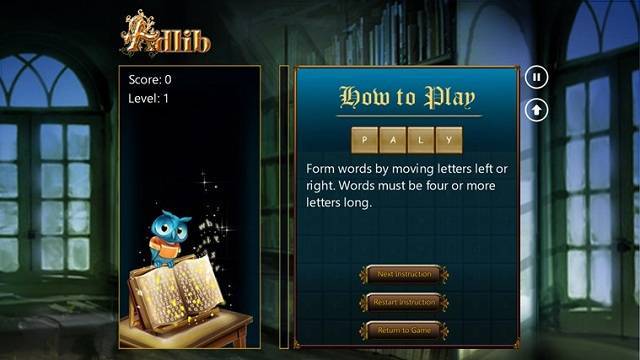
As we’ve mentioned before, Adlib is a word-puzzle game where the user has to find words and they get points for each find. However there’s a twist: the words have to be at least 4 characters long and they get extra points for each word that is longer than that. Also, the player has some nice features to make the game more interesting.
When finding words becomes more of a challenge, then the user can move around the letters, but only on each row (left-right), so they have to make due with what each row has. Moving letters between columns (up-down) is not allowed. This makes the player think of every move he makes, in order to get the best possible outcome.
Also, from time to time, on the board appear some special letters, colored differently than the others. Some of them will explode, making room for other letter or combinations, some give extra points and some are blocked, so they cannot be moved.
The aim is to discover the hidden words and earn enough points to advance to the next level. However the board fills up one row at a time, and when it reaches the top, the game is over (think back to the old-school video games with the doctor that was throwing pills in a jar, or the well known Tetris).
Overall, Adlib for Windows 10, Windows 8 is a great game, and those who enjoy word games should definitely give it a try. It looks great, it works flawlessly and it’s fast and responsive. All the qualities that make a good game can be found in Adlib.
Microsoft has issued a warning for everyone to be on the lookout of a malicious email, claiming to be from the Microsoft Digital Crimes Unit, only to be malware instead. The email contains an attachment that users are enticed to run to “validate their email account.”
“Due to a new vulnerability which is exploited by hackers to steal your online details. Microsoft Digital Crimes Unit in 2013 has hereby developed a new security measure. All users of the Internet and Microsoft products are hereby required to validate there email account information irregardless of their Internet service provider or Host company,” the email reads. You can read the full email below. Antivirus firm Sophos has labeled this attack as Troj/Agent-AANA Trojan horse. If you have received this email, simply delete it and do not open the attachment.
This week, Microsoft presented a number of research projects at TechFest, and one very interesting concept was ViralSearch. This system is a platform that shows how viral content is created and distributed. ViralSearch is not yet in use for regular users, and according to Microsoft, there are no plans to integrate it in their services for now. However, the concept is very useful for those who are interested in analyzing how viral content mover over the web.
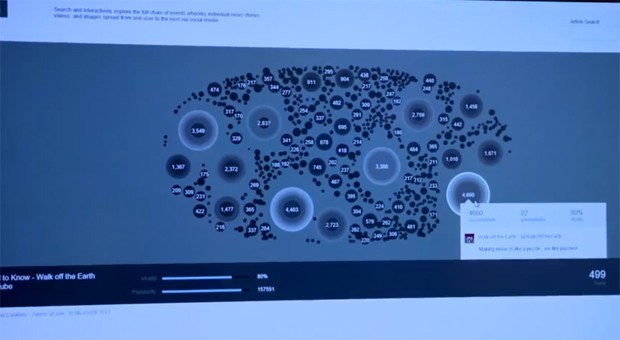
Microsoft’s ViralSearch uses Twitter to obtain information and creates a visual representation of how data moves. The graphical representation looks like a tree where a photo, video or other information is traced throughout each generation (each share) and by adding up how many generations the information has been running, ViralSearch can show how influential it was.
What exactly is ViralSeach and how does it work?
Microsoft has created this tool in order to research how viral content is formed and to obtain data on what type of media is most likely to go viral. On Microsoft’s Research website we can find a short description of what ViralSearch is:
An analysis of almost a billion information cascades on Twitter news, videos, and photos has produced the first quantitative notion of whether something has indeed gone viral, thereby enabling further research into topic experts, trending topics, and viral-incident metrics.
So what ViralSearch does is it creates an interactive timeline of events where stories are tracked from the point of origin and all the way to its last share. The data gathered allows experts to better understand how information moves on the web and how users react to different types of media or to different content.
[youtube]wSwOszoHuoI[/youtube]
The video presentation shows us how ViralSearch works and what it can do. Users can search for stories or any other content, or even by user and see how far their stories have went. Therefore, you can see who are the most influential people on Twitter and who likes their stories.
For the moment, ViralSearch is limited to Twitter, but if it can be integrated with other social engines, it can paint an even better picture of how information flows on the Internet.
How about privacy?
In terms of privacy, ViralSearch accesses public information, for example your tweets or your public profile. This is not much different then Facebook or any other social platform, but where it stands out is that it can show exactly how successful a person or how information move. This openness a new door in how we understand information flow. What this meas is that advertisers can see what type of data is most important to the user and how they can spread it more efficiently. In a word, ViralSearch can be the best marketing tool ever.
Either we hate or love Windows 8, we are still curious about one thing – just how many units did Redmond manage to sell? How many Windows 8 copies are out there in the wild? We’ve seen many estimates and wild guesses, but everytime something was wrong – either upgrades from previous versions were included or entreprise licenses were also included. And obviously, we’ll have to update this article as soon as we get new information, so come back in order to know how much Windows 8 has grown.
The previous estimate that we had was this – 60 (sixty) million Windows 8 copies, according to Tami Reller, who is Chief Financial and Chief Marketing Officer for Windows. He informed us about this number at the JP Morgan Tech Forum which actually took place at the Consumer Electronics Show in Las Vegas – January 8. Microsoft said that by the end of November, they have sold 40 (forty) million Windows 8 copies, but there are still questions that remain unanswered.
Read on lower to follow the updates on the copies as we get more information on the subject. Do bookmark the article if you’re interested in the progress.
Windows 8 sold units – how many?
But now we have an official number, right from the CeBit show that is taking place in Berlin – Microsoft has officially informed us that the number of sold Windows 8 copies has risen to 60 millions. Microsoft goes on by saying that Windows 8 has actually a better start than Windows 7 did but there’s a logical explanation to this – the upgrade to Windows 8 was very cheap in initital months. However, this number (60 million Windows 8 units sodl) does not include Enterprise Agreement/volume license sales.
However, a big quest arrives – what about Windows RT? We know that there might not be a lot of Windows RT units out there, but there are definitely at least a few millions. Let’s hope Microsoft will publish a more detailed response which will answer all our questions.
Updated progress on the number of copies sold by Windows 8
We are not sure how many years will Windows 8 live, thus, we can’t even make an estimate on how many copies it will be able to sell. The thing is that more laptops, tablets, ultrabooks, hybrids will come with Windows 8 pre-installed. And Microsoft will cash in from these sales. The consumers are not even ready for a mass adoption of the Windows 8 OS, some of them don’t even know how to use it properly. But Microsoft has thought and planned ahead of time, so don’t be surprised if Windows 8 usage will start to pick up stronger than ever.
Update: The latest information on this subject have surfaced almost one month ago, but we have waited silently because we knew the number was just too big to be true. The same Tami Reller, Microsoft’s Windows marketing chief, has informed us that Microsoft has sold so far already more than 100 million copies of Windows 8, which is quite an achievement. However, many of these copies were the result of a cheap upgrade from older versions of Windows 8. We will keep updating this post as we will get more information on the subject from solid sources.
CeBIT 2013 is currently taking place in Germany and a ‘clone’ of the Surface Pro has appeared at the event. While the device runs Windows 8 x86, its features are very similar to the Surface Pro.
The device looks similar to the Surface Pro, and even has a kickstand! The device is 13.3 inches and runs a Core i3 or i5 processor with 4GB RAM and either 32GB or 64GB SSD. The device even features a 5MP camera on the back and a 2MP camera on the front, a SIM card slot, SD card reader, mini HDMI, and 2x USB 2.0 ports. The device is OEM (created by a company called “HKC”) and has a placeholder name at the back of the device so you could stamp your own brand name. The price runs you about $350 for the Core i3 edition. No idea how well this device does on performance. Imitation is a form of flattery right?
Instagram is a very successful service in the mobile world. It is used by thousands of people worldwide, on both Android and iOS platforms. Unfortunately, an official Instagram for Windows 10, Windows 8 has not yet been released, and so, Windows 8, Windows 10 users are not able to share photos via this service. Nonetheless, other developers have tried to fill the gap left by Instagram, and in that pursuit, apps like Metrogram Live have appeared.
Although this app does not take the place of the immensely popular Insatgram, it does offer a good substitute in the sense that it allows users to accomplish pretty much everything they would have done on the original service (emphases on pretty much because as you will see later, it has some missing features). Nevertheless, Metrogram Live for Windows 10, Windows 8 is a good way to keep an eye out on your Instagram page until the official app is up and running.
Metrogram for Windows 10, Windows 8 – Can it replace the real deal?
If you are looking for the short answer, then “No”. Of course, it does have some pretty nifty features, Metrogram falls short when it comes to uploading pictures and overall management of your account. At first glance, the app has a simple and easy to navigate user interface, but once you’ve gone exploring the feeds and different pictures, you’ll find yourself wishing for a more unified look and a nicer UI.
Don’t get me wrong here, as it is user friendly, but to my eye, it would benefit from a face lift and some extra features. Navigating different feeds and finding people is dead simple and only requires a scroll of the main window or looking at the drop-down menu from the top of the screen.
Once you’ve opened a picture, you have the possibility to Like, Comment or Pin the photo to your Start Screen, but you cannot enlarge the picture to get a better view. So, you are left only with the sometimes aggravating auto-zoom.
Overall speed of the app is pretty good, moving through menus and from picture to picture very smooth and with next to no loading time. In terms of stability, the app performed well, there were no crashes of any sorts during the tests and I was impressed by how well the app responds. For commenting and liking pictures, Metrogram for Windows 10, Windows 8 is a very good app, and to be honest, I would choose it over most other Instagram substitutes available today. It does need some extra work, but the developers on the right track.
Microsoft has announced the acquisition of cloud monitoring startup MetricsHub, which helps consumers manage their cloud services as well as automates cloud performance management. MetricsHub is now available in the Windows Azure Store.
“I am excited to announce that we are welcoming cloud monitoring startup MetricsHub – a participant in the Microsoft Accelerator, powered by TechStars – to Windows Azure. As an innovator in Active Cloud Monitoring, a technology that automates cloud performance management, MetricsHub helps customers more efficiently manage their cloud services at a lower cost,” Microsoft’s Bob Kelly stated in an official blog post. For those that don’t know, Microsoft Accelerator for Windows Azure, which takes place in India, is a four month program that is designed to help tech start-ups make it big when it comes to the Cloud, Internet, and Mobile. Microsoft provides a state-of-the-art work space, elite mentors from the industry, and necessary tools for these start-ups. MetricsHub requires little effort on the part of customers and allows for customers to only pay for what they need and maximize services they use. Hit the source link below to explore MetricsHub or head over to the Windows Azure Store to check it out.
Play Station 4 might be just around the corner and apparently, so is the next Xbox – 720. A necessary accessory of the Xbox for so many – the Kinect, will also have a successor, as well – Kinect 2.0. As always, rumors and speculations are a norm and we’re not witnessing new information that comes to shed some light on the possible specifications of the upcoming Kinect. And these aren’t even the first that we’re witnessing.
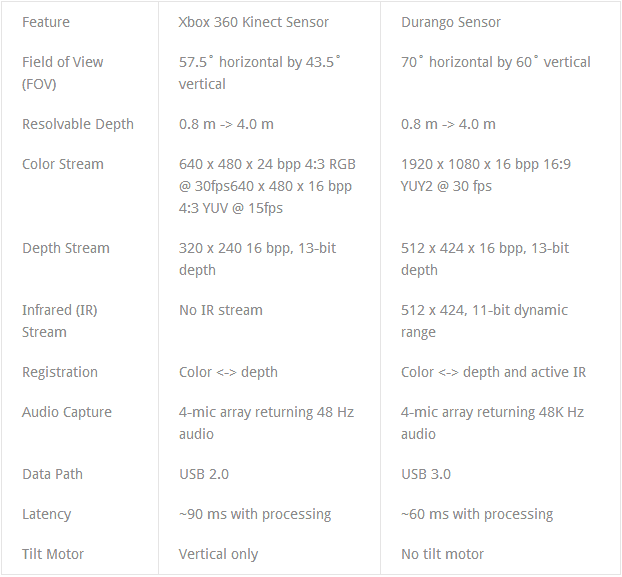
Codenamed as “Durango”, the next Kinect could be crucial to the upcoming Xbox 720, because gamers are looking for more interactive gaming methods. Of course, Durango or Kinect 2.0 will improve and will become “smarter”, being able to know and understand more about your movements. We won’t bother you too much and get right down to some possible and most important specs of Kinect 2.0, according to recent leaks. Do have a look at the more detailed picture below. Again, take this with a grain of salt, since nothing’s sure for the moment:
New mode for both seated and standing players
Will track up to six players, instead of only two
A much bigger field of view allowing for a much larger space to play
The RGB stream will be of higher quality and resolution
The sensor will be able to “understand” much smaller objects
Higher depth stream allows for objects separation in close depth proximity, captures depth curvature around edges better.
1920×1080 color stream, 512×424 depth stream, added infrared stream, USB 3.0, 60ms latency
If you didn’t know, hear it now: Kinect was and still is the fastest selling gadget of all time, managing to sell 10 million units in less than 4 months – 120 days! Really, really impressive! It will be really interesting to see how will Kinect 2.0 help Microsoft in its fight against Sony, as soon as Play Station 4 gets released.
The fact that the increased field of view will allow for up to 6 players is also awesome. Think about how developers will make use of this and what creative games will see the daylight thanks to this! I can’t wait, really. Kinect 2.0 will probably maintain the same form, without visible changes. Another interesting and helpful addition is the infrared sensor. What exactly does this mean? Well, that will be possible for Kinect 2.o to understand your body’s movements even under poor lighting conditions, or, if you want, even in the dark!
Kinect 2.0 will also be able to read the position of joints and will also detect sideways poses. This should allow for more evolved gaming and more complex movements. However, what we really, realy would like to see is a reduced latency. All users want that the time between their movement is made in real world and it appears on the screen to be as reduced as possible. So, let’s hope they will really improve that.
What I would recommend, without knowing if this is even possible, is for Kinect 2.0 to have a small moving camera that would be able to see even more in height. Currently, if we are to believe to these leaks it will increase its field of you in left, right and behind, if we can say so. Would be awesome to see it detect “above”, as well.
Rumors about Windows Blue have been circulating on the web for quite a while, mostly alimented by the fact that some are disappointed by Windows 8 and badly want an update to it. Thus, Windows Blue might be nothing more than simply a project with the mission of constantly updating Windows 8. Thus, if you ask me, it might only be an internal code and nothing with a final destination. It wouldn’t make any sense to have this in the “real world”.
People might get even more confused than they are and they might even perceive Windows Blue as a separate operating systems, as previously rumors have hinted. So, what is Windows Blue, after all? Is it an internal project name or it’s actually the next operating system after Windows 8 and Windows RT? Let’s dig up more details about each posibility.
Windows Blue is not the next Windows OS
Windows Blue: yearly updates for Windows 8
I’m putting this theory the first in line because, frankly, it’s the most plausible one. All the fuss started recently, when Microsoft posted a job opening on their website, looking for an engineer to join their Core Experience Team. What’s curious is that since then, the job opening has been closed, but here’s an excerpt of it:
We’re looking for an excellent, experienced SDET to join the Core Experience team in Windows Sustained Engineering (WinSE). The Core Experience features are the centerpiece of the new Windows UI, representing most of what customers touch and see in the OS, including: the start screen; application lifecycle; windowing; and personalization. Windows Blue promises to build and improve upon these aspects of the OS, enhancing ease of use and the overall user experience on devices and PCs worldwide.
So, what we can see from this description is that they’re looking for an engineer to improve upon already present aspects of the OS, which means that, indeed, Windows Blue is nothing more but mere speculation from the traffic-hungry technology outlets out there (we’re not included *cough*,*cough*). But it gets even more curious when we discover that this relates not only to Windows 8. Somebody on Twitter has managed to find a direct reference to Windows Phone Blue:
The next version of Windows Phone is still Windows Phone, thus this further enhances the idea that this will be nothing more but an update. Of course, it can be an important update, even an overhaul, perhaps, but, still, it might be just too much to call Windows Blue the next OS after Windows 8. What we do understand is that not only the internals will be changed but the interface and the direct user experience. Could it mean, for some, the reapparance of the Start Menu?
Another possibility is that Microsoft, as always, would want to cash in from these updates, thus, they could allow you to get the update if you’ll pay for it. And rumor has it that it won’t be too much, actually. And here it is finally starting to make sense. Microsoft is copying Apple, because, Apple’s plan is much more logical – yearly updates are a much better way to keep a strong link with the consumers. Thus, Microsoft might change its entire philosophy and Windows Blue will be, as we previously assumed, an internal system that will “push out” annual updates.
Also Read: Microsoft Uses the Best out of Google and Apple in their Windows 8 Strategy
Why wait for a few years for the next Windows to appear when you could have it year-by-year? And it doesn’t really make sense to “destroy” Windows 8. Windows 8 and Windows RT are made for the long run, they are made for a world full of tablets, ultrabooks, devices with touchscreens. And this tech revolution is only starting out. Microsoft will learn on the go from users and from the response of the market and they will convert their learnings into updates made to Windows 8 through Windows Blue. It’s logical.
Windows Blue is Microsoft’s shift in OS release cycles
I’m ready to make a bet here – Windows 8 will be Microsoft’s operating system with the longest lifespan, mainly because it will change along the way. It will permanently reinvent itself and when it will reach the moment when it will just be too different from the initial Windows 8, then we’ll step into a new OS. But we won’t sense it as a steep change, because we’ve been accustomed to it thanks to previous updates.
Steve wants to change things
Things move too fast, it is pretty hard to plan an operating system a few years ahead. Consumers need the change to happen now and they want it for cheap money. We don’t want to pay a lot for the Windows versions we know we could be easily getting on torrents. I know enough folks that didn’t made the jump to Windows 8 because it was very similar to Windows 7 and because it was expensive to do it. By releasing yearly updates, Microsoft will hit two birds with a stone – they will basically force users to ugprade to the newest version and thanks to the much lower price, they will still manage to have high sales.
The updates won’t be made just to core products, like Windows 8, RT or Windows Phone. Products such as Outlook or SkyDrive will also be constantly updated and improved. Windows Blue will be the “inside OS” where Microsoft engineers will envision what’s wrong and what’s bad and will act accordingly to the situation. And like this, Windows will still remain in the center of our tech lives.
Looking for a cool app that you can snap to the right or left and be able to easily translate words to and from various languages? Lingvo is a free app available for download and offers you instant access to high quality translation dictionaries.
“Lingvo gives you an instant access to high-quality translation dictionaries: Russian to English, Spanish, German, French, Italian, Portuguese, Latin, Kazakh, Ukrainian, and back. A great app for easy reading, writing and learning. Internet connection is required to view translations and listen to audio pronunciations,” the app description reads.
There are dictionaries for nine different languages with the ability to search the app to get accurate and up to date translations. You can even listen to pronunciations to hear how the words will sound and you can even search for synonyms and antonyms. This app utilizes the Snap feature in Windows 8 so you can easily pin this app to the left or right of your screen while you work. Hit the download link below to grab this app for Windows 8 or Windows RT.
The Surface Pro, powered by Windows 8 Pro, was officially launched online at MicrosoftStore.com, as well as BestBuy and Staples on Febryary 9th, and within a few hours, the 128GB model of the Surface Pro was already sold out at Microsoft’s online store. Microsoft revealed that it was working to replenish supplies but now has offered a bit more detail on when we can see a Surface Pro device available for purchase in stores again.
“In the U.S., we are shipping additional units of the 64GB SKU to Best Buy, Staples and Microsoft Store now. We are shipping 128GB SKU later this week to retailers, with some units available by the end of the week. Our priority (and that of our retail partners) is to fulfill orders from customers who made a reservation first. Canada is following a similar timeline but may take an extra few days to start arriving,” Microsoft stated in an official blog post.
So there you have it. In the US, expect to see the 64GB Surface Pro in the next day or so, and 128GB models by the end of the week. If you are in Canada and hoping to snag a Surface Pro, you may be waiting a bit longer.
File sharing has become a mundane task in the last few years, and with services like DropBox, YouSendIt, SkyDrive and similar ones, the possibilities are endless. And although these services are very good, there are others out there that work very well and offer users awesome features. One such service is ShareFile by Citrix, a service that has made a name for itself by offering users top notch file sharing services.
Citrix have recently launched their Windows 8, Windows 10 ShareFile app, which can be downloaded for free from the Windows Store and used pretty much like the desktop client we all know, but with some added features that were available on the web interface.
Overview of ShareFile by Citrix
After installing the app, users will have to log in to their accounts in order to gain access to their files. The login screen has a clean and simple look, with no graphics and most importantly, no ads. This clean interface is found everywhere within the app, making look very professional. Also, the lack of useless graphics and ads benefit the user by making for easier navigation experience.
All the different buttons of the app are are carefully placed in order to create a better environment for the user to work in and it seems that the developers have put a lot of work in the design of the app, creating a user interface that is also pleasing to watch, but also easy to work with. No element seems out of its place and they all come together to create a gorgeous app.
Navigation throughout the app is not something out of the ordinary, and being a version of the Modern UI file browser makes it look familiar to users. Also, as part of the UI, users have a search bar as well as Account and App Settings (these features are also accessible via the Charms Bar). Other options like Folder Settings, Add Folder, Upload Files, Delete or Send can be brought up by right clicking anywhere on the screen.
Individual files can be downloaded from the app as well, a feature that some other services have not integrated in their Windows 8, Windows 10 apps, and also, users can send files easily from within the app just by opening a file and right clicking on it. From here, all they have to do is fill in the recipient’s email address and they are ready to go (sharing is also possible via the Charms Bar ).
Furthermore, the app works very fast, and during our tests, we were surprised that the upload and download tasks finished without a hitch and with no compromise in the app’s overall performance. We would have liked to see some file management options within the app, such as the possibility to organize files in folders and move files from one location to another.
Although this is not a major drawback, we hope that the feature will be added in future updates. Other than this, we were very pleased with ShareFile by Citrix and we gladly recommend the app to every Windows 8, Windows 10 user. It has proven to be one of the best Windows 8, Windows 10 file sharing apps we’ve tested so far and its gorgeous design and great features will not go unnoticed by users.
A top notch app for a top notch service!
Today is February 12th, the day Microsoft releases security updates for this month’s Patch Tuesday. But for those who own a Surface RT, today is also the day Microsoft releases some non-security updates for Windows RT, including a fix for the pesky Connected Standby and WiFi issues that many users were experiencing.
As Microsoft has originally states, todays Patch Tuesday updates include a cumulative update that improves Surface WiFi reliability and connectivity. There is also an update to the bug that many users were reporting in regards to having problems downloading apps from the Windows Store. Windows RT would enter Connected Standby while updates were being downloaded from Windows Update, preventing users from downloading anything from the Windows Store.
There are also updates to address performance with the Windows, Volume, and Power buttons on the Surface RT, as well as improvements for Bluetooth audio playback quality and playback when users stream videos from Windows Media Center to Xbox consoles. Internet Explorer 10 will also see a security update addressing a Flash player vulnerability. If you are on a Windows RT device, head over to the Settings Charm, Change PC Settings, and check Windows Update.
Microsoft co-founder Bill Gates was on Reddit today in an Ask Me Anything session. During the session, Gates answered several questions regarding his work with the Bill & Melinda Gates Foundation, but also answered a few Microsoft related questions.
During the AMA session, Gates was asked if he owned a Surface Pro tablet. Gates responded by saying, “I just got my Surface Pro a week ago and it is very nice.” Gates also revealed that he uses an enormous (and expensive) Perceptive Pixel display, which is like a huge Windows 8 touch whiteboard:
Gates also revealed that WinFS was before its time. “We had a rich database as the client/cloud store that was part of a Windows release that was before its time. This is an idea that will remerge since your cloud store will be rich with schema rather than just a bunch of files and the client will be a partial replica of it with rich schema understanding.” For those that don’t know, WinFS is called Windows Future Storage and was supposed to make its debut during Windows Vista (codename Longhorn) but was postponed.
When asked if he preferred Windows 7 or Windows 8, Gates responded with a generic answer stating, “higher is better.” Another question came up asking if Gates really used Bing. His response? “Seriously Bing is the better product at this point. Try the challenge. I am biased but the work to make Bing better has been amazing.” Gates also mentioned that he has tried all of Apple’s products. “Microsoft does a lot of software for the Mac. I mostly use Windows machines but from time to time I have tried all of Apple products,” Gates explained. Gates also revealed that he would be involved in medicine or theoretical math if Microsoft never took off. “If the microprocessor had NOT come along I am not sure what I would have done. Maybe medicine or theoretical math but it is hard to say,” Gates responded.
You can hit the source to read the entire Bill Gates AMA session on Reddit, but we have highlighted the relevant Microsoft-related questions/answers here.
February 9th. The day the Surface with Windows 8 Pro was released and made available to the online Microsoft Store, as well as BestBuy and Staples. But February 9th is also the day the Surface Pro went out of stock (mostly the 128GB model), resulting in an out of stock crisis and frustrated customers.
“Customer response to the launch of Surface Pro has been amazing. We’re working with our retail partners who are currently out of stock of the 128GB Surface Pro to replenish supplies as quickly as possible. Our priority is to ensure that every customer gets their new Surface Pro as soon as possible,” Microsoft explained in an official blog post, hours after it was revealed that the Surface Pro 128GB was out of stock almost everywhere.
But frustration for the lack of stock has frustrated many potential buyers of the Surface Pro. When reading pretty much every comment that is made on every news report about the Surface Pro being sold out, the common consensus is that there just wasn’t that much of a quantity of Surface Pro devices available to be sold in the first place. With BestBuy and Staples having little to just one 128GB Surface Pro in stock, it makes you think about exactly what Microsoft had in mind. Why wouldn’t there be a plethora of Surface Pro devices available for consumers to purchase? As one angry consumer adds, this doesn’t show a lot of confidence in Microsoft’s product.
“Not exactly sure what happened, but hope Microsoft has enough respect for it’s customers to explain why essentially EVERY store across the nation is without a Surface Pro,” one consumer stated on the official Surface Pro blog.
“Hey I here you guys are looking for a PR director. I would have to guess you don’t have one after this mess. Oh, and a marketing distribution team. Seriously, how could you let this happen? I’m really hoping nobody there in Redmond said, “wait, let’s have just a few units shipped so we can gloat that we sold out.” Cause you know you’d get called out on that. Or did the snowstorm that had a convoy of trucks carrying 1.5 million units get held up? SOMETHING needs to be addressed. And silence only makes it worse. Please don’t belittle consumers with a “we’re working closely with our retailers to back fill stock.” At this point, the egg is on the face and you need to sweeten the pot with a free keyboard cover, or something. Make good on this guys. This is really bad. I want a pro, but more important, I want answers,” another consumer added.
“Your distribution model is a joke. I pre-ordered 5 of the 128GB surface pros at my local Best Buy. They got 0 to start with and do not know “if or when” they will be getting any. I called around to staples…they thought they might see their first ones on their Wednesday delivery truck. You guys seriously blew it and I am more than a little pissed. I would have pre-paid last year if given the option! Way to launch a product. Stocking 2-3units per store doesn’t show a lot of confidence in your product. I’ll wait until Wednesday and then I am moving on and buying something else for my staff,” another angry consumer stated.
Now, according to a recent report from Digitimes, Microsoft was only planning on having an initial shipment volume of one million Surface Pro units. This is obviously less than what Microsoft had planned with the Surface RT, which had an initial shipment volume of four million units. Could this be a factor in why the Surface Pro is already being sold out?
Another question is, how long will we have to wait before these retail outlets are fully stocked again? Hey Microsoft, we need answers!
We previously talked about Blocked In, a great puzzle game for Windows 8 and today we are taking a look at another very addictive puzzle game: Picture Logic. If you like math and puzzles, then this game will be just right for you. Many times, this game will put your brain to the test and you will wish for an extra hint or something to give you a clue.
Also, what seems pretty easy at start will rapidly turn into a struggle to get through each level. The game has a unique take on mathematical puzzles, proving challenging for just about anyone. There are two versions of the game, both free and premium available on the Windows Store.
Picture Logic for Windows 8
Although the name suggests that the game revolves around images, from the first level you will notice that it is not as you have imagined. The entire purpose of the game is to complete a matrix by clicking on the correct boxes. When you get it right, at the end of the game, the dots (or stones) will create an image (look closely for it, as it is not that obvious).
The player’s aim is to find all the stones without clicking on the wrong boxes, which will become quite difficult later on, when the grid gets larger. The player is allowed 3 misses and has at his disposal 3 clues (these can be changed from the settings charm to time penalties). The trick in clicking on the right boxes is to interpret the numbers of each row and column, which will tell you how many stones are on each.
The game is somewhat similar to the classic Minesweeper or Sudoku games, but it has its own unique twist. Also, the player has 100 levels to test his skills in finding the solution to each puzzle. The levels are categorized by the type of solution (image) it represents, and they can be:
Basic
Letters
Nature
Items (Premium)
Activities (Premium)
Animals (Premium)
And each of these categories is divided into different difficulties ranging from Very Easy and all the way up to Hard, each of these difficulties having anywhere from 1 to 25 levels each. As you can see, it provides users with many levels, ensuring that those who like the game will not get bored with it very soon.
Also, one very attractive feature is to ”Create your own level”, where players have the possibility to put their imagination to the test and come up with a level that will make others scratch their heads. The created levels can be saved and submitted to the developer for later implementation in the game.
Overall, Picture Logic for Windows 8 is a great game, having simple but also quality textures and graphics. It can be lots of fun for those who like puzzle games and thanks to its attention to details and rich content, it is a perfect way to spend an afternoon. We definitely recommend this game to anyone in search of a way to stimulate their brain.
Microsoft has launched a new website at Scroogled.com to help consumers “have their voice heard” and to get the message to Google that going through personal email messages to sell advertisements is unacceptable. This is yet another anti-Google campaign from Microsoft.
“Today, Outlook.com launched Don’t Get Scroogled by Gmail, a national campaign at https://www.scroogled.com to educate Americans about Google’s practice of going through the contents of all Gmail emails to sell and target ads,” Microsoft stated in an official press release. Microsoft continues to encourage users to switch over to Outlook.com for better privacy. According to Microsoft, Google goes through your personal Gmail messages and uses that information to target and sell advertisements. If you head over to scroogled.com, Microsoft mentions that “Outlook.com prioritizes your privacy. You won’t see ads based on keywords from your personal email.” Microsoft also offers up examples as well as two different studies that shows how Google “scroogles” its email users. Hit the source link to read Microsoft’s official press release regarding the new campaign.
In a Reddit “ask me almost anything” question and answer session, Microsoft’s Surface team answered a barrage of questions regarding the upcoming Surface Pro device. One of the questions asked was in regards to installing any other operating system on the Surface Pro. Microsoft’s answer? You can do it!
“For the Surface Pro….is the boot loader unlocked? Can I do what I want with my (potential) property? Or am I locked in to Windows 8?” a question that Microsoft’s Surface team was asked. Microsoft suggested turning off secure boot in the device’s BIOS to load any other operating system. “Like other Windows 8 machines, you can access BIOS settings and turn off secure boot, enabling you to load other OSes,” Microsoft replied. For those who are not familiar with Secure Boot, the idea is pretty simple. Since the boot process is vulnerable to attacks or malicious loaders due to the fact that they can remain undetected to the operating system security measures and anti-malware software, Secure Boot ensures that only properly signed and authenticated components are allowed to execute. In other words, the system knows what files are being loaded by Windows 8 before you even reach the login screen.
This is great news and opens up a wide variety of possibilities for the hacker/developer community. While it should come as no surprise, considering that the Surface Pro is a full fledged computer, just in a different form factor, the ability to have a different operating system should be well accepted by those who want to use something other than Windows 8. It will be interesting to see what sorts of reports and videos surface (no pun attended) showing the Surface Pro running Linux or any other operating system aside from Windows 8.
When it comes to gaming, not much credit is given to developers that create Blocked In for Windows 10, Windows 8/RT. This free game available on the Windows Store can put anyone’s brain through a thorough exercise. And although there are many other games that go by the same principle, Blocked In has the perfect combination of great aesthetics and gameplay.
How good Blocked In for Windows 10, Windows 8?
First of all, let me start off by saying that for a free game, Blocked In has a lot to offer. Almost all other free apps contain ads or other promotional material, or they are only demos for the paid versions. This is not the case with Blocked In.
During the entire time we were testing of the app, not one single ad was see and we had access to all the levels that the game has. This makes for a much better playing experience and it ensure that the player’s attention is not taken away from the game at any point.
Also, the overall look of the game quite good, having quality textures and the blocks are very responsive to the touch. Also, the game is perfect for playing on a Windows 8, Windows 10 computer as well, thanks to the smooth movement of the blocks.
The game offers its users a large collection of levels, categorized by difficulty and two game modes. The normal mode is where each move is counted and the player has to finish the level with as few moves as possible and the relaxation mode is for those that want to experience the game without having to worry about how many moves the have made.
Overall, Blocked In is a awesome Windows 8/RT, Windows 10 game that fans of this type of game will definitely enjoy. It offers premium content for free, no ads and a very aesthetically pleasing experience. He highly recommend the game to every puzzle lover out there!