
Manage Privacy Settings in Microsoft Edge: Step by Step


 3 min. read
  Published on

If you want to keep your browsing data private, Microsoft Edge includes built-in privacy tools that let you control tracking, cookies, and data sharing. Follow this guide to manage privacy settings step by step.
Table of contents
How to Manage Privacy Settings in Microsoft Edge?
How to Open Privacy Settings in Microsoft Edge
Start by accessing the main privacy menu where all key options are located.
- Launch Microsoft Edge by clicking the Start button and selecting it from your list of apps.
- Click the three dots (⋯) in the upper-right corner, then select Settings from the dropdown menu.
- In the left sidebar, click Privacy, search, and services to view all privacy and security options.
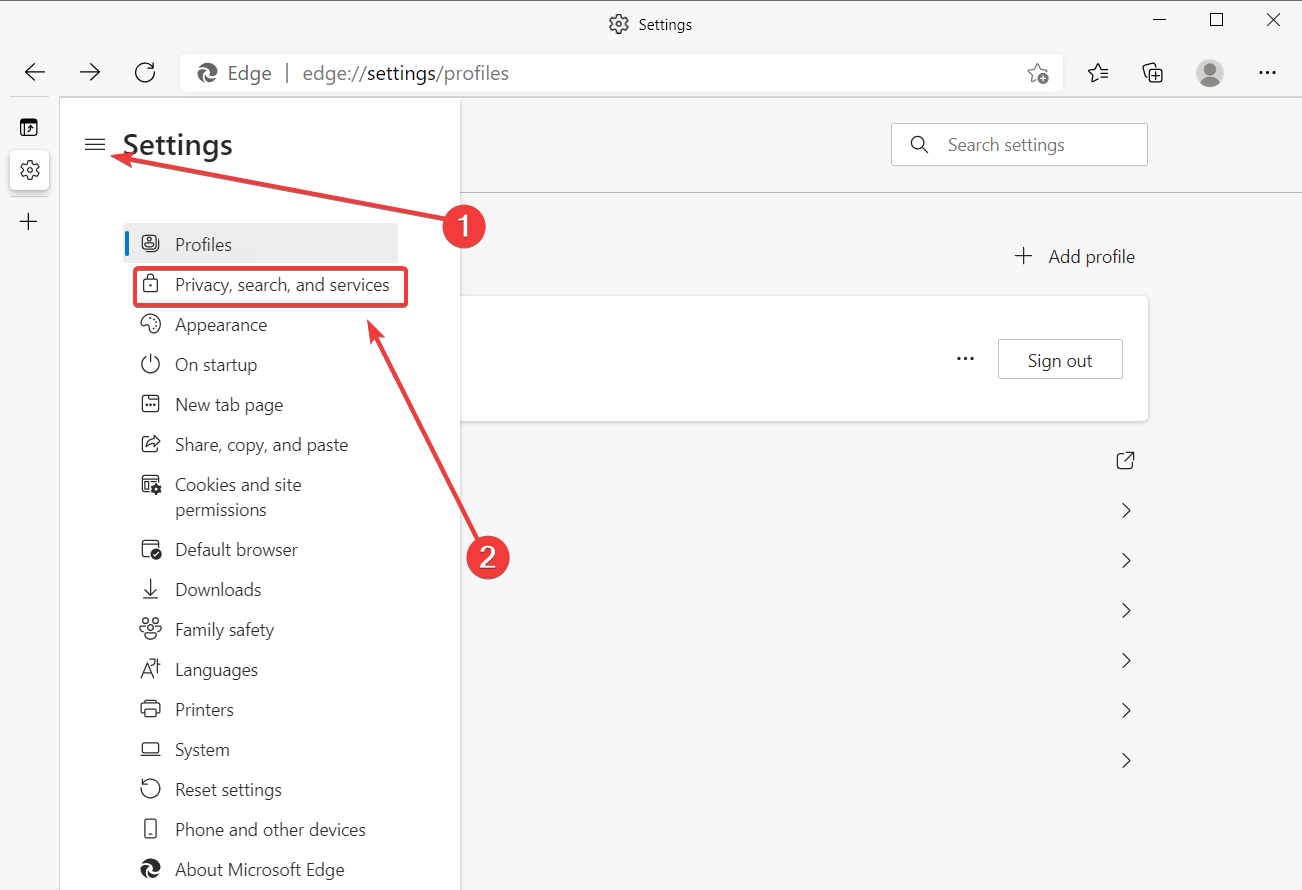
For a full walkthrough on private browsing, see how to make Microsoft Edge private.
How to Adjust Tracking Prevention in Edge
Modify your tracking level to decide how much data websites can collect while you browse.
- Under Tracking prevention, choose your preferred level:
- Basic allows most trackers and personalization.
- Balanced blocks harmful and cross-site trackers (default).
- Strict blocks most trackers for maximum privacy.

- Click Exceptions to allow certain trusted sites to bypass your tracking settings.
Learn more about optimizing privacy and search settings in how to set up Microsoft Edge for privacy.
How to Clear Browsing Data in Edge
Use this feature to delete your history, cookies, and cache for better privacy and performance.
- In Settings, go to Privacy, search, and services and scroll down to Clear browsing data.
- Click Choose what to clear.
- Check the boxes for Browsing history, Cookies, or Cached images.
- Select a time range, then click Clear now.

How to Manage Cookies and Site Permissions
Control which sites can store data or track your online activity.
- Open Cookies and site permissions in the left sidebar.
- Click Manage and delete cookies and site data.
- Toggle Block third-party cookies for better privacy.

- Optionally, allow specific sites if you trust them.
How to Use Secure Browsing Features
Enhance your security by turning on built-in protection and encryption tools.
- Turn on Microsoft Defender SmartScreen:
- Open the Security section in Settings.
- Enable Microsoft Defender SmartScreen to block phishing and malicious sites.
- Enable HTTPS Mode:
- In the Security section, toggle Automatically switch to HTTPS for all websites.
- Check Password Security:
- Go to Settings > Profiles > Passwords.
- Use Password Monitor to get alerts if your credentials are leaked.
If you want more control over your browsing experience, check out how to change the default search engine in Microsoft Edge.
FAQs
Quick answers to common privacy questions in Edge.
Yes. Open a new InPrivate window with Ctrl + Shift + N or select it from the menu.
Yes. Go to Settings > Profiles > Passwords and turn off Offer to save passwords.
Clear it weekly or enable the option to delete data automatically when you close Edge.
Yes. Sign in with your Microsoft account and enable Sync to apply privacy preferences across all your devices.
Conclusion
Managing privacy settings in Microsoft Edge helps you stay secure and in control of your data. By adjusting tracking levels, clearing browsing data, and enabling built-in protection, you can enjoy a safer, faster, and more private experience online.

Read our disclosure page to find out how can you help Windows Report sustain the editorial team. Read more



Improve this guide

User forum
0 messages