
How to Reopen Tabs After Restart in Chrome, Edge, Firefox


 3 min. read
  EEST
EEST
If your browser stops restoring tabs after a reboot, you can fix it by adjusting the session settings. Every major browser lets you reopen previous windows automatically, and turning this on ensures you never lose tabs unexpectedly.
Table of contents
Restore Browser Tabs After Restart?
Enable session restore in Google Chrome
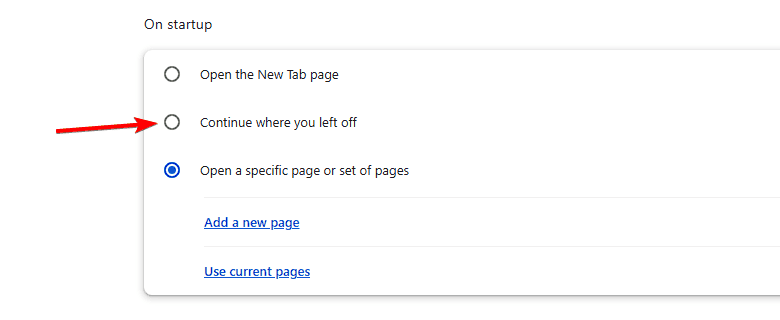
Chrome may start with a blank page when the startup setting does not reopen the last session. Switching to the option that restores tabs allows Chrome to reload everything from your previous browsing session.
- Open Chrome
- Click the three dots in the top right corner
- Select Settings

- Click On startup in the left sidebar
- Select Continue where you left off

- Close and reopen Chrome to confirm that tabs return

Enable session restore in Mozilla Firefox
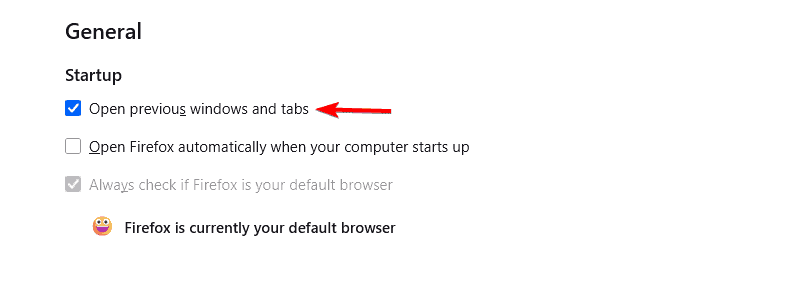
Firefox can open with a homepage instead of your last session if the startup behavior is not configured correctly. Adjusting the setting ensures Firefox remembers and restores your windows and tabs.
- Open Firefox
- Click the three horizontal lines in the top right corner
- Select Settings
- Click General
- Scroll to Startup
- Enable Open previous windows and tabs

- Restart Firefox to test the change
You can read guidance on what to do when the restore previous session is not working in Firefox for additional fixes.
Enable session restore in Microsoft Edge
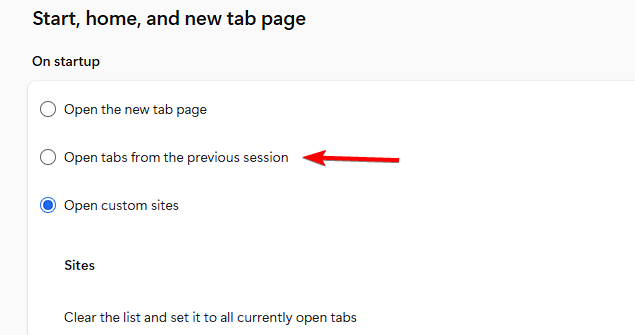
Edge may load a clean window instead of your previous session if the startup configuration is set incorrectly. Choosing the option that restores old tabs ensures your browsing session returns after every reboot.
- Open Edge
- Click the three dots in the top right corner
- Select Settings
- Choose Start, home, and new tabs
- Select Open tabs from the previous session under When Edge starts

- Restart Edge to verify the fix
If Edge still loses tabs, you can check how to restore your previous session in Edge for more help.
Enable session restore in Opera
Opera usually loads the Speed Dial page unless you tell it to open previous tabs. Changing the startup setting allows Opera to restore your last session without additional tools.
- Open Opera
- Click the Easy Setup icon in the top right corner
- Scroll down and select Go to full browser settings
- Navigate to On startup
- Select Retain tabs from previous session
- Restart Opera to confirm the change
If your tabs vanish in similar browsers, you may also review how to reopen closed tabs when they disappear in Edge.
FAQs
The session restore setting was likely turned off or the browser closed unexpectedly.
No. Chrome, Firefox, Edge, and Opera already include built-in session restore features.
The browser may clear data on exit or close abruptly, which prevents it from saving your last session.
Most browsers can reopen tabs automatically once the correct startup option is enabled. Updating these settings ensures you keep your browsing session intact after a restart or unexpected shutdown.

Read our disclosure page to find out how can you help Windows Report sustain the editorial team. Read more



Improve this guide


User forum
0 messages