
Sengled Home App Not Working? 6 Fixes to Try Right Now


 3 min. read
  Published on

The Sengled Home app not working can stop you from controlling your smart lights and devices. Luckily, most issues can be fixed with simple steps.
Table of contents
What can I do if Sengled Home app is not working?
1. Check Your Internet Connection
A weak connection often prevents the Sengled Home app from working.
- Confirm your phone is connected to Wi Fi.
- Restart your router or modem.
- Switch to mobile data to see if the problem is with your home network.
2. Update the Sengled Home App
Running an outdated version may cause glitches.
- Open the App Store or Google Play Store.
- Search for Sengled Home.
- Tap Update if a new version is available.
- Relaunch the app and test it again.
3. Clear Cache and Data
Corrupted app data can stop the app from running smoothly.
- On Android, go to Settings > Apps > Sengled Home.
- Tap Storage and select Clear cache.
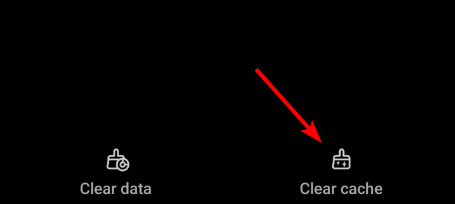
- If issues persist, select Clear data.
- On iPhone, uninstall and reinstall the Sengled Home app.
4. Restart Your Device
A simple reboot often resolves temporary conflicts.
- Turn off your phone completely.
- Wait at least 10 seconds.
- Power it back on.
- Open the Sengled Home app to check if it works.
5. Check Sengled Server Status
Sometimes the issue is caused by Sengled servers.
- Visit Sengled’s official website.
- Check their social media channels for outage updates.
- Wait for Sengled to restore services if servers are down.
6. Re add and Reset Devices
Re adding devices may fix deeper connectivity problems.
- Open the Sengled Home app and remove the problematic device.
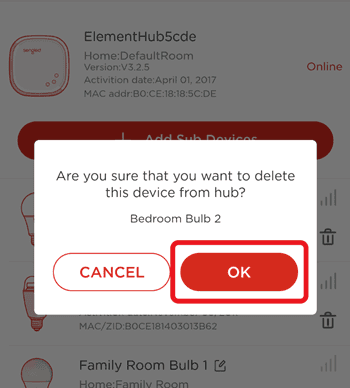
- Reset the bulb or hub by turning it off and on 10 times until it flashes.
- Re add the device to the app following the pairing instructions.
- Test if the app responds properly.
If your issue extends to Alexa integration, see this detailed guide on Sengled not working with Alexa for additional fixes.
For broader issues, review the full guide on Sengled not working for more help.
FAQs
It may crash due to outdated software, corrupted cache, or poor internet connection. Updating the app and clearing cache usually helps.
Yes. You can control some Sengled bulbs with voice assistants like Alexa or Google Home, but advanced settings require the app.
Turn the bulb off and on quickly at least ten times. It should flash three times, confirming a reset.
No. The app requires a stable Wi Fi or mobile data connection to connect with your devices and the Sengled cloud.
Conclusion
Troubleshooting the Sengled Home app is straightforward when you follow these steps. From checking your internet to reinstalling the app or resetting your devices, most issues can be resolved quickly. If problems continue, use the linked Sengled guides for targeted solutions.

Read our disclosure page to find out how can you help Windows Report sustain the editorial team. Read more



Improve this guide



User forum
0 messages