
How to Add a SharePoint Site to Favorites (Quick Guide)


 3 min. read
  Published on

Adding a SharePoint site to your favorites helps you access important workspaces faster without searching through your entire organization’s list. Here’s how you can do it quickly and efficiently.
Table of contents
How to Add a SharePoint Site to Favorites?
Steps to Add a SharePoint Site to Favorites
Follow these simple steps to pin your favorite SharePoint sites for faster access.
- Open Microsoft 365 and select SharePoint from the app launcher or top menu.

- On the SharePoint homepage, browse the Frequent sites or Following section to locate your site.
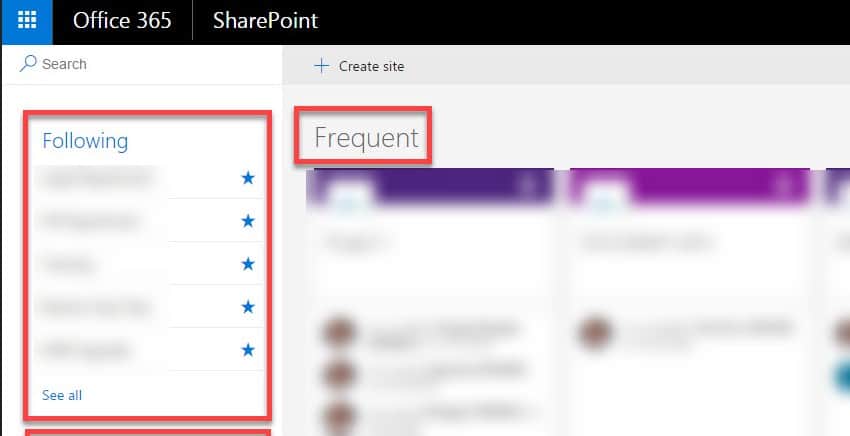
- Hover over the site name and click the star icon or select Follow.
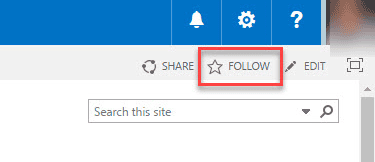
- The site will now appear under Following on your SharePoint start page and left navigation panel.
- If you use the SharePoint mobile app, open the site and tap the star icon at the top to mark it as a favorite.
Once you follow a site, SharePoint automatically prioritizes it on your homepage and syncs the shortcut across your devices. If you need to manage permissions afterward, you can remove access for specific users in SharePoint to keep your site secure.
How to View or Manage Your Favorites
After adding sites to your favorites, you can easily view and manage them in SharePoint.
- Go to the SharePoint home page from your Microsoft 365 dashboard.
- Select the Following tab to view all your favorite sites.
- To remove a site, click the star icon again or select Unfollow.
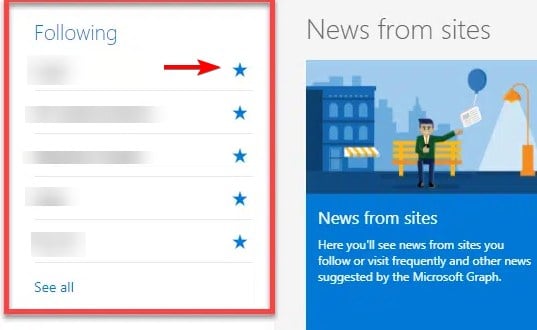
- Your changes will reflect instantly on both desktop and mobile devices.
If you are syncing files from your site to your PC, consider reviewing how to unsync a SharePoint folder to keep your storage organized.
Why Add a SharePoint Site to Favorites
Favoriting or following SharePoint sites saves time by allowing instant access to high-priority workspaces. It is useful if you manage multiple projects or departments. Your favorite sites also show up in other Microsoft 365 apps like Teams or Outlook, which helps you collaborate more effectively.
When you no longer need a workspace, it is best to clean up your dashboard. You can delete an unused SharePoint site to keep your environment clutter free.
To further improve how you organize and track shared information, learn how to create a list in SharePoint and keep important data structured across your sites.
FAQs
You can pin document libraries and lists to Quick Access or bookmark them in your browser for similar convenience.
Yes, your followed sites appear across desktop, web, and mobile versions when signed in with the same Microsoft 365 account.
Absolutely. You can follow as many sites as you want, and they will all be listed under the Following section.
If you cannot see the Follow button, your organization’s SharePoint admin may have disabled the feature. Contact your IT department for assistance.
Conclusion
Adding your most used SharePoint sites to favorites is a simple way to stay productive and organized. Whether you are managing a project, accessing team files, or collaborating across departments, following a site ensures that your key resources are always one click away.

Read our disclosure page to find out how can you help Windows Report sustain the editorial team. Read more



Improve this guide




User forum
0 messages