
How to Delete a SharePoint Site Step by Step


 3 min. read
  Published on
Deleting a SharePoint site helps you remove unused spaces and keep your organization tidy. Follow these simple steps to delete a SharePoint site safely.
Table of contents
How to Delete a Site in SharePoint?
How to Delete a SharePoint Site
Before deleting, ensure you have site owner or admin permissions.
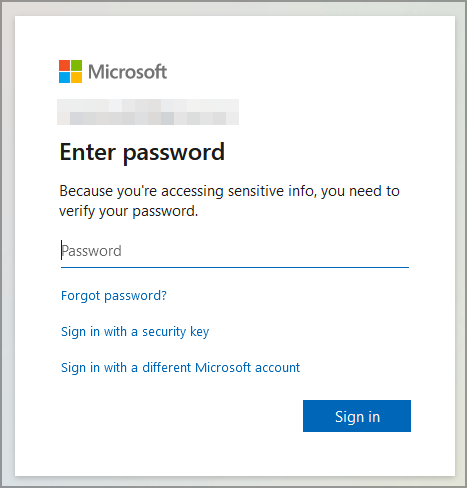
- Open your SharePoint site and sign in with your Microsoft 365 account.
- Click the gear icon in the top-right corner and select Site Information or Site Settings.

- Under Site Actions, choose Delete this site.
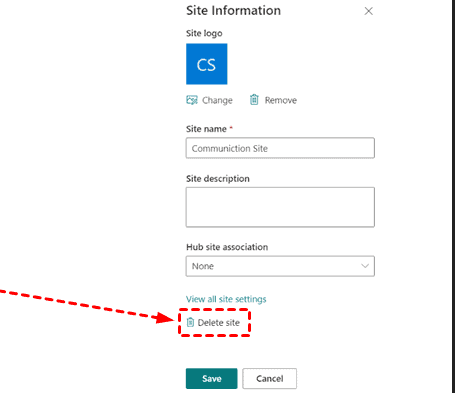
- Confirm the deletion when prompted to move the site to the recycle bin.
- Go to the SharePoint Admin Center, open Recycle Bin, and permanently delete it if needed.
Once deleted, the site remains in the recycle bin for 93 days before being permanently removed.
Need help managing your document libraries before deleting a site? Check out how to create a folder in SharePoint to organize files first.
How to Delete a Site Collection in SharePoint Admin Center
If you manage multiple sites, follow these steps to delete an entire collection.
- Visit https://admin.microsoft.com and log in with your admin credentials.
- Open Admin Centers and select SharePoint.
- Go to Sites > Active sites.

- Select the site collection you want to remove.
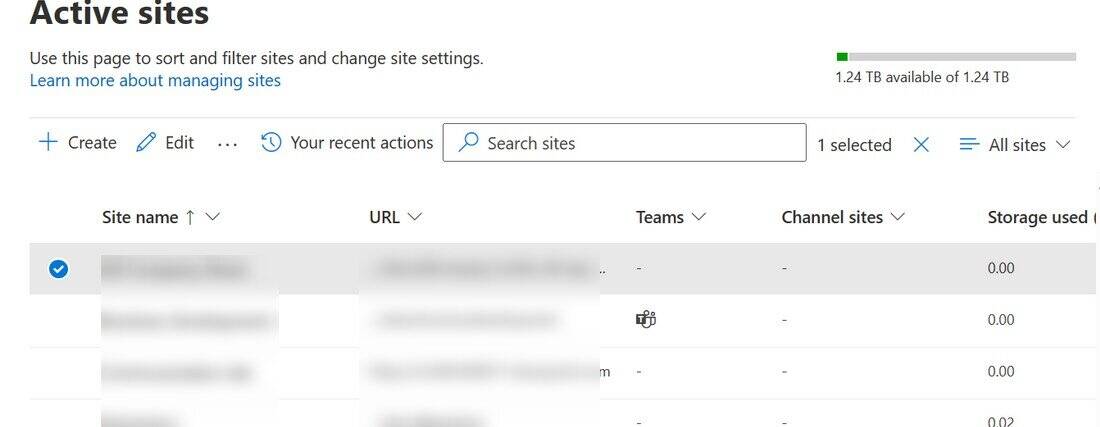
- Click Delete, then confirm to move it to the second-stage recycle bin.
Deleting a site collection removes all subsites, libraries, and permissions, so proceed carefully.
Before removing large collections, see how to create a SharePoint site to rebuild or migrate your data safely.
What Happens After Deleting a SharePoint Site?
After deletion, SharePoint moves the site to the recycle bin for 93 days. During that time, you can restore it if needed. Afterward, it’s permanently deleted from Microsoft’s servers.
Regularly cleaning up unused sites improves navigation and performance across your organization.
Before removing a site completely, you may also want to disconnect it from OneDrive sync. Learn the simple steps in this guide on how to unsync a folder in SharePoint.
After removing unnecessary sites, you can stay organized by adding your active SharePoint sites to favourites for quicker access in the future.
FAQs
Yes. You can restore it from the SharePoint Admin Center within 93 days of deletion.
Only site owners or administrators can delete a SharePoint site or collection.
Yes. All documents, lists, and pages stored in that site are deleted.
All site permissions and group memberships tied to that site are removed once the site is deleted.
Conclusion
Deleting old or unused SharePoint sites is an effective way to keep your workspace organized and secure. Always double-check for important files before confirming deletion and use the Admin Center for large-scale cleanup.
If you’re new to SharePoint management, learn more about how to use SharePoint to handle your sites efficiently.
Need to restrict access rather than delete the site? Learn how to remove access to someone in SharePoint to keep content online while limiting who can open it.

Read our disclosure page to find out how can you help Windows Report sustain the editorial team. Read more



Improve this guide




User forum
0 messages